Table of Contents
This updated guide explains how to run old software on Windows 11 with clear steps, practical tips, and useful context. Compatibility mode is a Windows 11 feature that simulates older versions of Windows for installed programs. This feature lets you run older software on your Windows 11 computer without encountering problems.
How to Runn Old Software on Windows 11
Step 1:
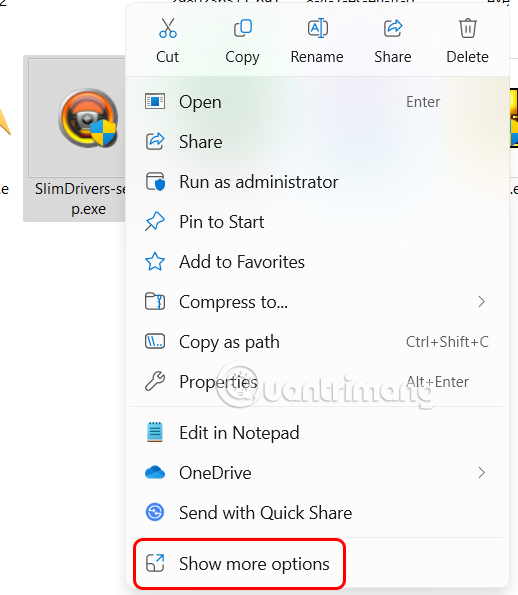
Right -choose on the software then select Show more options to open below the interface.
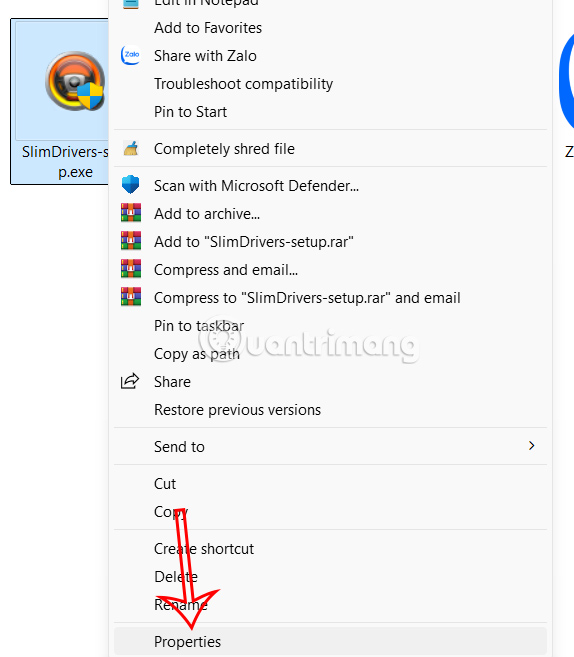
Next we select Properties in the displayed list.
Step 2:
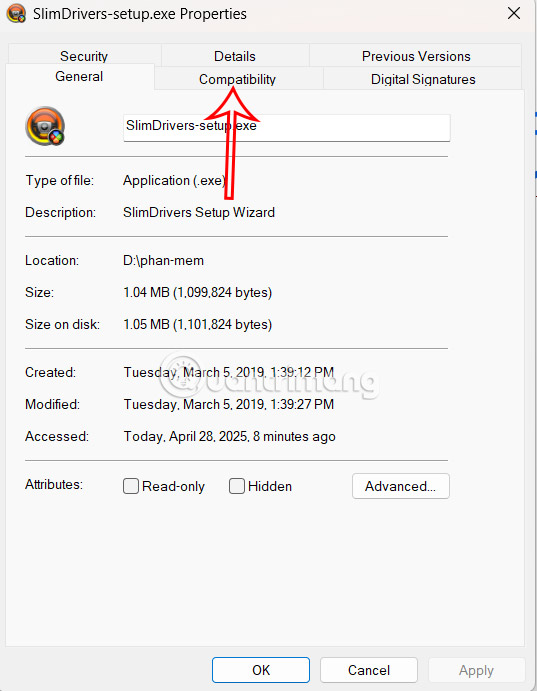
open the new interface, select the Compatibility tab to adjust the compatibility mode when running this software.
Now you need to select Run This Program in Compatibility Mode For and then choose Windows 8, Windows 7, Windows Vista, Windows Vista Windows Vista in the list showing the Windows version you want to launch the program.
You can configure other compatibility options on the same window.
- Reduced Color Mode: Uses 16-bit color palettes for older programs.
- Run in 640 x 480 Screen Resolution: This feature reduces the screen resolution of older apps and games.
- Disable Fullscreen Optimizations: Fixes display performance issues.
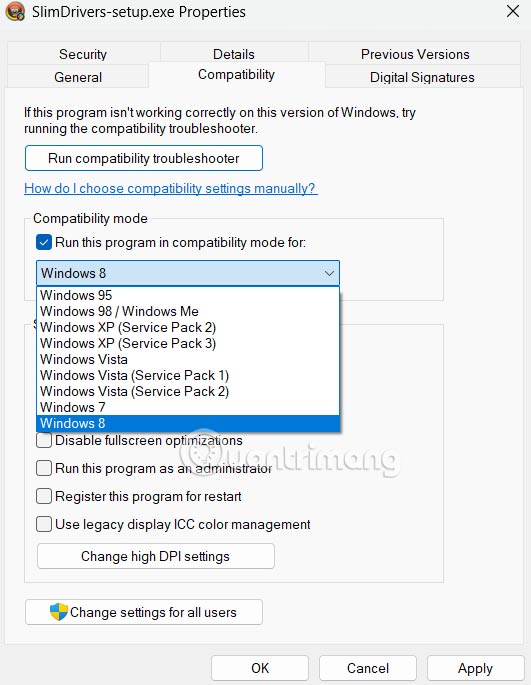
Finally, choose Apply to execute. To launch your program in compatibility mode, double-select the program shortcut. It will run according to the settings you configured above.
What If the Software Does Not Run in Compatibility Mode?
Use the compatibility troubleshooter
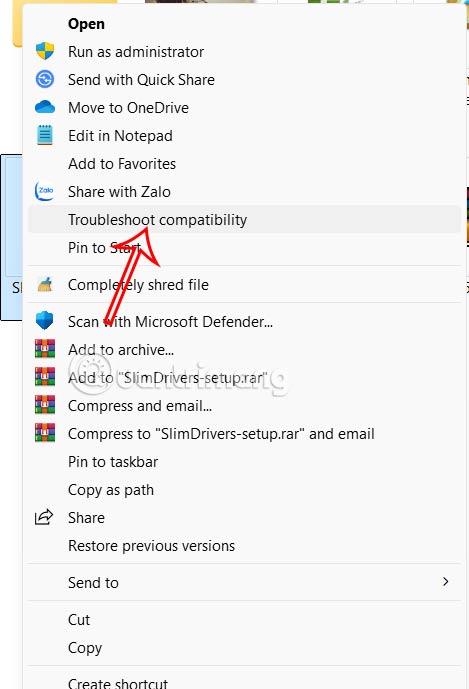
Windows 11 has a compatibility troubleshooter that lets you find and fix compatibility issues with your programs. Right-choose the software, select Show More Options > Run Compatibility Troubleshooter .
Using virtual machine
If you are using an extremely old application or game, it is better to run it in a virtual machine.
- How to Create a Windows 10 Virtual Machine with VMware Player and VirtualBox
Check for software updates
Check to see if the software has an update to run on Windows 11.
FAQ
What should I prepare before I run old software on windows 11?
Review the requirements and options in the guide first. Having the correct device, app version, account access, or materials ready helps prevent avoidable errors.
How long does it take to run old software on windows 11?
The time depends on the task and your setup. Most basic steps can be completed quickly, while downloads, updates, scans, or troubleshooting may take longer.
What should I do if the steps do not work?
Repeat the instructions in order, confirm that your software or device is supported, and check permissions, connectivity, and available updates before trying again.
Related Articles
 7 Best AI Software Programs That Can Be Installed on Windows5 minutes read
 The Best Free PDF Software on Windows and Mac7 minutes read
 How to Run Linux Software: 7 Ways to Run Linux Software on9 minutes read
 10 Best Free CAD Software for Windows 106 minutes read
 How to Run Games, Old Software on Windows 10, Adjust Old Software to Be5 minutes read
 7 Ways to Remove Software and Applications on Windows 8 //7 minutes read
Reader Comments 0
Sign in with email or Google to join the discussion.