Table of Contents
Pasting text is the quickest way to create a NotebookLM source when your material is not already in a supported file or web page. The pasted content becomes a source inside the notebook, where you can ask questions, create notes and generate available Studio outputs.
Before you paste the text
Use content you own or have permission to process. Remove passwords, private identifiers, confidential business information and any material that does not belong in an online service. Keep useful headings, lists and paragraph breaks because structure makes the source easier to review.
Create a notebook from copied text
1. Open NotebookLM
Go to NotebookLM and sign in with an account that is authorized to store the material. Access, limits and interface labels can vary by account and product update.
2. Start a new notebook
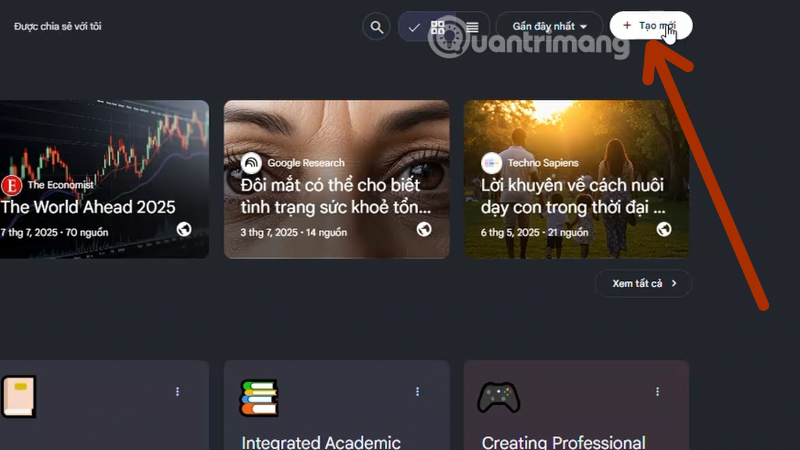
From the NotebookLM home screen, select Create new, New notebook or the equivalent current control.
3. Select the pasted-text source option
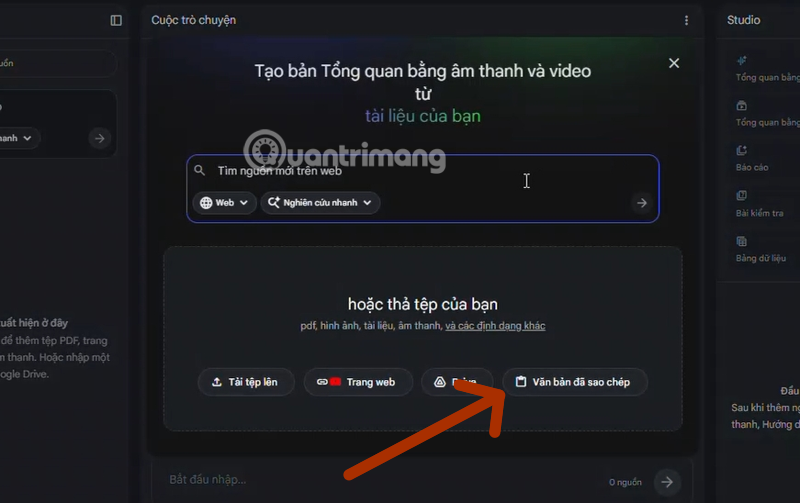
In the add-source window, choose Paste text or Copied text. A written note is not always the same as a source: select the source option when you want NotebookLM to ground answers in the pasted material.
4. Paste and label the content
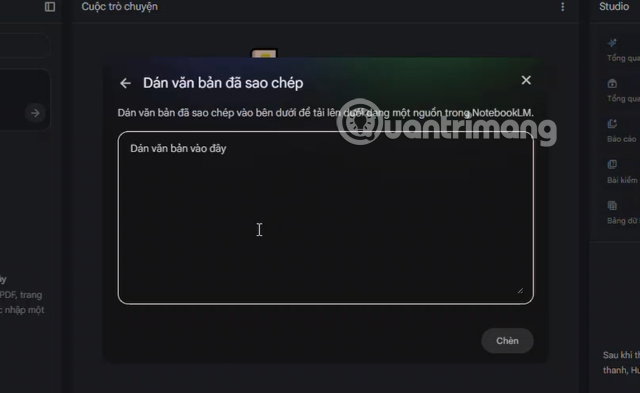
Paste the full text into the input area. Give the source a descriptive title that identifies its subject or origin, such as Interview notes — customer onboarding or Chapter 3 — network security. If the content came from a publication, retain the author, title, date and URL in the pasted text so its origin is not lost.
5. Add the source
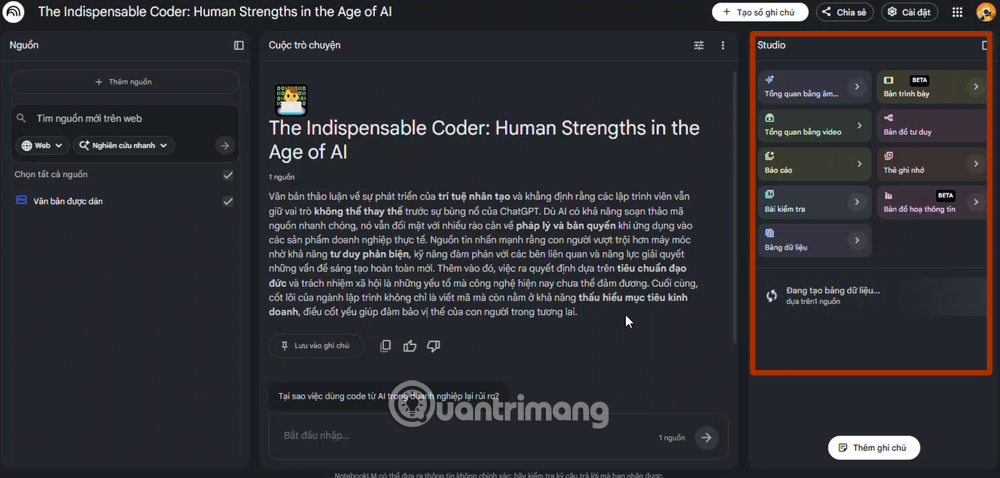
Select Insert, Add or the current confirmation button. Wait for NotebookLM to process the text, then open the new source and confirm that its beginning, ending, headings and special characters were imported correctly.
Make the pasted source easier to use
- Use a focused source: separate unrelated topics instead of combining them in one paste.
- Preserve structure: keep headings, labels, dates and speaker names where they carry meaning.
- Record provenance: include the source title and URL when the text came from elsewhere.
- Check the import: verify that nothing was cut off or converted incorrectly.
- Name the notebook clearly: use a stable topic or project name rather than a temporary date-only title.
For long material, use a supported document source when it preserves the original structure better than a large paste. Current size and source-count limits depend on the NotebookLM plan, so rely on the limits shown in your account instead of an old fixed number.
What to do after importing
Start with a verification prompt such as:
List the main sections in this source and summarize each in one sentence. Include a citation for every section and identify any passages that appear incomplete or ambiguous.Open several citations and compare them with the source. After that check, you can create a structured note, study guide, flashcards, quiz or Audio Overview when those outputs suit the material.
For an overview of additional output types, see NotebookLM's newer features. If you are building a long-term collection rather than a single notebook, this guide to an AI-assisted second brain explains how to organize sources and notes for later retrieval.
Related Articles
 Instructions on Creating Flashcards and Quizzes on NotebookLM5 minutes read
 Instructions for Creating Reading-style Readings Using NotebookLM4 minutes read
 How to Create a New Notebook Directly in Gemini5 minutes read
 Instructions on Converting Lessons into Videos on NotebookLM4 minutes read
 Create Data Tables at Lightning Speed in NotebookLM5 minutes read
 How to Create Infographics with AI Simply: Step-by-Step Guide7 minutes read
Reader Comments 0
Sign in with email or Google to join the discussion.