Table of Contents
Notebooks in Gemini provide a dedicated workspace for a continuing project. A notebook can keep relevant chats, instructions, and sources together, and it syncs with the standalone service formerly called NotebookLM, now named Gemini Notebook. This makes it possible to work with the same source collection in either product.
The feature is still rolling out. Google's current requirements include being 18 or older, signing in with a personal Google Account, and connecting Gemini Notebook. Work and school account availability differs. Some capabilities—such as notebook memory, auto-saved chats, Drive sources, and study notebooks—also require Keep Activity to be on.
Open an existing notebook from Gemini
Expand the Gemini sidebar and look for Notebooks. Select the section to view notebooks associated with the same Google account.
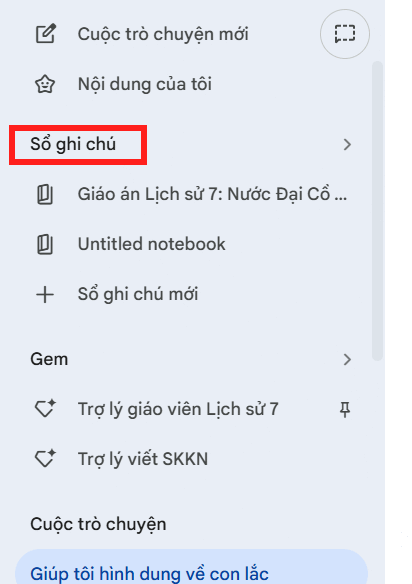
The list can include notebooks created in the standalone Gemini Notebook experience. Shared notebooks may not appear in the list even when Gemini can provide a link to them.
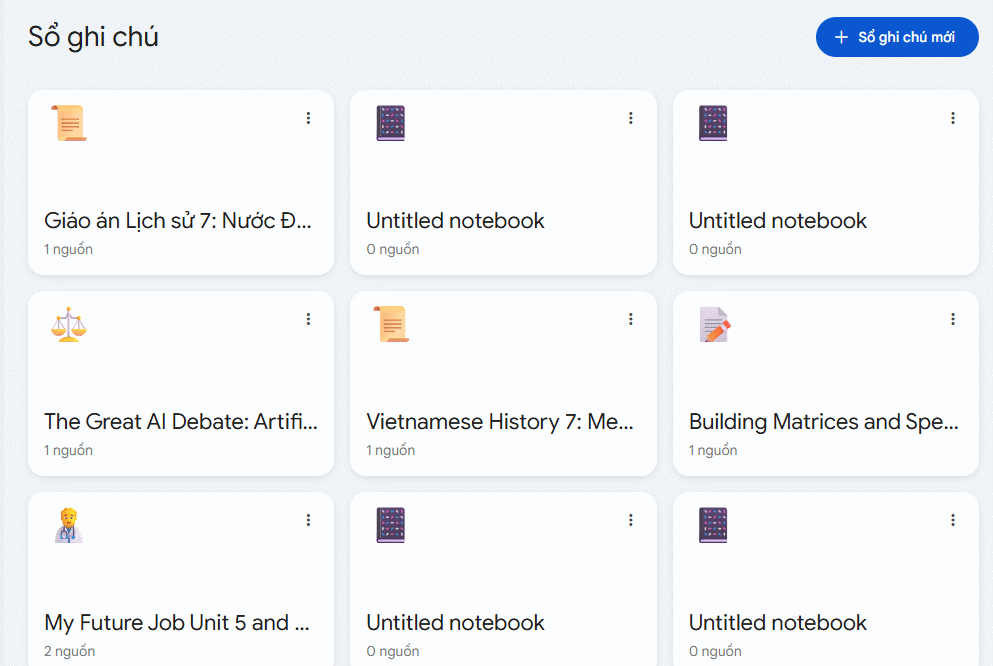
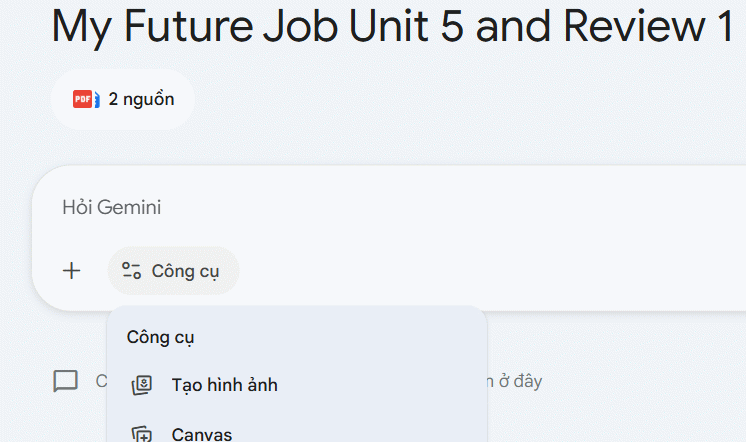
Open a notebook to see its sources and continue the project. A notebook chat can use the chosen sources together with Gemini tools and web search, so make it explicit when an answer must be limited to the uploaded evidence.
Create a new notebook in Gemini
1. Name the project clearly
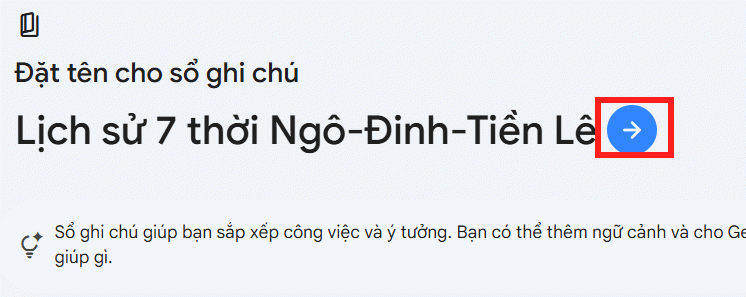
Select New notebook in the sidebar. Enter a name that identifies the outcome or subject, such as Kitchen Renovation Research or Biology Final Review, then continue with the arrow or create control.
You can also ask Gemini to create or manage a notebook through the connected app by including @Gemini Notebook in the prompt. If the app is not connected, Gemini should offer the connection flow.
2. Add the sources the project should use
Open Sources or choose Add sources. Add only material relevant to the notebook's purpose.
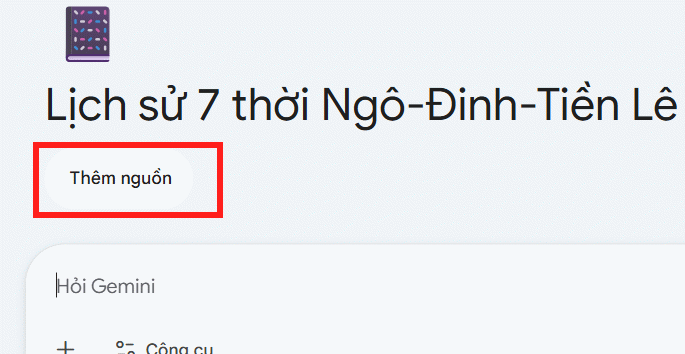
Available source types can include uploaded files, Google Drive items, pasted text, web pages, public YouTube URLs, and other options supported by the current account. Limits vary by plan.
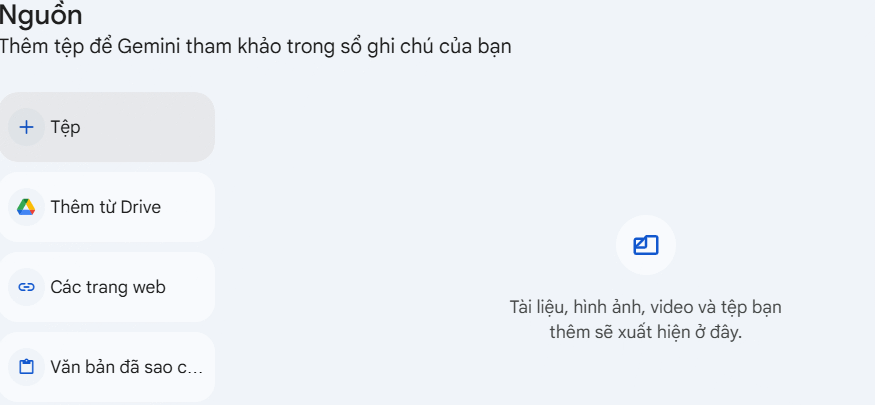
Before uploading, confirm that you have permission to use the material. Remove passwords, confidential business information, student records, medical details, and other data that the notebook does not need. A filename such as Budget-approved-2026-07.pdf is more useful than final2.pdf.
3. Start with a source-aware prompt
Ask a question that states the evidence boundary and desired format. For example:
Using only the selected sources, create a table of the three proposed options, their stated costs, deadlines, and unresolved questions. Cite the relevant passage for each row. If a detail is missing, write “not stated.”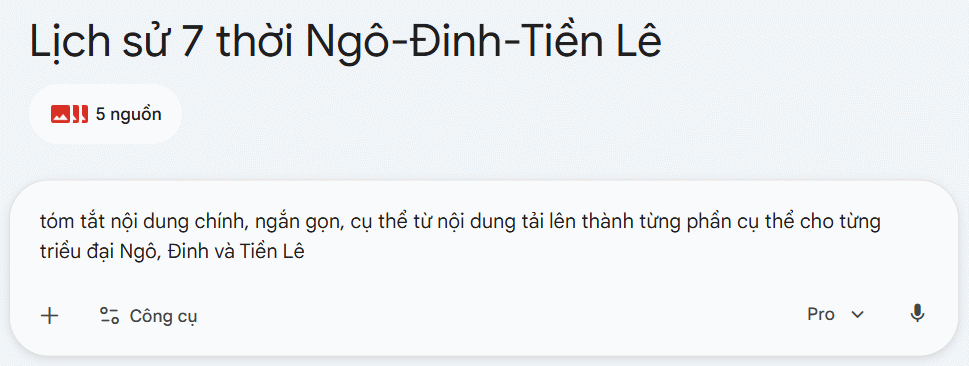
Gemini can then answer in the notebook context. Follow citations back to the source before relying on a date, quotation, number, or recommendation.
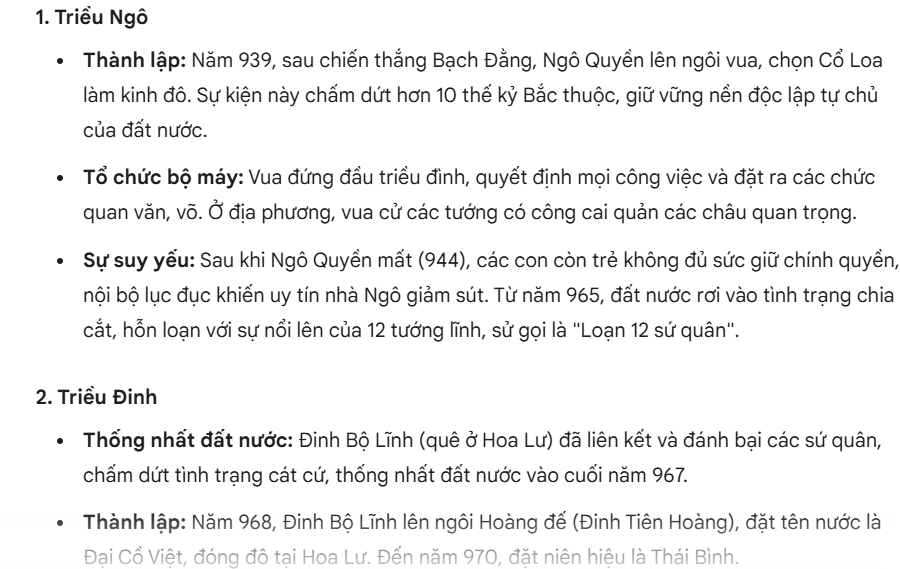
Continue the notebook in Gemini Notebook
Changes to notebooks are designed to sync between Gemini and Gemini Notebook. Open the standalone app with the same account to find the notebook and use output formats available there, such as audio or video overviews, flashcards, quizzes, infographics, and slide decks where supported.
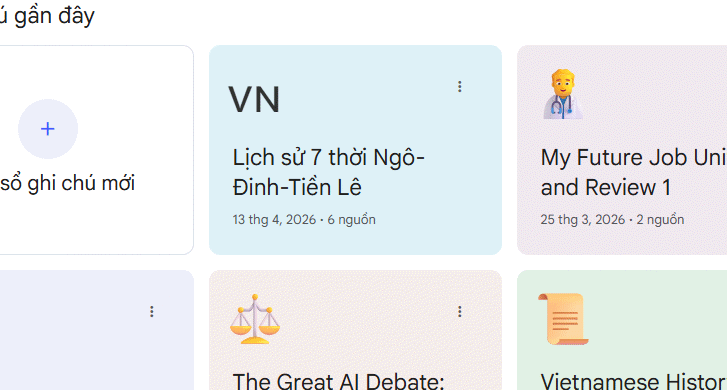
Sources added in one product should appear in the other after synchronization. If an item is missing, confirm the Google account, refresh both products, and check whether the source type or notebook is supported.
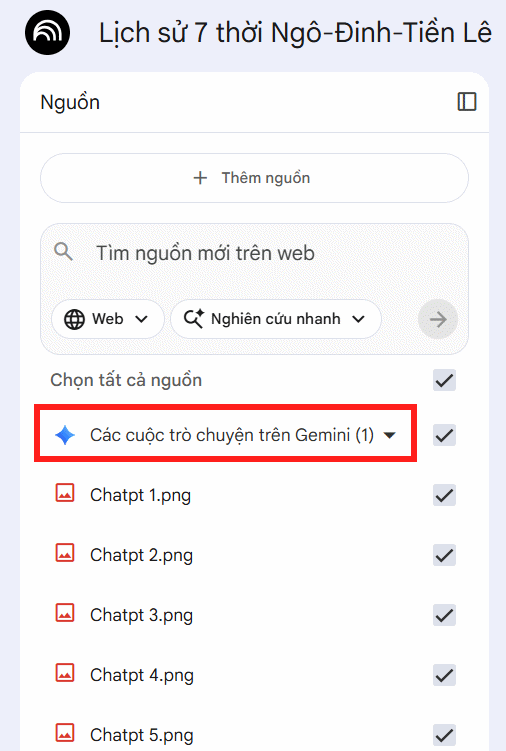
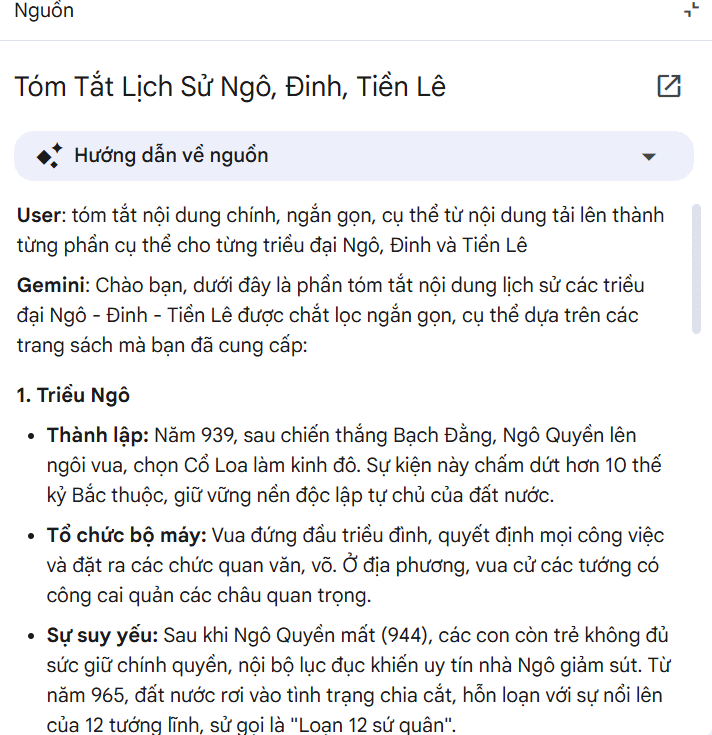
Gemini chats associated with the notebook can provide useful project continuity, but do not treat a previous model response as a primary source. Keep the underlying reference files selected and verify the answer against them.
Google's notebooks in Gemini guide lists current requirements, connection steps, activity dependencies, and supported management actions.
Organize a notebook for reliable results
- One project per notebook: do not mix unrelated research just because it uses the same file type.
- Use descriptive source names: include the subject, status, or date when appropriate.
- Select the relevant sources: a smaller, focused set can be easier to audit than every file in the notebook.
- Separate evidence from drafts: label model-written material so it is not mistaken for an approved source.
- Update stale material: replace or clearly mark superseded documents.
- Verify citations: confirm that a cited passage actually supports the sentence.
For a broader product comparison, see Gemini Notebook versus ChatGPT. TipsMake also covers notebook output features and workflows that can extend a source-based project after setup.
If Notebooks does not appear
Check that you are using a supported personal account, that the rollout has reached the account, and that Gemini Notebook is connected under Connected Apps. In the European Economic Area, Google says the connection may need to be enabled manually. Turning off Keep Activity does not prevent all notebook chat, but it disables several memory, saving, Drive, and specialized-notebook features.
Related Articles
 How to Create and Export Microsoft Office Files Directly from a Chat with Gemini4 minutes read
 Try Lyria 3 Now to Create High-quality Music on Gemini: Explained4 minutes read
 How to Create Visual Lectures with Gemini Canvas4 minutes read
 How to Send WhatsApp Messages Directly on Gemini3 minutes read
 Gems: How to Create a Custom AI Bot on Google Gemini4 minutes read
 Gemini 3.1 Pro or Gemini 3 Pro: Better?8 minutes read
Reader Comments 0
Sign in with email or Google to join the discussion.