Table of Contents
Adjusting the size of the Taskbar can expand the screen space, making it easier to see the icons.
The default Taskbar size in Windows 11 may not suit your preferences or screen resolution. Adjusting the Taskbar size can free up screen space, making it easier to see icons. Windows 11 allows users to change the Taskbar size through several methods, as detailed in the guide below.
Resize the Windows 11 Taskbar via Registry Editor
Step 1:
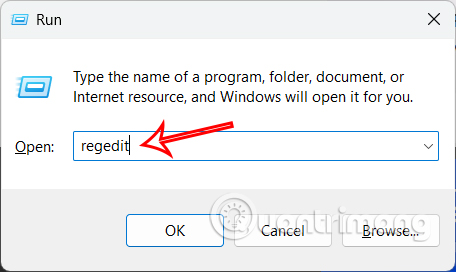
Press the Windows + R key combination to open Notepad, then type "regedit" in the interface.
Step 2:
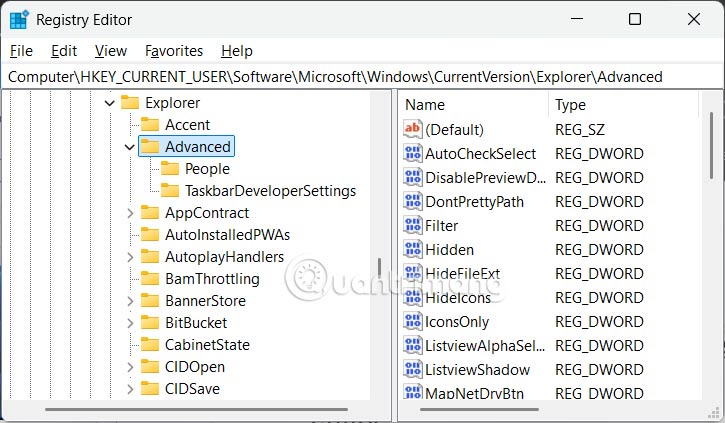
In the next interface, navigate to the following path.
HKEY_CURRENT_USERSoftwareMicrosoftWindowsCurrentVersionExplorerAdvanced
Step 3:
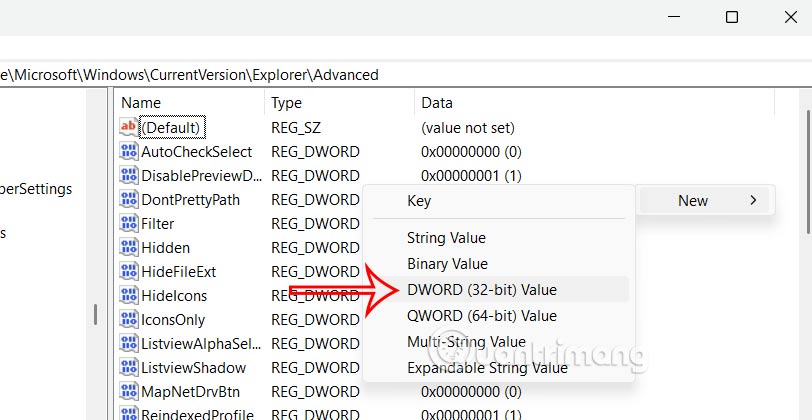
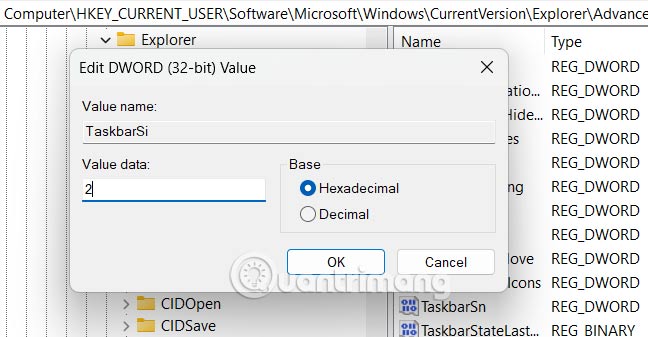
Right-click on the empty space in the right pane, select New, and then click on DWORD (32-bit) Value.
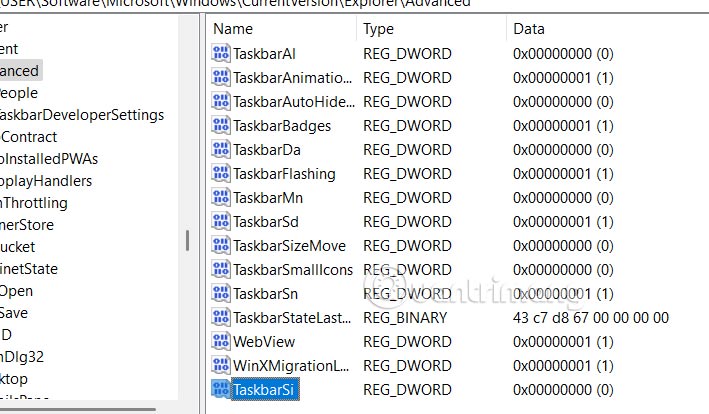
We will name this new value TaskbarSi.
Step 4:
Double-click the newly created value on the Taskbar and set its data to one of the following values:
- 0 is for small taskbar icons.
- 1 is for medium-sized taskbar icons (default).
- 2 is for large taskbar icons.
Click OK and restart your computer for the changes to take effect.
Resize the Windows 11 Taskbar via resolution.
Step 1:
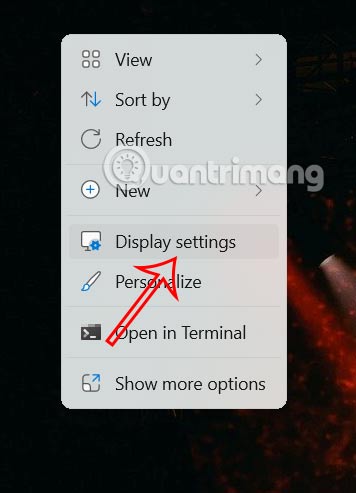
Right-click anywhere on the desktop and select Display settings from the context menu.
Step 2:
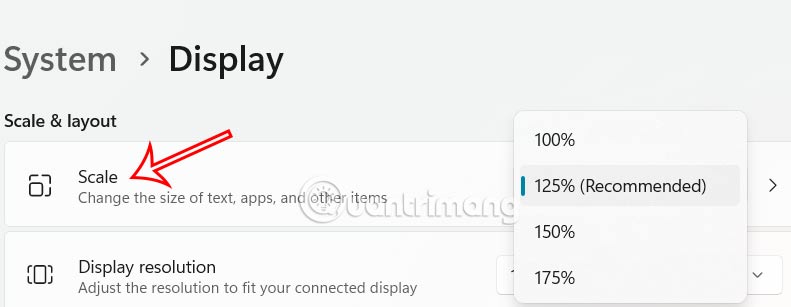
In this interface, under Scale & Layout, you'll find options to change the percentage. Decreasing the percentage (for example, from 125% to 100%) will shrink the icons on the Windows 11 Taskbar and overall interface elements, giving you more screen space. Conversely, increasing the percentage will enlarge the taskbar icons and interface.
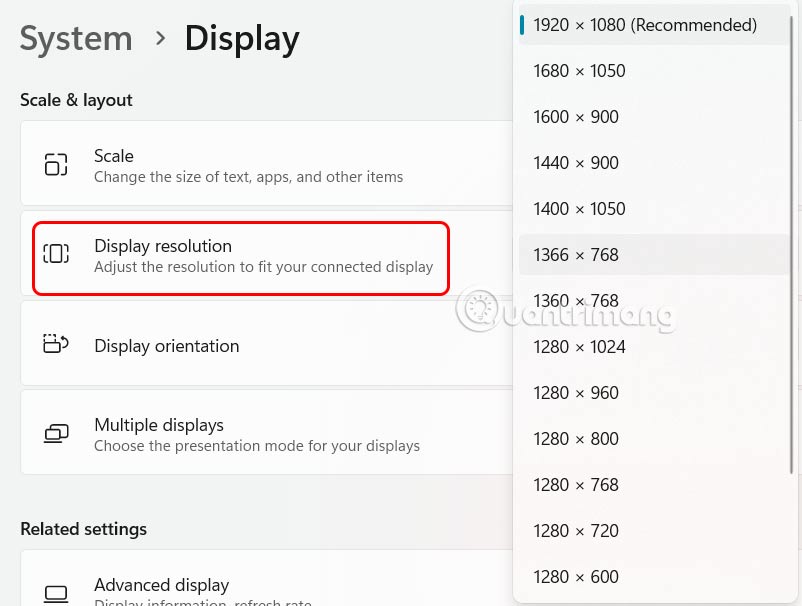
Additionally, you can adjust the screen resolution to indirectly affect the Taskbar size. Increasing the resolution makes the elements smaller, while decreasing the resolution makes them larger.
Related Articles
 How to Resize the Taskbar on Windows 116 minutes read
 Steps to Resize Preview Image on Taskbar in Windows 103 minutes read
 How to Customize the Taskbar in Windows: Step-by-Step Guide15 minutes read
 Do You Know What Is the Optimal Location of the Windows8 minutes read
 How to Fix Windows 11 Taskbar Not Working8 minutes read
 How to Add Wallpaper to Taskbar on Windows 104 minutes read
Reader Comments 0
Sign in with email or Google to join the discussion.