Table of Contents
The Excel PRODUCT function multiplies numbers, cell references, or ranges and returns their product. For example, =PRODUCT(A1:A3) produces the same result as =A1*A2*A3, but it is easier to extend when many cells are involved.
PRODUCT syntax
=PRODUCT(number1, [number2], ...)- number1: the first number, cell, or range to multiply.
- number2, ...: optional additional numbers, cells, or ranges.
Excel supports up to 255 arguments. One argument can itself be a range containing many cells.
Multiply numbers directly
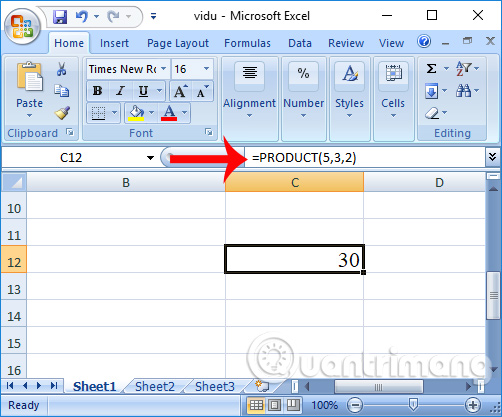
To multiply 5, 3, and 2, enter:
=PRODUCT(5,3,2)The result is 30.
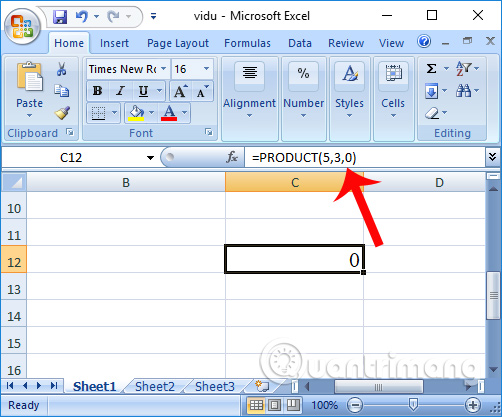
If any included number is zero, the product is zero.
Multiply all numeric values in a range
To multiply the values from B2 through B6, use:
=PRODUCT(B2:B6)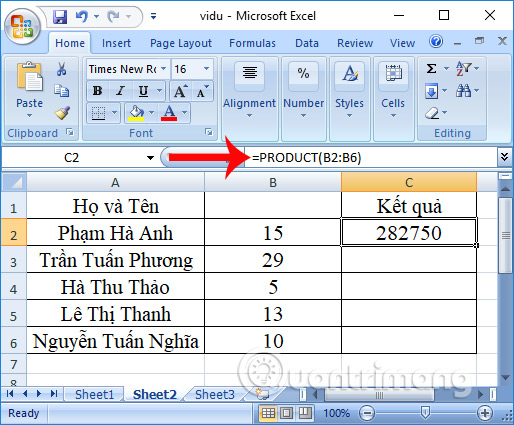
You can combine ranges and individual values in one formula:
=PRODUCT(B2:B6,D2,1.05)This multiplies every numeric value in B2:B6 by the value in D2 and then by 1.05.
Calculate salary from rate and days worked
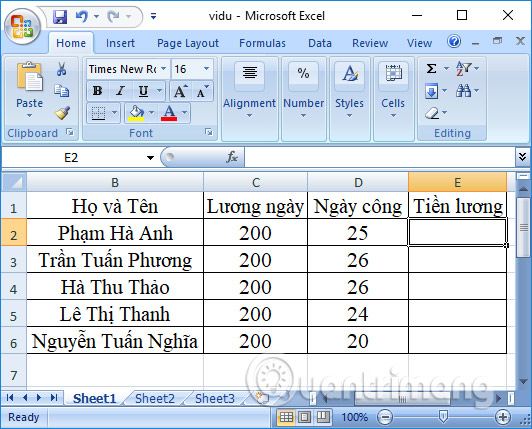
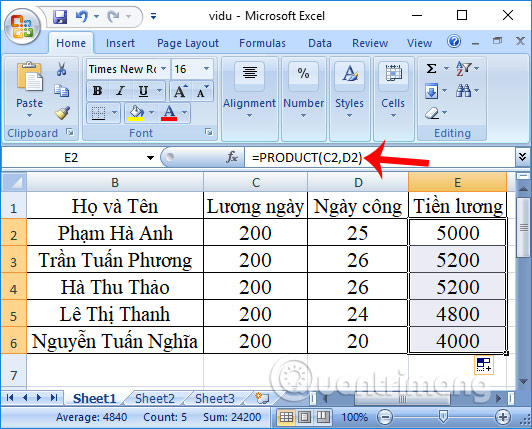
Suppose column C contains a daily rate and column D contains days worked. The result will be placed in column E.
Use the multiplication operator
For two cells, the clearest formula is often:
=C2*D2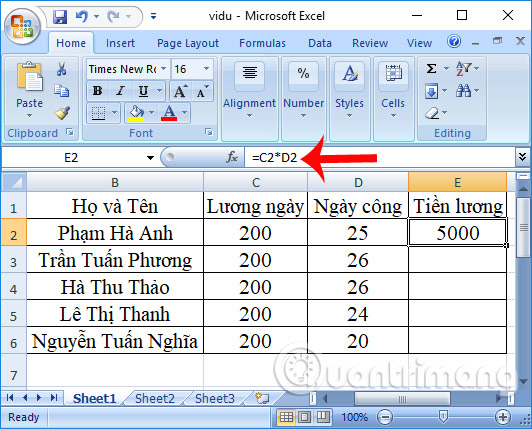
Use PRODUCT
The equivalent formula is:
=PRODUCT(C2,D2)Press Enter, then drag the fill handle down to copy the formula to the other employees.
PRODUCT versus the * operator
- Use
*when multiplying two or three clearly named cells, such as=C2*D2. - Use
PRODUCTwhen multiplying a range or several separate ranges. - Neither method calculates a factorial. For that task, use Excel's
FACTfunction.
How blanks, text, and errors are handled
When a cell reference or range is supplied, PRODUCT ignores empty cells, text, and logical values in that reference. Numeric cells are multiplied. This differs from a chain such as =A1*A2*A3, which may return #VALUE! if a referenced cell contains text.
Text or logical values typed directly as function arguments are handled differently from values inside a reference. To avoid ambiguous results, keep the source range numeric and convert number-like text to real numbers before calculating.
If an included cell contains an Excel error such as #VALUE! or #N/A, the formula returns an error. Correct the source value or handle the error explicitly before multiplying.
Common mistakes
- Omitting the leading equals sign.
- Using a text-formatted number that was not converted to a numeric value.
- Including a subtotal in the same range as its underlying values, which multiplies the data twice.
- Expecting blank cells to act as zero; referenced blanks are ignored rather than multiplied as zero.
Related Articles
 How to Use the Kernel Function (Product Function) in Excel4 minutes read
 PRODUCT Function in Excel, Syntax, Usage4 minutes read
 SUMPRODUCT Function in Excel: Calculates the Sum of Corresponding Values7 minutes read
 How to Calculate the Sum Horizontally in Excel4 minutes read
 How to Use the SUM Function to Calculate Totals in Excel8 minutes read
 ABS Function (Absolute Value Calculation) in Excel2 minutes read
Reader Comments 0
Sign in with email or Google to join the discussion.