Table of Contents
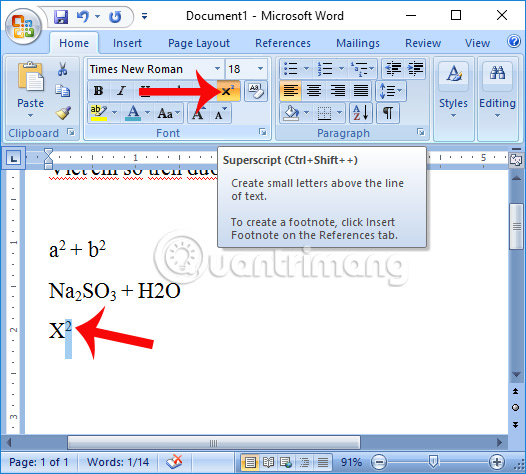
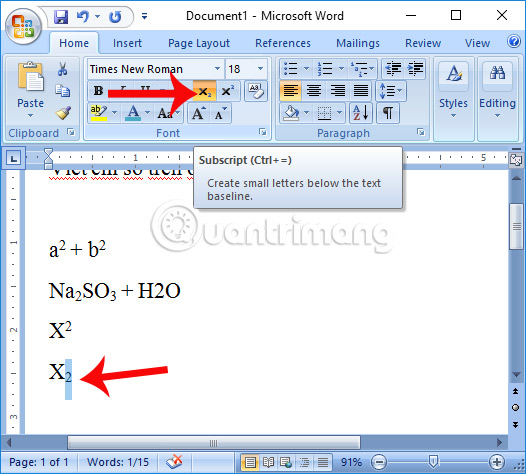
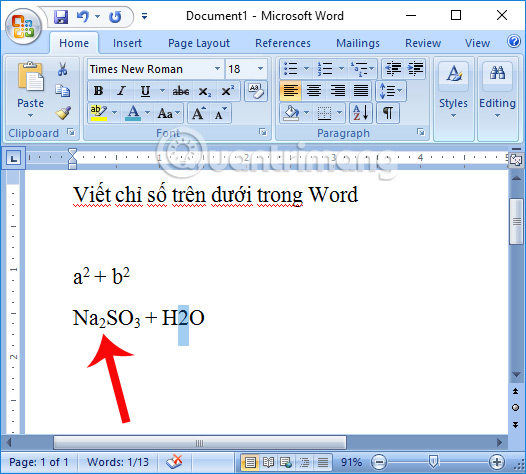
Use superscript for text that sits above the baseline, such as the 2 in x², and subscript for text below it, such as the 2 in H₂O. In current desktop versions of Word, the quickest method is to select the character and use the Superscript or Subscript button on the Home tab.
Use the Home tab buttons
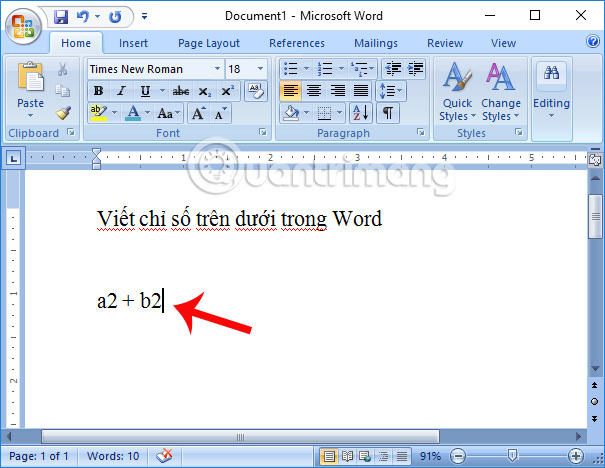
- Type the complete expression, such as x2 or H2O.
- Select only the character that needs to move above or below the line.
- Go to Home and, in the Font group, select Superscript (x²) or Subscript (x₂).
- Select the same button again to turn the formatting off before continuing with normal text.
Use keyboard shortcuts
Microsoft currently documents these shortcuts for Word:
- Superscript on Windows: Ctrl + Shift + Plus (+)
- Subscript on Windows: Ctrl + Shift + Minus (-)
- Superscript on Mac: Command + Shift + Plus (+)
- Subscript on Mac: Command + Shift + Minus (-)
Select the character first and press the shortcut, or toggle the formatting on, type the character, and press the shortcut again to return to normal. Keyboard layouts and older Word versions can assign different combinations; if a shortcut does not work, use the Home tab button.
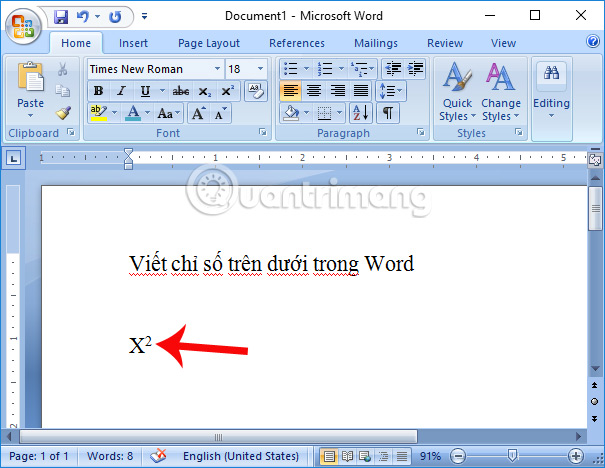
For example, to type x², type x, enable Superscript, type 2, then disable Superscript.
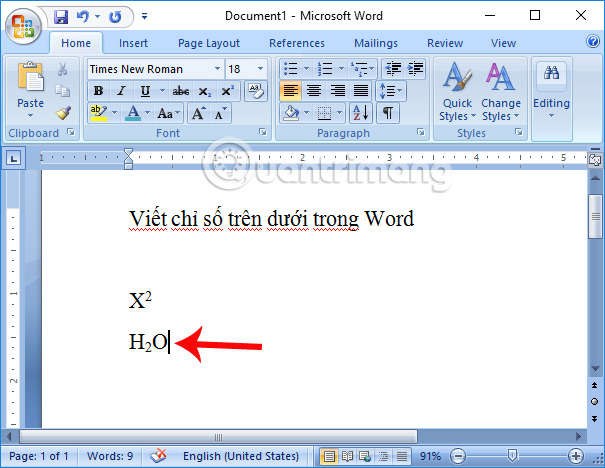
To type H₂O, type H, enable Subscript, type 2, disable Subscript, and type O.
Microsoft's current reference is Format text as superscript or subscript in Word.
Use the Font dialog box
This method works when the ribbon buttons are hidden and is useful in older versions of Word.
- Type the expression and select the character to format.
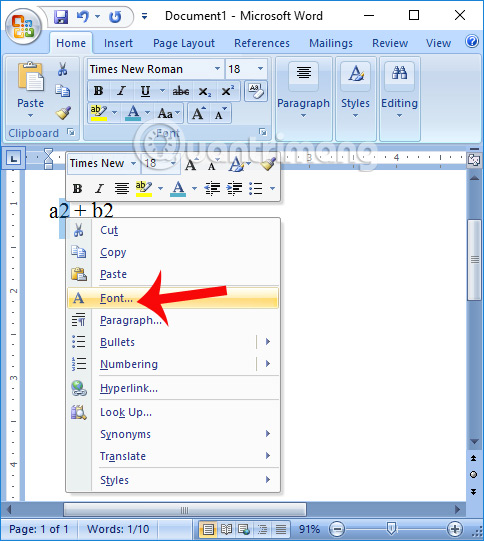
- On the Home tab, select the small Font dialog launcher, or right-click the selection and choose Font if that command is available.
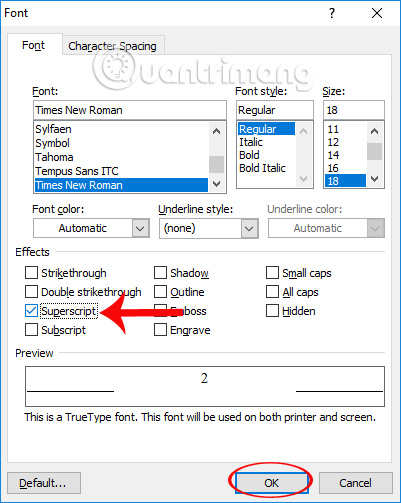
- Under Effects, select Superscript or Subscript.
- Select OK.
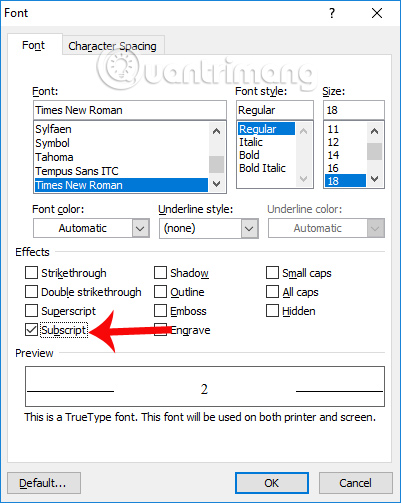
For a subscript, repeat the same process and select Subscript instead.
Insert a superscript or subscript symbol
If you need a Unicode character such as ² or ₃ rather than formatting ordinary text, go to Insert > Symbol > More Symbols. Choose (normal text) as the font, select the Superscripts and Subscripts subset, and insert the symbol.
This is convenient for a short expression but has two limitations: the symbol set does not include every possible letter or number, and its appearance may vary by font.
Use an equation for complex mathematics
Superscript formatting is suitable for x² in a sentence. For fractions, nested powers, integrals, or a multi-line derivation, insert an equation instead. Select Insert > Equation or press Alt + = on Windows, then use the equation tools to build the expression. An equation preserves mathematical spacing more reliably than manually raising individual characters.
Remove superscript or subscript formatting
Select the formatted text and select the active Superscript or Subscript button again. To clear direct character formatting on selected text, Word also supports Ctrl + Spacebar on Windows; be aware that this removes other manually applied character formatting as well.
Fix common problems
- Everything I type remains raised or lowered: turn the active button off or press its shortcut again.
- The whole formula changed: undo, then select only the character that should be superscript or subscript.
- The shortcut types a symbol: use the ribbon button; keyboard layouts can change how plus and minus keys behave.
- The math spacing looks uneven: use Word's Equation feature instead of character formatting.
Related Articles
 Write Exponents in Excel, Write Upper and Lower Indices in Excel: Step-by-Step Guide16 minutes read
 How to Write Subscript Numbers in PowerPoint3 minutes read
 How to Write Exponential Numbers in Word5 minutes read
 How to Create the Index on the Bottom, Write the Exponent in Word5 minutes read
 How to Add Exponents in Microsoft Word: Clear Instructions11 minutes read
 How to Type Caret in Word5 minutes read
Reader Comments 0
Sign in with email or Google to join the discussion.