Table of Contents
To change existing text, images, or page content in a PDF, use Foxit PDF Editor—not the free Foxit PDF Reader. Foxit PDF Reader is primarily for viewing, commenting, highlighting, filling forms, and signing. It can place annotations over a page, but that is different from editing the original page content.
If you already opened the file in Reader and cannot find Edit Text, that is usually the reason. Install or start a trial of Foxit PDF Editor, then follow the steps below. Interface labels can vary slightly by operating system and Foxit version.
Foxit PDF Reader vs Foxit PDF Editor
| Task | Foxit PDF Reader | Foxit PDF Editor |
|---|---|---|
| Open, search, and print PDFs | Yes | Yes |
| Highlight, comment, and draw | Yes | Yes |
| Fill an existing form | Yes | Yes |
| Add a quick ink-style signature | Available | Available |
| Change existing page text | No | Yes |
| Add, replace, or move page images | No | Yes |
| Delete, reorder, or permanently rotate pages | No | Yes |
| Run OCR to make scanned text editable | No | Available in supported Editor editions |
Foxit’s PDF Reader product page describes Reader as a tool to view, annotate, fill, and sign. Advanced content editing belongs to PDF Editor.
Before editing a PDF
- Save a backup. Use File > Save As and edit the copy, especially for contracts, forms, or signed documents.
- Check whether the text is selectable. If you can only select the entire page as an image, run OCR first.
- Check permissions. A password-protected PDF may prohibit content changes. Obtain the owner password or an editable source from the document owner; do not try to bypass restrictions.
- Inspect signatures. Editing a digitally signed PDF normally invalidates the signature. Keep the signed original and request a new signing cycle if changes are required.
- Confirm the font. Missing or partially embedded fonts can force substitution and alter line breaks.
How to edit existing PDF text
These steps apply to current desktop versions of Foxit PDF Editor on Windows and macOS, although the ribbon or toolbar wording may differ.
- Open Foxit PDF Editor and choose File > Open.
- Open the Edit tab or editing toolbar.
- Select Edit Text, Edit Object, or the equivalent text-and-image editing command in your version.
- Click inside the text block you want to change.
- Select characters and type the replacement, or place the cursor to add or delete text.
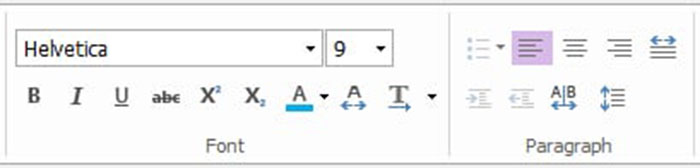
- Use the Format panel to adjust font, size, color, alignment, character spacing, or line spacing.
- Save the edited copy and reopen it to confirm that the changes remain.
Why a paragraph may not reflow normally
A PDF stores positioned page elements, not a document structure like a Word file. Text that looks like one paragraph may actually consist of several independent objects or lines. Editing can therefore create overlaps, unexpected wrapping, or spacing changes.
Use paragraph or reflow editing when your Foxit edition offers it. For a major rewrite, editing the original Word, presentation, or layout file and exporting a new PDF is often safer than rebuilding the page inside a PDF editor.
How to add a new text box
- Open the Edit toolbar.
- Select Add Text.
- Click the page where the new text should begin.
- Type or paste the content.
- Set the font and paragraph formatting in the Format panel.
- Move or resize the text object if needed, then save the file.
Use Add Text when the wording is not part of an existing editable text block. Do not confuse it with a comment text box: comments remain annotations and can be hidden or deleted separately from page content.
How to add, replace, move, or resize an image
- Go to the Edit tab or toolbar.
- Choose Add Image, then select an image file.
- Click or drag on the page to place it.
- Select the image object to move it or drag a corner handle to resize it proportionally.
- Use the rotation control when necessary.
- For an existing image, choose the object-editing tool and select the image. The context menu may offer replace, cut, copy, or delete commands.
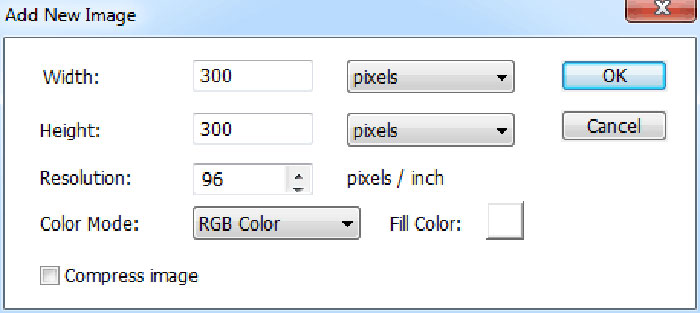
Avoid stretching an image from a side handle because it can distort the aspect ratio. Also check print quality: a low-resolution image may look acceptable on screen but appear blurry on paper.
How to edit a scanned PDF with OCR
A scan contains pictures of text, so the normal text tool cannot edit it until optical character recognition creates text objects.
- Open the scanned PDF in Foxit PDF Editor.
- Find the OCR or Recognize Text command, commonly under Convert.
- Select the correct document language and page range.
- Choose an output mode that creates editable text, not only a searchable invisible text layer.
- Run OCR and review uncertain characters or OCR suspects.
- Edit the recognized text with the normal text tool.
- Compare names, numbers, dates, and tables against the scan before saving.
OCR is not error-free. Decorative fonts, poor contrast, skewed pages, handwriting, columns, and tables can reduce accuracy. For high-stakes records, keep the scan and proofread every changed field.
Editing PDFs on a Mac
The Mac version of Foxit PDF Editor provides the same main workflow: open the editing toolbar, choose the content type, and then select the object on the page.
Add or edit text
- Open Edit from the common tools area.
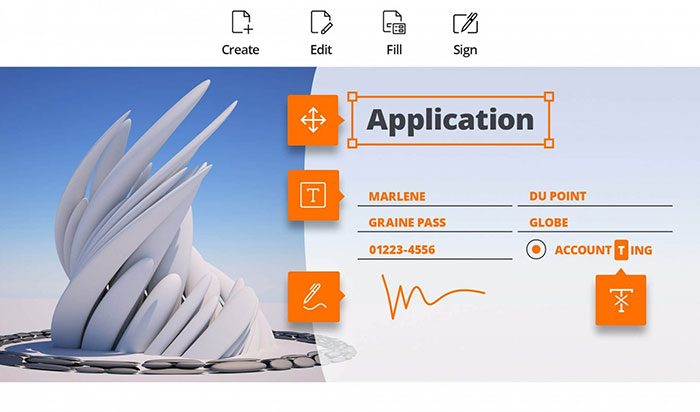
- Choose Add Text to create a new text object, or Edit Text to modify an existing one.
- Click the page or text block and make the change.
- Use Format for font and paragraph settings.
Edit an object
- Select the object-editing tool and click an image, shape, or text object.
- Drag the object to move it.
- Use corner handles to resize it and the rotation control to turn it.
- Use the context menu for cut, copy, paste, replace, or delete options available for that object.
Apple Preview can annotate, sign, rearrange pages, and perform other basic tasks, but it is not a replacement for full paragraph and object editing in a complex PDF.
How to delete, reorder, or rotate pages
- Open the document in Foxit PDF Editor.
- Select the Organize tab.
- Click one page thumbnail. Hold Ctrl on Windows or Command on macOS to select multiple pages where supported.
- Choose Delete to remove pages, drag thumbnails to reorder them, or choose Rotate for a permanent 90-degree page rotation.
- Review the page order and save a new copy.
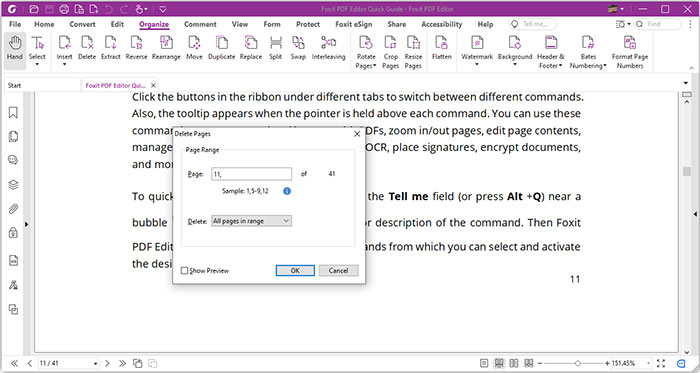
Rotate View only changes how the document appears on your screen. Use the Organize page-rotation command when you want the orientation stored in the PDF.
How to add headers and footers
- Open Organize > Header & Footer > Add.
- Choose font, size, margins, and the pages that should receive the header or footer.
- Enter the text and insert available date or page-number tokens if needed.
- Preview several pages, especially pages with different sizes or orientations.
- Save the settings for reuse if desired, then choose OK.
Headers and footers can cover existing page content if the original margins are narrow. Check the first, middle, and last pages before saving.
What you can do in Foxit PDF Reader
If you do not need to alter original page content, the free Reader may be enough. You can typically:
- highlight, underline, strike through, and comment on text;
- add sticky notes, stamps, drawing annotations, and text comments;
- fill interactive forms;
- use Fill & Sign for a quick ink-style signature;
- view and validate digital signatures when supported;
- search, print, and share PDFs.
For a correction workflow, annotations can be preferable to direct editing: mark the requested changes in Reader, send the reviewed copy to the document owner, and let them update the source file.
Troubleshooting common editing problems
The text tool cannot select words
The page is probably scanned or flattened. Run OCR in PDF Editor and select editable-text output.
The document says editing is not allowed
Check File > Properties > Security. Ask the owner for permission or an unrestricted editing copy.
The font changes after editing
The original font may not be installed or fully embedded. Install the licensed font, select a close substitute, or update the source document instead.
Text overlaps after a small change
The PDF may store each line separately. Use reflow or paragraph editing if available, resize the text object carefully, or return to the original source file.
A signature becomes invalid
That is expected when signed content changes. Preserve the signed original, edit an unsigned copy, and have the final document signed again.
Edits disappear after saving
Confirm that you used File > Save As and reopened the newly saved path. Also check that you edited page content rather than adding a temporary view setting.
Related Articles
 minutes read
 How to Use Foxit Reader to Read PDF Files3 minutes read
 Link Download Foxit Reader 10.1.1.375768 minutes read
 How to Set up Voice Text Reading Mode in Foxit Reader?2 minutes read
 Foxit Reader - PDF Reader with Many Additional Features: Key Facts17 minutes read
 How to Rotate PDF Files on Foxit Reader: How to Use Foxit Reader3 minutes read
Reader Comments 0
Sign in with email or Google to join the discussion.