Table of Contents
Remote Desktop lag can come from the client PC, the remote host, or the network between them. Before changing Windows policies, determine whether the problem is delayed input, a frozen picture, slow screen redraws, or repeated disconnects. Those symptoms point to different causes.
Start with reversible tests: reconnect, compare another network or device, reduce display features, and check resource use on both computers. Change Group Policy or transport settings only after the basic checks identify a likely direction.

Identify where the lag occurs
Use the following comparisons to narrow the problem:
- Only one client is affected: inspect that client's Wi-Fi, VPN, RDP settings, drivers, and local resource use.
- Every client is slow with one host: inspect the remote PC's CPU, memory, storage, graphics driver, Windows updates, and network connection.
- Only connections over the internet or VPN are slow: check packet loss, routing, VPN overhead, firewall inspection, and the remote site's upload capacity.
- Typing responds but the picture freezes: test display settings, bitmap caching, graphics drivers, and the RDP transport.
- The session disconnects and reconnects: look for network loss, power-saving behavior, VPN timeouts, and RDP event-log errors.
Record the time of a failure and any error code. That makes the relevant Windows event much easier to find later.
1. Reconnect and test a clean session
- Save work in the remote session if it still responds.
- Disconnect, close Remote Desktop Connection, and open it again.
- If possible, connect from another PC or network to the same host.
- Restart the client. Restart the remote host during an approved maintenance window if the issue affects every user.
Disconnecting preserves the remote session, while signing out closes its applications. Do not sign out or restart a shared host without warning other users about possible unsaved work.
2. Check the network path
A speed test alone does not reveal packet loss or unstable latency. Test the actual destination when possible, not a public website that follows a different route.
- Connect the client and host by Ethernet for comparison.
- If Wi-Fi is required, move closer to the access point and test another band or access point.
- Pause large uploads, cloud synchronization, backups, game downloads, and video streams at both locations.
- Compare the connection with and without the corporate VPN only if company policy allows it. Never expose RDP directly to the internet for a test.
- From Command Prompt, run
ping -t HOSTNAMEor ping the remote gateway. Stop with Ctrl+C and look for packet loss or large, repeated jumps rather than expecting one universal latency target.
Some hosts block ping, so a timeout does not by itself prove the host is offline. For internet access, prefer a managed VPN or Remote Desktop Gateway. Microsoft's outside-network guidance explains the supported approaches and their security implications.
3. Reduce display and redirection load
Open Remote Desktop Connection by running mstsc, select Show Options, and make one change at a time so you can identify what helps.
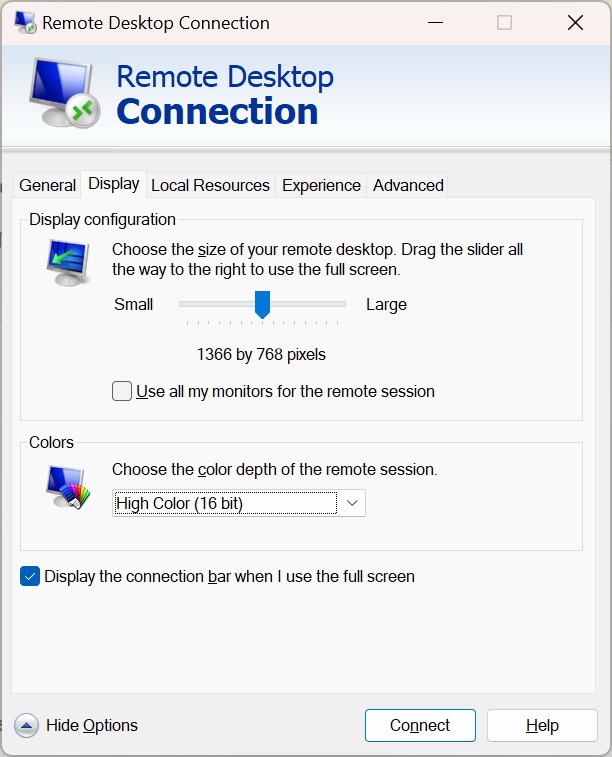
Lower the resolution and monitor count
- Open the Display tab.
- Move the display configuration slider to a lower resolution.
- Clear Use all my monitors for the remote session if multiple monitors are unnecessary.
- Use a lower color depth temporarily if the client offers that option.
Resolution and monitor count have a direct effect on the amount of screen data RDP must encode, transmit, and draw.
Disable visual extras
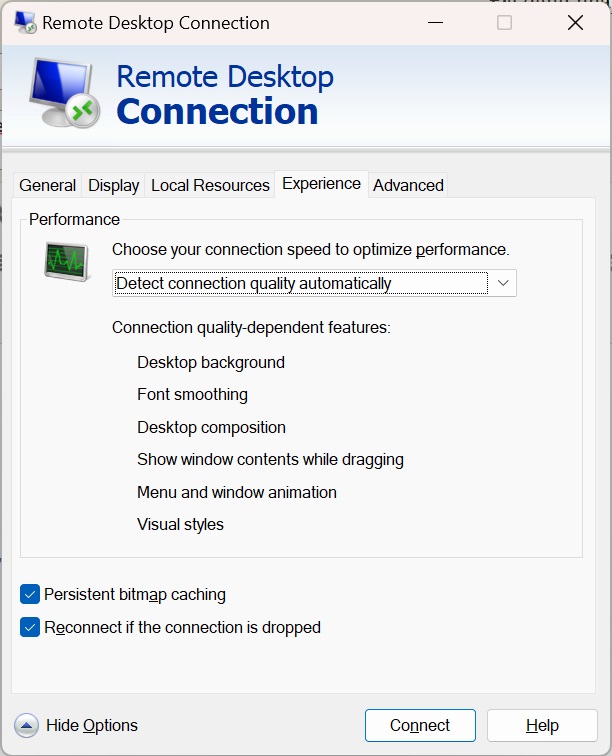
On the Experience tab, select Detect connection quality automatically first. If the session remains slow, clear features you do not need, such as the desktop background, font smoothing, menu animation, themes, and showing window contents while dragging.
Persistent bitmap caching normally improves performance by storing reusable images locally. Leave it enabled for ordinary slow redraws. If the symptom is corrupted graphics, a black screen, or a display that stops updating, temporarily clear Persistent bitmap caching, reconnect, and compare. Microsoft documents that the cache can improve performance but uses local disk space.
Turn off unused local resources
On the Local Resources tab, disable redirection that the session does not need, such as printers, clipboard, smart cards, drives, audio recording, and supported USB devices. Redirection is not always the cause, but testing without it can isolate a problematic driver or device channel.
4. Check CPU, memory, disk, and GPU load
Open Task Manager on both computers during the slowdown. On the remote host, check whether one application, Windows Update, antivirus scanning, indexing, storage I/O, or another user session is saturating a resource. On the client, check the RDP client, browser tabs, conferencing apps, and GPU usage.
If the remote desktop is a virtual machine, also inspect the hypervisor or cloud console. A guest may appear healthy while the physical host is overcommitted or its storage is experiencing high latency.
5. Update Windows and device drivers
Install current supported Windows updates on the client and host, then restart when required. Check Settings > Windows Update > Update history to see whether the problem began immediately after a specific change.
For network and graphics drivers:
- Open Device Manager.
- Expand Network adapters or Display adapters.
- Record the device and driver version.
- Check Windows Update and the PC, adapter, or GPU manufacturer's official support page for a compatible driver.
The Update driver button does not guarantee that Windows will find the newest vendor-tested package. Avoid third-party driver-download sites. Roll back a driver only when the issue clearly started after that driver changed and a known-good version is available.
6. Test power and adapter settings
On a laptop, test while connected to power. In Device Manager, open the active network adapter's properties and inspect its power-management options. As a diagnostic, prevent Windows from turning off the adapter to save power, then retest. If it makes no difference, restore the prior setting.
Also check whether the Ethernet or Wi-Fi link renegotiates during a freeze. Adapter events in Event Viewer or the manufacturer's diagnostics can reveal resets that ordinary bandwidth tests miss.
7. Check RDP logs around the failure
Open Event Viewer and review events at the recorded time under:
- Applications and Services Logs > Microsoft > Windows > TerminalServices-ClientActiveXCore on the client;
- TerminalServices-LocalSessionManager on the host; and
- TerminalServices-RemoteConnectionManager on the host.
Also review System events for network-adapter resets, display-driver recovery, service failures, and unexpected restarts. Save the relevant events before making a change so an administrator can compare the next test.
8. Isolate UDP or VPN transport problems
Modern RDP can use UDP where supported because it generally improves responsiveness, with TCP used as a compatible path. A firewall, VPN, NAT device, or lossy link can sometimes mishandle one transport. Do not permanently disable UDP as a generic optimization.
In a managed environment, an administrator can temporarily enable Turn Off UDP On Client under:
Computer Configuration > Administrative Templates > Windows Components > Remote Desktop Services > Remote Desktop Connection Client
Reconnect and reproduce the same workload. If TCP-only behavior fixes the freeze, investigate the network path, VPN, and firewall before deciding on a long-term policy. If it does not help, return the policy to its original state. Windows Home editions may not include the Local Group Policy Editor, and organization-managed policies should be changed only by IT.
9. Treat Windows update rollback as a last resort
If multiple machines developed the same reproducible fault immediately after one update, check Microsoft's Windows release-health pages and the organization's support channels for a documented issue. Install a newer fix when one exists. Uninstalling an update can remove security corrections, so use it only with an administrator-approved rollback plan, backups, and a way to restore access.
Do not enable old RemoteFX vGPU instructions found in legacy guides. RemoteFX vGPU was removed from supported Windows because of security concerns, and those policies are not a current remedy for ordinary Windows 11 RDP lag.
Recommended troubleshooting order
- Compare another client, host, and network.
- Reduce resolution, monitors, visual effects, and redirection.
- Measure packet loss on the real route.
- Check resource use and update both endpoints.
- Inspect drivers, power settings, and event logs.
- Have an administrator test transport policy or investigate VPN and firewall behavior.
This order keeps the early steps reversible and helps separate a network problem from a display or host problem. Document each change and its result; changing several settings at once may make the session feel better without revealing which setting actually fixed it.
Related Articles
 Instructions for Activating and Using Remote Desktop on Windows6 minutes read
 How to Enable and Use Remote Desktop on Windows 116 minutes read
 6 Ways to Disable Remote Desktop on Windows 118 minutes read
 How to Hear Audio from the Remote PC When Using Remote6 minutes read
 The Difference Between Remote Desktop (RDP) and VPN7 minutes read
 Click: How to Use Remote Desktop in Windows 78 minutes read
Reader Comments 0
Sign in with email or Google to join the discussion.