Table of Contents
Copilot in PowerPoint can turn a prompt or supported source file into a draft outline and slides. The fastest reliable workflow is to define the audience and purpose, refine the outline before generation, then verify every fact, image, chart, citation, and speaker note yourself.
Check that Copilot is available
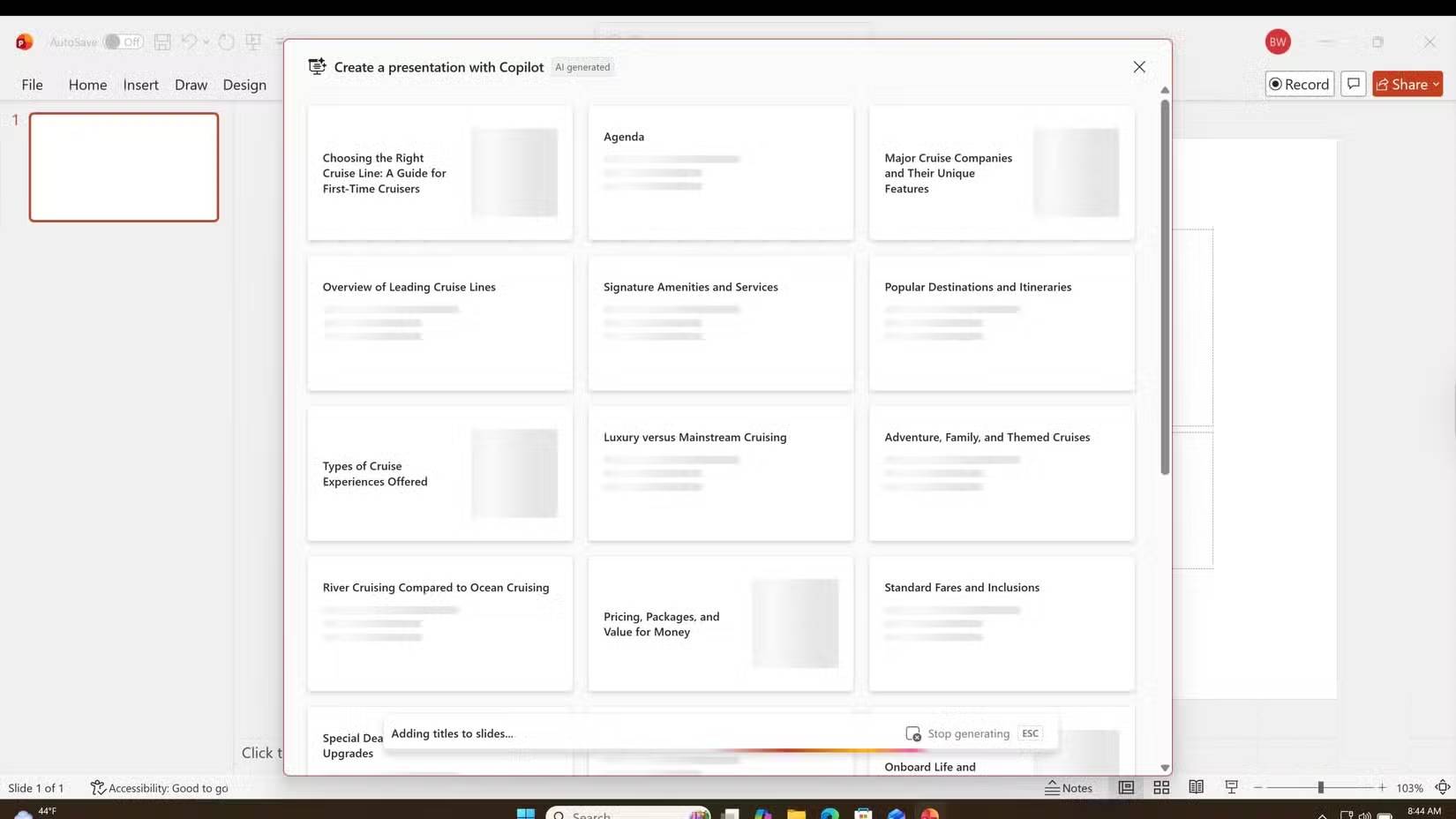
Copilot in PowerPoint requires an eligible Microsoft 365 or Copilot license, a supported PowerPoint version, an internet connection, and privacy or connected-experience settings that allow the feature. Work and school accounts may also be controlled by an administrator.
If the Copilot button is missing or disabled:
- Confirm that PowerPoint is signed in to the account with the Copilot license.
- Save the file as
.pptxor.ppt. - Install current Microsoft 365 updates and restart PowerPoint.
- Check the internet connection and Microsoft 365 service status.
- For an organization account, ask the administrator whether Copilot is assigned and permitted.
Create a presentation from a prompt
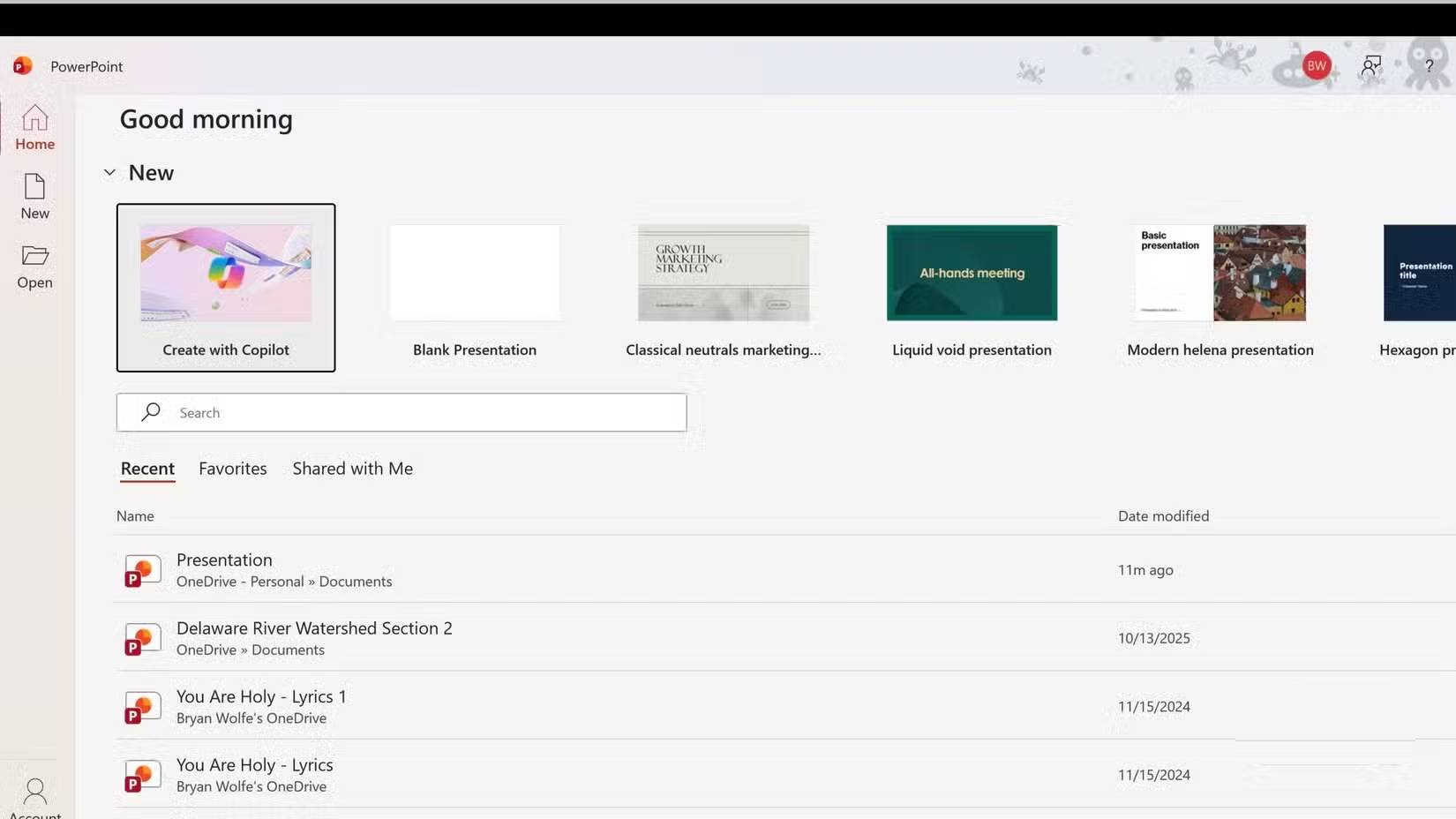
- Open PowerPoint and start a blank presentation or an approved organization template.
- Open Copilot from the ribbon or the Copilot button at the bottom-right of the slide.
- In current versions, open Add Content and choose Agent Mode when that option is available.
- Describe the presentation you want and send the prompt.
- Answer Copilot's questions about the audience, style, images, and length.
- Review and revise the proposed outline.
- Tell Copilot to generate the slides only when the sequence is correct.
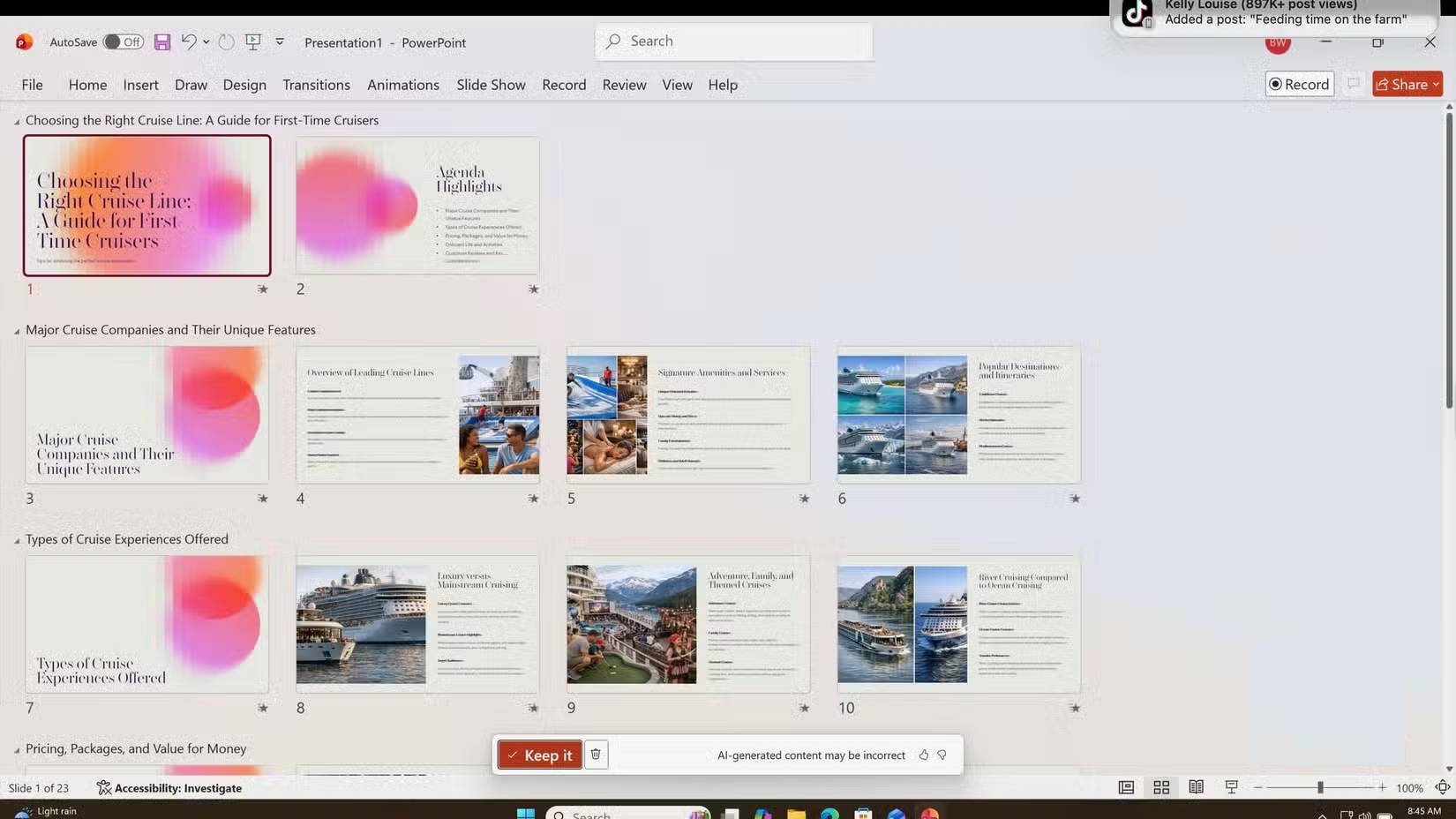
Prompt template
Create a presentation for [audience] about [topic].

Purpose: [decision, training, sales, briefing, or lesson]
Desired outcome: [what the audience should know or do]
Length: [number of slides or speaking time]
Sections: [required topics in order]
Evidence: use only [attached file or named approved sources]
Style: [brand, tone, visual direction]
Constraints: [facts, terminology, or claims to avoid]

Start by proposing an outline. Do not generate slides until I approve it. For every data claim, add a source note. Keep slide text concise and put supporting detail in speaker notes.
For example, a cruise-line comparison should name the intended traveler, departure region, budget range, comparison criteria, and whether the information must come from current cruise-line sources. “Make 12 slides about cruises” leaves too many important choices to the model.
Create a presentation from a file
Copilot can create a deck from a supported Word document, and some Microsoft 365 Copilot work configurations also support PDFs. Availability varies by license and rollout.
- Structure the source with Word heading styles so sections are clear.
- Open a new PowerPoint presentation and open Copilot.
- Choose the create-from-file option, or type
/in the prompt box and select the file. - Tell Copilot which sections, audience, and conclusion to emphasize.
- Review the generated outline and slides against the source.
Copilot may use images already present in the Word file. Confirm that those images are licensed for the presentation and that captions remain accurate.
Refine the draft with focused prompts
Ask for one bounded change at a time:
- “Reduce slide 3 to one takeaway and three supporting points.”
- “Add a comparison table using only the figures in the attached report.”
- “Reorganize the deck into Problem, Evidence, Options, Recommendation, and Next Steps.”
- “Adapt slides 4–7 for an audience with no technical background.”
- “Replace the image on slide 6 with a relevant licensed stock image; do not alter the data.”
- “Write speaker notes for an eight-minute delivery without repeating slide text.”
When adding a slide from a file, reference the file and name the exact section to use. A narrow source range makes it easier to verify the result.
Apply your design or brand
Begin with the organization's approved template when possible. Enterprise users may also have a Brand kit containing approved layouts, fonts, colors, logos, and images.
Even with a template, inspect every slide:
- Use one clear idea per slide.
- Keep body text readable at presentation distance.
- Use consistent title placement, typography, color, and spacing.
- Replace irrelevant, decorative, or misleading images.
- Use charts only when they make a quantitative relationship easier to understand.
- Check that logos and brand colors meet current guidelines.
Verify facts and sources
Copilot can create fluent text that contains an incorrect number, outdated policy, invented citation, or unsupported comparison. Before presenting:
- Open every cited source and confirm that it supports the exact claim.
- Recalculate totals, percentages, and chart values.
- Check dates, prices, product names, and geographic availability.
- Remove claims that cannot be verified.
- Have a subject-matter expert review high-stakes content.
If the deck is based on an internal file, compare slide by slide with that source. Do not assume the speaker notes are more accurate than the visible slide.
Accessibility check
- Give every meaningful image useful alt text.
- Ensure text has sufficient contrast against the background.
- Do not use color alone to communicate meaning.
- Use descriptive slide titles and a logical reading order.
- Add captions or transcripts for audio and video.
- Run PowerPoint's Accessibility Checker and fix reported issues.
Final presentation checklist
- The opening states the purpose and the final slide gives a clear next step.
- Each slide advances the same story rather than repeating the introduction.
- Facts, images, and citations are verified.
- Notes fit the available speaking time.
- Animations and transitions support rather than distract.
- The deck works on the presentation computer and required fonts or media are available.
- A human has rehearsed the complete presentation.
Copilot is valuable for outlining, drafting, and revising, but the presenter remains responsible for the argument, accuracy, visual judgment, and audience fit.
Related Articles
 How Copilot in PowerPoint Helps You Complete Any Presentation7 minutes read
 How to Use Copilot to Create a Presentation from Notes7 minutes read
 PowerPoint 2019 (Part 3): Saving Your Presentation: Explained10 minutes read
 PowerPoint 2019 (Part 2): Creating and Opening Presentations7 minutes read
 MS PowerPoint 2007 - Lesson 3: Create a Slideshow11 minutes read
 Review Presentations in PowerPoint 2016: MS PowerPoint5 minutes read
Reader Comments 0
Sign in with email or Google to join the discussion.