Table of Contents
To change the background of an entire Word document, use Design > Page Color. From there you can apply a solid color or open Fill Effects for gradients, textures, patterns, and pictures. This is different from highlighting a few words or changing Word's Dark Mode display.
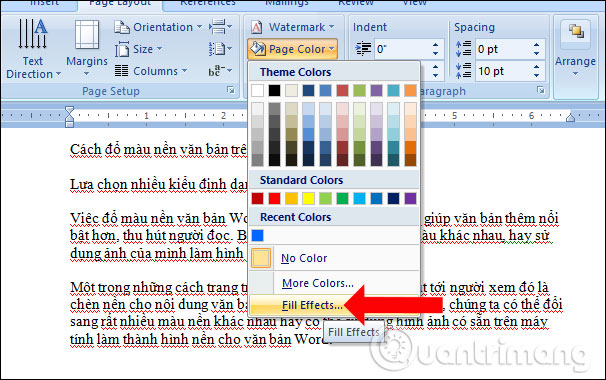
Add a solid page color
- Open the document and select the Design tab.
- Select Page Color.
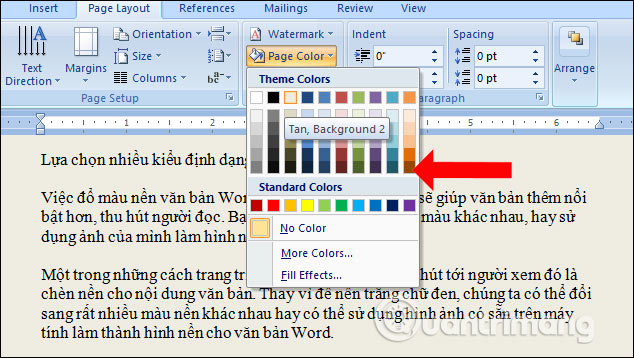
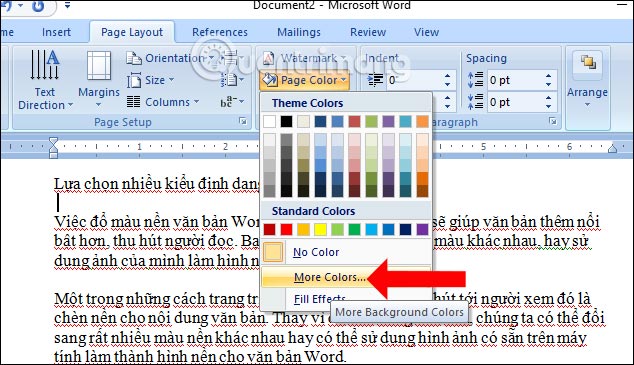
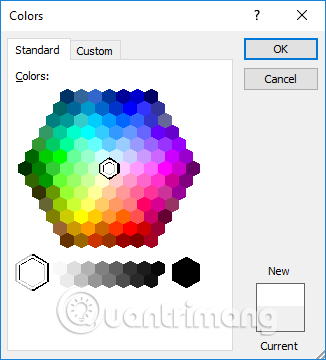
- Choose a Theme Color or Standard Color. Select More Colors if the color you need is not shown.
Older Word versions place Page Color on the Page Layout tab, as some screenshots below show. Microsoft's current instructions are available in Add, change, or delete the background color in Word.
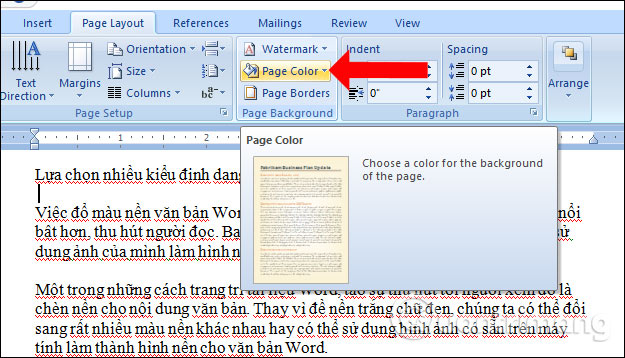
Selecting More Colors opens a larger standard palette and, where available, custom color controls.
The selected color applies behind the document content rather than only behind the selected paragraph.

Add a gradient background
- Open Design > Page Color.
- Select Fill Effects.
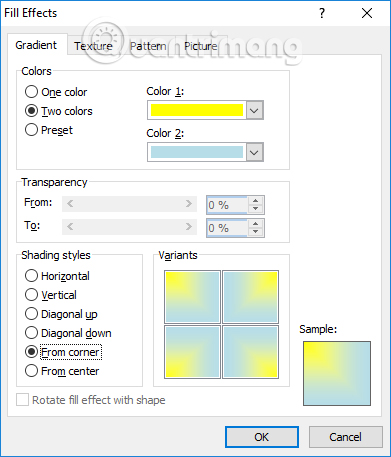
- On the Gradient tab, choose one color, two colors, or a preset if offered.
- Set the shading direction and select a variant, then choose OK.
The preview in the dialog helps you judge whether the color transition leaves enough contrast for the text. Transparency, color, and shading controls vary by Word version.

Use a texture
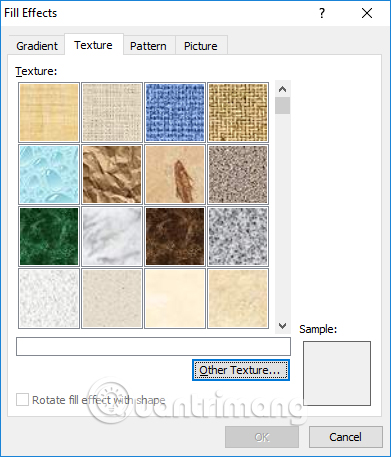
In Design > Page Color > Fill Effects, open the Texture tab and select a built-in texture. Some desktop versions also let you load another texture. Check readability at normal zoom before applying a busy design to a long document.

Use a pattern
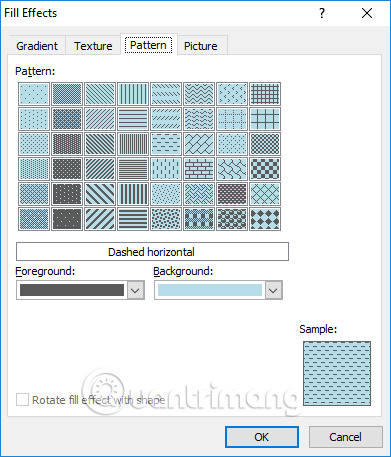
Open the Pattern tab in Fill Effects, select a pattern, and choose its foreground and background colors. A simple, low-contrast pattern is usually easier to read than a dense one. Select OK to apply it.

Use a picture as the page background
- Go to Design > Page Color > Fill Effects.
- Open the Picture tab and choose Select Picture.
- Select the image source offered by your version of Word, locate the file, and insert it.
- Review the preview and select OK.
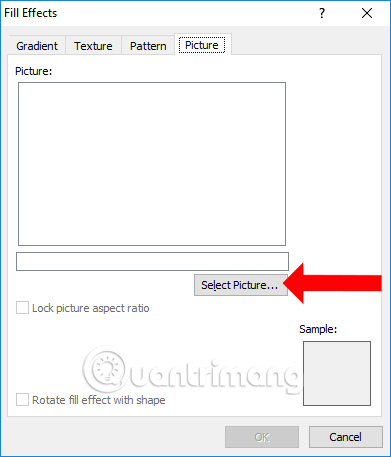
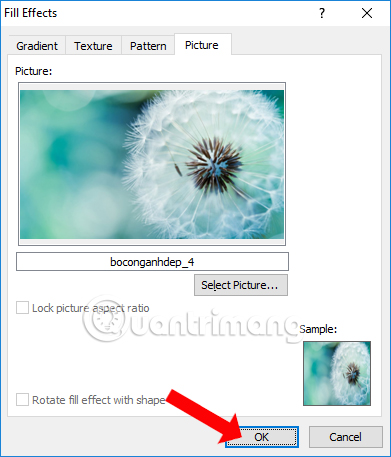

Word may tile or scale a Fill Effects picture in a way that gives limited control. If you need a faint logo or a precisely positioned image, use Design > Watermark > Custom Watermark > Picture Watermark instead. Microsoft describes that method in Insert a background picture or image in Word.
Remove the page background
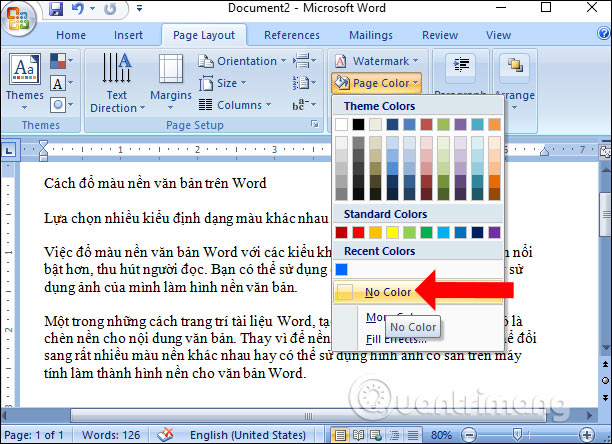
Go to Design > Page Color > No Color. This removes a page color or Fill Effects background. A picture added as a watermark must instead be removed from Design > Watermark > Remove Watermark.
Make the background print
Page backgrounds may be omitted from printing until the relevant option is enabled. On Word for Windows, go to File > Options > Display and select Print background colors and images. On Word for Mac, open Word > Preferences > Print and enable the corresponding option. Check Print Preview because printers cannot always reproduce screen colors exactly. See Microsoft's background-printing instructions.
If you meant a background behind selected text
Select the words, then use Home > Text Highlight Color for a marker-style background. For a paragraph-width color, use Home > Shading. Page Color always applies to the document page, not just the selected text.
Related Articles
 How to Create Text Wallpaper in Word: Insert Word Background6 minutes read
 Format Background Color for Text Page in Word4 minutes read
 MS Word - Lesson 7: How to Use Styles7 minutes read
 How to Delete a Background Color in a Word Document?4 minutes read
 How to Change the Background Color in Google Docs4 minutes read
 Set Background Color in PowerPoint2 minutes read
Reader Comments 0
Sign in with email or Google to join the discussion.