Table of Contents
To install Office 2021 safely, redeem a genuine product key to a Microsoft account, open that account's Services & subscriptions page, and download the official PC or Mac installer. Do not use third-party “free Office” downloads, activators, or volume-license configuration files for a personal retail license.
Important: Microsoft support for Office 2021 ends on October 13, 2026. The apps may continue to run after that date, but Microsoft will no longer provide security fixes or technical support. If you are buying Office now rather than reinstalling an existing license, compare a supported perpetual version or Microsoft 365.
Before installing
- Confirm the license is for Windows or Mac and that the device meets Microsoft's current system requirements.
- Office LTSC 2021 supports Windows 10 and Windows 11—not Windows 7 or Windows 8.
- Uninstall conflicting Office editions when Microsoft advises it, especially installations that use a different architecture or licensing channel.
- Save work, update the operating system, and make sure there is enough free disk space.
- Remember the Microsoft account used to redeem the key; it is needed for later reinstallation.
What Office 2021 includes
The applications depend on the purchased edition. Word, Excel, and PowerPoint are common to the main retail packages. Some editions add Outlook, Access, or Publisher on supported platforms. Visio and Project are separate products and should not be assumed to be part of Office 2021.
Redeem a new Office 2021 product key
- Go to Office setup.
- Sign in with the Microsoft account that should own the license.
- Enter the unused product key and follow the prompts.
A redeemed product is linked to that account. For future installs, use the account page instead of entering the key again. If the key is already associated with another account, sign in with that original account or contact the seller and Microsoft support; do not buy a replacement from an unverified marketplace.
Install Office 2021 on Windows
- Sign in to your Microsoft account and open Services & subscriptions.
- Find the Office 2021 product and select Install. Choose a language or architecture only if the page offers those options and you know a different choice is required.
- Open the installer downloaded by the browser. If Windows asks whether to allow the Microsoft installer to make changes, verify the publisher and select Yes.
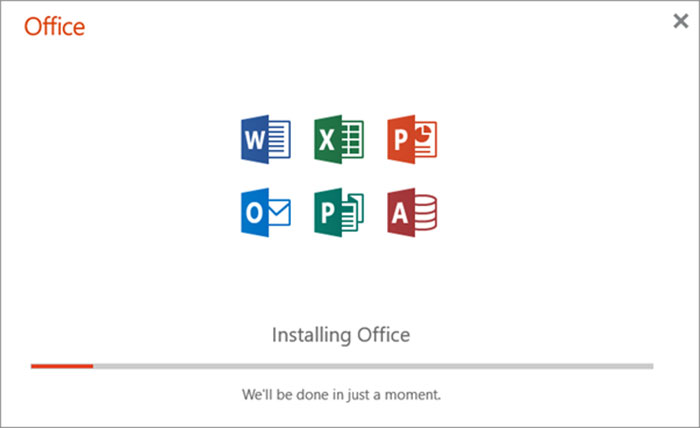
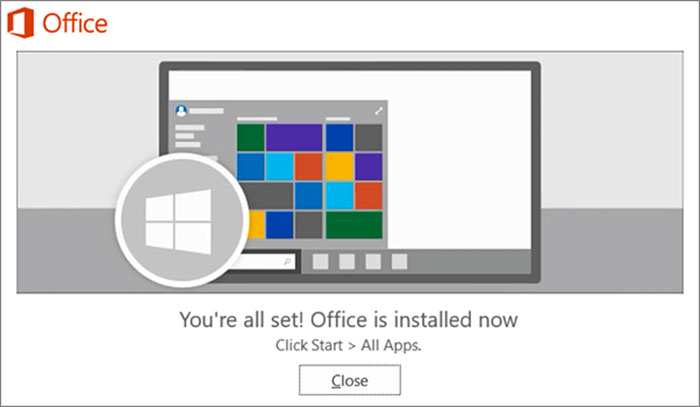
Keep the computer connected while Office downloads and installs. When the “You're all set” message appears, select Close.
Activate on Windows
Open Word or Excel from the Start menu. Sign in with the Microsoft account that owns Office 2021 and accept the license prompts shown by the app. To verify activation, open File > Account and check the Product Information section.
Install Office 2021 on a Mac
- Open Services & subscriptions and sign in with the account that owns Office 2021.
- Select Install for the product.
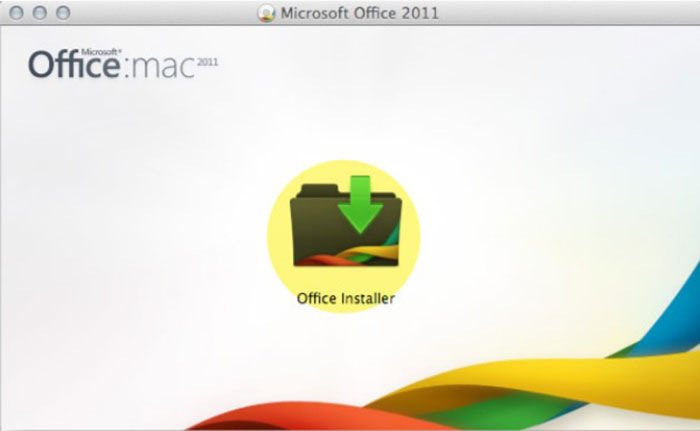
- Open Finder, go to Downloads, and double-click the Microsoft Office installer
.pkgfile.

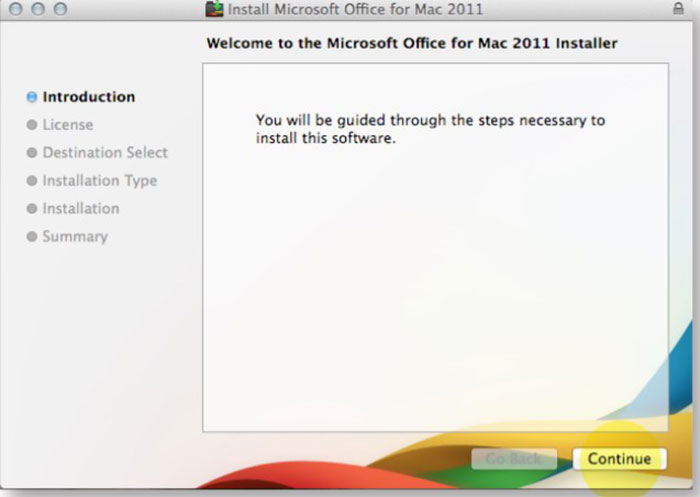
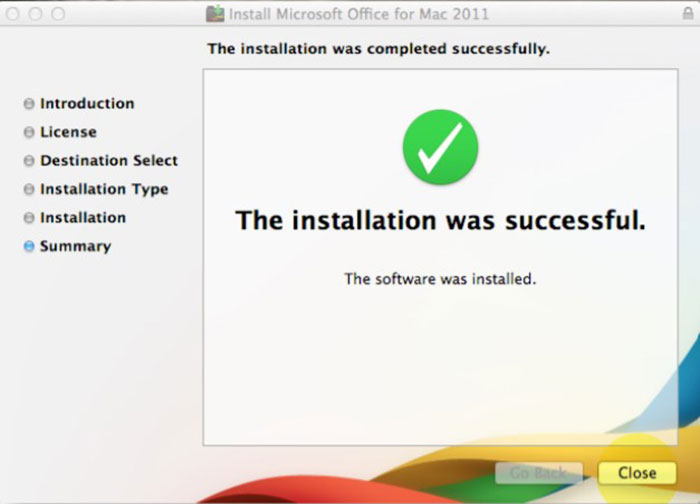
Follow the macOS installer. Review the destination and installation type, then authorize the installation with the Mac administrator method requested by macOS.
Wait for the success message before closing the installer.
Activate on Mac
Open Word from Launchpad or the Applications folder, then sign in with the Microsoft account linked to the license. Follow the activation prompts.
When the Office Deployment Tool is appropriate
The Office Deployment Tool is intended mainly for administrators deploying volume-licensed Office LTSC 2021. It requires a configuration XML that matches the organization's licensed product, update channel, architecture, and languages.
Do not copy an arbitrary “Office2021Enterprise” configuration from the internet or select Project, Visio, or Professional Plus product IDs unless the organization owns those licenses. Consumer Office 2021 users should install from the Microsoft account page.
Troubleshooting
The Install button is missing
Confirm that the product appears under the signed-in account's purchases or subscriptions. If a new key has not been redeemed, use the setup page first. Work or school licenses may be assigned through an organization instead.
Office says the key has already been used
A redeemed key normally means the license is already attached to a Microsoft account. Sign in to the account used during the original redemption and install from Services & subscriptions.
The installation hangs or conflicts with another version
Restart the computer, install operating-system updates, and remove an incompatible Office installation using Microsoft's supported uninstall process. Avoid registry cleaners and third-party activation utilities.
Office opens in reduced-functionality mode
Connect to the internet, open an Office app, and sign in with the licensed account. Check File > Account on Windows or the account menu on Mac. A one-time Office license is normally limited to the number of devices stated in its terms.
Keep Office updated
On Windows, open an Office app and select File > Account > Update Options > Update Now. On Mac, use Microsoft AutoUpdate where provided. Install all remaining updates before Office 2021 reaches end of support, then plan a move to a supported release.
For the current official installation steps, use Microsoft's Office 2021 installation guide.
Related Articles
 How to Install Microsoft Office: Clear Instructions7 minutes read
 Instructions on How to Install Windows 10 (32bit and 64bit)7 minutes read
 Install Windows 10 with USB BOOT Quickly, with Detailed11 minutes read
 How to Install Microsoft Office6 minutes read
 How to Install Windows 10 Using a Bootable USB Drive - a Guide from a to Z10 minutes read
 How to Use Office 3658 minutes read
Reader Comments 0
Sign in with email or Google to join the discussion.