Table of Contents
Modern iPhones and Android phones can reveal or share a saved Wi-Fi network without jailbreaking, rooting, or installing a password-viewer app. On iPhone, use the Passwords app or the Password field in Wi-Fi settings. On Android, authenticate and generate the network’s QR code; some devices also show the password as text.
Use these steps only for a network you own or are authorized to manage. A Wi-Fi password gives access to the local network, so avoid exposing it in screenshots, messages, or third-party utilities.
Find a Wi-Fi password on iPhone
Use the Passwords app in iOS 18 or later
- Open Passwords.
- Unlock the app with Face ID, Touch ID, or your device passcode.
- Tap Wi-Fi.
- Select the current network or one you previously joined.
- Tap the Password field, then choose Copy Password if needed.
Apple’s current saved Wi-Fi password instructions confirm that the Passwords app can display both the connected network and previously saved networks.
Reveal the current password from Wi-Fi settings
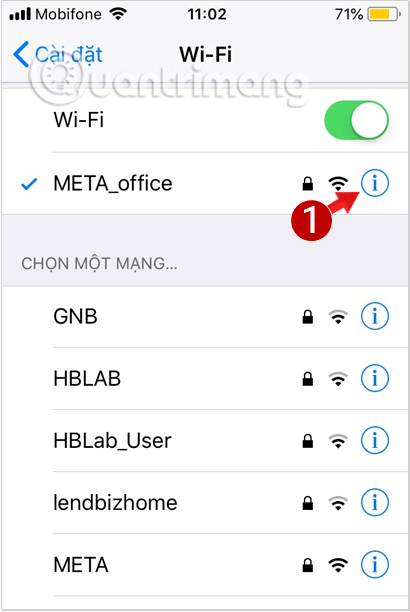
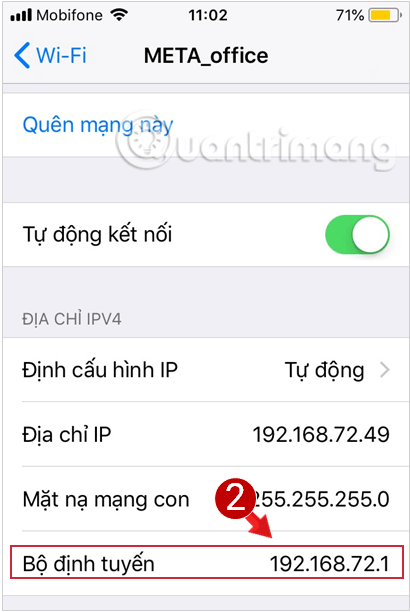
On iOS 16 or later, you can also open Settings > Wi-Fi, tap the information button beside the connected network, and tap Password. Authenticate when prompted to reveal and copy it.
The screenshots below come from an older iOS interface and show the same Wi-Fi details area. Current versions include a Password field directly, so you no longer need to use the router address merely to recover the current network password.
Share access without reading the password aloud
If another Apple device is nearby, the owner can select the same Wi-Fi network on their device. Keep your iPhone unlocked and connected to Wi-Fi; when the sharing prompt appears, tap Share Password and then Done. This is preferable to sending the password in an unencrypted message.
Find or share a Wi-Fi password on Android
Menu names differ by manufacturer, but current Android devices use a built-in Share or QR code function. No root access is required.
On a Pixel or standard Android interface
- Open Settings > Network & internet > Internet.
- Tap the connected Wi-Fi network. To use a previously joined network, open Saved networks and select it.
- Tap Share.
- Authenticate with your PIN, pattern, password, fingerprint, or face unlock.
- Let the other device scan the QR code. Some phones also print the network password beneath the code.
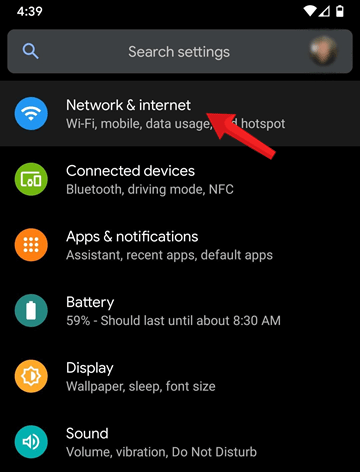
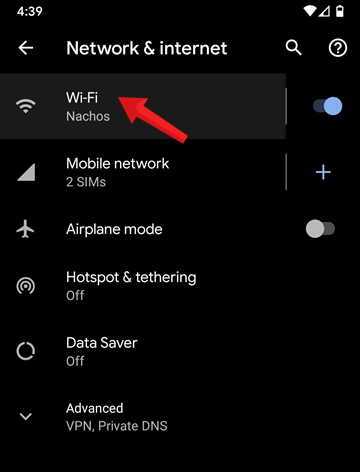
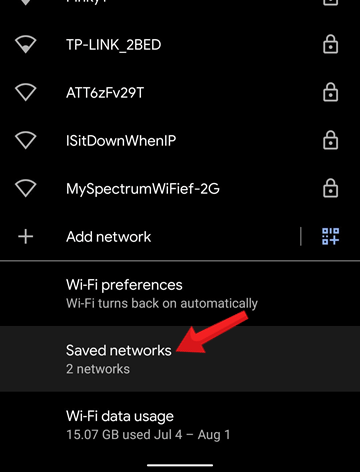
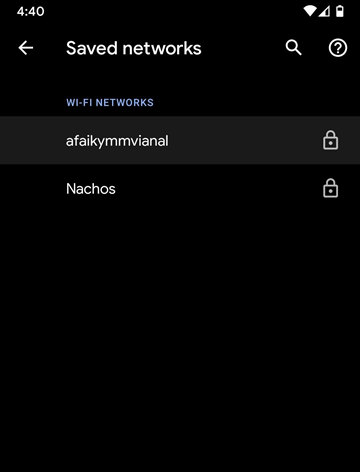
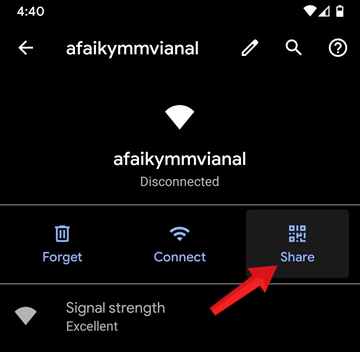
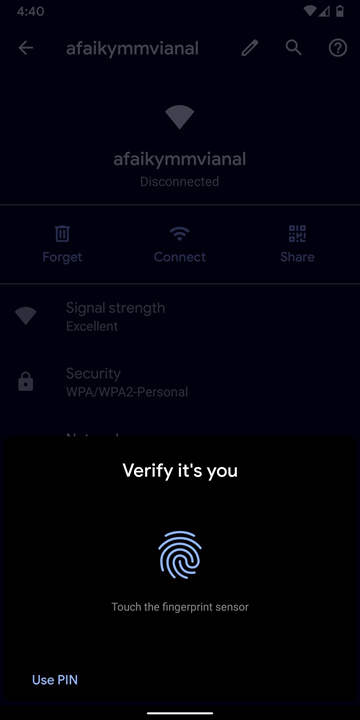
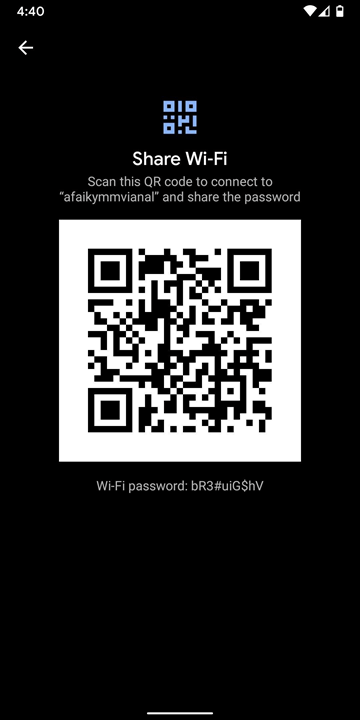
Google’s Android Wi-Fi guide documents this QR-sharing workflow. If the password is not shown as text, scan the code directly with the device that needs to join rather than uploading the QR image to a decoding website.
On a Samsung Galaxy phone
- Open Settings > Connections > Wi-Fi.
- Tap the gear icon beside the connected network.
- Tap QR code.
- Have the guest scan the code with their phone’s camera or Wi-Fi scanner.
Samsung’s current Galaxy Wi-Fi sharing instructions use the same approach. Samsung may not display the password in plain text, but the QR code contains the credentials needed to join.
Use the router settings as a fallback
If the phone cannot reveal the password, and you administer the router, sign in to the router’s management interface. Do not attempt this on a workplace, school, hotel, or other managed network without authorization.
1. Find the router address
On iPhone, open Settings > Wi-Fi, tap the information button beside the network, and find Router. On Android, open the connected network’s details and look for Gateway or Router. The exact label varies by device.
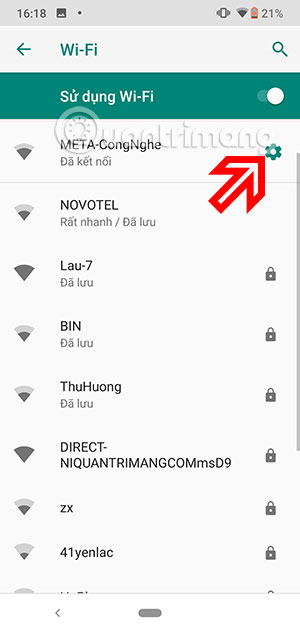
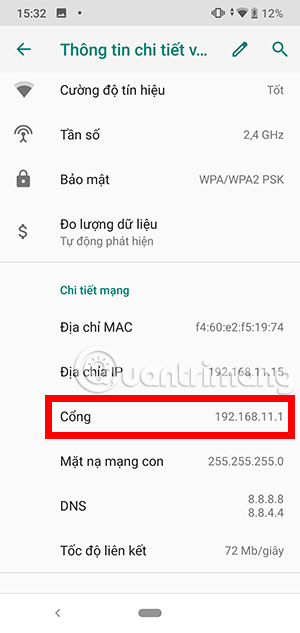
For more detail, see TipsMake’s guide to finding a default gateway address.
2. Sign in to the router
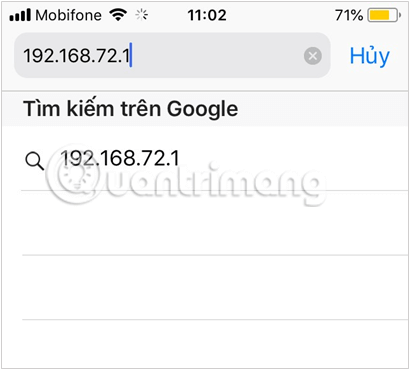
Enter the gateway address in the browser’s address bar. The browser may open an HTTP or HTTPS management page.
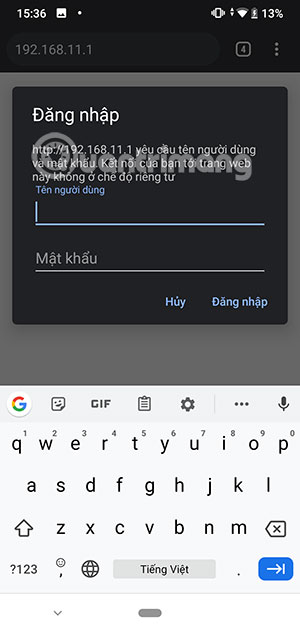
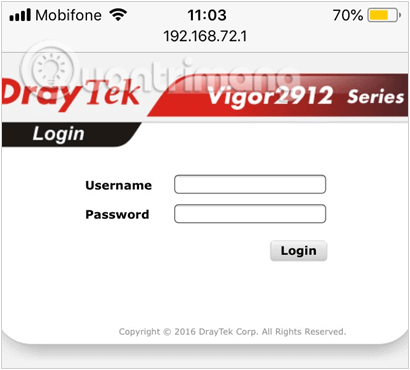
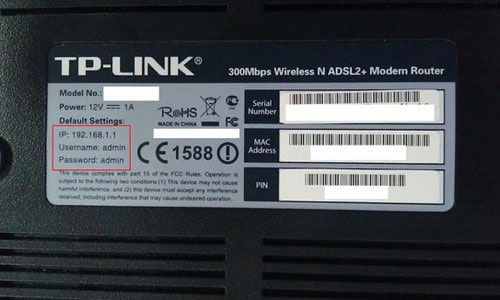
Use the router’s administrator username and password—not the Wi-Fi password you are trying to recover. A label on the router may show the original admin credentials, but they will not work if the owner changed them. Some routers use a vendor app or an account-based login instead.
The original iPhone screenshots show the same older browser-based process:
3. Locate the wireless security settings
Look for a section named Wi-Fi, Wireless, SSID, or Wireless Security. Select the relevant 2.4 GHz, 5 GHz, or 6 GHz network and reveal or change its password. Menus differ by router brand and firmware; TipsMake’s TP-Link Wi-Fi 6 setup guide shows one example.
If you reset or change the Wi-Fi password, every connected device will need the new credential. Avoid factory-resetting a router unless you understand the internet connection settings that must be restored.
Avoid jailbreak, root, and password-viewer apps
Older guides recommended jailbroken iPhone tweaks, rooted Android password viewers, or file managers that attempted to read wpa_supplicant.conf. Those methods are obsolete for current phones and can weaken device security, expose every saved network, break updates, or grant excessive access to an untrusted app.
Use the built-in Passwords, Share, or QR code feature instead. If a very old phone does not provide one, retrieve the password from an authorized router administrator or from another trusted device that already stores it.
Protect the network after sharing
- Do not post or publicly store a screenshot of a Wi-Fi QR code; it contains the connection credentials.
- Create a guest network for visitors and smart-home devices when the router supports it.
- Use WPA2 or WPA3 with a long, unique password rather than a reused personal password.
- Change the Wi-Fi password if it was exposed to an untrusted person or service.
- Change default router administrator credentials and keep the router firmware updated.
If you need to recover a network from a computer instead, see how to view a saved Wi-Fi password in Windows.
Related Articles
 How to View Wi-Fi Passwords Saved on Your Phone, Computer4 minutes read
 How to See the Wi-Fi Password Is Connected on the Computer and Phone7 minutes read
 How to Review Saved Wi-Fi Passwords on Android Devices3 minutes read
 Tips to View Saved Wi-Fi Passwords on Android7 minutes read
 How to View Saved Wi-Fi Passwords on Android8 minutes read
 How to View Wi - Fi Password on iPhone Extremely Simple3 minutes read
Reader Comments 0
Sign in with email or Google to join the discussion.