Table of Contents
Chrome now manages saved credentials through Google Password Manager. On a computer, open Chrome’s menu and choose Passwords and autofill > Google Password Manager, or visit passwords.google.com. Viewing a password requires device or account authentication.
Use these controls only on a device and operating-system account you trust. A person who can unlock your device may also be able to reveal saved passwords.
View a saved password on a computer
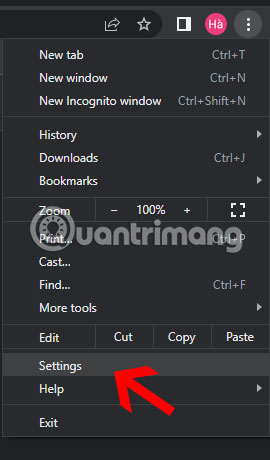
Step 1: Open Chrome’s three-dot menu. Older versions placed Passwords under the general Settings page.
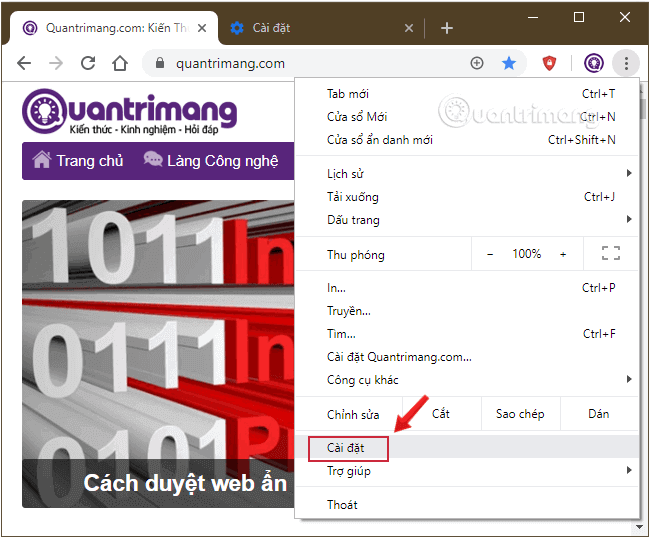
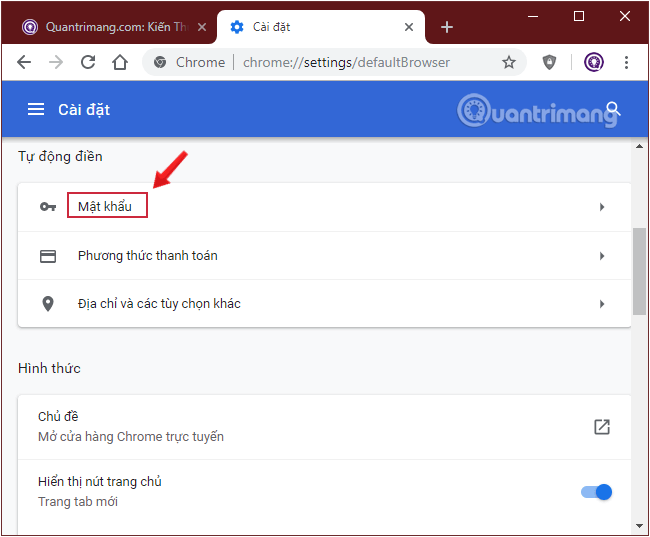
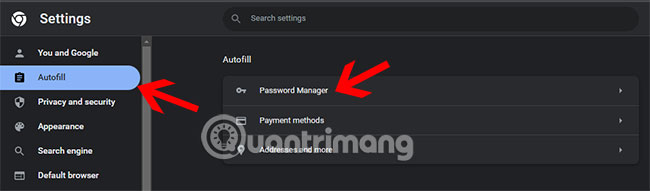
Step 2: In a current Chrome release, choose Passwords and autofill > Google Password Manager. The older Autofill > Passwords screen shown below may still help identify the feature on an outdated installation.
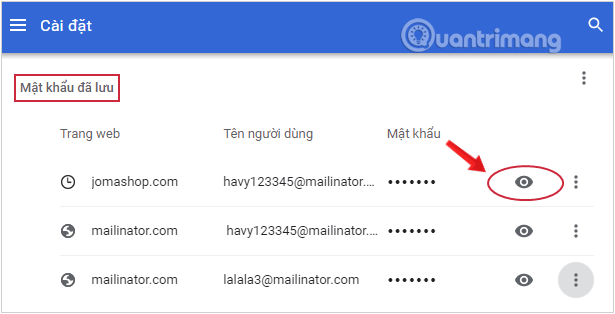
Step 3: Search for the site, select its entry, and choose the eye icon beside the password.
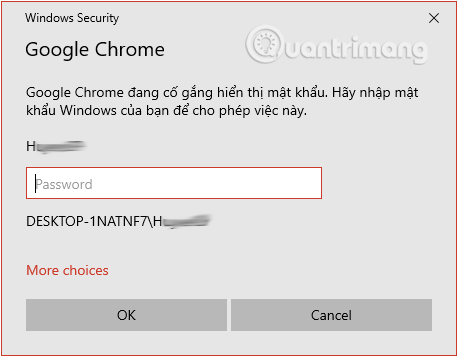
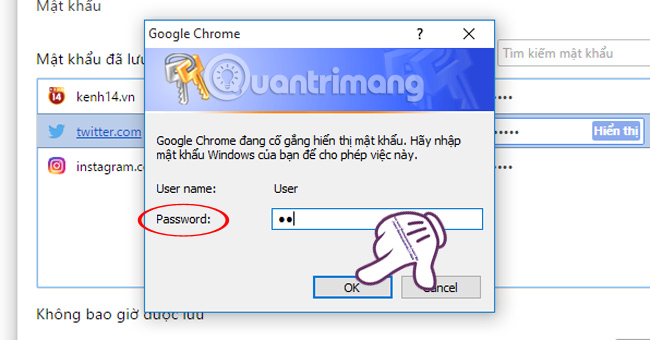
Step 4: Authenticate with Windows Hello, your Windows account password, Touch ID, your Mac login, or the method Chrome requests. Chrome is asking for the device credential, not the website password.
The password is then shown as text. Hide it again, avoid copying it into chat or email, and clear the clipboard if the operating system or password manager does not do so automatically.
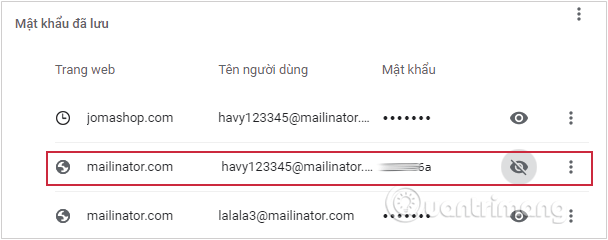
Edit or delete one saved login
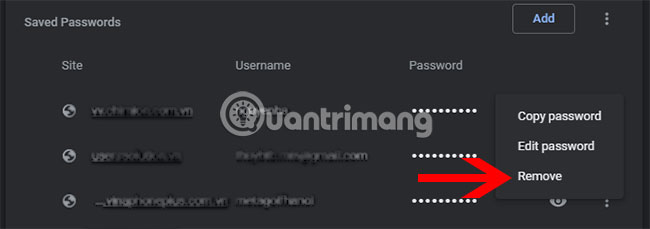
Select the credential in Google Password Manager. Choose Edit to correct the username, password, or note, or choose Delete to remove the saved entry.
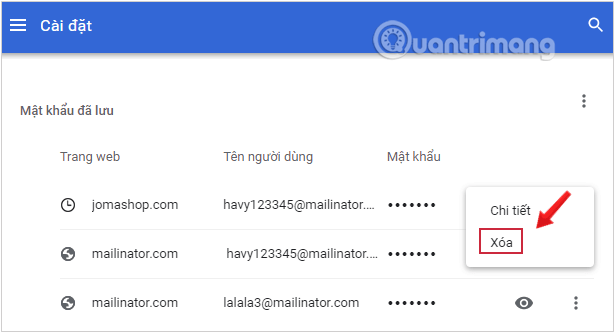
Deleting a password from the manager does not delete the website account or change its password. If the password is synchronized to your Google Account, the deletion can also affect other signed-in devices.
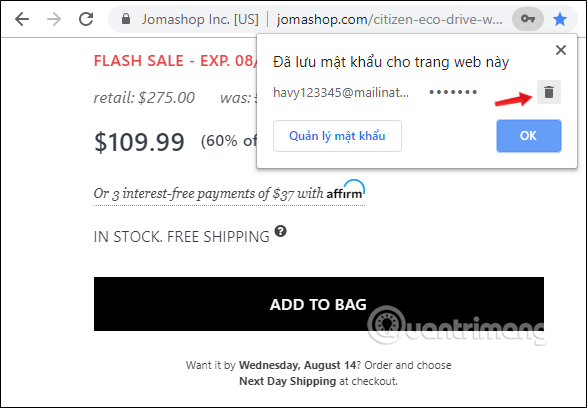
Some older Chrome versions exposed a credential control from the icon near the address bar. The current Password Manager is more predictable.
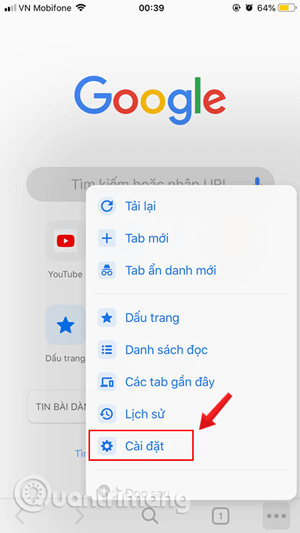
Manage Chrome passwords on iPhone or iPad
Open Chrome, tap More, and choose Password Manager. Older versions may label the path Settings > Passwords.
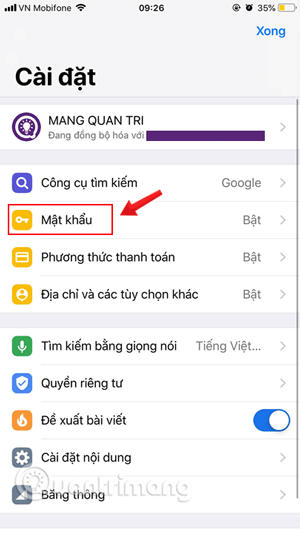
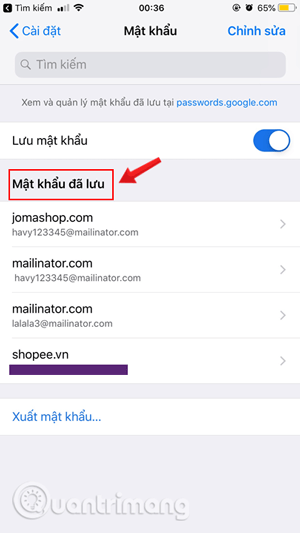
Select a website entry, tap the show-password control, and authenticate with Face ID, Touch ID, or the device passcode.
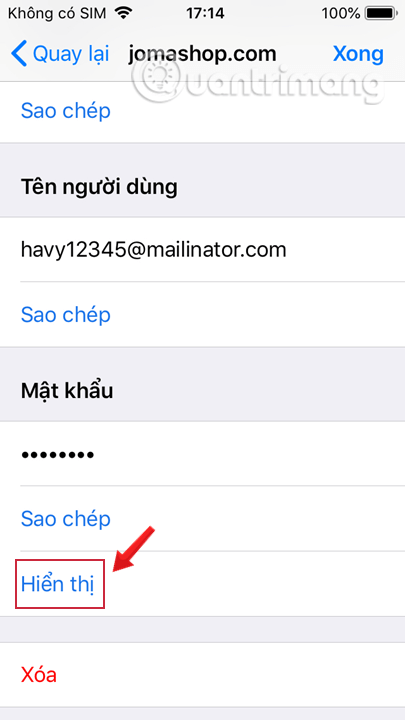
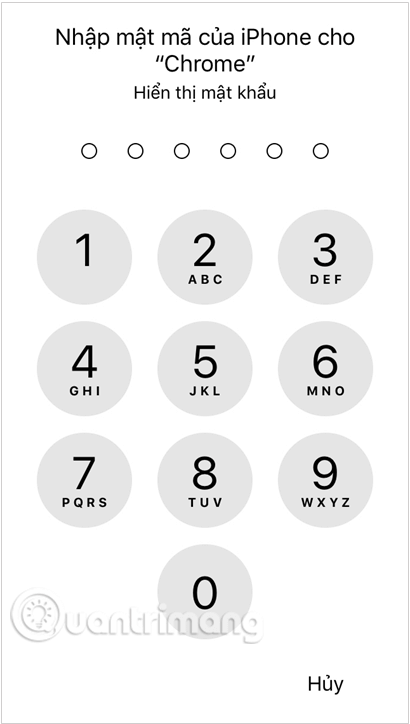
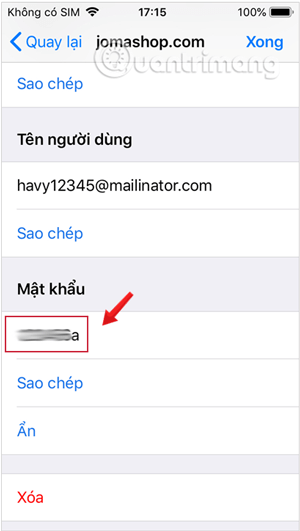
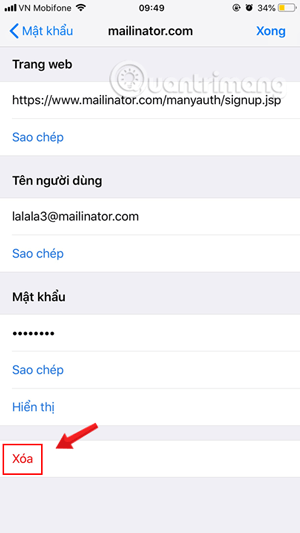
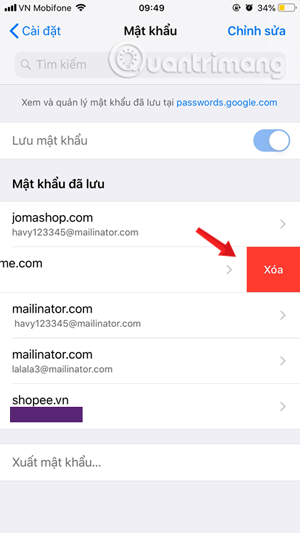
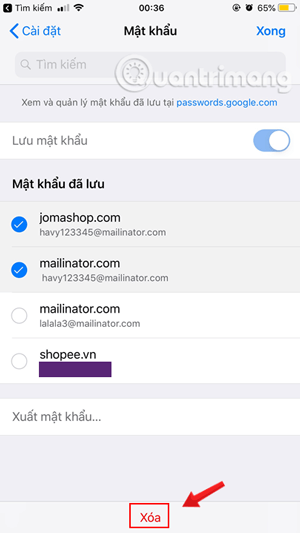
To remove credentials, tap Edit, select the intended entries, and tap Delete. Depending on the version, an individual entry can also have its own Delete command.
Manage Chrome passwords on Android
Open Chrome and choose More > Settings > Google Password Manager. Select a saved login to show, edit, or delete it; Android will request the device screen lock when needed.
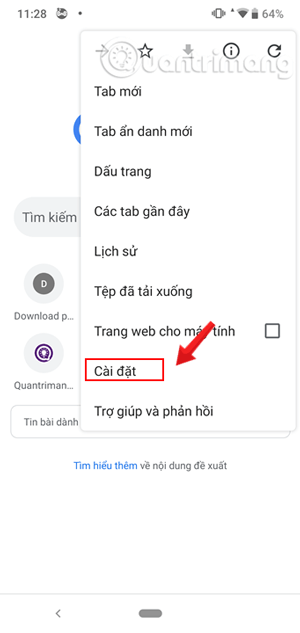
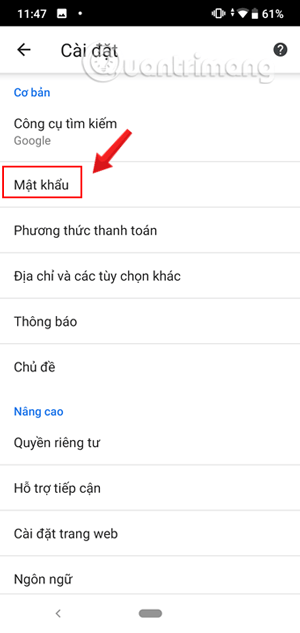
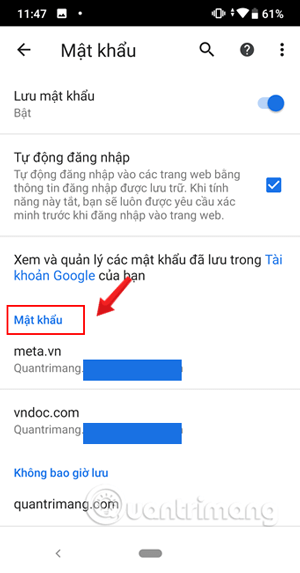
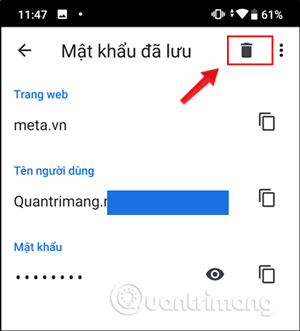
To delete one credential, open it and tap Delete or the trash icon, then confirm.
Manage synced passwords on the web
At passwords.google.com, sign in to the correct Google Account and complete authentication. This shows credentials stored in that account, not necessarily passwords saved only in an unsynced local Chrome profile.
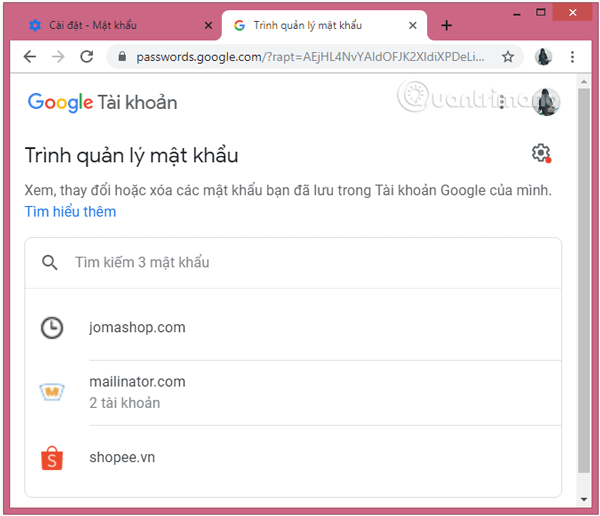
If a password appears on one device but not another, check the Chrome profile, Google Account, synchronization settings, and whether the credential was saved locally.
Legacy Chrome 59 and earlier
The following screenshots document an obsolete interface. Chrome 59 is unsafe for normal browsing because it no longer receives current security fixes; update Chrome rather than following these menus.
The old toolbar used a horizontal-lines menu:
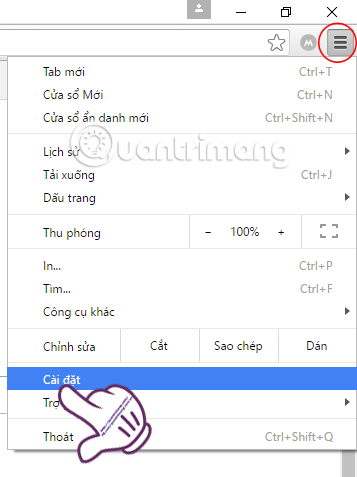
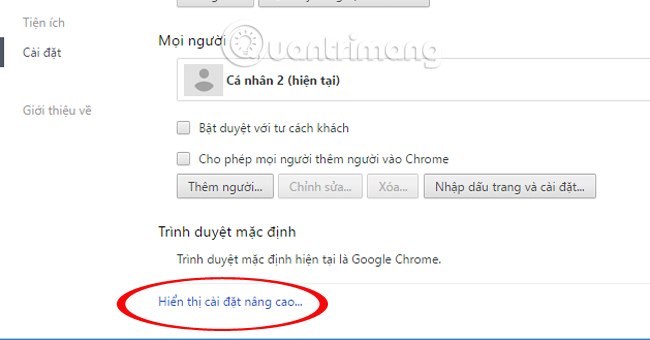
Users opened advanced settings:
The password manager appeared under Passwords and Forms:
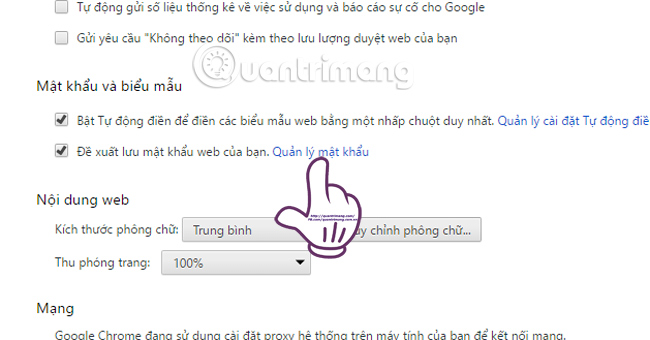
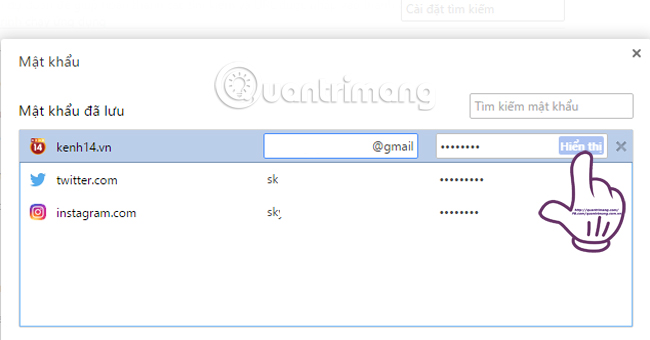
A saved entry had a Show button:
Chrome requested the computer password:
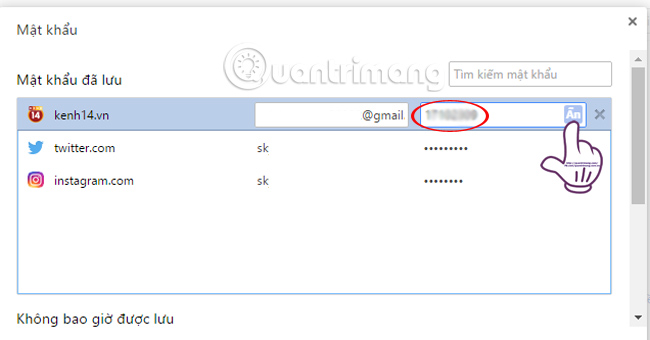
The password could then be shown or hidden:
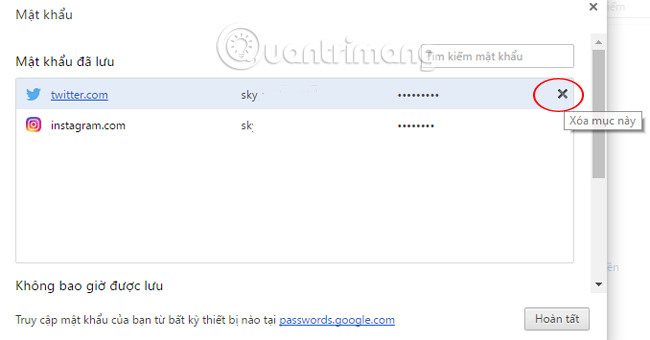
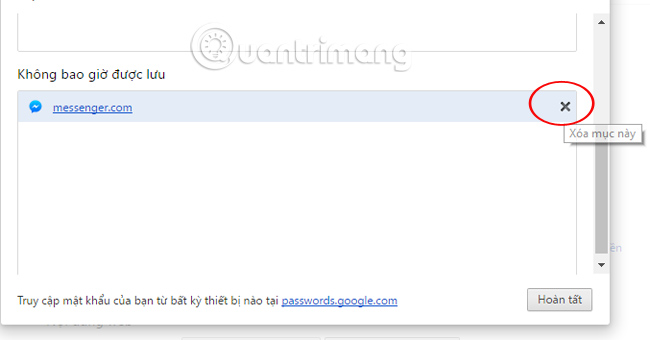
An X removed an old entry:
The old “Never saved” list remembered sites where saving was declined. Removing a site from that list allowed Chrome to ask again; it did not recover a password.
Delete all Google Password Manager data
This is destructive and can remove passwords and passkeys associated with the selected manager/account. Before proceeding, verify the Google Account and consider migrating to another trusted manager.
On a computer, open Google Password Manager, select Settings, find Delete all Google Password Manager data, and choose Delete data. Android and iPhone have a corresponding Delete all data control in Password Manager settings. Google’s current Chrome password-management guide documents the paths.
Older screens required deleting entries individually:
Do not assume deletion is recoverable. Check other password managers, passkeys, recovery codes, and account recovery methods before removing the only credential for an important account.
Export passwords safely
Google Password Manager can export credentials for migration. The exported CSV is usually readable plain text. Anyone who obtains it can see the included usernames and passwords.
- Export only on a trusted, encrypted device.
- Import immediately into the intended reputable password manager.
- Verify a sample of migrated credentials.
- Delete the CSV from Downloads, cloud-sync folders, backups, and Trash using an appropriate secure process.
Do not email the CSV or store it in an ordinary shared drive.
Run Password Checkup
In Google Password Manager, select Checkup to review credentials identified as compromised, reused, or weak. A warning is a prompt to change the password at the actual website. Do not follow an unexpected email link; navigate to the service directly.
Use a unique generated password for each site and enable multifactor authentication or a passkey where appropriate. Deleting a compromised credential from Chrome does not secure the website account—you must change it at the service.
About on-device encryption
On-device encryption changes how your saved data is protected and recovered. It can increase your dependence on device unlock methods and Google Account recovery information. Read Google’s current explanation and verify recovery options before enabling it; do not treat the setting as a one-click upgrade with no tradeoffs.
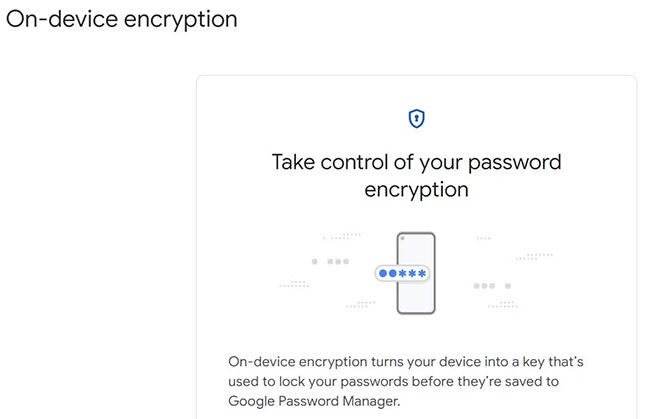
Protect access to saved passwords
- Use a strong device login and automatic screen lock.
- Enable Windows Hello, Touch ID, Face ID, or another supported biometric check where appropriate.
- Do not share an operating-system account with other people.
- Keep Chrome and the operating system updated.
- Remove saved credentials before handing a device to someone else; signing out alone may leave local data.
- Use a separate Chrome profile for work and personal accounts when policy allows.
Related Articles
 How to View the Password, Delete the Saved Password on Chrome5 minutes read
 How to View Saved Passwords on iPhone and Edit Passwords Easily6 minutes read
 How to View Saved Passwords in Web Browsers3 minutes read
 How to View Saved Passwords on Chrome: Step-by-Step Guide2 minutes read
 How to View and Delete Saved Passwords on Firefox, Chrome3 minutes read
 How to View Saved Passwords on Chrome Browser?: Google Chrome10 minutes read
Reader Comments 0
Sign in with email or Google to join the discussion.