Table of Contents
If your Android phone sounds quiet, first check the media volume, the app's own playback level, Bluetooth or headphone volume, and any built-in sound settings. An equalizer can make speech or music clearer; a volume booster raises gain and may also add distortion. The best choice depends on whether the problem affects every app or only a particular video, song, or podcast.
For changes you can make without installing a separate booster, see TipsMake's Android sound-quality tips. If you mainly play files stored on your phone, compare music player apps for Android before adding a system-wide effect.
Equalizer: shape the sound of music
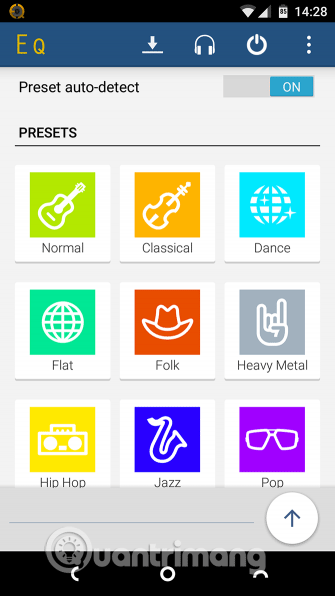
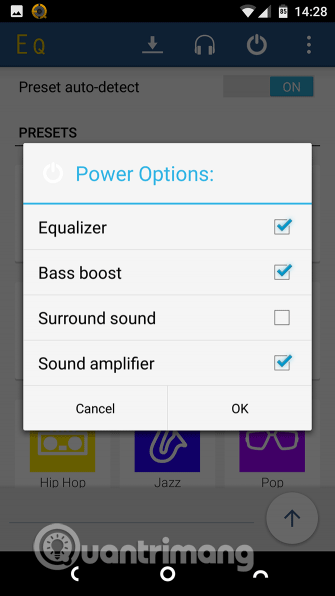
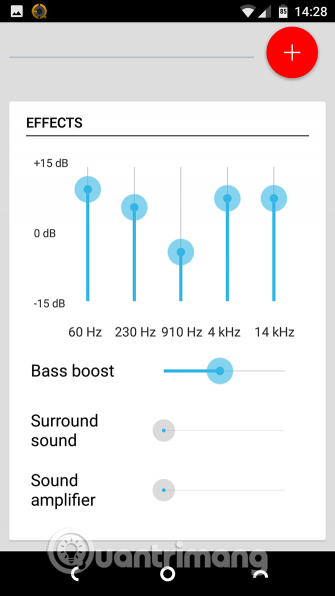
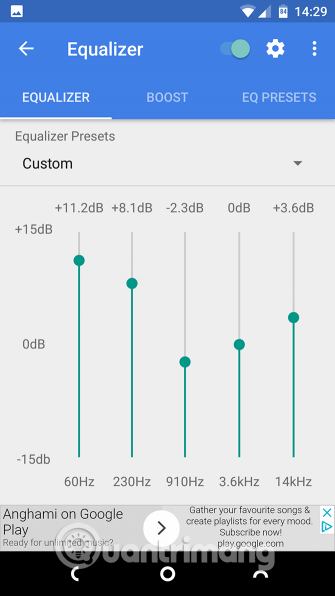
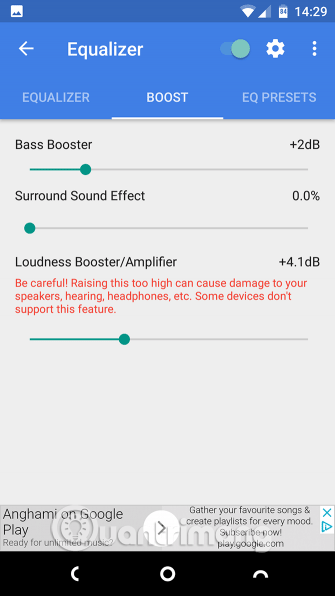
The Equalizer app in the original selection provides preset sound profiles, a bass control, and manual adjustment. Try a preset at a moderate volume, then make small changes to the frequencies you actually find hard to hear. Boosting every frequency at once usually makes the signal louder without making it clearer. Check whether the app affects your preferred music service before relying on it.
Equalizer FX: a separate effects control
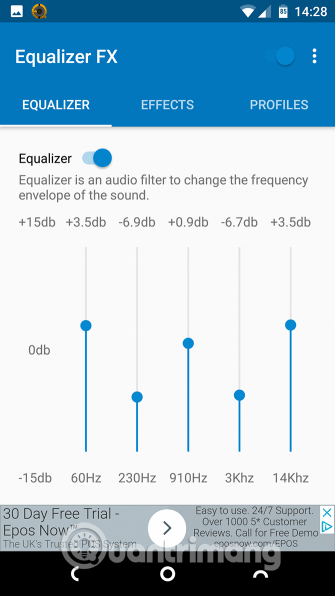
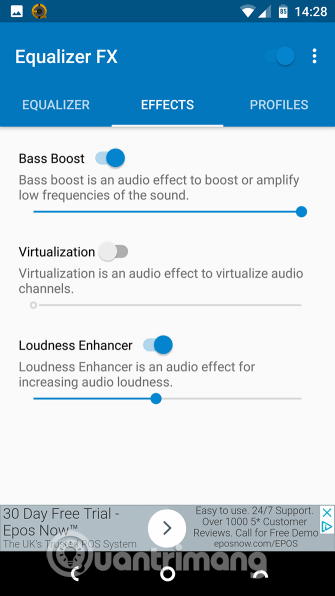
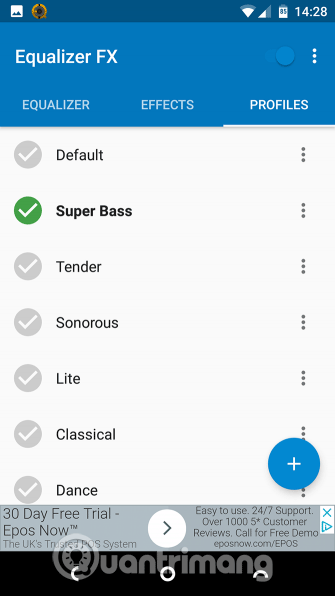
Equalizer FX offers equalization and effects such as bass boost and loudness enhancement. It may suit you if your player lacks useful sound controls. The original guide referred to Google Play Music, so treat that compatibility example as historical; test the app with the player you currently use. Turn effects off when comparing sound so you can tell whether they genuinely help.
Precise Volume and Precise Volume 2.0: finer volume control
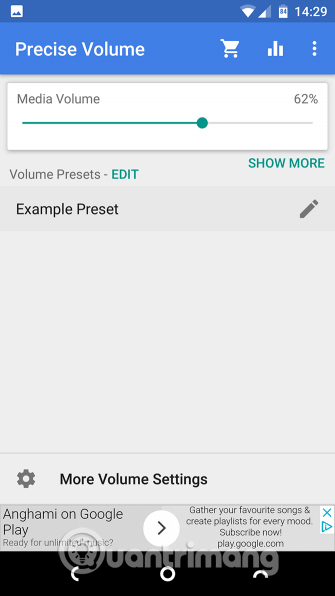
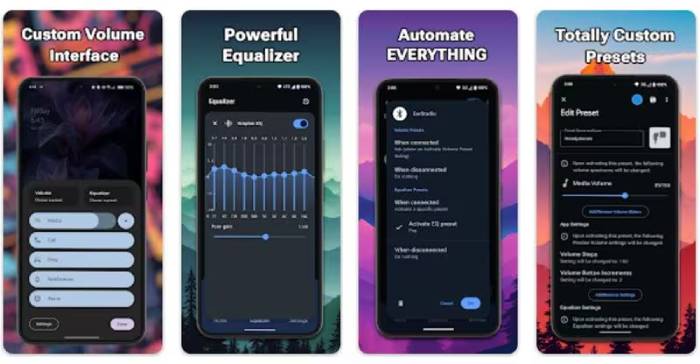
Precise Volume focuses on smaller volume adjustments and presets, including settings for headphones. The later 2.0 entry also describes an equalizer, left/right balance, and headphone-oriented tuning. Choose it when the normal volume steps feel too coarse or you regularly switch output devices. Check the current app listing for which features are available in the version you install; the two entries in the source describe different releases and some limits may have changed.
VLC for Android: quiet local videos and audio
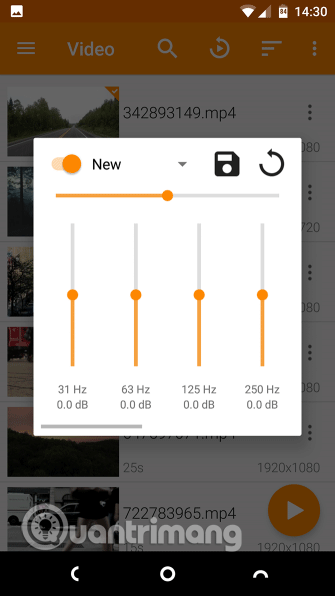
VLC is a media player rather than a general phone-volume fix. Its playback controls and equalizer can help when a particular local file is quiet. Look in VLC's audio or playback settings for the controls available in your installed version; the exact menu names in older screenshots can differ. Raise gain gradually and return to normal if voices clip or speakers crackle. For other playback choices, TipsMake also compares Android video players.
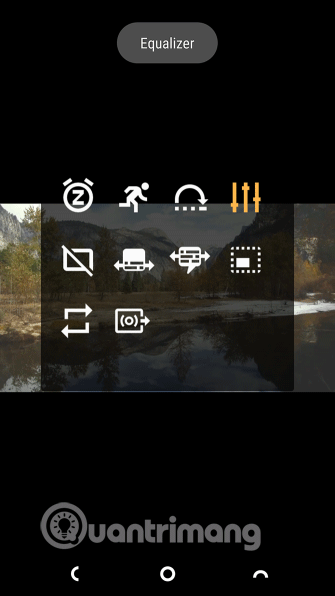
MX Player: playback controls for video
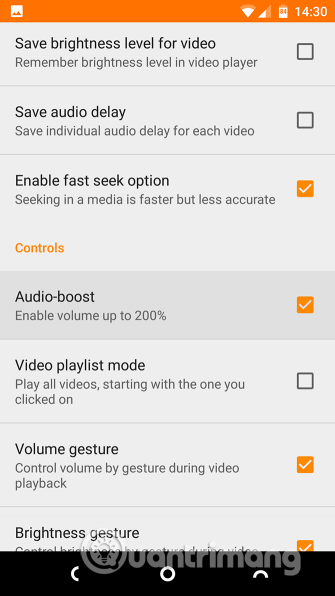
MX Player is another option when the low level occurs in videos you play inside that app. The source describes a volume-boost setting and gesture controls. Check the audio and decoder options in your current version; available controls can depend on the file and decoder. A player-level boost does not necessarily improve sound from other apps.

Podcast Addict: make spoken audio easier to hear
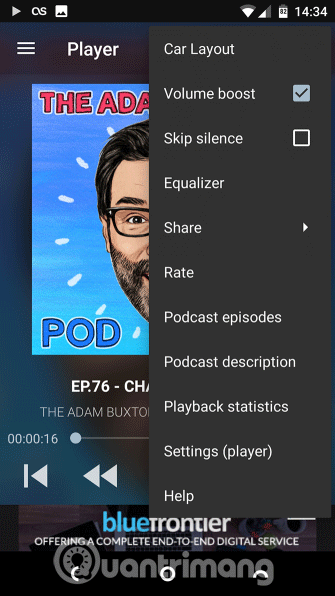
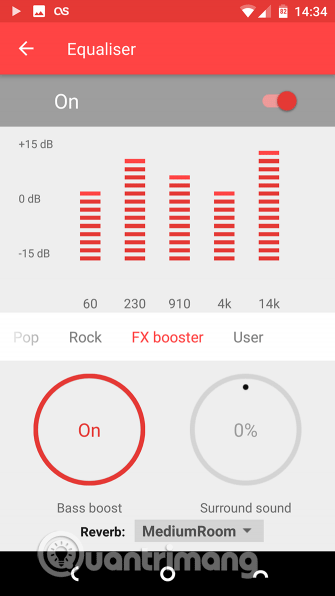
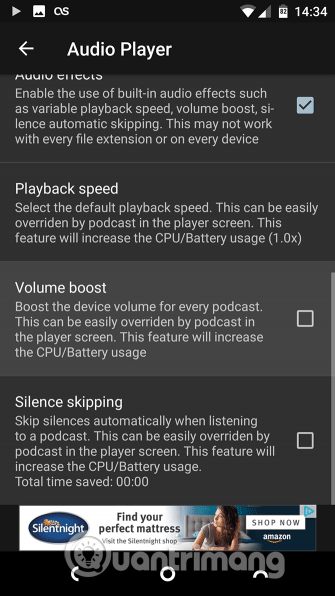
For podcasts with quiet speech, try the player's volume and equalizer settings before installing a separate booster. Podcast Addict includes playback adjustments for this purpose. Compare a familiar episode with the effect on and off: raising low frequencies can make a voice sound fuller, but too much bass can obscure consonants. If a recording itself has heavy background noise, an equalizer will not remove it cleanly.
Viper4Android: advanced controls for modified devices
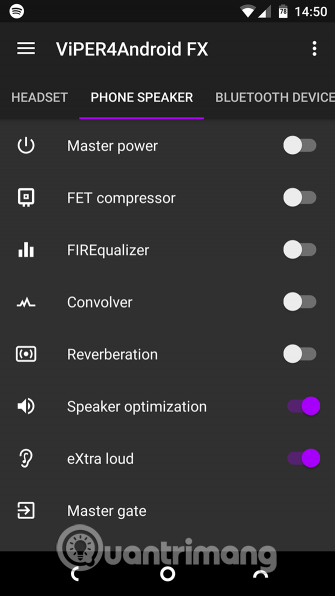
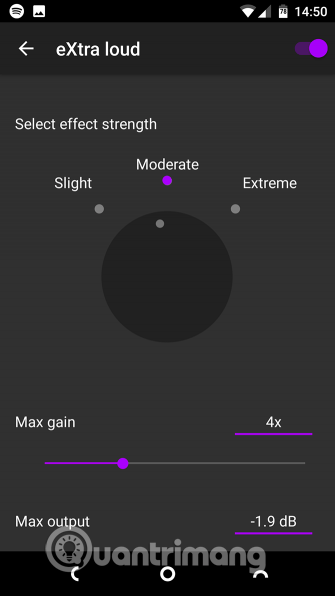
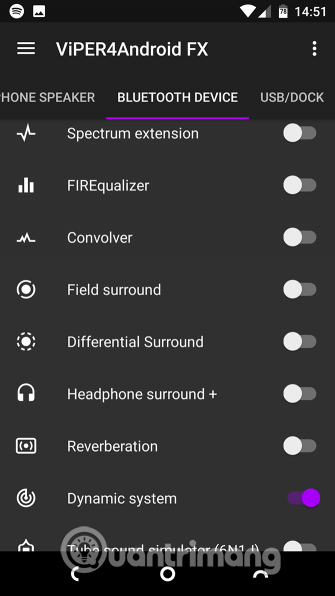
The source describes Viper4Android as an advanced audio tool used on rooted devices, with loudness and speaker effects. It is a specialized choice for people who already understand their device's modifications, rather than a quick fix for an ordinary phone. Availability, installation method, and device compatibility can change; verify the project and its requirements before considering it. Keep gain modest to avoid distortion.
XBooster: simple amplification with music controls
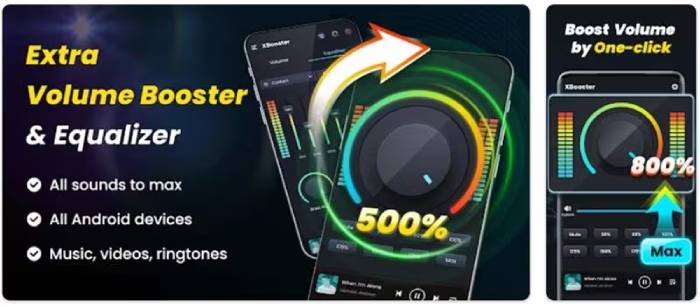
XBooster is described as a volume booster with a built-in music player and equalizer presets. It is most relevant if you want one app to manage playback and sound effects. The original claims a large percentage increase, but a percentage is not a measure of clearer audio. Start at a low setting and stop increasing it once you hear clipping.
Volume Booster GOODEV: a basic gain control
Volume Booster GOODEV focuses on raising output level rather than offering detailed equalization. That makes it simpler when a recording is merely quiet. Set a conservative maximum boost, especially with headphones. The source's device-version and advertising claims are not reliable guides to the current app, so check the present listing and test on your own phone.
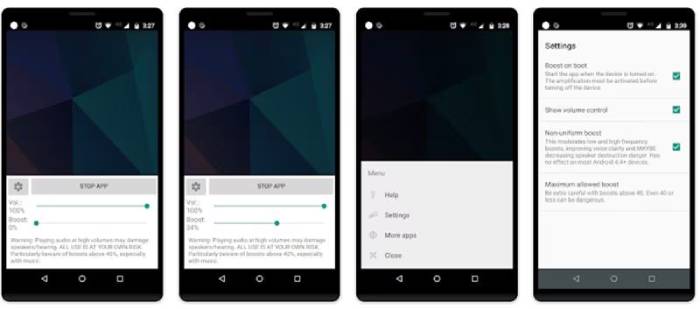
Sound Booster / Increase Volume: check the exact app
The original entry uses more than one generic name and lists an equalizer alongside amplification. Because similarly named apps exist, verify the developer and requested permissions before installing the one shown in the source. Consider it only if its actual controls meet your needs; file-format or sound-quality claims in an app description do not guarantee that a phone's speaker can play louder without distortion.
Which option should you try first?
- One quiet video: use VLC or MX Player's playback controls.
- Quiet speech in podcasts: adjust Podcast Addict's playback settings.
- Music that sounds unbalanced: try an equalizer and compare at the same volume.
- Volume steps are too coarse: try Precise Volume.
- Everything is quiet: check device and output settings before trying a booster.
Any amplified setting can distort a source that is already loud. Reduce it if you hear buzzing, harshness, or clipping, and avoid listening at uncomfortable levels.
Related Articles
 9 Best Audiobook Apps for iPhone and Android10 minutes read
 5 Best Sound Quality Enhancement Software for PC5 minutes read
 The Best Android Apps9 minutes read
 Top 15 Best Feature Enhancement Apps for Android8 minutes read
 Top 20 Best Music and Audio Editing Applications for Android10 minutes read
 How to Extract Audio from Video on Android5 minutes read
Reader Comments 0
Sign in with email or Google to join the discussion.