Table of Contents
This practical guide explains how to view old account passwords saved on iPhone. Follow the steps in order, review the requirements first, and use the troubleshooting notes when a setting or option does not work as expected.
How to view old account passwords saved on iPhone
Step 1:
You access the Passwords application on your phone, then select the All group to see all passwords saved on your iPhone.
Step 2:
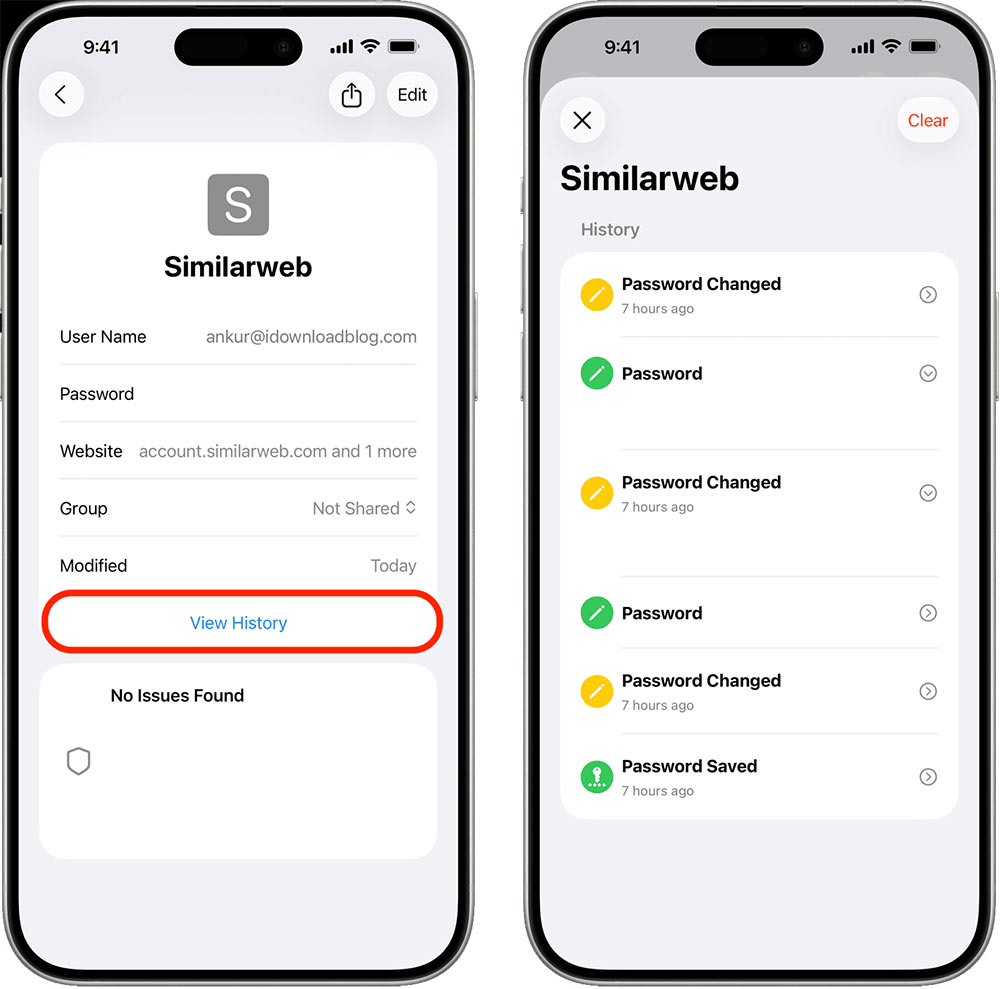
Then tap the account you want to see the password change history for, then tap View History below. You'll now see all the saved versions of your password, with the current password displayed at the top. Tap any entry to see the full password.
Step 2:
The Passwords app will automatically add new entries to your history whenever you edit a login saved in the app.
To test if password history is working, tap the plus (+) button in the bottom right corner of the app, then fill in your login information and save changes.
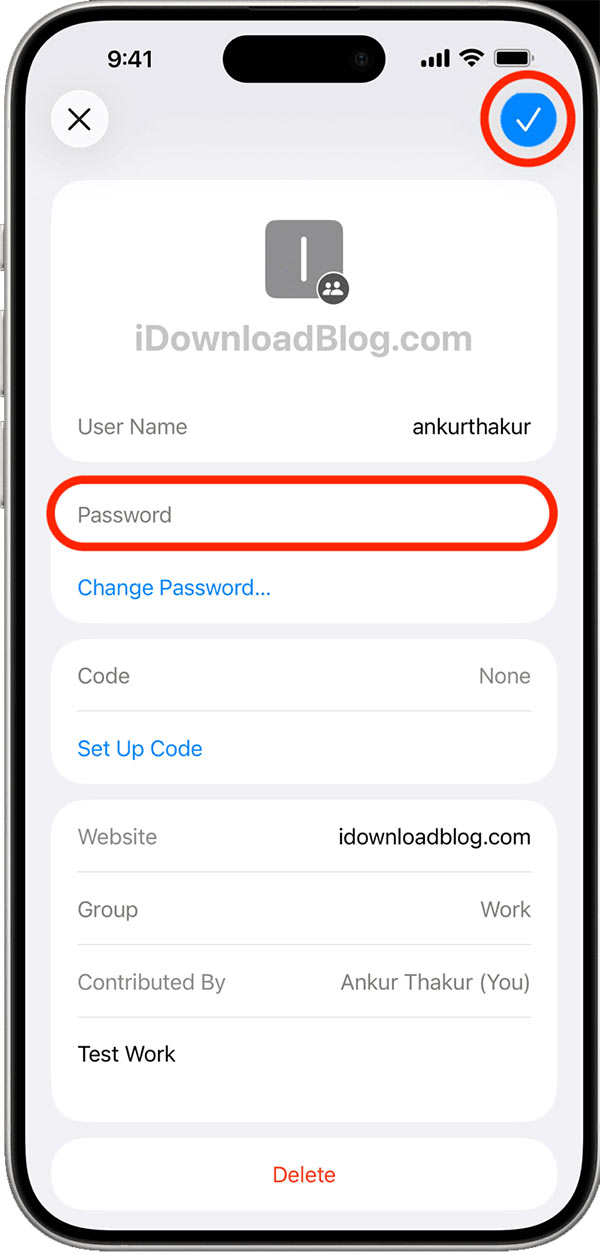
Next, tap Edit and replace the saved password with the new one, then tap the check mark icon in the upper right corner. You will now see a View History button for this login, tap it to see both your old and new passwords.
Step 3:
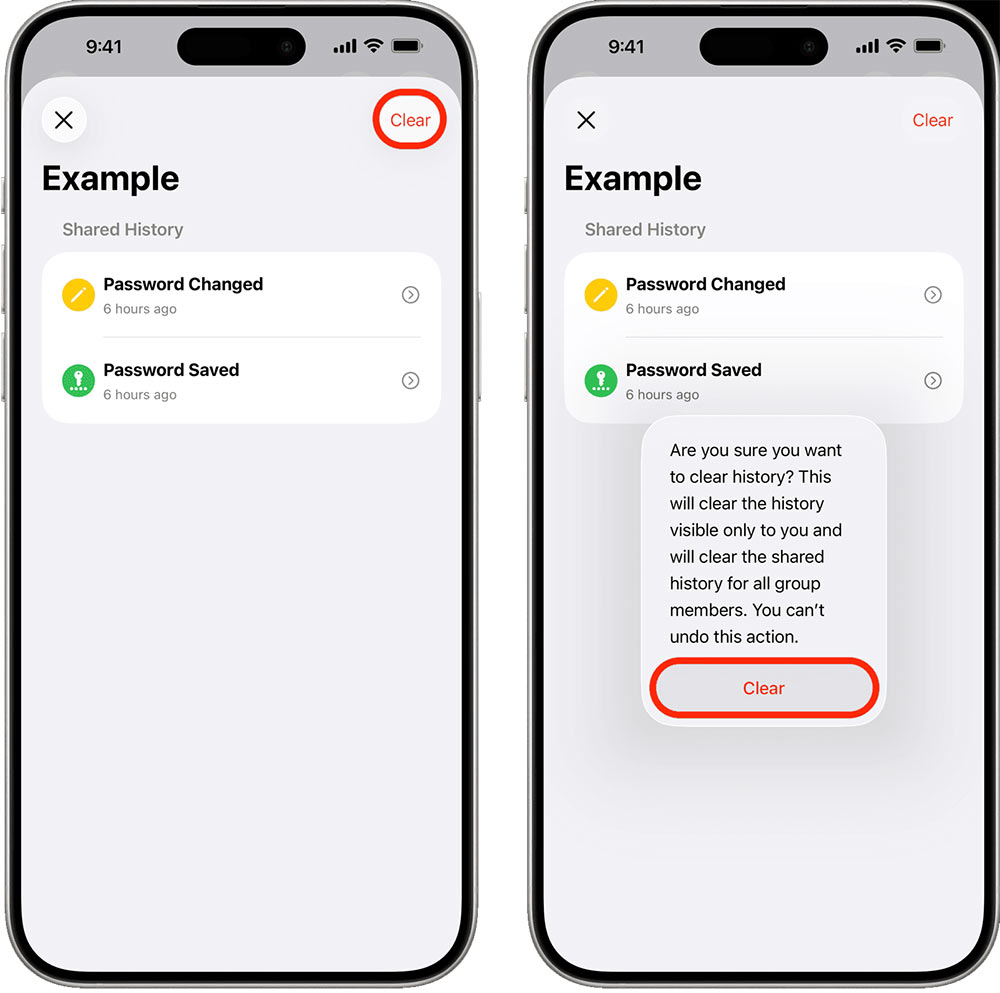
To delete the old password saved on the application, just click Clear to delete it.
FAQ
How to view old account passwords saved on iPhone?
You access the Passwords application on your phone, then select the All group to see all passwords saved on your iPhone.
What does this guide cover?
This guide explains view old account passwords saved on iPhone, including the main steps, important details, and practical considerations.
Who is this guide for?
It is designed for readers who want a clear, practical overview and a reliable process they can follow without unnecessary complexity.
Related Articles
 View Saved Passwords on iOS 114 minutes read
 How to View Saved Passwords on iPhone and Edit Passwords Easily6 minutes read
 Instructions for Viewing Saved Passwords on Bchrome2 minutes read
 Display Saved Passwords on Web Browsers5 minutes read
 How to Share Passwords on iPhone / iPad with Airdrop5 minutes read
 How to View and Quickly Delete Saved Passwords on Chrome9 minutes read
Reader Comments 0
Sign in with email or Google to join the discussion.