Table of Contents
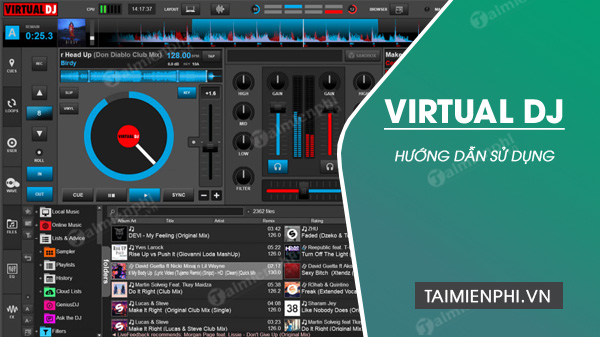
VirtualDJ lets you organize tracks, load them onto virtual decks, match their timing, and blend them into a continuous mix. This beginner guide explains the main controls and a simple workflow you can practice with two songs. The screenshots come from an earlier interface, so some labels may look different in your installed version, but the core process remains similar.
Install and open VirtualDJ
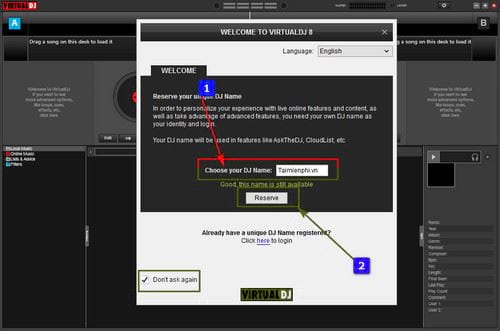
Download VirtualDJ from its official website, install it, and launch the program. On the welcome screen, choose a DJ name or sign in if the software asks you to create an account. Account and licensing prompts can vary by version, so follow the instructions shown on your screen.
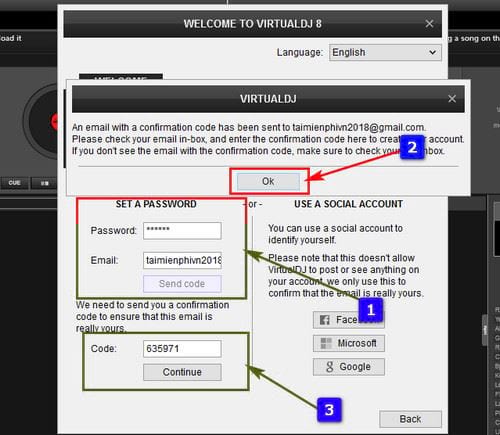
If email verification is required, request the code and enter it in the verification field. Do not share the code with anyone. After the setup prompt closes, VirtualDJ opens its main workspace.
Understand the VirtualDJ workspace
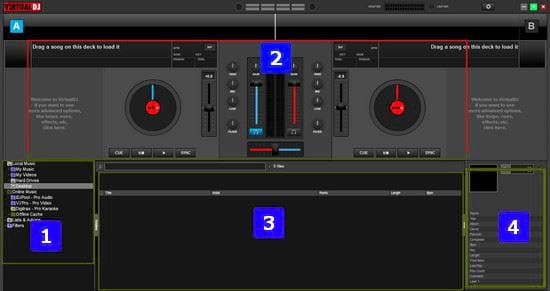
The workspace is easier to use when you separate it into four areas:
- Browser and folders: Find music stored on your computer and open playlists or folders.
- Decks and mixer: Load and control two tracks, adjust their levels, and move between them.
- Track list: View the songs in the selected folder or playlist.
- Track information: Check details such as title, artist, duration, waveform, and analyzed tempo when available.
Check audio settings before mixing
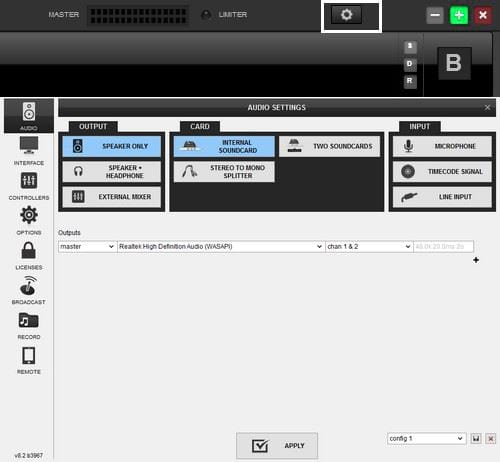
Select the gear icon and confirm that VirtualDJ is using the correct speakers or headphones. The settings area also contains options for controllers, keyboard shortcuts, recording, broadcasting, and the interface layout. Beginners should first verify the audio output and leave advanced settings at their defaults unless a device requires a specific configuration.
Add music and load the decks
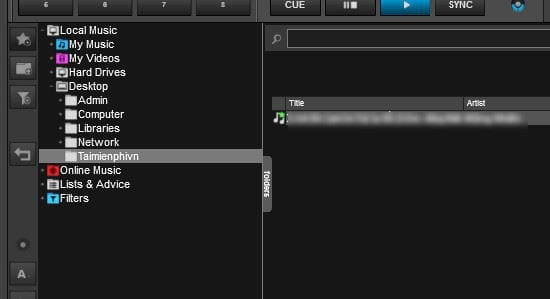
Use the browser panel to open the folder that contains your music. You can also drag audio files into the track list. To prepare a song, drag it from the list to the left or right deck. VirtualDJ analyzes the track and displays its waveform and tempo information.
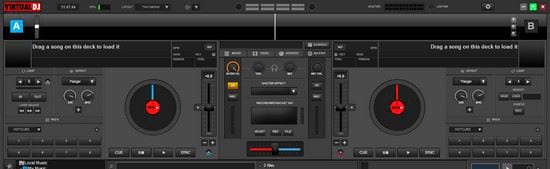
Both decks have the same basic controls. Using two decks lets you play one song for the audience while preparing the next song on the other deck. Start by learning one deck, then repeat the same actions on the second.
Learn the essential deck and mixer controls
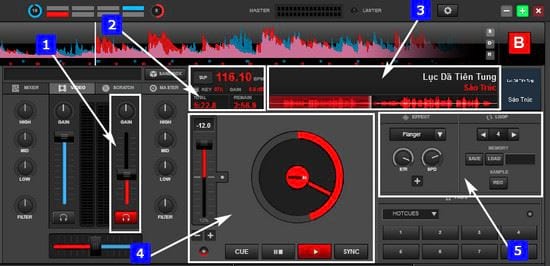
- Play/Pause: Starts or stops the loaded track.
- Cue: Marks or returns to a chosen starting point so you can preview the track before bringing it into the mix.
- Pitch or tempo slider: Changes playback speed. Make small adjustments while learning.
- Volume fader and gain: Control the track level. Avoid pushing the level into clipping.
- Crossfader: Blends the output between the left and right decks.
- EQ controls: Adjust low, mid, and high frequencies. Reducing the bass on one track can help prevent a muddy transition.
- Sync: Can align tempo and beat position automatically, but listen carefully and correct the result if necessary.
- Loop: Repeats a selected musical section. Common loop lengths include 2, 4, and 8 beats, depending on the interface.
- Effects: Add processing such as filters or echoes. Use them sparingly so the transition remains clear.
Make a basic two-song transition
- Load one song on each deck and start the first track.
- Preview the second track through headphones if your audio setup supports cue monitoring.
- Set a cue point near a clear downbeat in the second song.
- Match the second track’s tempo to the first with Sync or the pitch slider.
- Start the second track on the beat, then listen for drifting and make small corrections.
- Lower the bass on the incoming track, raise its channel volume gradually, and move the crossfader toward it.
- Swap the bass smoothly, fade out the first track, and return the mixer controls to neutral before preparing another song.
Practice with tracks that have steady rhythms and similar tempos. Watch the waveforms as a visual aid, but use your ears to judge timing and volume. For other tools, compare the best DJ software for computers. If you prefer to practice away from a PC, see these music-mixing apps for phones.
Common beginner mistakes to avoid
- Playing both tracks too loudly and causing distortion.
- Relying on Sync without checking whether the beats actually align.
- Changing several controls at once instead of making small, deliberate adjustments.
- Overusing effects during every transition.
- Mixing tracks without first setting a useful cue point.
Once you can load two tracks, set cue points, match their timing, and complete a clean crossfade, you have the foundation needed to build longer practice mixes.
Related Articles
 Top Best Virtual RAM Creation Software on Today's Computer4 minutes read
 What Is Virtual Memory? How to Set Virtual Memory for6 minutes read
 Is It Good to Use USB as a Virtual Memory for the Computer?4 minutes read
 How to Increase Virtual RAM on Win 104 minutes read
 6 Ways to Open Virtual Keyboard on Windows 109 minutes read
 Here's How to Increase Virtual Memory Capacity on Windows4 minutes read
Reader Comments 0
Sign in with email or Google to join the discussion.