Table of Contents
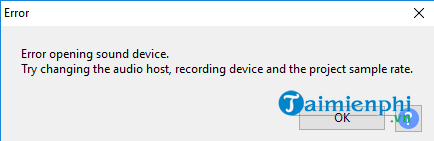
Audacity’s “Error opening sound device” message usually means the program cannot use the selected microphone, speakers, headphones, or audio interface. The cause may be a disconnected or disabled device, missing microphone permission, an unsupported sample rate or channel count, another app holding the device, or an audio driver problem. Work through the checks below in order and test playback or recording after each change.
1. Reconnect the device and rescan it
Close Audacity, reconnect any USB microphone, headset, mixer, or audio interface, and confirm that its cable and power connection are secure. Connect a USB audio device directly to the computer while troubleshooting rather than through an unpowered hub.
Open Audacity only after the operating system recognizes the device. If Audacity was already running when you connected it, choose Transport > Rescan Audio Devices, then check the device list again. Closing calling, streaming, or recording apps can also help if one of them has exclusive control of the same hardware.
2. Make sure the operating system can use the device
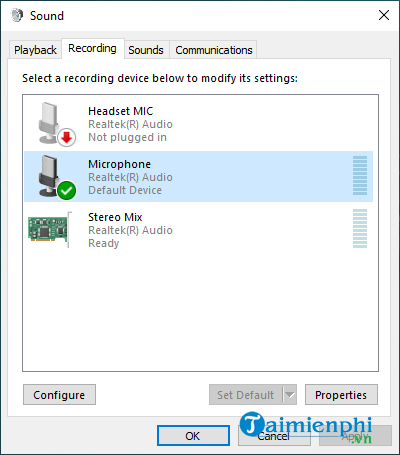
Before changing Audacity, test whether the microphone or speakers work in the operating system.
- Windows: Open Settings > System > Sound. Select the intended input or output, confirm that it is enabled, and watch the input-level meter while speaking. Also check Settings > Privacy & security > Microphone on Windows 11, or Settings > Privacy > Microphone on Windows 10, and allow desktop apps to access the microphone.
- macOS: Open System Settings > Sound to select and test the input and output. In Privacy & Security > Microphone, make sure Audacity is allowed to use the microphone.
- Linux: Confirm that the correct input and output are available and not muted in the system sound controls or the audio server’s mixer.
If the device does not work outside Audacity, fix the operating-system or hardware problem first.
3. Select the correct devices in Audacity
Open Audio Setup and choose the playback device and recording device by their specific names. Avoid relying on a generic default-device entry while troubleshooting, because the operating-system default may change when a headset or display is connected.
Also check the recording channels. Choose mono for a single-channel microphone unless the device is designed to supply stereo. Asking a mono device to record more channels than it supports can trigger an opening error.
4. Match the sample rate and channel format
The sample rate in Audacity must be supported by the selected hardware. In Audio Setup > Audio Settings, try a standard project sample rate such as 44,100 Hz or 48,000 Hz. Set the operating system’s format for the recording and playback devices to the same rate when possible.
On Windows, open the classic Sound control panel, select the device, choose Properties > Advanced, and compare its Default Format with Audacity’s project rate and channel setting. For a dedicated USB interface, also check the manufacturer’s control panel or hardware switch.
5. Try a different Windows audio host
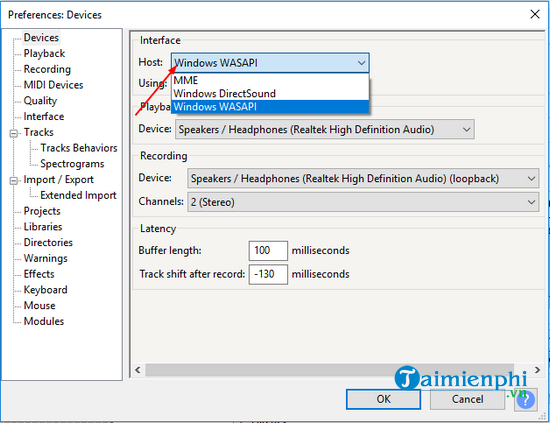
On Windows, the host controls how Audacity communicates with the audio system. In Audio Setup > Host, try MME or Windows DirectSound for ordinary microphone and speaker use. Choose Windows WASAPI when you specifically need a loopback input to record computer playback. After changing the host, reselect the named recording and playback devices.
There is no single host that is correct for every setup, so test one change at a time.
6. Turn off monitoring options temporarily
Audio monitoring can make some configurations fail or produce feedback. While troubleshooting, open Transport > Transport Options and turn off audible input monitoring. If Audacity is trying to play existing tracks while recording, temporarily turn off the option to hear other tracks during recording as well. Menu wording may differ between Audacity versions.
7. Update or reinstall the audio driver
If Windows recognizes the device but Audacity still cannot open it, install the current driver or firmware supplied by the computer, motherboard, sound-card, or audio-interface manufacturer. Restart the computer after the update. For a USB device, try a different USB port and then rescan devices in Audacity.
Quick diagnosis by symptom
| Symptom | Most useful check |
|---|---|
| Device is missing from Audacity | Reconnect it, confirm the OS detects it, then rescan audio devices. |
| Recording fails but playback works | Check microphone permission, input selection, and recording channels. |
| Error appears after changing project settings | Match the project sample rate to a rate supported by the device. |
| Error appears only when another app is open | Close the other app or review exclusive-access settings. |
| USB interface fails intermittently | Use a direct USB connection and install the manufacturer’s driver or firmware. |
If the error continues
Restart Audacity and test with a new, empty project. You can review the official Audacity sound-device troubleshooting page for version-specific details. If the hardware works elsewhere but not in Audacity, note the exact error code, operating system, Audacity version, selected host, device names, channel count, and sample rate before seeking support.
For other recording tools, compare the best computer recording software. If Audacity is not suitable for your workflow, see these Audacity alternatives.
Related Articles
 10 Alternatives to Audacity15 minutes read
 How to Separate Lyrics from a Song Using Audacity4 minutes read
 How to Install Gsnap Audio on Audacity5 minutes read
 How to Remove Noise from Audio Files with Audacity7 minutes read
 How to Use Audacity to Reverse Audio in Windows6 minutes read
 How to Convert WAV Format to MP3 Using LAME with Audacity7 minutes read
Reader Comments 0
Sign in with email or Google to join the discussion.