Table of Contents
To search for files on a Mac, users often use Spotlight to find documents or anything else at a glance. The Mac's hard drive content index helps you find documents, emails, applications, music, contacts, and other useful information.
How to use Spotlight on Mac
Accessing and using Spotlight on macOS
Step 1: Click the Spotlight button on the menu bar (microscope icon).
Alternatively, use the keyboard shortcut Command + Space . The Spotlight search box will appear in the middle of the screen.
Step 2: Enter your search query and Spotlight will display the results immediately.
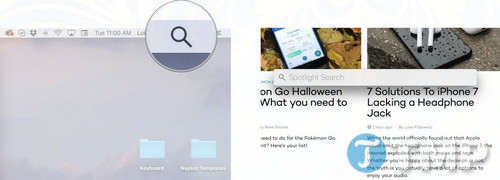
If Spotlight doesn't find what you're looking for, you can adjust the search results to optimize them. Additionally, you can exclude specific locations on your hard drive to prevent Spotlight from searching for private information.
Customize search results when using Spotlight on Mac.
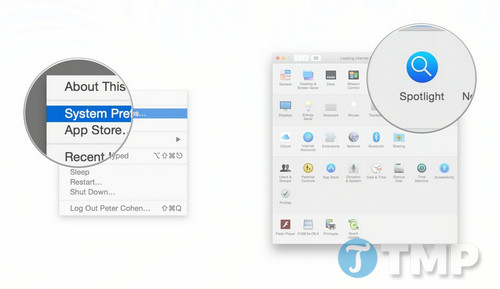
Step 1: Click the Menu button in the upper left corner of the screen.
Step 2: Click on System Preferences.
Step 3: Click on Spotlight .
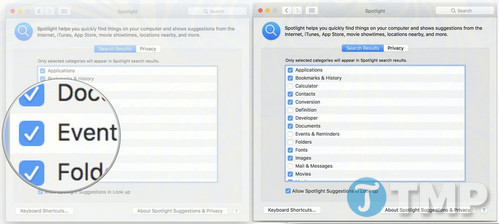
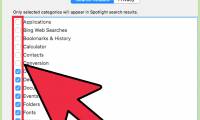
Step 4: Check the boxes next to the items you want to display in the search results.
Unselected items will not appear in the results.
How to hide content in Spotlight search
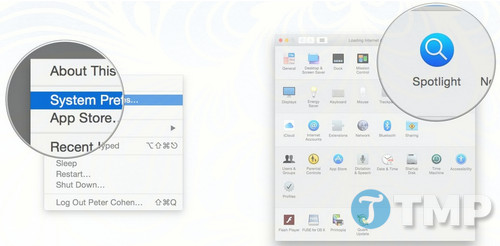
Step 1: Click the Menu button in the upper left corner of the screen.
Step 2: Click on System Preferences.
Step 3: Click on Spotlight .
Step 4: Click on the Privacy tab.
Step 5: Click the " +" icon in the bottom left corner of the window.
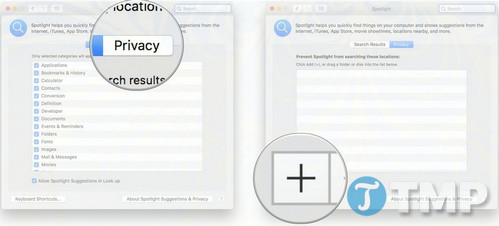
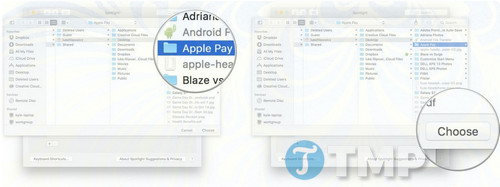
Step 6: Select the items or documents that you don't want Spotlight to search.
Step 7: Select Choose .
The above is a guide on using Spotlight on Mac to find files and documents faster. Refer to these 10 Mac keyboard shortcuts for more information to improve your workflow and save time, helping you get more done.
Related Articles
 How to Search on Spotlight on a Mac5 minutes read
 How to Quickly Search on iPhone with Spotlight3 minutes read
 How to Bring Spotlight Search macOS to Windows 103 minutes read
 How to Search the Web from Spotlight on a Mac2 minutes read
 How to Open Spotlight Search Results in Finder on Mac3 minutes read
 How to Search for Any Keyword on a Mac5 minutes read
Reader Comments 0
Sign in with email or Google to join the discussion.