Table of Contents
Want a more stable network connection on your MacBook? Configuring a static IP address helps avoid network conflicts and optimizes access speeds.
INSTRUCTIONS ON HOW TO FOLLOW THESE STEPS
Step 1. From the Apple Menu (or Spotlight), click System Preferences .
Step 2. Click on the Network icon .
Step 3. In the bottom right corner, find and click the Advanced button .
Step 4. From the menu next to Configure IPv4 , select Manually (or DHCP with manual address if you prefer).
Step 5. Enter the IP address, subnet mask, and router that match the network you are accessing.
Note:
If you don't have the correct IP address details, subnet mask, and router information for a specific network, you can ask your network administrator.
Helpful tip: Choosing your IP address manually? It's important to manually select an IP address that doesn't conflict with existing IP addresses on your network.
For example, if the router's IP address is "192.168.1.1" and there are a total of 5 computers connected on the network, choose an IP address outside the range of those potential computers (these computers' IP addresses could be 192.168.1.1 to 192.168.1.6). The potential IP address could be "192.168.1.75" or another IP address that does not conflict with or match existing network resources.
Step 6. Click OK .
Step 7. Click Apply to apply the changes.
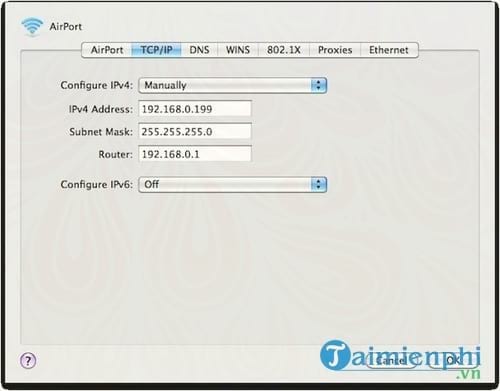
The changes will take effect immediately after you set a static IP address on your MacBook, resulting in a more stable network connection. If you need to check your network information, you can use the IP check command on your Mac in Terminal.
Related Articles
 What Is IP Address: What Is a Static IP Address?11 minutes read
 Why Use Dynamic DNS Instead of Static IP Address?7 minutes read
 Set Static IP Settings for Windows XP, 7, 8, and 8.17 minutes read
 How to Setting Static IP Addresses, Changing DNS3 minutes read
 How to Assign Static IP Addresses in Windows 7, 8, 10, Xp or7 minutes read
 How to Configure a Static Internet Protocol (IP) Address on6 minutes read
Reader Comments 0
Sign in with email or Google to join the discussion.