Table of Contents
PowerToys Run, part of Microsoft's hidden toolset, turns out to be the perfect Start menu replacement.
The Start menu is one of those things you use every day without thinking about it. It's always there, ready to help, and most of the time, it gets the job done. But then there are times when it drives you crazy. You type in the name of a file you know is on your computer, and it doesn't show up. Instead, you get Bing search results you never asked for. Plus, there are constant performance issues and a lack of customization options.
All of this eventually prompted the search for a better alternative. PowerToys Run, part of Microsoft's hidden toolset, turned out to be the perfect replacement for the Start menu.
PowerToys Run changes everything
It does everything the Start menu struggles with, and more.
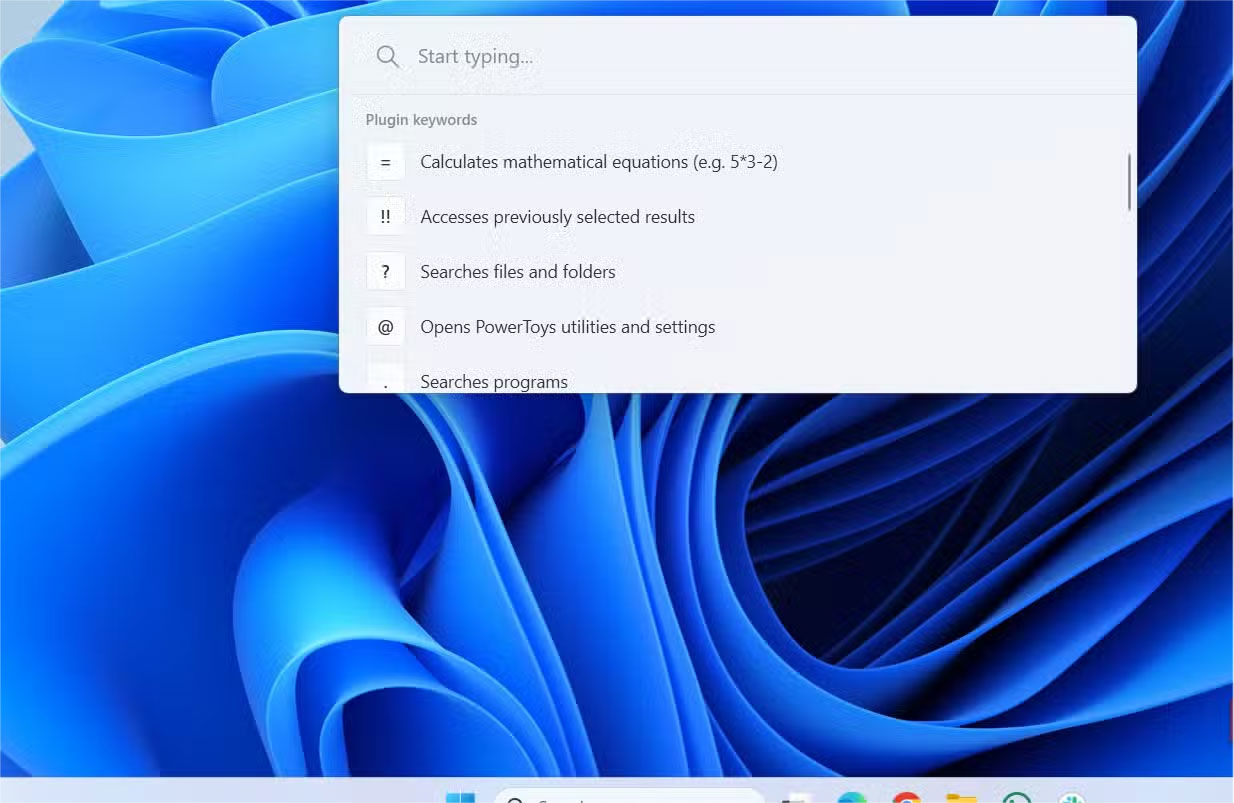
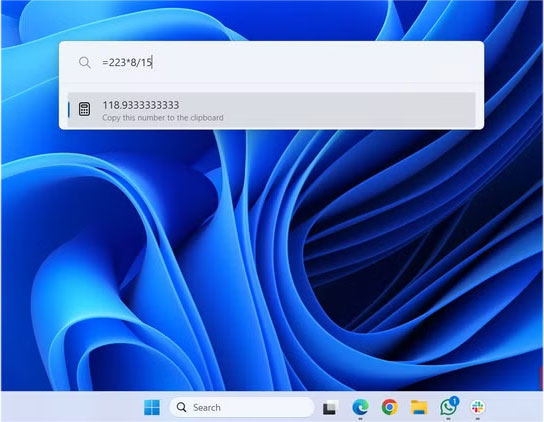
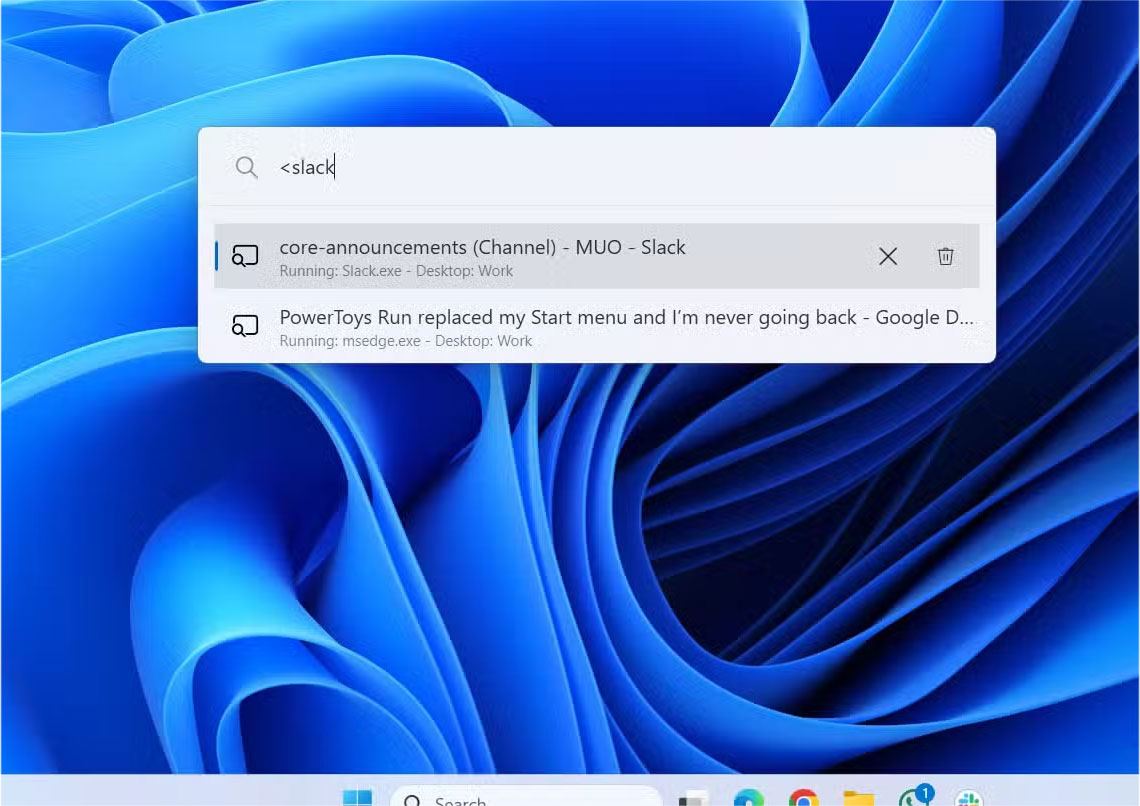
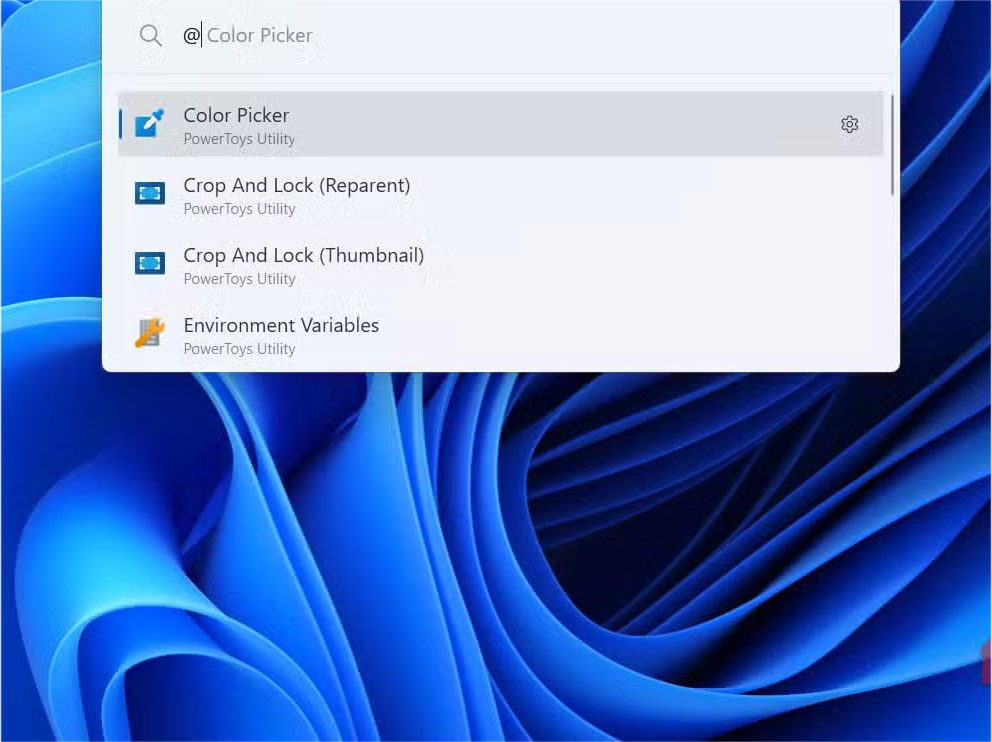
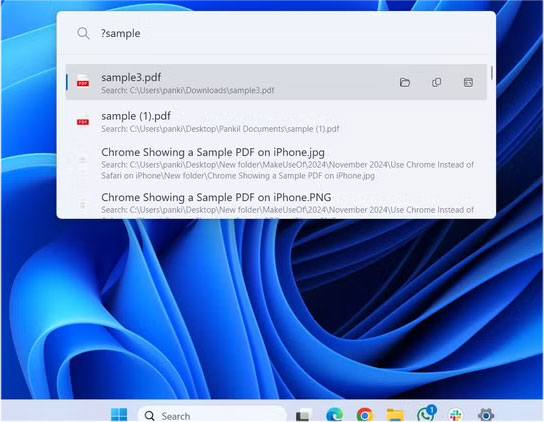
As soon as you start using PowerToys Run, you'll realize how much time you waste on the Start menu. It's blazingly fast. Just press Alt + Space To open the menu and start typing to find your app or file instantly.
But speed isn't the only benefit. PowerToys Run is smarter than the Start menu. You can launch apps, open folders, go directly to websites, and execute shell commands without interrupting your workflow. It can even handle quick calculations and unit conversions without opening a separate app.
PowerToys Run supports keywords that let you filter your searches, so you can narrow your query to files, folders, or programs. It also adapts to the way you work. For example, if you repeatedly select Slack after typing "s" instead of Snipping Tool, Slack will pop up at the top of the results.
Customize PowerToys Run to work better
Make PowerToys Run your own
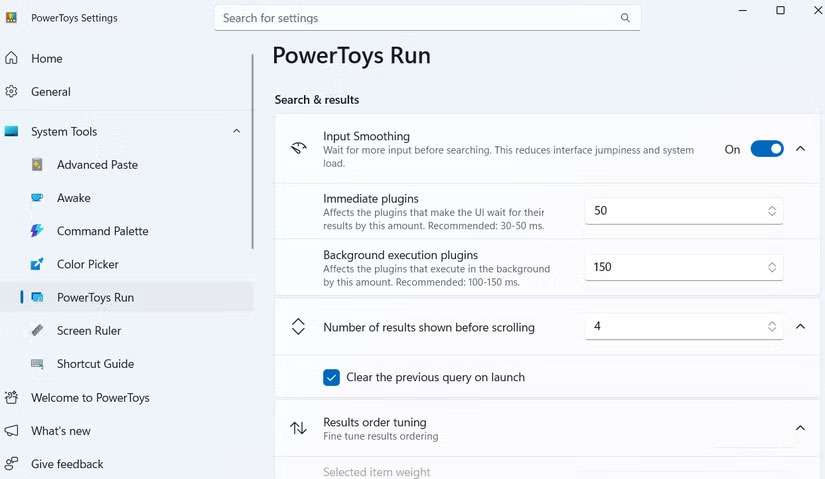
One of the best things about PowerToys Run is the freedom to customize how it works. Open PowerToys, navigate to System Tools > PowerToys Run , and you'll see a variety of options. For example, Alt + Space Is the default shortcut to launch PowerToys Run, but you can assign any key combination you find convenient.
Another important tweak is controlling how many results are displayed. By default, PowerToys Run displays four results, which works well on small screens but can cause you to scroll more if there are multiple files or apps with similar names.
Plugins are what make it unbeatable
Improve productivity
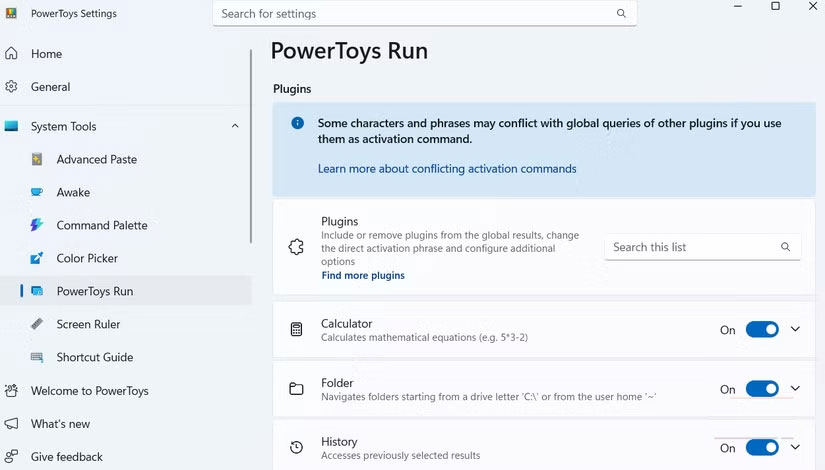
Honestly, the features and speed are what make you try PowerToys Run, but it's the plugins that keep you coming back. PowerToys comes with a few built-in add-ons that extend its capabilities beyond a simple launcher, but the real magic happens when you explore the third-party plugins.
For example, the Winget Plugin is extremely handy if you like to use WinGet to install new software on your PC. With this plugin, you can search, install, and update apps directly from PowerToys Run. No need to open a browser, Microsoft Store, or Command Prompt.
The Everything Plugin takes file searching to the next level. Unlike Windows search, it doesn't rely on indexing file contents, allowing you to locate files and folders almost instantly. Many people have used Everything as a Windows Search replacement, and being able to access it directly through the Run PowerToys makes it even more powerful.
With the Clipboard Manager Plugin, you can access your clipboard history directly from PowerToys Run. This way, you can search for copied text, links, or commands, something that the Windows Clipboard doesn't allow.
Finally, there's the ChatGPT Plugin. It brings AI support right into PowerToys Run, so you can type your question into PowerToys Run and it will instantly open ChatGPT. These are just a few examples. You can download all of these plugins and many more on the GitHub page.
FAQ
How do you use powertoys run as a start menu replacement: step-by-step guide?
In practical terms, powerToys Run, part of Microsoft's hidden toolset, turns out to be the perfect Start menu replacement.
What should you check before getting started?
Review the requirements, compatible device or software version, and any warnings described in the guide before making changes.
What should you do if the steps do not work?
Repeat the steps in order, confirm that your app or system is up to date, and review the troubleshooting details provided above.
Related Articles
 Why Did So Many People Stop Using the Windows Start Menu After Finding The?7 minutes read
 3 Ways to Fix Start Menu on Windows 10 Stopped Working5 minutes read
 How to Add and Remove Folders in the Windows 11 Start Menu: Step-by-Step Guide4 minutes read
 Windows 11 Is Hiding a Second Start Menu: Why Should You Use It?8 minutes read
 Powetoys: How to Use Powertoys on Windows 105 minutes read
 How to Pin Any File to Start Menu on Windows 103 minutes read
Reader Comments 0
Sign in with email or Google to join the discussion.