Table of Contents
Discover 6 super simple tips to customize the Chromebook interface: hide/move the Shelf, pin apps, change light and dark themes, adjust the mouse cursor, enlarge the display, and automatically change the wallpaper.
The default interface of Chromebooks is quite simple, even a bit 'boring' and not really optimized for work efficiency. However, with just a few small customizations, you can make it more personalized, beautiful and easy to use. Below are 6 UI customization tips that you can apply to enhance your Chromebook experience.
1. Move or hide the Shelf bar
Similar to the Windows taskbar, the ChromeOS Shelf Holds pinned apps, open windows, and a few quick utilities. By default, the Shelf is located at the bottom of the screen, but if you want to save vertical space, you can move it to the left or right.
- Right click on Shelf → select Shelf Position → select the desired position.
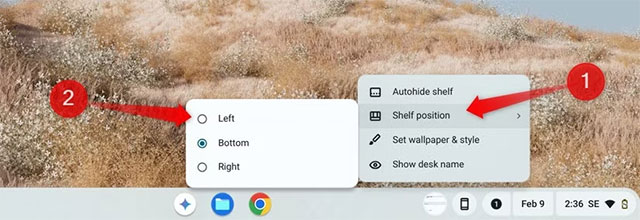
Additionally, ChromeOS has an Auto-hide Shelf Mode. When enabled, the Shelf will disappear when in full-screen mode, only reappearing when you move the mouse to the edge of the screen. This helps maximize display space.
- Right click on Shelf → select Autohide Shelf .
2. Pin or unpin apps
Pinning frequently used apps to the Shelf helps you access them faster, without having to open the Launcher every time. On the contrary, if the Shelf has too many confusing icons, you can remove some.
- To pin: open Launcher (tap the circle icon in the bottom left corner) → find the app → right click → select Pin to Shelf .
- To unpin: right click on the icon on the Shelf → select Unpin .
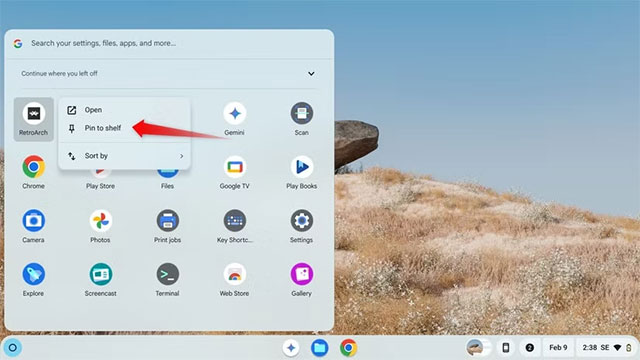

You can even pin frequently used folders or files for quick access.
3. Switch between light and dark interface
By default, Chromebooks use a bright interface, which is easy to see during the day but can easily strain your eyes at night. At this point, you can switch to Dark mode To be easier on your eyes and save battery.
ChromeOS supports Automatic theme switching based on time of day .
- Click on the clock in the lower right corner → open Settings → select Wallpaper and Style → enable the Auto Option.
4. Change mouse pointer size and color
The mouse cursor is an element that always appears on the screen, so customizing it not only makes it easier to see but also shows your personal style. You can:
- Increase cursor size (useful for people with poor eyesight).
- Change the cursor color to make it stand out more or match the theme.
Making:
- Click the clock → select Settings (gear icon).
- Go to Accessibility > Cursor and Touchpad → adjust the slider to increase/decrease the size.
- In the Cursor Color Section, select the color you like.
If the slider is greyed out, turn on Show Large Mouse Cursor To enable it.
5. Adjust display magnification
If your Chromebook screen is a bit small or you have trouble reading text, you can increase The Display Zoom Level to enlarge all the content: apps, text, menus. Conversely, zoom out to have more display space.
Making:
- Click the clock → select Settings → go to Device > Display → adjust The Display and Text Size Bar to zoom in or out.
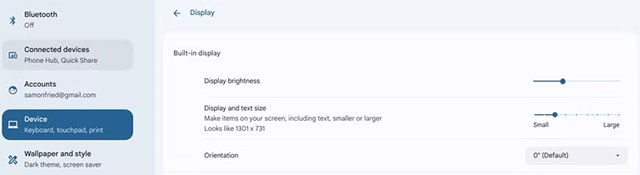
This is especially useful if you read text for hours at a time, making it easier on the eyes and reducing eye strain.
6. Set wallpaper to change daily
A simple yet effective way to make your Chromebook less boring is to change the wallpaper automatically every day. ChromeOS supports the Daily Refresh Feature with Google's built-in photo library.
- Right click on desktop → select Set Wallpaper & Style → select your favorite collection → enable Change Daily .
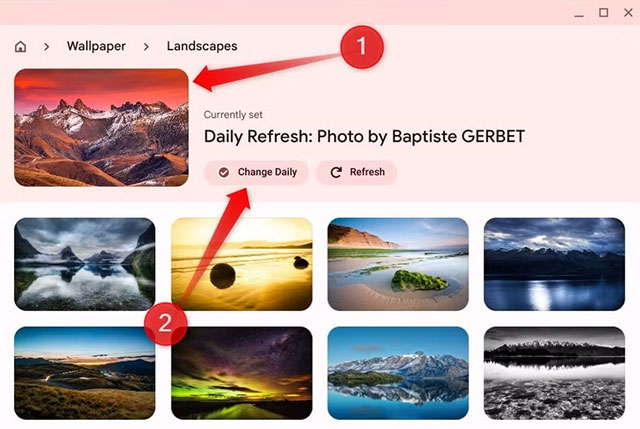
Every day, your Chromebook will display a new wallpaper from that collection, creating a fresh and inspiring feeling while you work.
With the above customizations, Chromebook will become more personalized, both beautiful and more convenient in daily work. If you are not satisfied, you can completely restore the default settings at any time.
FAQ
What should you know about the options in this guide?
In practical terms, discover 6 super simple tips to customize the Chromebook interface: hide/move the Shelf, pin apps, change light and dark themes, adjust the mouse cursor, enlarge the display, and automatically change the wallpaper.
Which option is the best choice?
The best choice depends on your priorities, compatibility, budget, and the specific features discussed in the comparison.
What should you compare before deciding?
Compare core features, limitations, ease of use, compatibility, and long-term value before making a decision.
Related Articles
 4 Customizable Interface Makes Galaxy S8, S9, A8 and Note 8 More6 minutes read
 How to Customize Firefox's New Interface Quantum: Firefox Quantum7 minutes read
 6 Tips to Customize the Start Menu on Windows 114 minutes read
 Customize Gmail Address: How to Customize a Gmail Address5 minutes read
 Steps to Customize Discord Interface4 minutes read
 How to Optimize Windows 10, Make Windows 10 'More6 minutes read
Reader Comments 0
Sign in with email or Google to join the discussion.