Table of Contents
Press Windows + . (period) or Windows + ; (semicolon) while the cursor is in a text field to open the Windows emoji picker. Select an emoji with the mouse, search by typing, or navigate with the keyboard and press Enter to insert it.
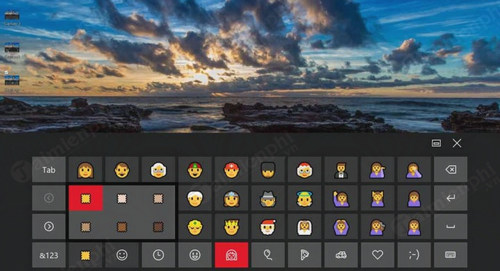
Insert an emoji with the keyboard
- Click in the message, document, search box, or other field where you want the character.
- Press Windows + . or Windows + ;.
- Type a word such as smile, heart, or check to search, or use the category buttons.
- Select an item, or use the arrow keys and press Enter.
- Press Esc to close the panel.
On current Windows versions, the panel can include emoji, kaomoji, symbols, and—in supported regions and apps—animated GIFs. Available categories and search results vary with the Windows build and display language.
Useful emoji picker shortcuts
| Action | Shortcut or control |
|---|---|
| Open the emoji picker | Windows + . or Windows + ; |
| Search | Start typing after the panel opens |
| Move through items | Arrow keys |
| Move between controls or categories | Tab; use Shift + Tab to go backward |
| Insert the selected item | Enter |
| Close the panel | Esc |
Choose skin tones and variations
Many people and hand emoji support a skin-tone variant. Select and hold the emoji, right-click it, or use the small variant indicator when the panel provides one. Not every emoji has variants, and the receiving app may render the character differently.
Windows inserts Unicode characters for most emoji. Their color and appearance depend on the font, application, operating system, and recipient's device. An older app may show a monochrome symbol, an outline box, or a different design even though the character was inserted correctly.
Emoji, GIF, and clipboard privacy
A GIF selected from the panel may use an online search service and may not be available offline. Avoid searching sensitive terms on a managed or shared PC. Emoji themselves are ordinary characters, but clipboard history can retain copied text and images. Press Windows + V to review or clear it; the Windows clipboard history guide explains its controls.
If the emoji panel does not open
- Test both shortcuts in Notepad. Some full-screen apps, games, remote sessions, and secure password fields block the panel.
- Confirm that the Windows key works and is not disabled by a keyboard gaming mode.
- Install current language and keyboard components, then restart Windows Explorer or the PC.
- Run
ctfmon.exefrom the Run dialog to restart the text-input service for the session. - Install current Windows updates on a supported release.
If the panel opens but a character will not display, try another app and font. The problem is likely rendering support rather than the shortcut itself.
The on-screen keyboard is not a malware defense
Windows also offers a touch or on-screen keyboard, but it should not be presented as reliable protection from spyware or keyloggers. Malware with access to the session may capture screen content, clipboard data, input events, or account tokens. If compromise is suspected, disconnect the PC from the network, scan it from a trusted environment, and change important passwords on a known-clean device.
For general typing and accessibility, open the on-screen keyboard from Settings > Accessibility > Keyboard; use the emoji picker for faster symbol entry.
Related Articles
 Enable and Use Emoji Keyboard Mode in iOS 53 minutes read
 3 Tips for Using Good Virtual Keyboard for iPhone, iPad6 minutes read
 Secret Emoji Emoticons on iPhone. Do You Know Yet?4 minutes read
 How to Use Hidden Icons on Mac Keyboard5 minutes read
 How to Insert Emoji in Word, Insert Emoticons into Word3 minutes read
 Why Does the Emoji Keyboard on My iPhone 'Disappear'?4 minutes read
Reader Comments 0
Sign in with email or Google to join the discussion.