Table of Contents
Control Panel is the traditional Windows interface for system and hardware settings. Microsoft has moved many options into the newer Settings app, but Control Panel still contains useful pages for power plans, programs, devices, networking, user accounts, and legacy administrative tools.
Control Panel versus Settings
Use Settings for most everyday tasks such as Windows Update, display configuration, Bluetooth, privacy, and installed apps. Use Control Panel when a guide requires a legacy page or when a setting has not yet moved. Some links in Control Panel now redirect to Settings, and the available pages vary by Windows version.
Fast ways to open Control Panel
Search
Open Start, type Control Panel, and select the result.
Run
Press Windows + R, enter control, and press Enter.
File Explorer
Open File Explorer, type Control Panel in the address bar—not the search box—and press Enter.
Command line
Run control.exe from Command Prompt, PowerShell, Windows Terminal, or Task Manager's Run new task dialog.
The Windows + X menu does not provide a Control Panel entry on current Windows releases, so Search or Run is more reliable.
Find a setting quickly
Control Panel opens in Category view by default. Use the search box in its upper-right corner when you know the feature name. You can also change View by to Large icons or Small icons to see individual applets.
| Task | Control Panel area |
|---|---|
| Uninstall a classic desktop program | Programs > Programs and Features |
| Change a power plan | Hardware and Sound > Power Options |
| View adapters and sharing options | Network and Internet > Network and Sharing Center |
| Manage printers | Hardware and Sound > Devices and Printers |
| Adjust backup or restore features | System and Security |
Pin Control Panel for frequent use
- Search Start for Control Panel.
- Right-click the result.
- Select Pin to Start or, if offered, Pin to taskbar.
You can also create a desktop shortcut: right-click the desktop, choose New > Shortcut, enter control.exe, name it Control Panel, and finish.
Open a specific applet
Some support instructions use commands such as appwiz.cpl for Programs and Features, powercfg.cpl for Power Options, or ncpa.cpl for Network Connections. Run these only when you recognize the requested page; copying arbitrary commands from an untrusted source can expose you to harmful changes.
Use administrative settings carefully
A shield icon means a change may require administrator approval. Before changing recovery, firewall, network, account, or storage settings, note the existing value and understand how to reverse it. For device and driver details, Device Manager is often the correct tool. For Windows navigation more broadly, see these Windows keyboard shortcuts.
Related Articles
 How to Add or Remove Control Panel from Navigation Pane on5 minutes read
 How to Access Control Panel on Windows 10, How to Access Control Panel on3 minutes read
 Learn Control Panel in Win. XP: Tips and Examples5 minutes read
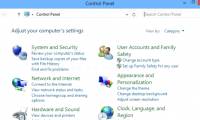 How to Open Control Panel on Windows 10, 8.1, 712 minutes read
 6 Ways to Access Control Panel on Windows Server 20123 minutes read
 How to Open the Control Panel: Quick Methods10 minutes read
Reader Comments 0
Sign in with email or Google to join the discussion.