Table of Contents
The hidden Samples page was a Microsoft Settings-app test screen found in some older Windows 10 builds. It displayed example toggles, sliders, text fields, links, and other interface controls for development purposes. It was not a diagnostic mode, did not unlock Windows features, and its sample controls generally did not change the system.
Current Windows releases may ignore the Registry value entirely. Use the steps below only on a legacy test installation where you want to view this historical interface—not on a production PC as a repair or performance tweak.
Before enabling the legacy page
- Press Windows + R, enter
winver, and record the Windows version and build. - Create a restore point or export the affected Registry branch.
- Do not expect the page to appear on Windows 11 or later Windows 10 builds.
For Registry backup basics, see Learn About the Windows Registry.
Enable Samples on a compatible Windows 10 build
- Press Windows + R, type
regedit, and press Enter.
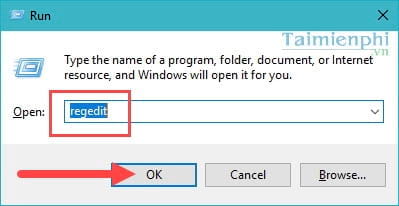
- Navigate to:
HKEY_CURRENT_USER\Control Panel
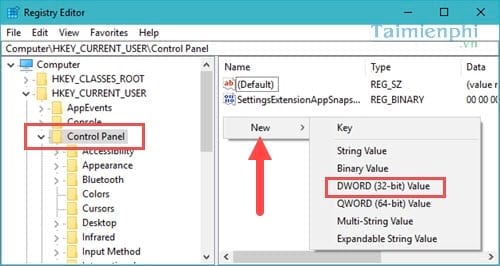
- In the right pane, create a DWORD (32-bit) Value named
EnableSamplesPage. Use a 32-bit DWORD even on 64-bit Windows. - Set its value data to
1.
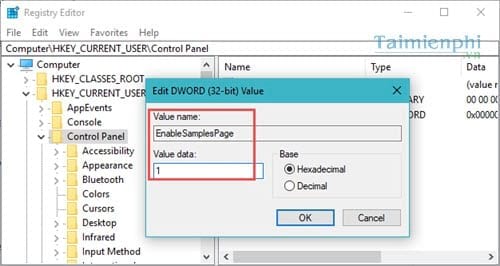
- Close the Settings app if it is open, then reopen Settings from Start or press Windows + I.
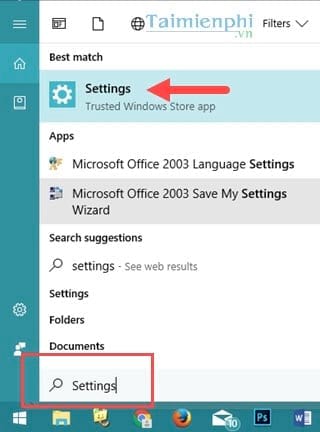
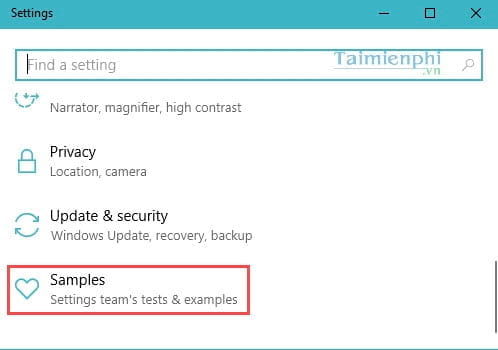
On a compatible build, a Samples category appears on the Settings home page.
What the sample controls mean
The page may show control groups, model samples, progress toggles, buttons, hyperlinks, text boxes, deep-link tests, fonts, notifications, and placeholder names such as FooBar. These elements let the Windows Settings team preview and exercise interface components.
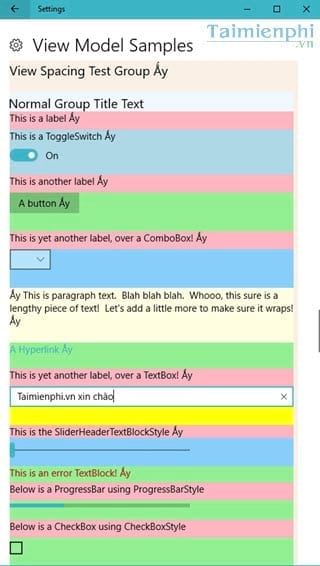
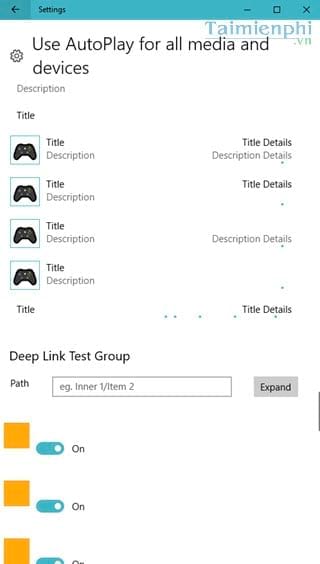
Changing these dummy controls is not a supported way to configure Windows. The page also is not related to Developer Mode, Windows Insider enrollment, hardware testing, or the retail demonstration mode.
Remove the Samples page
Return to HKEY_CURRENT_USER\Control Panel and delete only the EnableSamplesPage value you created, or set it to 0. Close and reopen Settings. Leave other values in the Control Panel key unchanged.
Why it may not work now
The page was an undocumented implementation detail rather than a supported feature. Microsoft could change or remove it in any build, so failure to appear does not indicate a Windows error. Windows 10 itself reached the end of general support on October 14, 2025.
For a broader view of how features changed across releases, see Windows Through Each Version. Use a supported Windows release for normal work and keep any exploration of obsolete interfaces inside a disposable virtual machine.
Related Articles
 How to Activate S-mode on Windows 10 ISO File3 minutes read
 How to Enable God Mode on Windows 113 minutes read
 How to Turn on, Activate the Dark Mode on Windows 10 Dark Mode2 minutes read
 All Problems with Starting Windows in Safe Mode8 minutes read
 Activate Blue Light Mode on Windows 103 minutes read
 Activate Dark Mode on Telegram7 minutes read
Reader Comments 0
Sign in with email or Google to join the discussion.