Table of Contents
Reinstall an audio driver only after confirming that Windows is using the correct output device and the problem is not mute, a disconnected cable, per-app volume, or a Bluetooth connection. If sound failed immediately after a driver update, Roll Back Driver is usually safer than uninstalling it.
Check the output and record the current driver
- Open Settings > System > Sound and select the intended speakers, headphones, monitor, or USB interface under Output.
- Open Volume mixer and make sure the affected app is not muted or routed to another device.
- Run the built-in audio troubleshooter or follow the Windows no-sound checklist.
- In Device Manager, open the audio device's Properties > Driver and record the provider, date, version, and hardware name.
A PC can contain several audio devices: the motherboard codec, Intel Smart Sound, a USB headset, and HDMI or DisplayPort audio from the GPU. Change only the device tied to the failing output.
Roll back a recent audio driver
Right-click Start and open Device Manager.
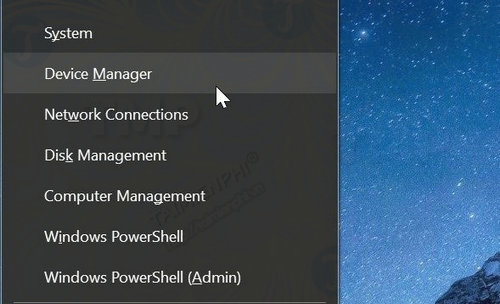
Expand Sound, video and game controllers and, when relevant, Audio inputs and outputs and System devices.
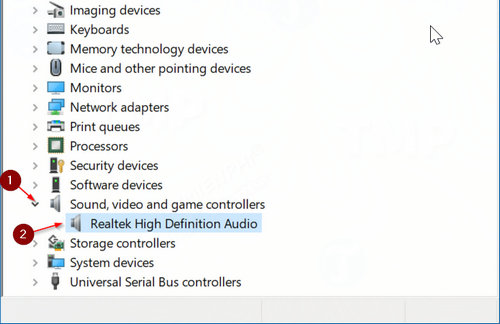
Open the affected adapter, choose Driver > Roll Back Driver, and restart. The button is available only when Windows has retained a previous package.
Download the replacement before uninstalling
Visit the support page for the exact laptop, motherboard, USB interface, or audio device. Download the driver that matches the Windows version and architecture. Laptop vendors may bundle Realtek audio with Intel Smart Sound, Dolby, DTS, Nahimic, or Waves components; installing only a generic codec may remove microphone arrays, jack detection, or audio enhancements.
Avoid driver-download aggregators and automatic driver-updater utilities. Windows Update and the hardware manufacturer's site are safer sources.
Reinstall through Device Manager
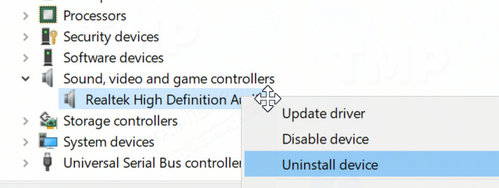
- Right-click the correct audio adapter and choose Uninstall device.
- For the first attempt, leave Attempt to remove the driver for this device or Delete the driver software unchecked. This preserves the local fallback package.
- Select Uninstall and restart Windows. Windows should redetect the hardware and install an available driver.
- If sound remains broken, run the verified OEM installer you downloaded, then restart again.
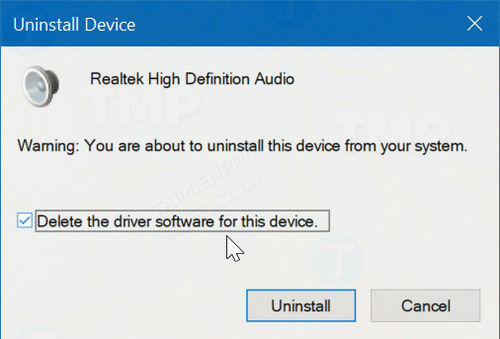
Remove the driver package only when it is known to be corrupted or incompatible and a replacement is ready. On a remote computer, remember that uninstalling audio may also disrupt the call used to provide support.
Remove and reinstall an OEM audio package
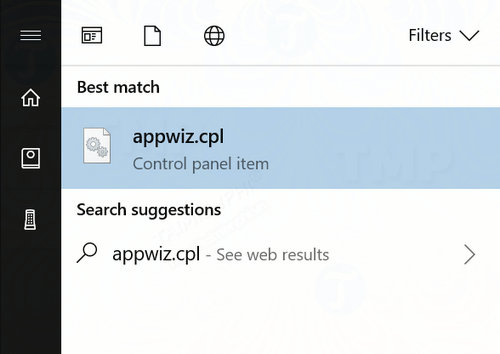
Some manufacturers install a separate audio application or driver suite. Press Windows + R, enter appwiz.cpl, and press Enter to open Programs and Features.
Locate the exact vendor package, such as the model-specific Realtek or enhancement suite. Uninstall it only when the PC manufacturer's instructions call for this step.
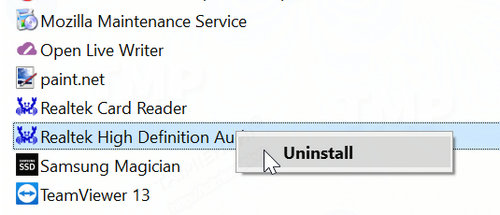
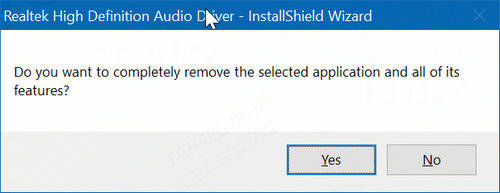
Restart, install the downloaded package in the vendor's recommended order, and restart once more. Do not uninstall unrelated GPU audio if HDMI sound already works.
If sound still does not work
- Open services.msc and confirm that Windows Audio and Windows Audio Endpoint Builder are running.
- Disable audio enhancements and spatial sound temporarily.
- Test another jack, cable, headset, or USB port.
- Check the microphone privacy controls when only input is missing.
- Run
DISM.exe /Online /Cleanup-Image /RestoreHealthand thensfc /scannow.
If the adapter disappears from Device Manager after a restart, install chipset or controller drivers and check firmware settings. Persistent absence can indicate a hardware fault. The Device Manager guide explains status codes and hardware rescan controls.
Related Articles
 How to Reinstall the Sound Driver on Windows 116 minutes read
 How to Install Audio Drivers on Windows Xp3 minutes read
 Standard Procedure for Installing Computer and Laptop Drivers6 minutes read
 How to Reinstall Audio Driver on Windows 10, 114 minutes read
 Steps to Fix Corrupted Drivers on Windows 108 minutes read
 How to Uninstall and Reinstall Wi-Fi Drivers on Windows 116 minutes read
Reader Comments 0
Sign in with email or Google to join the discussion.