Table of Contents
Reset this PC reinstalls Windows and can either keep personal files or remove them. It removes installed desktop applications and resets many settings, so treat it as a recovery step—not routine maintenance. Back up anything important and collect your BitLocker recovery key before you begin.
Before resetting Windows
- Back up documents, photos, browser data, email archives, game saves, encryption keys, and files stored outside the usual user folders.
- Verify the backup from another device or account; synchronization is not the same as a separate backup.
- Save the BitLocker or Device Encryption recovery key. Windows Recovery may request it.
- Record the Windows edition and activation status. Reinstall the same licensed edition.
- Make a list of applications, license keys, VPN settings, and specialized drivers you will need again.
- Connect the laptop to power and allow enough time. During reset, the screen may remain black and the PC may restart several times; do not interrupt it.
On Windows 11, first consider Settings > System > Recovery > Fix problems using Windows Update. That repair reinstall can preserve apps, files, and settings. Use Reset this PC when you need a broader cleanup or that option is unavailable.
Open Reset this PC
On Windows 11, open Settings > System > Recovery. On Windows 10, press Windows + I and open Update & Security > Recovery. Under Reset this PC, choose Reset PC or Get started.
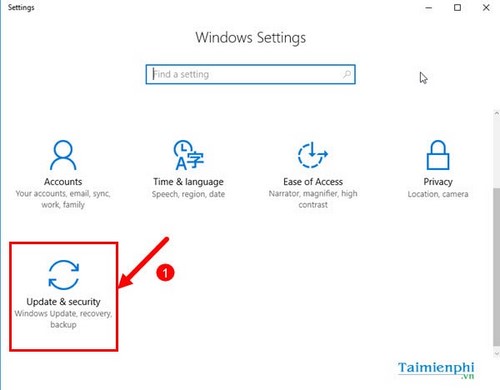
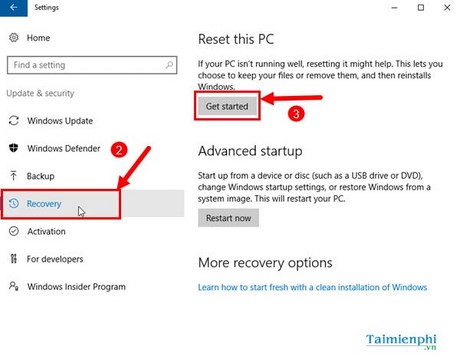
If Windows will not start, enter the Windows Recovery Environment and choose Troubleshoot > Reset this PC. TipsMake's Windows boot-recovery guide explains how to reach those tools.
Option 1: Keep my files
Keep my files reinstalls Windows while retaining files in your user profile. It removes installed applications and resets system settings. It is not a guaranteed backup: encryption, disk faults, profile problems, or an interrupted reset can still cause data loss.
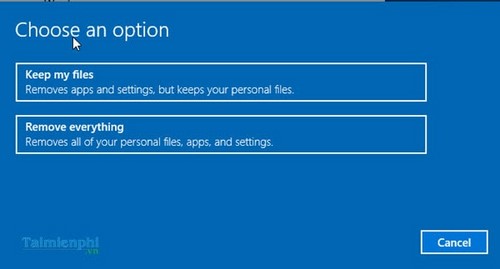
Choose a reinstall source:
- Cloud download: downloads a fresh Windows image and is useful when local recovery files may be damaged. It requires a stable connection and several gigabytes of data.
- Local reinstall: uses files already on the PC, which can be faster and work offline, but may fail if those files are corrupt.
Review Apps that will be removed and every setting on the summary screen. Select Reset only after confirming that the backup is complete.
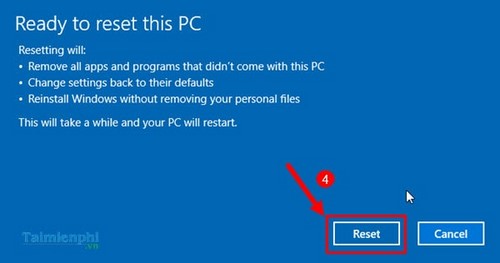
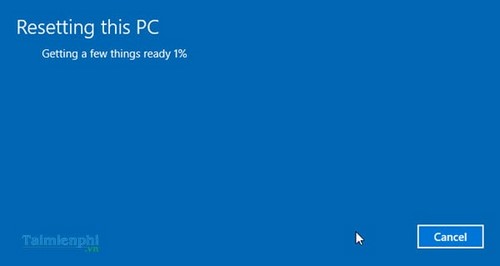
After reset, sign in, run Windows Update, reinstall applications from trusted sources, and restore files from the verified backup.
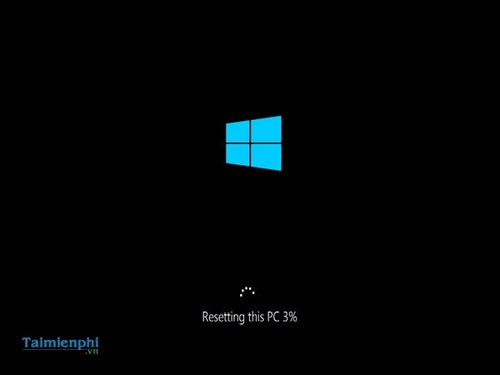
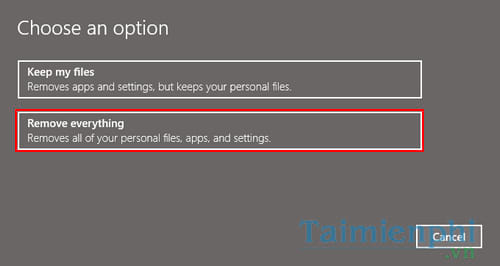
Option 2: Remove everything
Remove everything deletes user accounts, personal files, installed applications, and settings before reinstalling Windows. Use it only after a complete backup, or when preparing a PC for another owner.

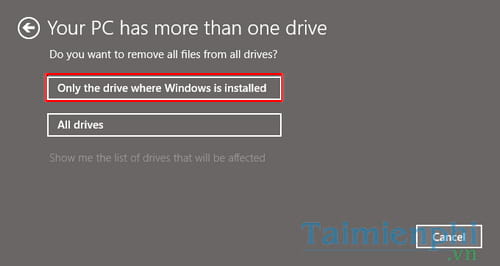
Some Windows 10 builds ask which drives to include:
- Only the drive where Windows is installed: removes data from the Windows drive while leaving other internal drives alone.
- All drives: targets all included internal drives. Select it only when you intend to erase every listed drive and have verified the backup.
The cleanup choice also matters:
- Just remove my files: finishes faster and is suitable when you will keep the PC.
- Clean data or clean the drive: overwrites free space to make ordinary file recovery harder and is more appropriate before sale, donation, or recycling. It takes much longer.
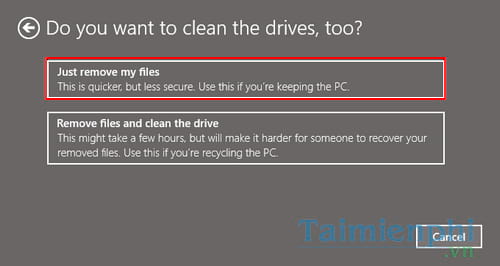
Drive cleaning reduces recoverability but is not a certified sanitization method for every storage device or threat model. Organizations and owners of highly sensitive data should follow the drive manufacturer's secure-erase procedure and their data-destruction policy.
Read the final summary carefully; it is the last chance to cancel before destructive work starts.
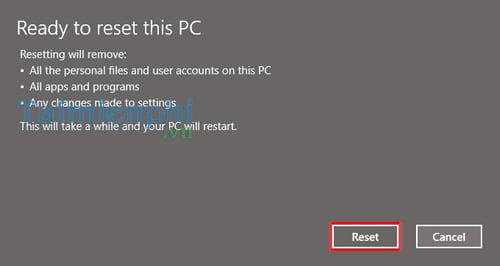
Microsoft's Reset your PC instructions describe the current options and important warnings.
Set up Windows after the reset
The setup screens vary substantially by Windows build, region, edition, and whether the PC connects to the internet. Follow the prompts for country or region, keyboard, network, license terms, account, privacy, and device name. The screens below are from an older Windows 10 setup and are retained as historical reference.
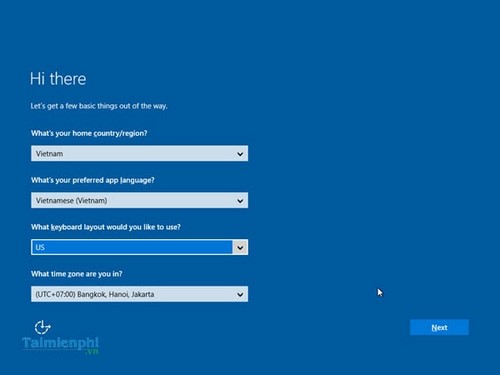
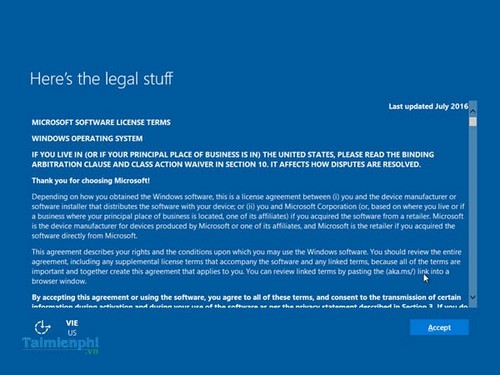
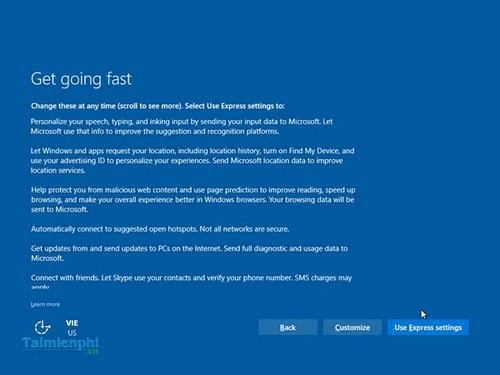
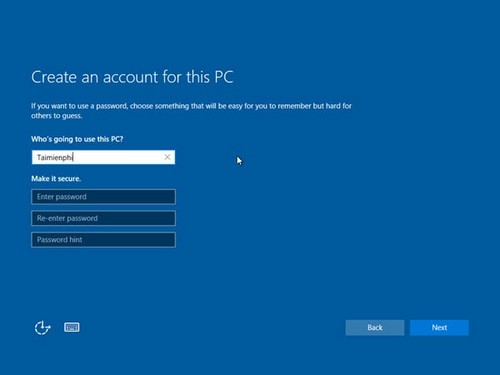
Do not enter credentials if the PC is being sold or donated. Once the out-of-box setup screen appears, shut it down so the new owner can complete setup.
If reset fails
- Disconnect nonessential external devices and retry from Windows Recovery.
- Choose Cloud download if Local reinstall failed, or vice versa.
- Run storage diagnostics if the reset repeatedly stops at the same percentage.
- Use official installation media for a clean reinstall when the recovery environment is damaged. The Windows bootable USB guide explains media preparation.
Windows 10 general support ended on October 14, 2025. Resetting Windows 10 does not restore security support; install a supported Windows release when the hardware is eligible.
Related Articles
 3 How to Reset Win 7, Factory Reset Windows 78 minutes read
 minutes read
 How to Use the Reset Feature on Windows 104 minutes read
 Steps to Reset Wi-Fi Modem6 minutes read
 Steps to Reset Apple TV, How to Factory Reset Apple TV4 minutes read
 How to Reset Windows 7 - Restore Factory Settings for Computers Running2 minutes read
Reader Comments 0
Sign in with email or Google to join the discussion.