Table of Contents
Windows can use a different resolution and scaling value on each monitor when the displays are set to Extend. Select the monitor diagram first, then change that display's settings. In Duplicate mode, Windows may limit both screens to a resolution and refresh rate they can share.
Choose the correct multi-monitor mode
Connect the monitor through HDMI, DisplayPort, USB-C, or another supported video connection. Press Windows + P and choose:
- PC screen only: use only the primary display.
- Duplicate: show the same image on both displays; independent resolutions may not be available.
- Extend: create one desktop across all displays and configure each screen separately.
- Second screen only: use only the external display.
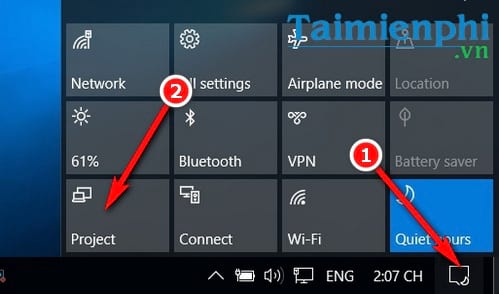
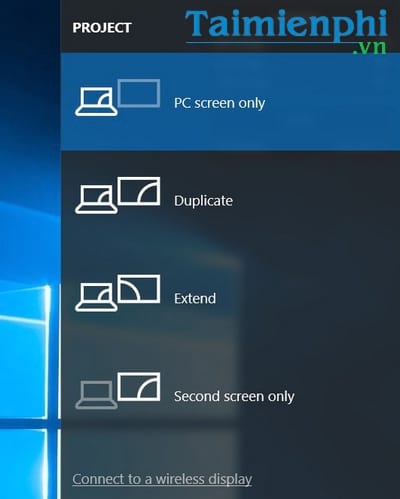
For cable, placement, and primary-screen setup, see How to Set Up Dual Monitors.
Set the resolution for each display
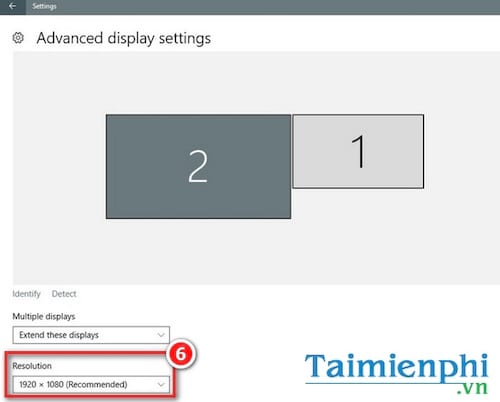
- Press Windows + I and open System > Display.
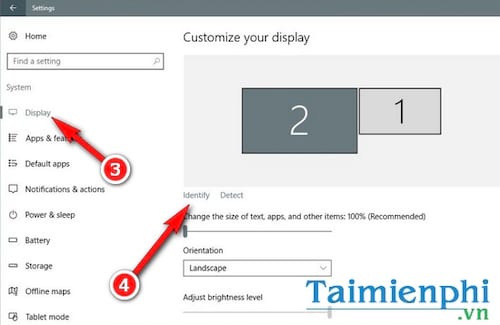
- Select Identify to show a number on each physical screen. The highest number is not inherently the best or primary display.
- In the display diagram, select the monitor you want to configure.
- Under Display resolution, choose the value marked Recommended. That is normally the panel's native resolution.
- Select Keep changes if the image is correct. Windows reverts automatically if you do not confirm.
- Repeat for every other monitor.
Adjust scaling without lowering sharpness
If text looks too small on a high-resolution screen, keep its native resolution and change Scale for that display instead. Common choices include 100%, 125%, and 150%, but use the recommended value when possible. Sign out and back in if an older application remains blurry after a scaling change.
Drag the numbered monitor rectangles so their positions match the physical arrangement. Aligning their top or bottom edges determines where the pointer crosses between displays.
Match the refresh rate and signal mode
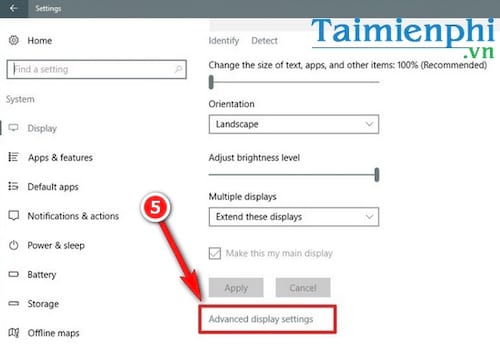
Open Advanced display, choose the monitor, and select a supported refresh rate. A high-resolution display may be limited to a lower refresh rate by an older cable, adapter, dock, or video port. The Desktop mode and Active signal mode values should normally agree.
Do not select a resolution or refresh rate the monitor does not support. If the screen goes blank, wait for Windows to revert or reconnect it using a known-good port.
Fix a blurry or incorrectly sized display
- Confirm the correct monitor is selected before changing resolution or scale.
- Use Extend instead of Duplicate when the screens have different native resolutions.
- Install a current graphics driver from the PC or GPU manufacturer.
- Replace adapters that cannot carry the required resolution and refresh rate.
- Use the monitor's on-screen menu to disable overscan or choose a 1:1/PC mode when the desktop edges are cut off.
Windows normally remembers a monitor's configuration by its detected identity and connection. Third-party resolution tools are unnecessary for most setups and can introduce unsupported modes. If the arrangement is lost after every reconnect, test another cable or port and check for a graphics-driver update.
Related Articles
 How to Configure Multiple Monitors in Windows 118 minutes read
 How to Set the Resolution for Many Windows 10 Screens3 minutes read
 How to Use Multiple Computer Monitors at the Same Time7 minutes read
 How to Use 2 Screens on a Computer13 minutes read
 5 Main Notes When Using Multiple Screens with a Laptop: Expert Selection Guide10 minutes read
 How to Adjust the Light of Multiple Screens with the Twinkle Tray4 minutes read
Reader Comments 0
Sign in with email or Google to join the discussion.