Table of Contents
Keynote can export a presentation directly to Microsoft PowerPoint's .pptx format on a Mac, iPhone, iPad, or through iCloud.com. Exporting creates a separate copy, so the original Keynote file is unchanged.
Before sending the converted file, open it in PowerPoint and check fonts, transitions, video, charts, and object positions. Keynote and PowerPoint do not support every effect in exactly the same way.
Export Keynote to PowerPoint on iPhone or iPad
- Open the presentation in the Keynote app. If it is stored in iCloud Drive or another location, use the file browser to find it.
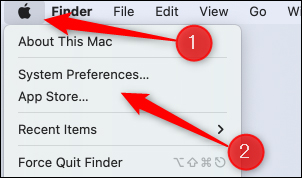
- With the presentation open, tap the Share or Actions button in the toolbar. Depending on the Keynote version, the menu may be shown as three dots.
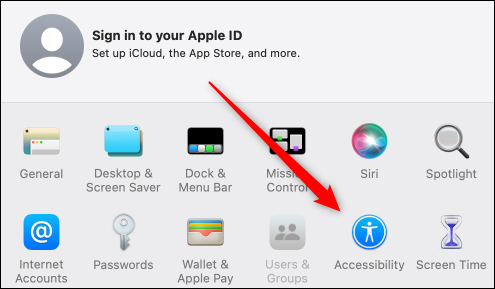
Older versions may first display a Share command.
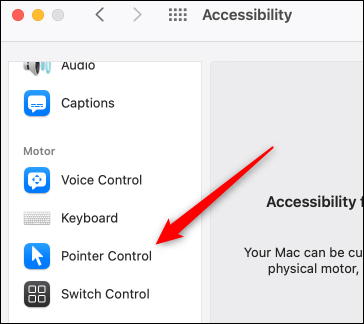
- Choose Export and Send or Export.
- Select PowerPoint. Keynote creates a
.pptxcopy.
- Choose Save to Files to keep the converted copy, or select Mail, Messages, AirDrop, or another sharing destination.
If the presentation is password-protected, the password also applies to the exported PowerPoint copy.
Export Keynote to PowerPoint on a Mac
- Open the presentation in Keynote.
- Choose File > Export To > PowerPoint. Recent versions also offer Share > Export and Send.
- Review the export options, then click Save or Next, choose a filename and location, and complete the export.
Current Keynote versions export to .pptx. Older instructions may show an option for the legacy .ppt format, but Apple now recommends exporting to the current XML format. If a recipient truly needs .ppt, open the .pptx copy in a compatible version of PowerPoint and save it in the older format there.
Convert a Keynote file with iCloud.com
This method works in a supported browser on Windows or Mac and does not require the Keynote desktop app. You need an Apple Account.
- Sign in to iCloud.com and open Keynote.
- Upload the
.keyfile if it is not already in iCloud Drive. - In the presentation manager, select the More button for the file and choose Download a Copy. If the presentation is open, use the More button in the toolbar.
- Select PowerPoint. The converted
.pptxfile downloads to the browser's default download folder.
If you cannot use Keynote or iCloud
Third-party conversion websites can convert some .key files, but they should be a last resort. Uploading a presentation sends its contents to another company, which may be unacceptable for confidential, personal, legal, or business material. Check the service's privacy and retention policies before uploading anything.
If the presentation is not sensitive and you choose a converter, select PPTX as the output. Download the result, scan it with your security software, and inspect every slide in PowerPoint. Do not assume an online converter will preserve animations, narration, embedded media, or fonts.
Check the converted presentation
- Fonts: unavailable fonts may be substituted, changing line breaks and layout. Prefer common fonts or provide the approved font files separately when licensing permits.
- Transitions and builds: play the slideshow from beginning to end and replace unsupported effects.
- Audio and video: confirm that media plays on the recipient's computer and that linked files were not left behind.
- Charts and tables: verify labels, number formats, and data after conversion.
- Speaker notes: check that required notes are present and correctly formatted.
- Slide size: confirm that widescreen or standard dimensions have not changed.
When editing is not required, PDF is often more reliable for preserving visual layout. Choose PowerPoint when the recipient needs to edit or present the slides in Microsoft Office.
For more presentation resources, see how Keynote fits into Apple's productivity apps and this overview of alternatives to Microsoft Office.
Related Articles
 How to Transfer Keynote to Powerpoint on iPhone and iPad4 minutes read
 How to Convert PowerPoint Slides to Keynote on Mac5 minutes read
 12 Great Free Keynote Templates for Your Presentation8 minutes read
 What Is Keynote? Learn About Keynote4 minutes read
 How to Use Keynote Remote to Control Remote Presentations6 minutes read
 How to Convert Powerpoint to PDF3 minutes read
Reader Comments 0
Sign in with email or Google to join the discussion.