Table of Contents
The Preview app built into macOS can create a reusable handwritten signature and place it on a PDF without printing, scanning, or uploading the document to an online service. You can capture the signature with a trackpad, the Mac's camera, or a nearby iPhone or iPad.
Know the difference: Preview adds a visual representation of your signature. It is not the same as a certificate-based digital signature that verifies the signer's identity and detects later changes. If an organization requires a particular electronic-signature service or digital certificate, follow its instructions instead.
Create a signature in Preview
- Open the PDF in Preview. If it opens in another app, Control-click the file in Finder and choose Open With > Preview.
- If the Markup toolbar is hidden, click Show Markup Toolbar or choose View > Show Markup Toolbar.
- Click the Sign button, which resembles a signature on a line.
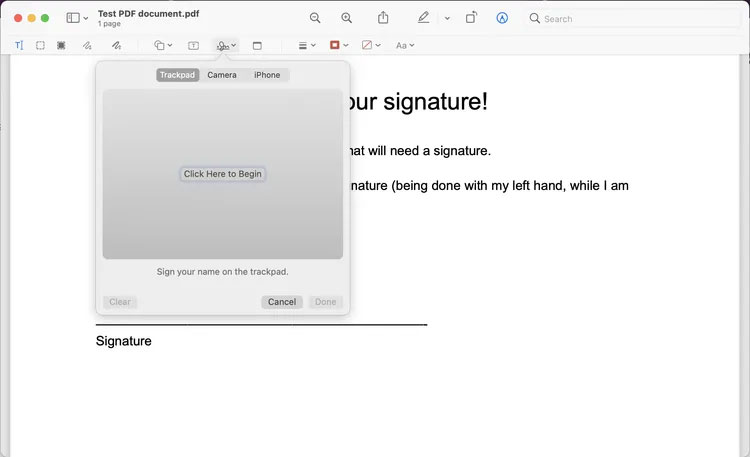
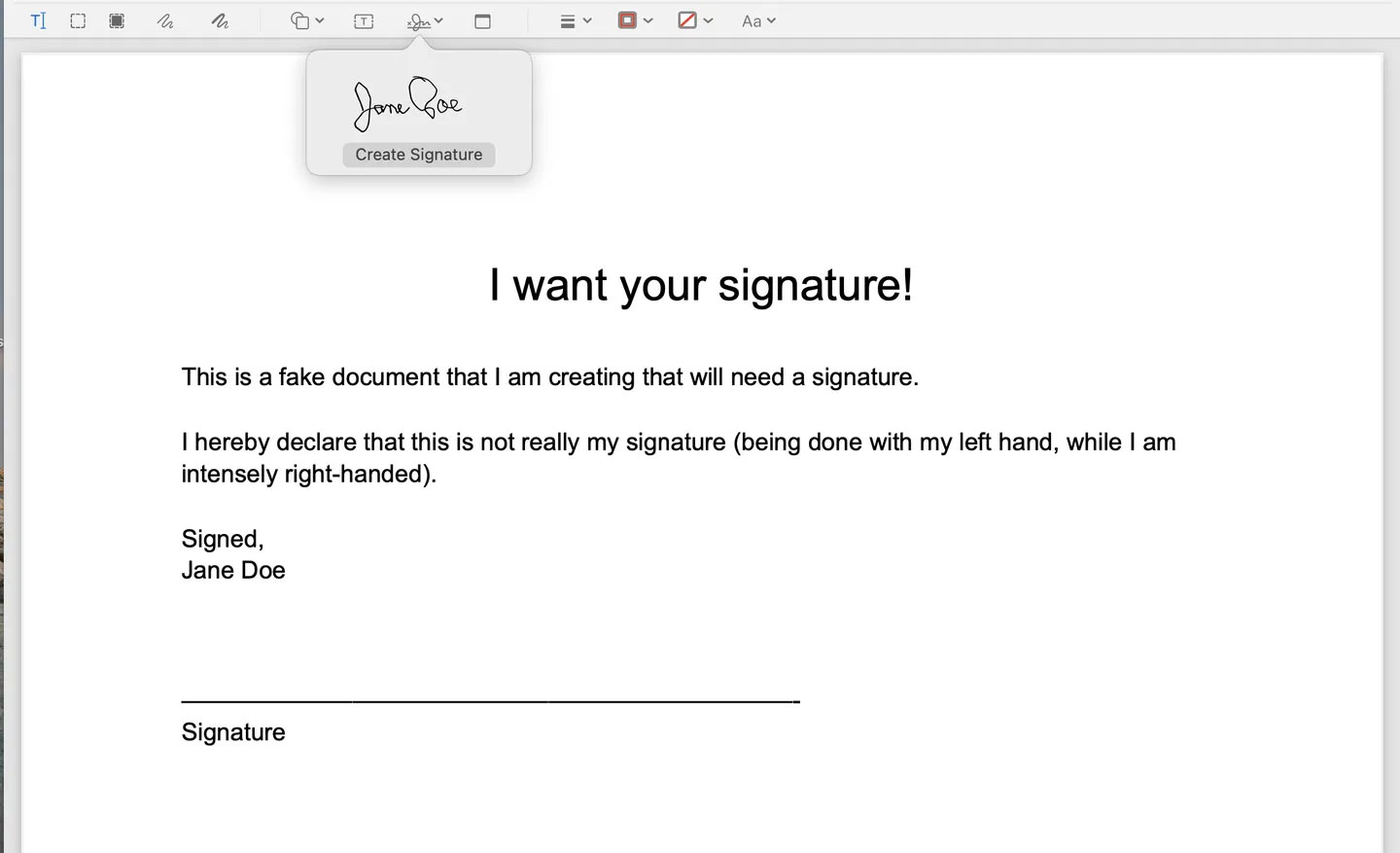
If you already have saved signatures, they appear in this menu. Choose Create Signature to add another one, then use one of the following methods.
Use the trackpad
Select Trackpad, click the prompt to begin, and sign with your finger. Press any key when finished, review the result, and click Done. On a Force Touch trackpad, pressing more firmly can produce a heavier line.
Use the Mac's camera
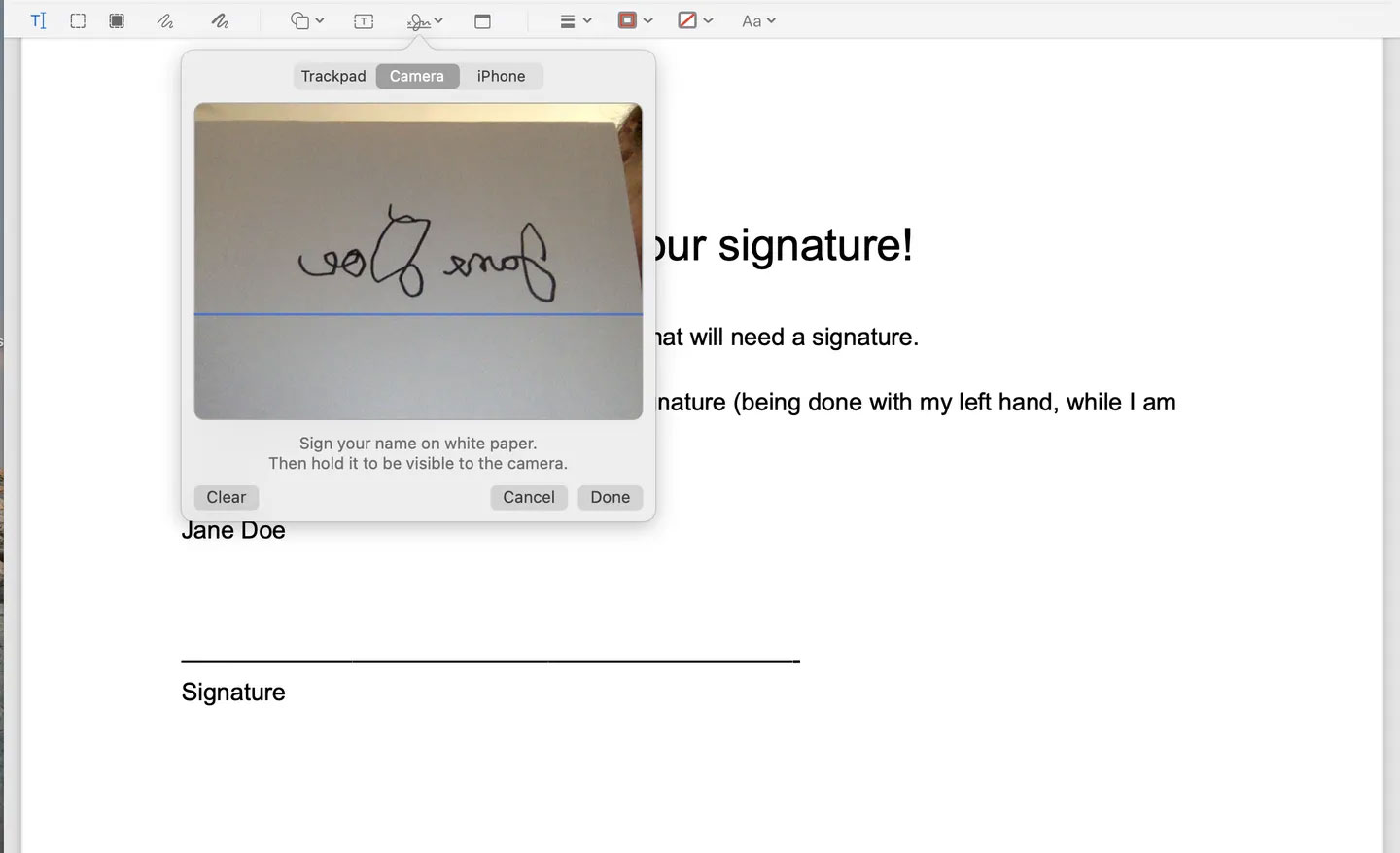
Sign your name clearly on unlined white paper. Select Camera, hold the paper facing the camera, and align the signature with the guide shown on screen. Preview corrects the mirrored camera view in the saved result.
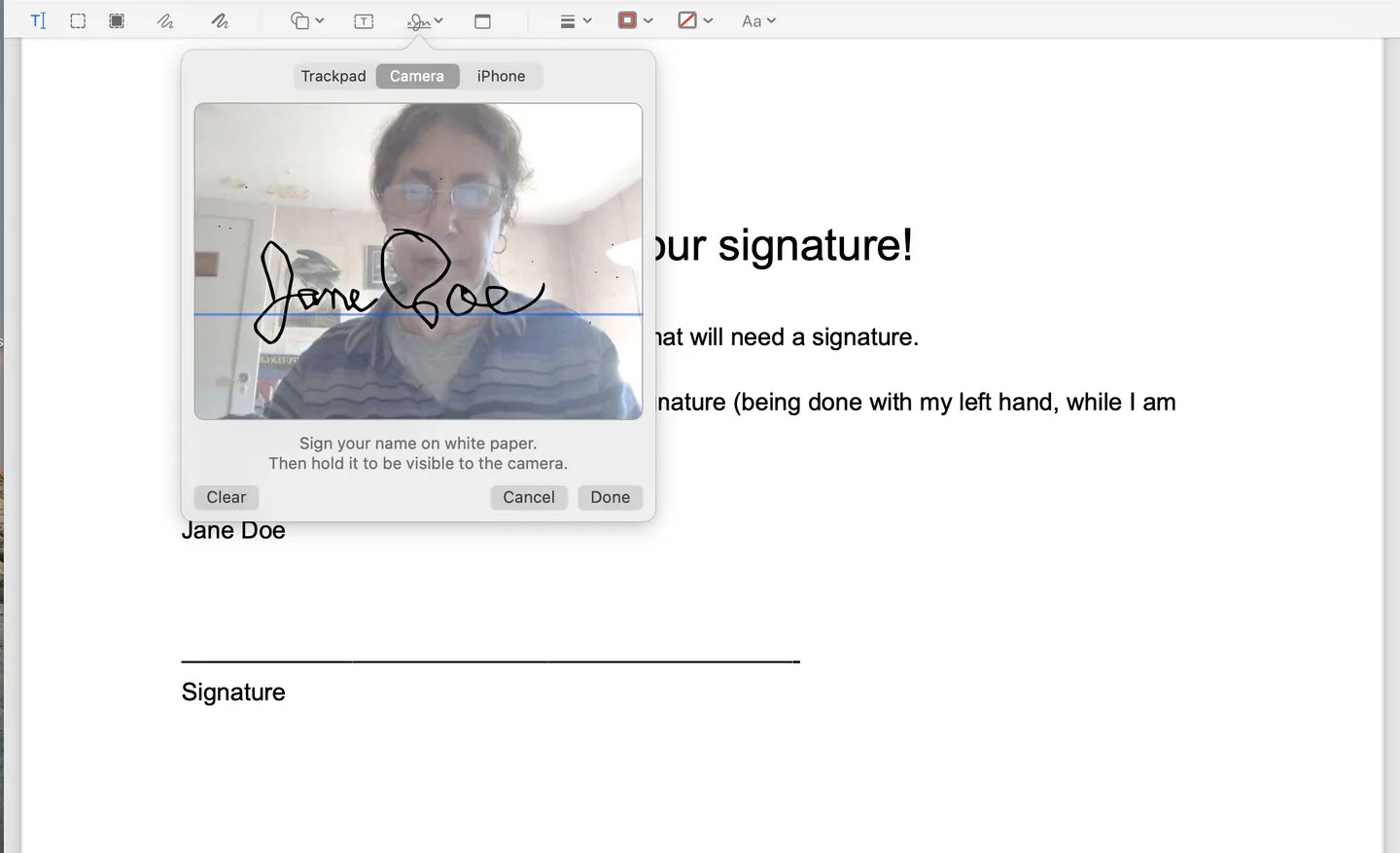
Use dark ink and keep other writing out of the camera frame. If the capture includes unwanted marks, click Clear, reposition the paper, and try again.
Use an iPhone or iPad
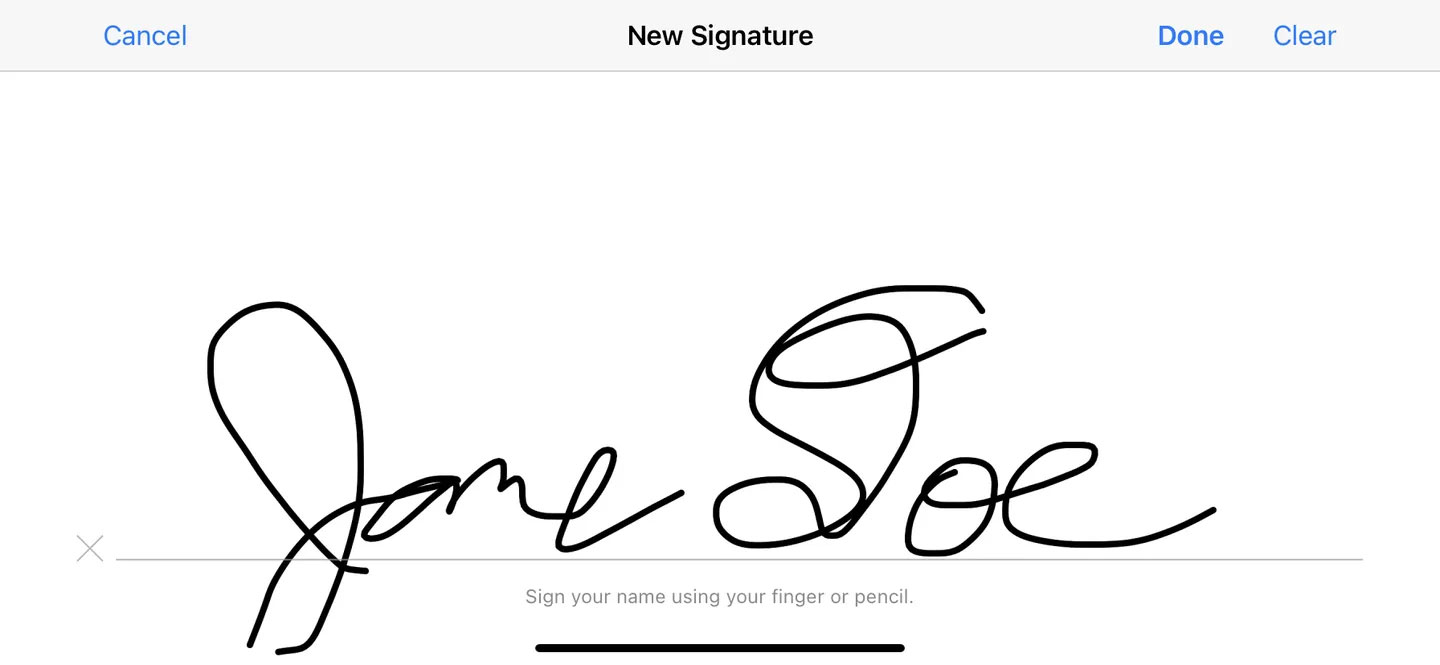
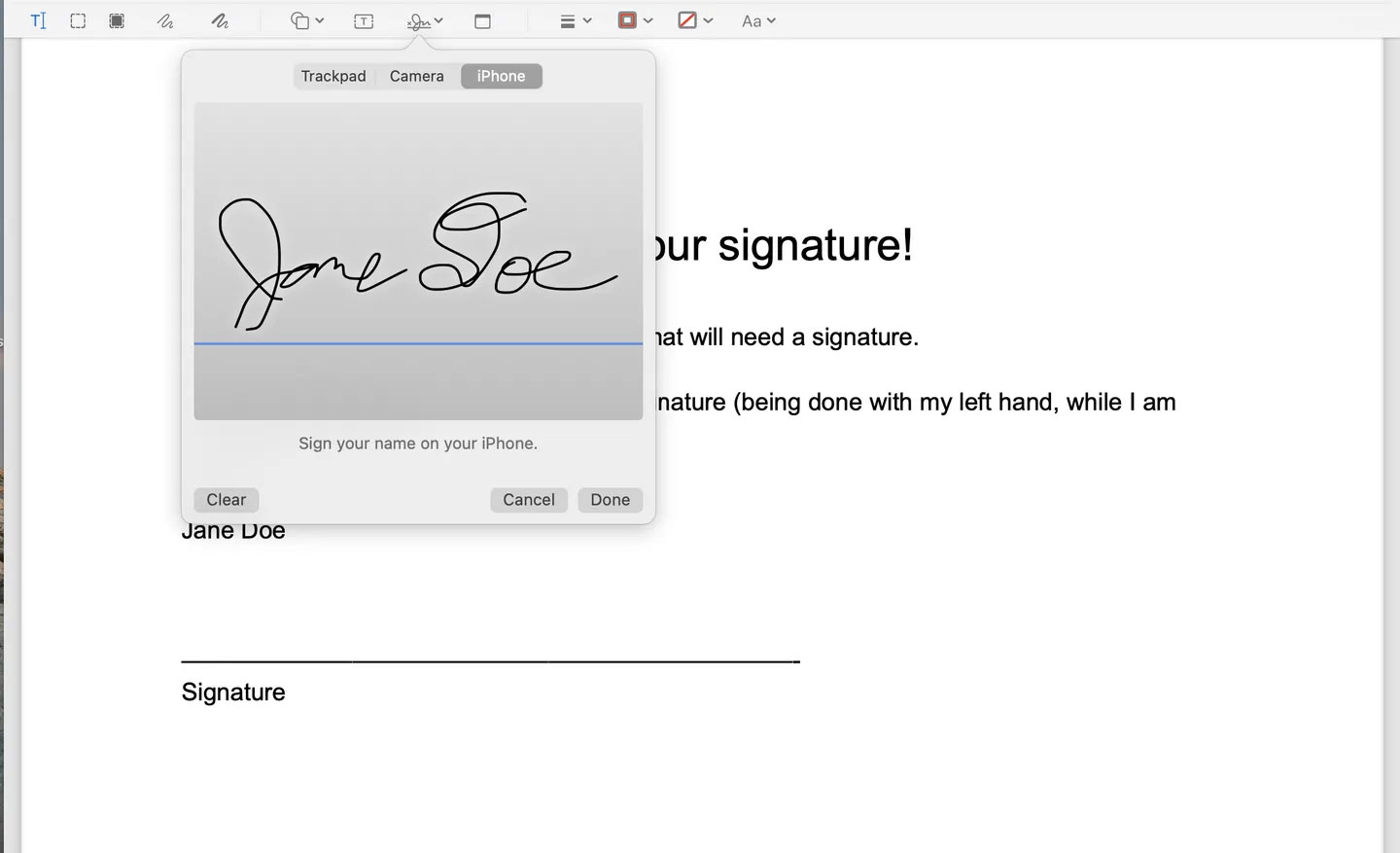
If a compatible iPhone or iPad is nearby and set up to work with the Mac, select the device option. A signature field appears on the device; sign with a finger or Apple Pencil, then tap Done. The result appears in Preview.
Add the signature to a PDF
- Open the PDF in Preview and display the Markup toolbar.
- Click Sign, then select the saved signature.
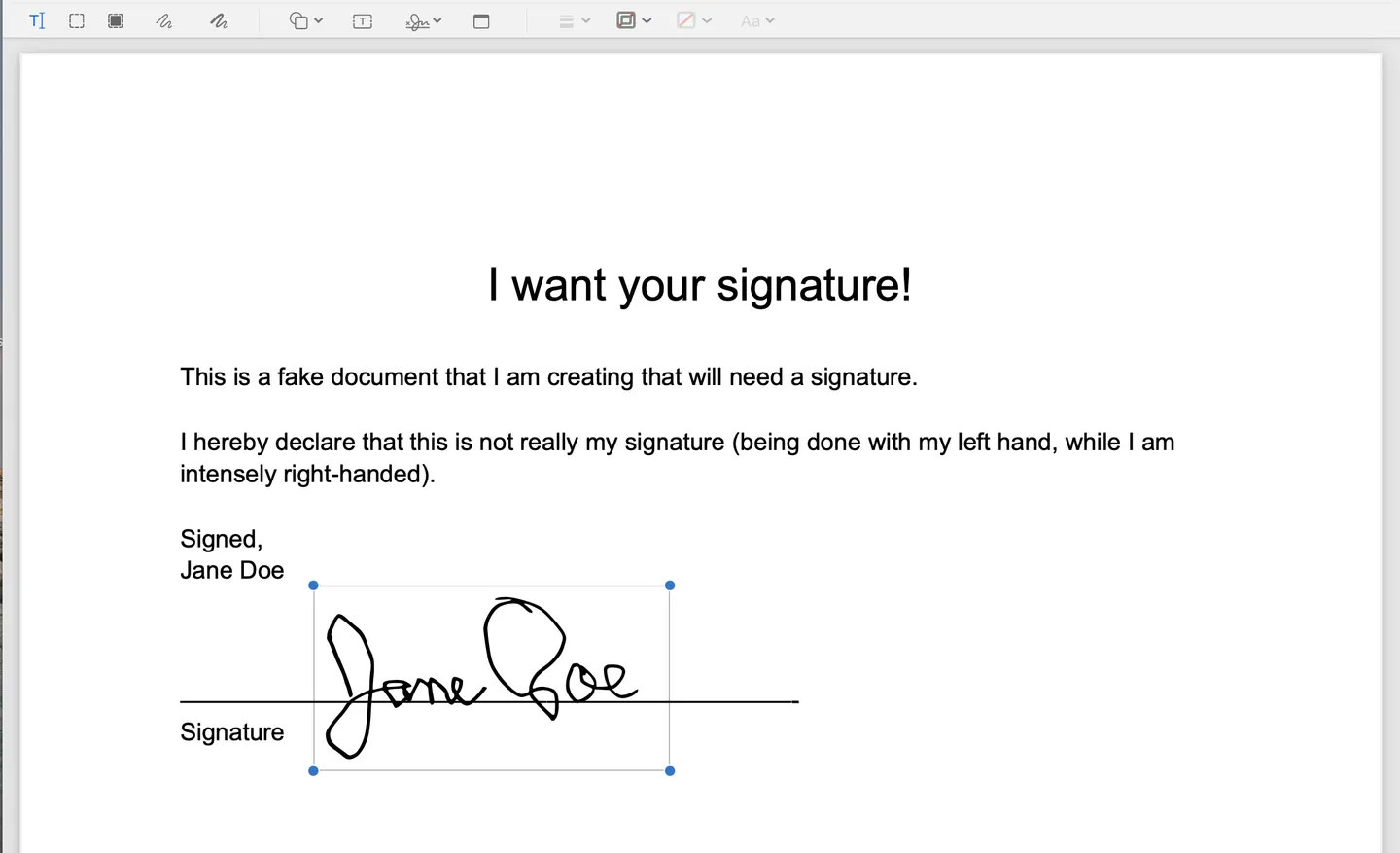
- Drag the signature to the correct line. Use the blue handles around it to resize it without distorting its proportions.
- Check the entire document, then choose File > Save. To preserve an untouched original, use File > Export or duplicate the file before signing.
If the PDF contains fillable fields, click a field and type. If it is not an interactive form, use Preview's Text Box tool in the form-filling or Markup toolbar.
Manage saved signatures
You can keep more than one signature, such as a full name and initials. Open the Sign menu to choose among them. To remove one, move the pointer over the saved signature and click the X beside it.
Saved signatures are sensitive. Anyone with access to your unlocked Mac account may be able to place them on a document, so use a login password, lock the Mac when unattended, and remove signatures you no longer need.
If signing does not work
- The Sign button is missing: confirm that the Markup toolbar is visible and that the file opened in Preview.
- The camera capture is faint: use darker ink, brighter even lighting, and plain white paper.
- The signature is placed incorrectly: click it once, drag it to position, and use the corner handles to resize.
- Changes cannot be saved: save a copy in a folder where your account has write permission. A protected or managed PDF may restrict edits.
- A formal digital signature is required: ask the recipient which certificate or signing platform it accepts; a drawn signature may not satisfy that requirement.
Windows users can choose a PDF app with signing support from this guide to free PDF readers. For a document that must remain editable in Microsoft Office, see how to insert a signature in Word.
Related Articles
 How to Insert a Signature in Pages on Mac4 minutes read
 How to Create a Signature for Gmail and Insert Photos7 minutes read
 Insert Signature into Word: How to Insert a Signature in Word5 minutes read
 How to Insert a Signature Into PDF with Foxit Reader4 minutes read
 How to Create an Email Signature Generator Using ChatGPT8 minutes read
 How to Add Links to Email Signatures on iPhone and iPad5 minutes read
Reader Comments 0
Sign in with email or Google to join the discussion.