Table of Contents
This practical guide explains how to share airtag with others on iphone with clear steps and useful context. It also covers common requirements, potential problems, and the details that can help you get better results.
Instructions for Sharing Airtag with Others on iPhone
Step 1:
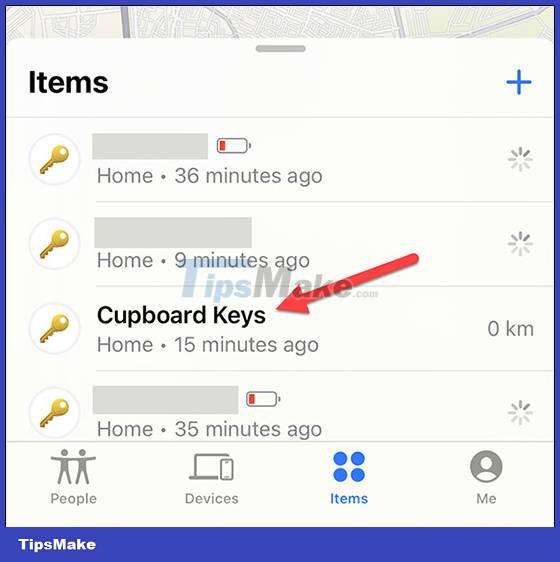
First, open the Find My application on your phone and then select the Items tab to see a list of devices that are connected to your phone. Next, we click on the AirTag you want to share .
Step 2:
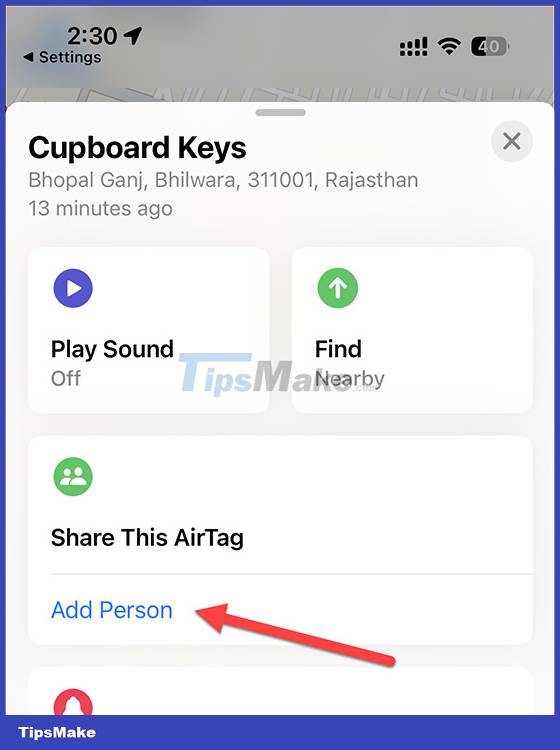
Now displaying that AirTag information and options, we click on the Add Person option below to proceed to share the AirTag with others.
Step 3:
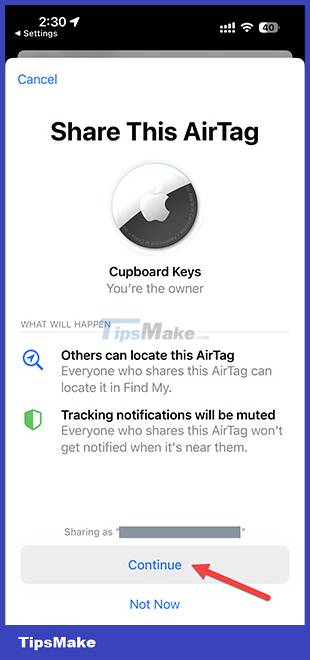
Now display the message as shown below, we click Continue to continue the operation.
Step 4:
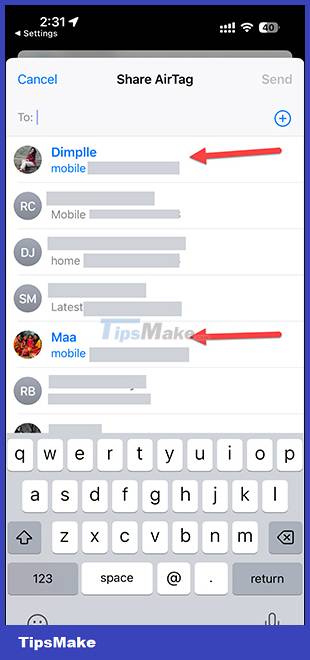
Display contact list for you to choose to share AirTag , up to 5 people share to share AirTag. After selecting the maximum 5 people, click the Send button in the right corner to proceed with sharing.
Now in the shared AirTag management interface, you will see the people you have shared with.
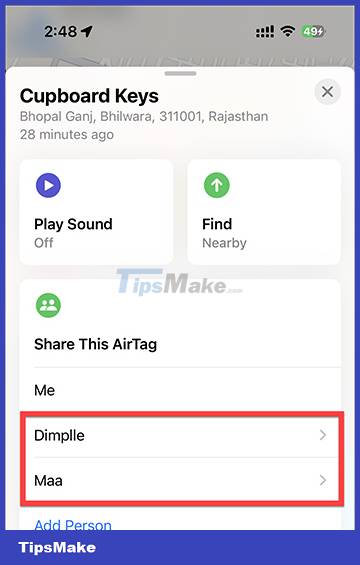
Step 5:
To stop sharing AirTag on iPhone , you just need to click on the name of the person you want to stop and then select Remove in the displayed list.
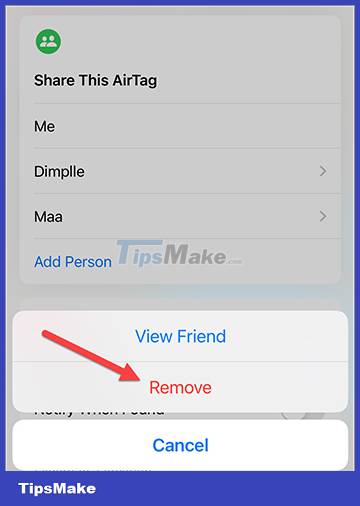
Conclusion
Understanding Share Airtag with Others on iPhone makes it easier to compare options, avoid common mistakes, and apply the information in this guide more effectively. Review the relevant requirements before making changes or choosing a solution.
FAQ
How do you share airtag with others on iphone?
Follow the steps in this guide in order, confirm the required settings or tools, and verify the result before making additional changes.
Is it safe to share airtag with others on iphone?
It is generally safe when you follow the recommended instructions, use trusted tools, and avoid changing settings you do not understand.
What should you do if the process does not work?
Recheck the requirements, restart the device or application when appropriate, and review each step for missed settings or compatibility issues.
Related Articles
 How to Locate Airtag Correctly on iPhone 11 and iPhone 123 minutes read
 Instructions on How to Use AirTag: Main Insights8 minutes read
 Get the Most Out of the Convenience of Apple Airtag5 minutes read
 How to Add Airtag to the Find My App on iPhone3 minutes read
 How to Play Audio on Airtag3 minutes read
 Comparing AirTag 2 and AirTag 1: What Upgrades Has Apple Made After 4 Years7 minutes read
Reader Comments 0
Sign in with email or Google to join the discussion.