Table of Contents
You can use Windows Hello fingerprint sign-in on an HP laptop only if the model has a working fingerprint reader and compatible driver. Set up a Windows Hello PIN first, then enroll one or more fingers under Settings > Accounts > Sign-in options.

Before you start
- Confirm that the laptop has a fingerprint sensor. On HP notebooks it may be beside the keyboard, on the palm rest, or integrated into the power button.
- Install current Windows updates and restart the laptop.
- Create a Windows Hello PIN if Windows has not already asked you to do so. The PIN is the fallback for that device.
- Make sure the sensor and your finger are clean and dry.
A Microsoft account is not required solely to enroll a fingerprint on every configuration, although account and organizational policies can affect available sign-in options.
Set up Windows Hello fingerprint recognition
- Press Windows+I to open Settings.
- Select Accounts.
- Open Sign-in options.
- Under Ways to sign in, expand Fingerprint recognition (Windows Hello) and select Set up.
- Select Get started and verify your Windows Hello PIN.
- Touch and lift your finger repeatedly, adjusting its angle as instructed so Windows can capture the edges as well as the center.
- When enrollment is complete, choose Add another finger or close the wizard.
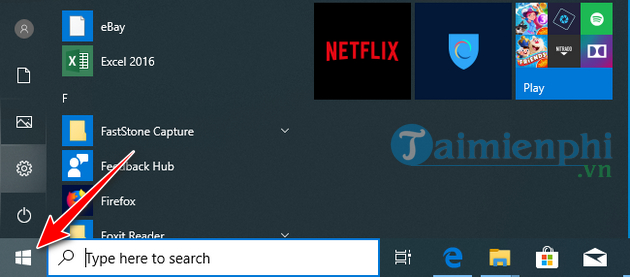
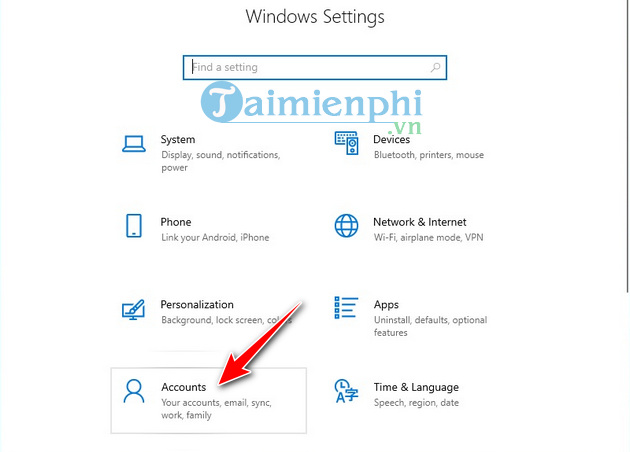
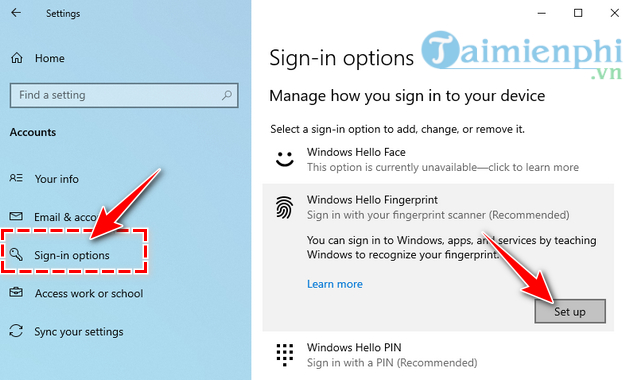
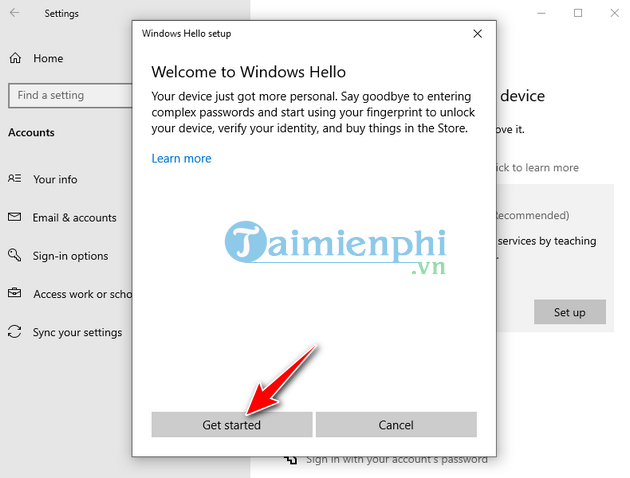
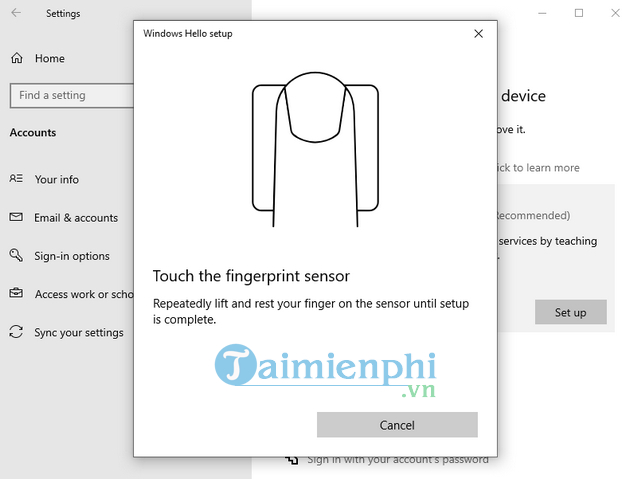
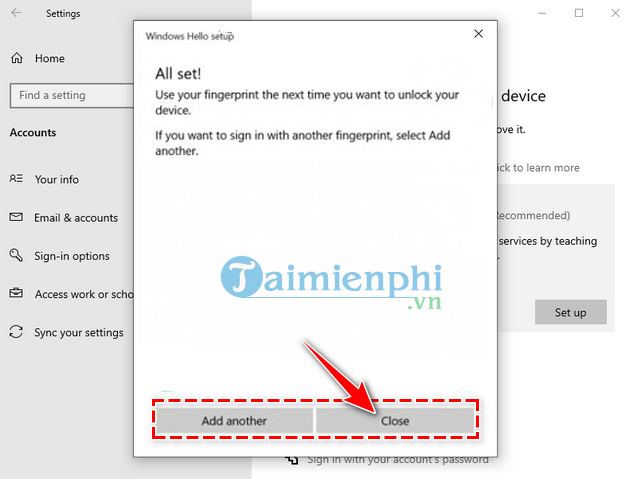
Lock the laptop with Windows+L and test the enrolled finger. Keep the PIN private and avoid an easily guessed sequence; it remains an authorized sign-in method if fingerprint recognition fails.
If Fingerprint recognition is missing
- Check the exact HP model's specifications. A similar-looking surface may be a power button rather than a sensor.
- Open Device Manager and look under Biometric devices. An error icon or missing entry suggests a driver or hardware problem.
- Use Windows Update and HP's support page for the exact model to obtain the current fingerprint, chipset, and firmware updates. Avoid generic driver-download sites.
- Restart Windows and check Settings > Accounts > Sign-in options again.
If the laptop is managed by an employer or school, policy may disable biometric sign-in. Contact the administrator instead of changing policy or registry settings.
If the sensor recognizes your finger inconsistently
- Clean the sensor with a soft, dry, lint-free cloth and dry your hands.
- Use the same natural angle you used during enrollment.
- Open the fingerprint option, remove the affected enrollment, and add it again.
- Enroll a second finger so you are not dependent on one hand.
- Use the PIN after several failed attempts rather than repeatedly pressing harder.
Manage or remove an enrolled fingerprint
Return to Settings > Accounts > Sign-in options > Fingerprint recognition (Windows Hello). Use Add a finger to expand coverage or Remove to delete the current enrollment, then follow the prompts to enroll again if needed.
If you prefer password sign-in, review the guide to managing Windows Hello sign-in choices. On managed devices, changing the option may be restricted.
What Windows Hello does—and does not—protect
Windows Hello offers a convenient device sign-in and can be used for compatible apps and passkeys. It does not replace full-disk encryption, backups, operating-system updates, or account multi-factor authentication. The Windows security settings checklist covers those additional layers, while the laptop protection guide explains encryption and recovery preparation.
Related Articles
 Why Might a Windows Laptop Not Be a Good Investment?6 minutes read
 Why Should You Shut Down Your Windows Laptop Every Day?6 minutes read
 How to Change These 3 Settings to Make Your Windows Laptop Run Faster7 minutes read
 7 Most Important Things to Consider Before Buying a Windows Laptop8 minutes read
 Windows 8 Touch Laptop Is About to Drop4 minutes read
 7 Ways to Fix Windows Laptop Errors That Do Not Charge via USB-C: Expert8 minutes read
Reader Comments 0
Sign in with email or Google to join the discussion.