Table of Contents
Use Reset when you want to return selected iPhone settings to their defaults without deleting personal files. Use Erase All Content and Settings only when you intend to remove your apps, accounts, photos, and other data—for example, before selling the phone or starting over. Back up anything important before choosing an erase option.
Before you reset or erase the iPhone
- Create a current backup. Use iCloud Backup or connect the iPhone to a Mac or Windows PC. Confirm that the backup finishes before erasing the device.
- Know your Apple Account credentials and device passcode. They may be required to turn off Find My, authorize the erase, activate the iPhone, or restore a backup.
- Protect an eSIM. During a full erase, iOS may ask whether to keep or delete eSIMs. Keep them if you are troubleshooting your own phone; ask the carrier what to do if you are selling or transferring it.
- Unpair an Apple Watch before selling or giving away the iPhone.
- Do not erase a device you do not own. An iPhone still linked to another person's account can remain protected by Activation Lock.
Open the iPhone reset menu
- Open Settings.
- Select General.
- Scroll down and tap Transfer or Reset iPhone.

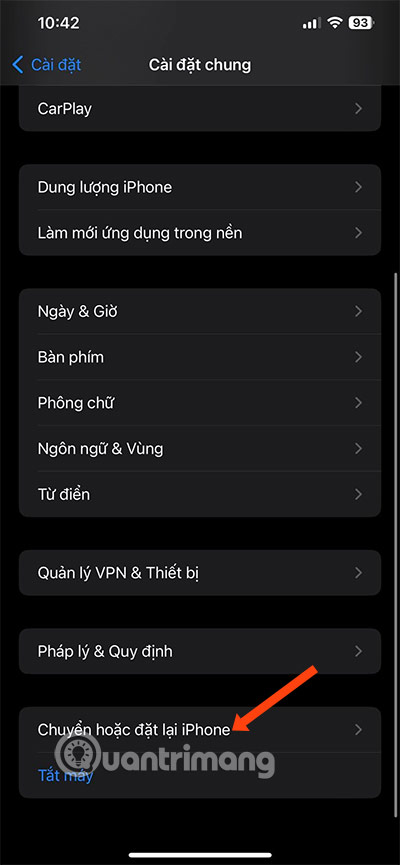
The next screen provides three distinct paths: preparing data for a new iPhone, resetting selected settings, or erasing all content and settings. Choose based on the outcome you need; these options are not interchangeable.
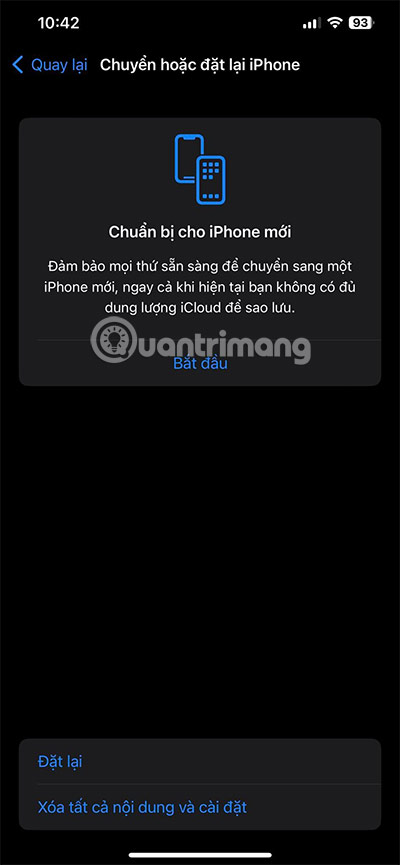
Prepare for a new iPhone without erasing immediately
Select Get Started under the preparation or transfer option when you are moving to another iPhone. Follow the prompts to prepare an iCloud backup and confirm that the required data is available for transfer. On the new iPhone, use Quick Start or choose an iCloud backup during setup.

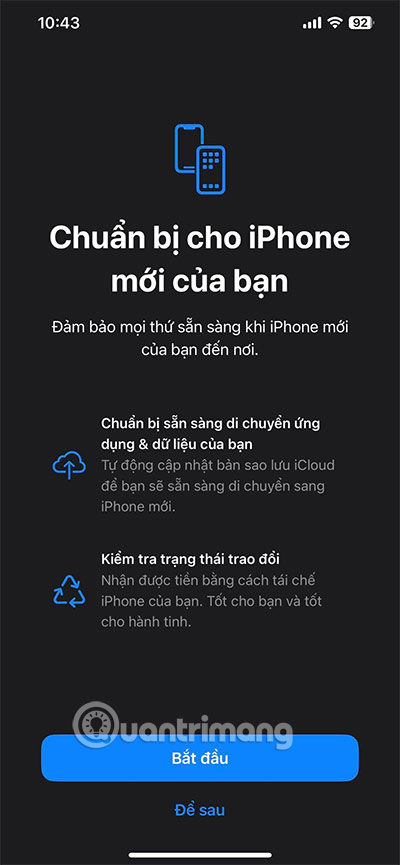
Do not erase the old iPhone until you have signed in on the new one and checked essential items such as photos, messages, contacts, authenticator access, and apps that store data locally.
Reset settings without deleting personal data
From Transfer or Reset iPhone, tap Reset to see the available settings-only actions.


- Reset All Settings: Returns system settings to their defaults without deleting photos, apps, or messages. You will need to configure preferences and reconnect to saved networks.
- Reset Network Settings: Removes saved Wi-Fi networks and related passwords, VPN and APN settings, and other network configuration. Try this only after simpler Wi-Fi or cellular troubleshooting. TipsMake has a separate iPhone network-reset guide.
- Delete All eSIMs: Removes eSIM profiles. This can interrupt cellular service and may require carrier assistance to reactivate, so do not choose it merely to troubleshoot Wi-Fi.
- Reset Keyboard Dictionary: Removes custom words learned by the keyboard. It does not delete documents or messages.
- Reset Home Screen Layout: Returns built-in apps and icons to the default arrangement while leaving apps and their data installed.
- Reset Location & Privacy: Returns privacy permissions to their defaults. Apps will ask again when they need access to location, camera, microphone, contacts, and other protected data.
Menu wording can vary slightly by iOS version. Read the confirmation screen before entering your passcode; it states what the selected reset will change.
How to erase all content and settings
- Verify that the backup is complete.
- Open Settings > General > Transfer or Reset iPhone.
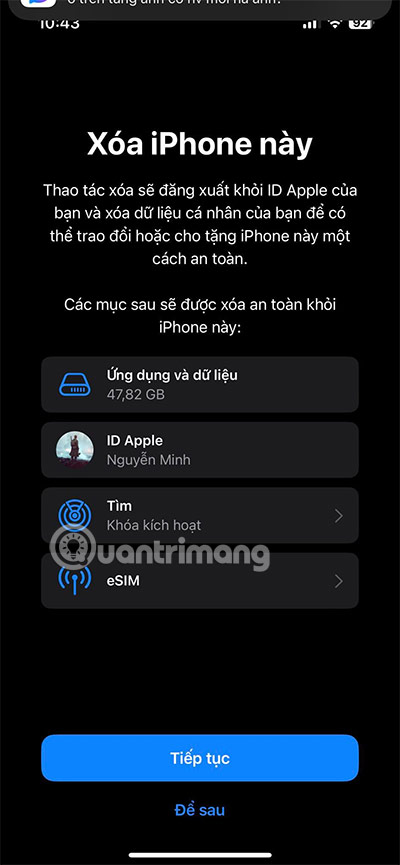
- Tap Erase All Content and Settings.
- Review the summary of data and accounts that will be removed, then tap Continue.
- Enter the device passcode and Apple Account password if requested.
- Choose whether to keep or delete eSIMs based on whether you will continue using the phone.
- Wait for the erase to finish. Do not interrupt the phone while it restarts.

When the Hello screen appears, the iPhone is ready to be configured as new or restored from a backup. If you are selling or giving it away, do not continue through setup. Confirm that the device is no longer listed under your account and that Activation Lock has been removed; TipsMake explains how Activation Lock relates to Find My.
Reset, erase, restore, and restore a backup: the difference
- Reset settings: Changes selected system settings but keeps personal content.
- Erase All Content and Settings: Securely removes user data and returns the installed copy of iOS to its setup state.
- Restore iPhone with a computer: Reinstalls iOS and erases the device. Use Finder on a current Mac or the Apple Devices app on current Windows systems; older computers may still use iTunes.
- Restore a backup: Copies supported data and settings from an iCloud or computer backup onto an erased or replacement iPhone.
A computer restore is useful when the iPhone cannot start normally, an update fails, or Settings cannot complete an erase. Error codes alone do not prove a hardware or malware problem; record the exact message, update the computer software, check the cable and port, and use Apple's recovery-mode procedure if necessary.
If the reset option is unavailable
- A work or school management profile may restrict erasing or changing settings. Contact the administrator.
- Screen Time restrictions can block account changes.
- If you forgot the device passcode, you cannot bypass it through the Settings menu; use the supported recovery process, which erases the iPhone.
- If the phone is linked to someone else's account, ask the previous owner to remove it. Avoid unofficial “unlock” services or DNS workarounds; they do not legitimately remove Activation Lock and can expose personal or payment information.
What to check after resetting
After a settings-only reset, reconnect to Wi-Fi, review privacy permissions, verify cellular data and messaging, and reconfigure accessibility or notification preferences. After restoring a backup, allow time for photos and apps to download, then check locally stored files and authentication apps before discarding the old device or backup.
Related Articles
 3 How to Reset Win 7, Factory Reset Windows 78 minutes read
 How Hard Reset Restores Settings on iPhone X6 minutes read
 Steps to Reset Apple TV, How to Factory Reset Apple TV4 minutes read
 How to Distinguish Hard Reset and Factory Reset7 minutes read
 How to Reset, Restore Factory Settings iPhone, iPad with5 minutes read
 Difference Between Hard Reset and Factory Reset: What to Know8 minutes read
Reader Comments 0
Sign in with email or Google to join the discussion.