Table of Contents
Most files downloaded in Safari are stored in a Downloads folder that you can open in the Files app. The folder may be under iCloud Drive or On My iPhone/On My iPad, depending on the download location selected in Safari settings. Images saved with Save Image normally go to Photos instead, while offline music stays inside the music app that downloaded it.
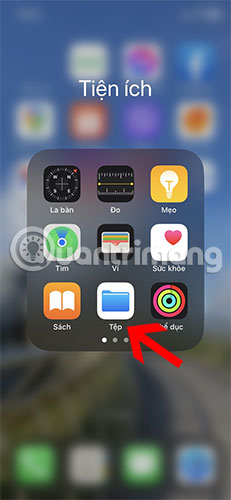
Find the Downloads folder in Files
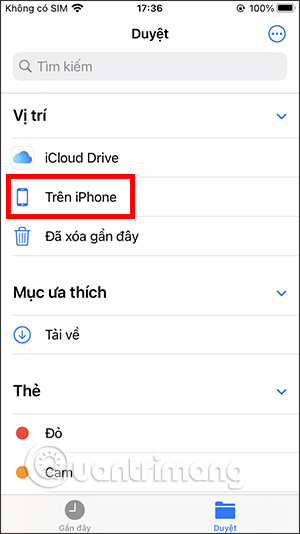
- Open the Files app. If you are viewing a file or the Recents screen, tap Browse.
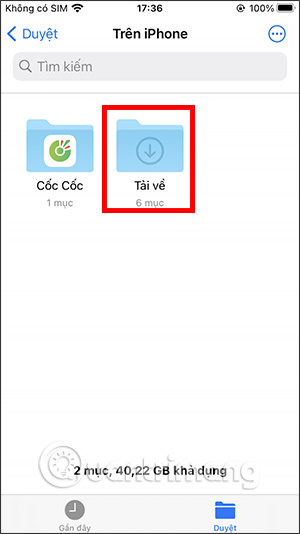
- Under Locations, open iCloud Drive and look for Downloads. If it is not there, go back and check On My iPhone or On My iPad.
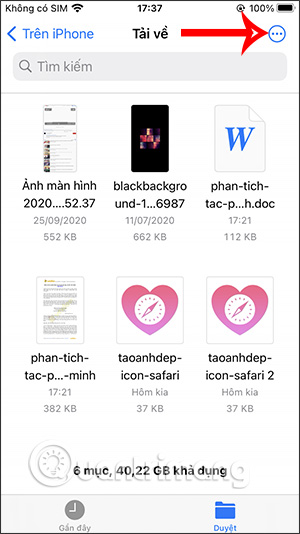
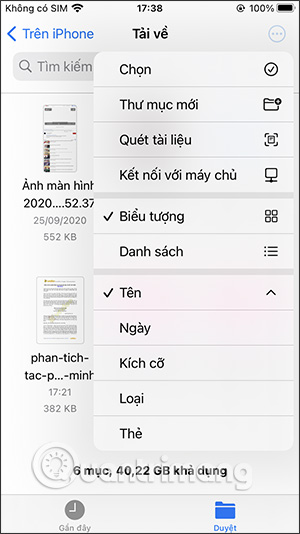
- Tap the Downloads folder to see its contents. Use the three-dot menu to change the view, group files, or sort by name, kind, date, size, or tags.
If the Downloads folder does not appear, confirm Safari's current location under Settings > Apps > Safari > Downloads (on some iOS versions, Safari appears directly in Settings). The location can be iCloud Drive, local device storage, or another folder you selected.
Open, rename, move, or share a downloaded file
Touch and hold a file in Files to display actions such as Rename, Move, Copy, Share, Compress, or Delete. Available actions depend on the file type and storage provider. Tapping a supported document opens a preview, where Markup may be available for drawing or annotation.
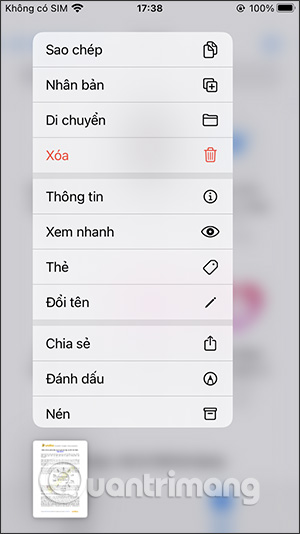

Moving a file from iCloud Drive to On My iPhone makes it local to that device. Moving it into iCloud Drive can make it available on other devices signed in to the same account, provided iCloud Drive is enabled and has enough storage. For collaboration rather than simply sending a copy, see how to share an iCloud folder from iPhone or iPad.
Search when the file is not in Downloads
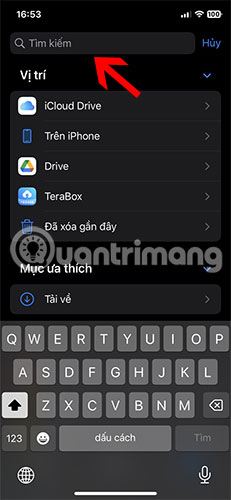
- Open Files and tap the search field.
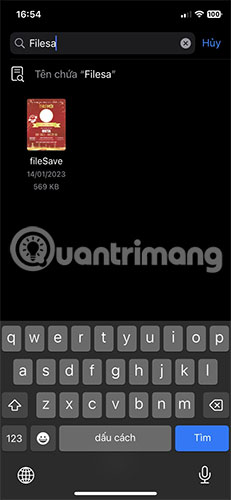
- Enter part of the filename or a relevant term.
- Check the scope shown above the results. Search may be limited to the current folder; choose a broader location when needed.
- Touch and hold a result and choose Show in Enclosing Folder or the equivalent option if available.
You can also swipe down from the middle of the Home Screen and use Spotlight. A result may open the file without clearly showing its folder, so return to Files when you need to move or organize it.

Find downloaded images
The destination depends on the action used:
- Save Image/Save to Photos: Open the Photos app and check Recents or search by date.
- Download Linked File: Check the Downloads folder in Files.
- Save to Files: Open the exact Files location selected in the share sheet.
- Saved inside another app: Check that app's downloads, projects, or offline section.

If you need dimensions or storage size, TipsMake explains how to view an image's file size on iPhone.
Find downloaded music
Music downloaded for offline playback through Apple Music is managed inside the Music app rather than the Files Downloads folder:
- Open Music and select Library.
- Tap Downloaded.
- Browse by playlists, artists, albums, or songs, or check recently downloaded items.
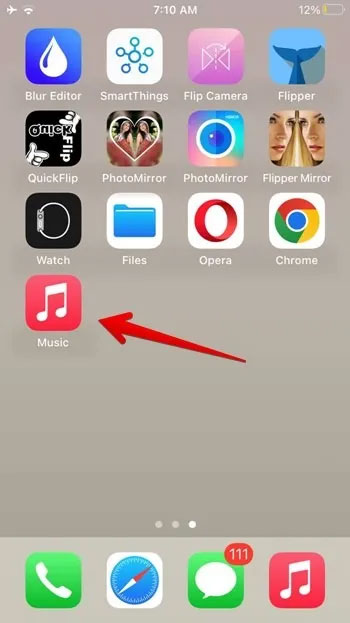
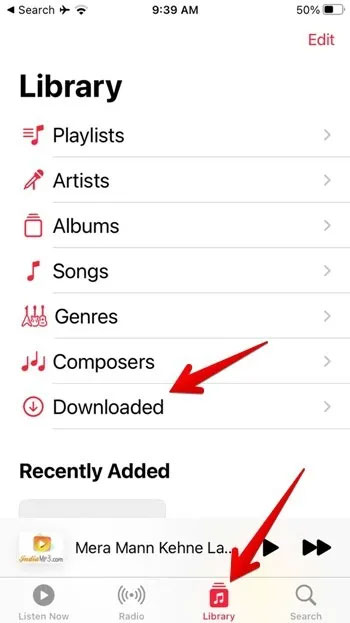
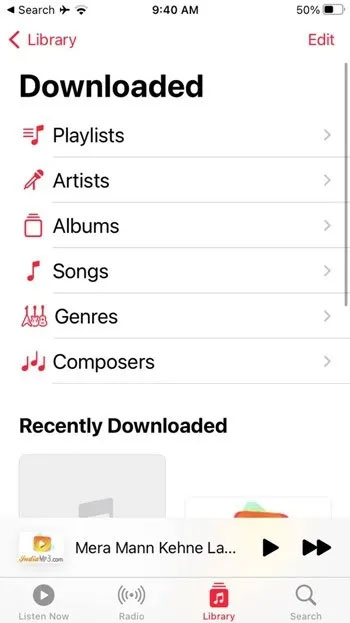
Offline downloads from Spotify, YouTube Music, podcast apps, Netflix, and similar services normally remain inside the app and cannot be browsed as ordinary files. Open the app's Library or Downloads section.
Other common download locations
- Mail and Messages: An attachment is not stored in Files until you choose Save to Files. If you only opened it, return to the original conversation.
- Chrome or another browser: Check the browser's Downloads view as well as Files. If you explicitly saved an image, check Photos.
- Cloud storage: Files can show providers such as Google Drive, Dropbox, or OneDrive after their apps are installed and enabled under Browse > More.
- AirDrop: Photos usually open in Photos; documents may open in a compatible app or prompt you to select a destination.
If a download is still missing
- Open the browser's download list and check whether the transfer finished or failed.
- Search by file type or part of the name, not only the full filename.
- Check both iCloud Drive and local device storage.
- Look in Recently Deleted if the file was removed accidentally.
- Confirm that iCloud Drive or the relevant third-party provider is online and enabled in Files.
- Download the file again and note the destination shown at the time of saving.
Related Articles
 minutes read
 How to Find the Downloaded File on Your Android Device6 minutes read
 How to Copy Files and Files from Your Computer to iPhone / iPad Easily3 minutes read
 Find Large Files in Windows 10: How to Find Large Files on3 minutes read
 Top 10 Most Downloaded Applications in the Decade, 4 of Them3 minutes read
 The Easiest Ways to Find Large Files on Windows8 minutes read
Reader Comments 0
Sign in with email or Google to join the discussion.