Table of Contents
Learning how to reset IP address using ipconfig command doesn't have to be complicated. This updated guide presents a clear workflow, practical checks, and troubleshooting advice you can use while completing the process.
Key Takeaways
- Understand what is IP address reset.
- Understand what is the ipconfig command.
- Understand why reset and renew IP address.
What Is IP Address Reset?
Resetting the IP address is the process of refreshing or changing the IP address of a network-connected device. This is an operation commonly performed when there is a network connection problem such as: IP address conflict or when the device moves between different networks.
Your device sends a request to a DHCP (Dynamic Host Configuration Protocol) server to obtain a new IP address or a previously assigned IP address when you reset your IP address. This process not only improves connectivity, but can also help protect your privacy by changing your public IP address.
What Is the Ipconfig Command?
The ipconfig command stands for "Internet Protocol Configuration". It lets you view and manage information related to the device's network configuration including: IP address, MAC address and other parameters related to network connection.
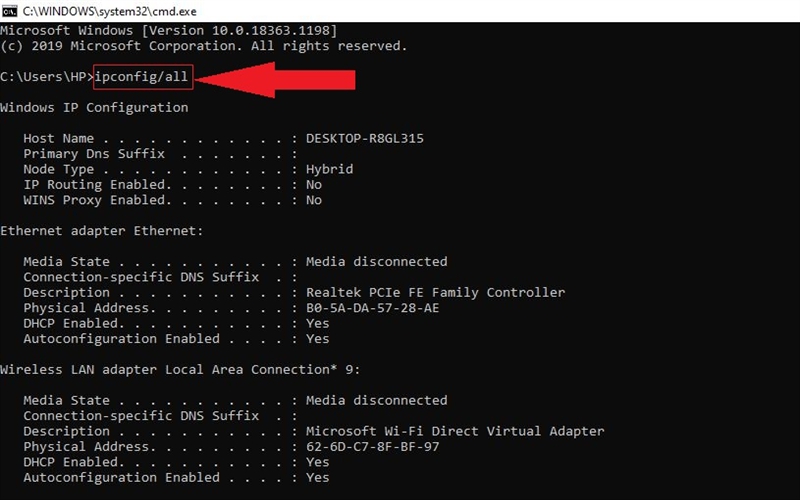
Through this command, you can find information about IP address, subnet mask, default gateway and many other information related to network connection.
Why Reset and Renew IP Address?
Resetting and refreshing your IP address is an important step to maintain the performance and stability of your Internet connection. This is one of the common troubleshooting methods that users often apply when facing network problems.
Resetting the IP address can quickly resolve the issue when your IP address is faulty or conflicts with other devices on the same network. Using the ipconfig command to refresh the IP address will help your device receive a new IP address from the DHCP server, thereby improving connectivity.
Use the Ipconfig Command to Find the IP Address
Using the ipconfig command is one of the simplest ways to find your device's IP address. No need for any complicated software or tools, just use the Command Prompt in Windows.
Open Command Prompt (Run as administrator).
Type ipconfig and press Enter to see your IP address, subnet mask, and default gateway. Use ipconfig /all for more details.
Or, using PowerShell (Run as administrator), type Get-NetIPAddress | ft -AutoSize to see the IP address.
Alternatively, you can view the IP address in Settings by going to "Open Network & Internet Settings" > "Change Connection Properties" and looking for "IPv4 Address".
Reset and refresh IP address on Windows using ipconfig.
You can follow these steps: This helps you reset and refresh the IP address on a Windows computer using the ipconfig command.
Use the Ipconfig Command to Reset the IP Address
Open Command Prompt
Press the Windows + R key combination to open the Run dialog box.
Type cmd keyword and press OK to open Command Prompt.
Check your current IP address by in the Command Prompt window, typing the command ipconfig and pressing Enter:
Release the old IP address by typing the command ipconfig /release and pressing Enter.
The IP address will be cleared and you can see the IP address displayed as 0.0.0.0 after executing this command.
Use the Ipconfig Command to Renew the IP Address
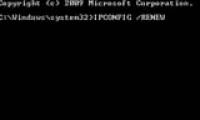
Type the command ipconfig /renew and press Enter if you just want to renew the IP address without releasing it.
Your device will send a request to the DHCP server to get a new IP address without having to release the current IP address when using this command.
Reset and Refresh IP Address on Mac
Here are specific instructions to help you Reset and refresh IP address on Mac:
- Open "System Preferences" and then select "Network". This helps you reset the IP address on your Mac. Here, you will see a list of network connections that the device is using. Select the connection you want to reset, then click the "Advanced" button.
- In the "TCP/IP" tab you can see the current IP address. To reset you just need to select the "Renew DHCP Lease" button to refresh the IP address.
Reset and Refresh IP Address on Phone
Resetting and refreshing the IP address on your phone is also quite simple and can be done by following these steps:
Reset and Refresh IP Address on Android

Reset and refresh IP address on Android.
Check IP address
Open Settings > About > Status.
Access Wifi settings
Open Network & Internet > Wifi, select the network you are connected to.
Edit IP settings
Click the gear icon next to the network name, select Change network > Advanced options > select Static.
Enter IP information
Enter the new IP address and press Save.
Reset and Refresh IP Address on iPhone
You can follow these steps: if you want to change your IP address on your iPhone.
- Open the Settings app.
- Select Wifi.
- Tap the (i) icon next to the name of the Wifi you are connected to.
- Select Configure IP.
- Select Manual and enter the new IP address along with DNS information if required.
Advanced Ipconfig Commands
- Ipconfig /?: Displays help messages about how to use ipconfig commands.
- Ipconfig /all: Provides detailed information about all network configurations, including MAC addresses, IP addresses (IPv4 and IPv6), default gateways, DHCP and DNS servers.
- Ipconfig /allcompartments: Displays information about all parts of the network.
- Ipconfig /release: Release the IPv4 address for the specific adapter.
- Ipconfig /release6: Release the IPv6 address for the adapter.
- Ipconfig /renew: Renew the IPv4 address for the specific adapter from the DHCP server.
- Ipconfig /flushdns: Clears the DNS Resolver cache, helping to update the latest DNS records.
Note When Resetting IP Address with Ipconfig Command
Resetting your IP address with ipconfig may seem simple, but it doesn't always work. Sometimes, your computer will keep the same IP address or will display an error message due to a DHCP server problem. Make sure you run Command Prompt with admin rights or check your network connection and write down your current network configuration before resetting. This helps you avoid this.
Conclude
Hopefully this article from this guide has given you a comprehensive look at resetting IP addresses and how to do it. Always remember to use ipconfig commands appropriately and effectively to enjoy the best Internet experience!
Final Thoughts
The most reliable way to handle reset IP address using ipconfig command is to follow the process in order, verify each important setting, and test the result before moving on. Use the guidance above as a practical reference, then adjust the details for your device, software version, or specific goal.
FAQ
What should I check before I reset IP address using ipconfig command?
Use the latest available software, confirm that your device meets the requirements, and make sure you have the necessary permissions, account access, or backup before changing anything.
Why might I be unable to reset IP address using ipconfig command?
Common causes include outdated software, missing permissions, incompatible settings, incomplete setup steps, or a temporary network problem. Recheck the process from the beginning and restart the app or device if needed.
Is it safe to reset IP address using ipconfig command?
It is generally safe when you use official tools, review every permission, and back up important data before making system-level or account-level changes.
Related Articles
 How to Use Ipconfig Command to Refresh, Reset IP Address for4 minutes read
 How to Use Ipconfig Command4 minutes read
 How to Use the Ipconfig Command to Refresh and Reset IP Address5 minutes read
 Fix Cannot Renew IP Address Error on Windows: Step-by-Step Guide6 minutes read
 10 Useful Commands in Windows You Should Know7 minutes read
 How to Find the Mac Address Using the Command Line in Linux4 minutes read
Reader Comments 0
Sign in with email or Google to join the discussion.