Table of Contents
This practical guide explains how to recover deleted photos on windows, mac, android, and iphone with clear steps and useful context. It also covers common requirements, potential problems, and the details that can help you get better results.
However, it is hard to avoid deleting photos by mistake, which will result in photo loss, making you feel blue. If you are troubled by deleted photo recovery, you are now coming to the right place. Here, we will guide you on how to recover deleted photos from your digital devices in different ways.
Solutions to Recover Deleted Photos on Windows, Mac, Android, and iPhone
1. Recover Deleted Photos on Windows PCs
Method 1 Conduct Deleted Photo Restoration from Recycle Bin
Step 1 Double-click the Recycle Bin icon on the desktop of your computer to open the Recycle Bin program.
Step 2 Right-click the deleted photo you hope to recover and click the Restore option to restore it to its original location.

It is lucky that you can find your deleted photos in Recycle Bin and click Restore to get them back easily. But you may get your photos deleted permanently by pressing the Shift and Delete key shortcut so that you are unable to see important photos and recover them from Recycle Bin. If so, you can use the recommended photo recovery software to help you retrieve permanently deleted photos.
Method 2 Conduct Deleted Photo Recovery via iBoysoft Data Recovery for Windows
Step 1 Download iBoysoft photo recovery software and install it on your computer running with Windows XP and high versions.
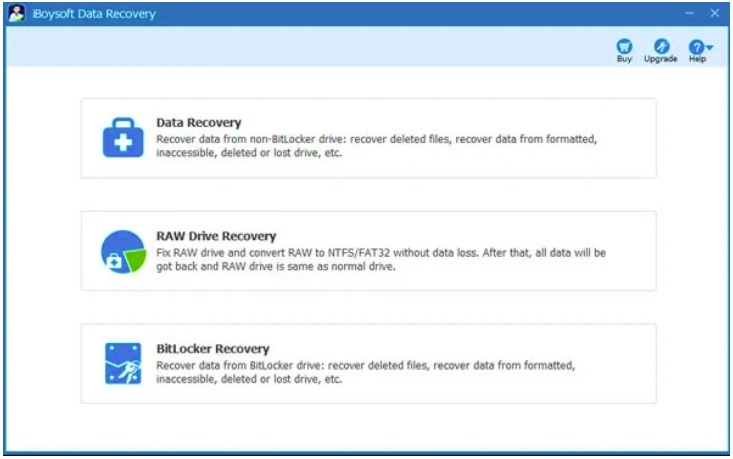
Step 2 Launch this photo recovery program and choose one recovery module to proceed with the recovery process. There are 3 recovery modules that can be selected, that is, the Data Recovery module, the RAW Drive Recovery module, and the BitLocker Recovery module.
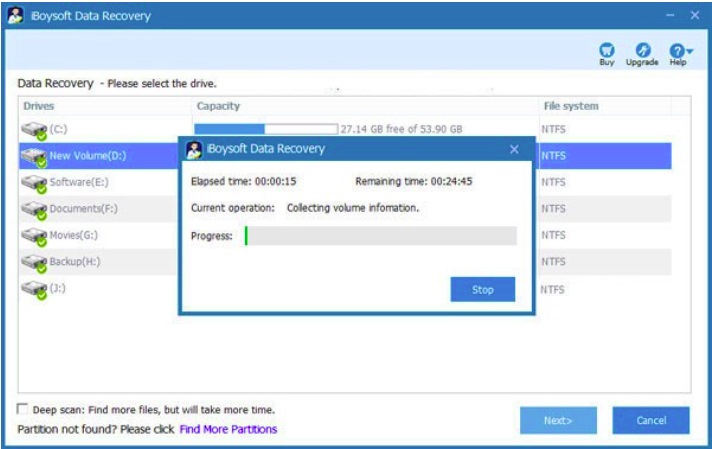
Step 3 Select the drive that stored your deleted photos and hit the Next button to be on to the scanning process.
Step 4 Filer the unwanted files to preview the recoverable photos.
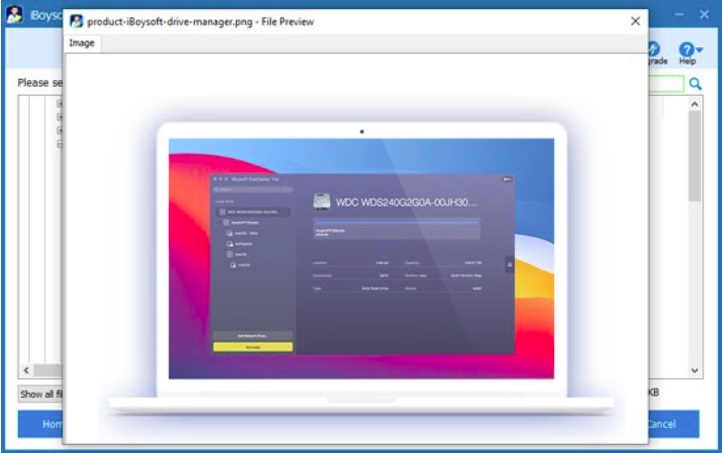
Step 5 Tick the selective photos you need and click the Recover button to get them back.
Alternatively, you can also recover your permanently deleted photos from Windows backups, such as the File History tool (available in Windows 8.1 and later versions), the Previous Versions program, and the Backup and Restore function (Windows 7), but using iBoysoft Data Recovery for Windows is always the most effective.
2. Recover Deleted Photos on Mac Machines
Just like deleted photos recovery from Recycle Bin on Windows, you can also recover your deleted photos from Trash on Mac. However, we will recommend 2 other methods to guide you.
Method 1 Restore deleted photos from Time Machine Backups
Step 1 Insert your external hard drive that stored your backups into your Mac machine.
Step 2 Open the folder in which your deleted or lost files are located.
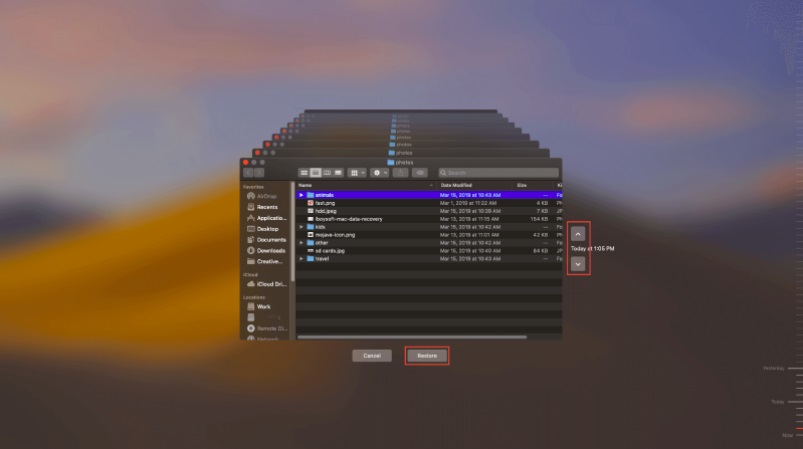
Step 3 Launch the Time Machine program from the top menu bar on the Mac screen and then click Enter Time Machine.
Step 4 Take advantage of the on-screen up/down arrows or the timeline to quickly browse the files in your backup folder.
Step 5 Select a file and hit the Space bar to preview it.
Step 6 Choose the wanted photo you aim to restore and click the Restore bar.
Method 2 Retrieve Deleted Photos Using iBoysoft Data Recovery for Mac
If you fail to get your deleted photos back with Time Machine Backups, you can try iBoysoft Data Recovery for Mac to assist you. First, you need to download and install it on your Mac running with Mac OX 10.9 and later versions. Then, here is what you should do:
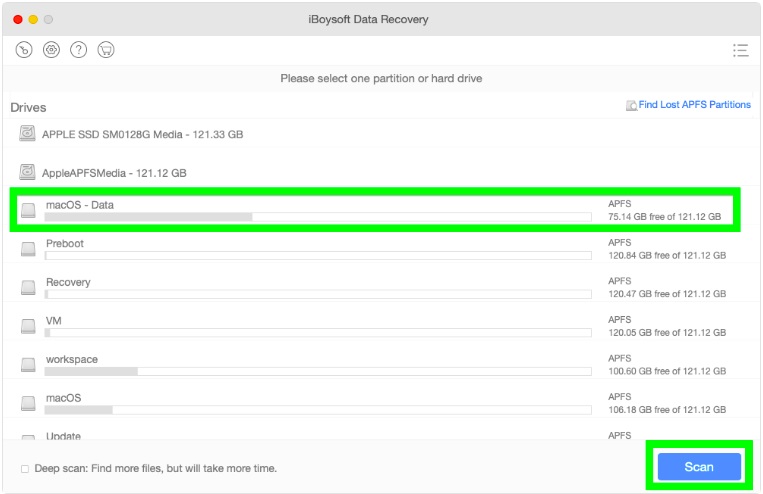
Step 1 Launch this photo recovery software on your Mac, select a drive storing your deleted photos and click Scan to search for deleted photos.
Step 2 Filer the found files to quickly preview and find the needed photo, tick it and then click the Recover button.
3. Recover Deleted Photos from Gallery/Albums on Android Phones
Generally, the deleted images will remain on the phone's Gallery/Albums for 30 days if they are not manually cleared. Thus, you can easily get them back within 30 days.
Step 1 Open Gallery/Albums from your Android phone.
Step 2 Find the Trash folder that stored your recently deleted pictures.
Step 3 Locate the photos you want to recover and tap on the Restore/Recover icon to recover them.
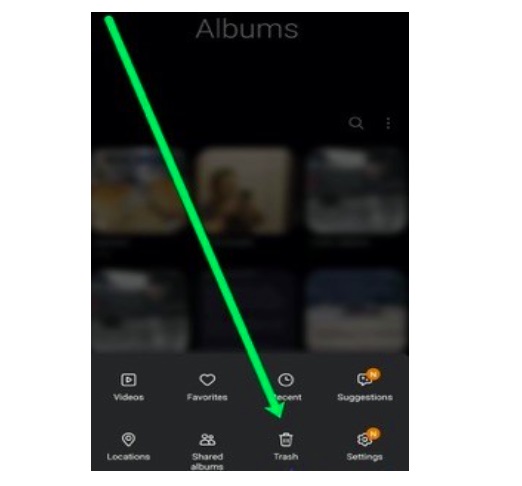
If you can't see the deleted pictures in the Trash folder, you can perform photo recovery from Cloud Storage with some useful programs, such as Google Photos, Microsoft OneDrive, and Dropbox, or using Android photo recovery apps.
4. Recover Deleted Photos on iPhone from iPhone Photos
Like the Gallery/Albums of the Android Phone, the deleted photos can be stored on your iPhone's internal storage for 30 days. To get the recently deleted pictures back from your iPhone, here is what you need to do:
Step 1 Open the Photos application and choose Albums on your iPhone.
Step 2 Select the Recently Deleted option from the bottom of the screen.
Step 3 Click the images you'd like to restore and then hit Recover to recover them.
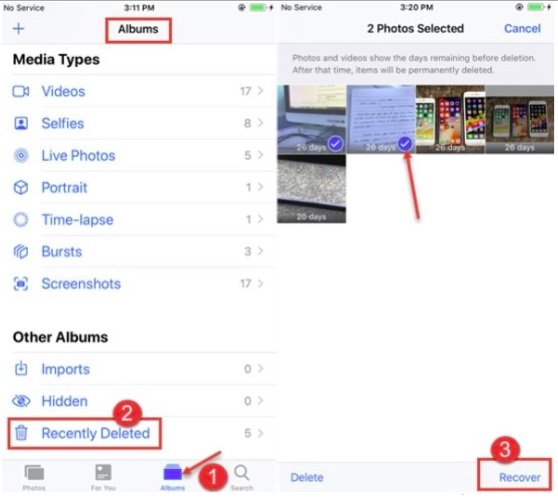
Of course, there are other solutions to help you retrieve your deleted images on your iPhone, including iCloud Backup, iTunes Backup, or iPhone photo recovery apps. If your photos are erased from your iPhone Photos after 30 days, you can try one of them to find out the permanently deleted photos.
Final Thought
Accidental deletion of important photos is a big headache for everyone. It is advisable that you should make regular backups of your essential files to avoid data loss. If unfortunately, you are experiencing a data loss situation from your digital devices, pick one of the solutions mentioned above to troubleshoot the issue.
Conclusion
Understanding Recover Deleted Photos makes it easier to compare options, avoid common mistakes, and apply the information in this guide more effectively. Review the relevant requirements before making changes or choosing a solution.
FAQ
How do you recover deleted photos on windows, mac, android, and iphone?
Follow the steps in this guide in order, confirm the required settings or tools, and verify the result before making additional changes.
Is it safe to recover deleted photos on windows, mac, android, and iphone?
It is generally safe when you follow the recommended instructions, use trusted tools, and avoid changing settings you do not understand.
What should you do if the process does not work?
Recheck the requirements, restart the device or application when appropriate, and review each step for missed settings or compatibility issues.
Related Articles
 How to Recover Deleted Photos on Android Device?10 minutes read
 Instructions for Restoring Deleted Photos on Samsung Phones4 minutes read
 How to Delete, Restore Photos and Videos on iPhone and iPad5 minutes read
 How to Recover Deleted Photos on Android Phones2 minutes read
 How to Recover Deleted Images and Videos on Android7 minutes read
 How to Recover Deleted Photos Permanently on Android5 minutes read
Reader Comments 0
Sign in with email or Google to join the discussion.