Table of Contents
Safe Mode starts Windows with a limited set of drivers and services. It is useful when a new driver, update, or application prevents Windows from starting or working normally. Use plain Safe Mode first; choose networking only when troubleshooting genuinely requires network access.
Method 1: Hold Shift while restarting
This is usually the quickest method when you can reach the sign-in screen or desktop.
- Open the Power menu.
- Hold Shift and select Restart. Keep holding Shift until the recovery screen appears.
- Select Troubleshoot > Advanced options > Startup Settings > Restart.
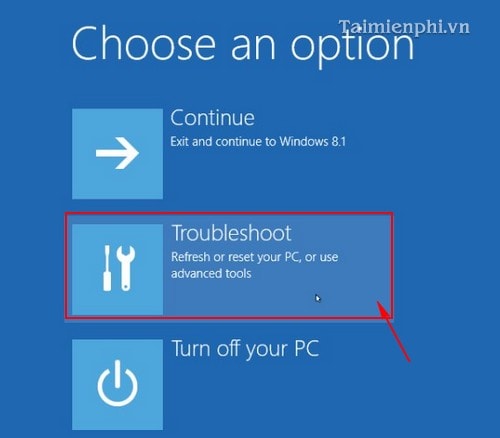
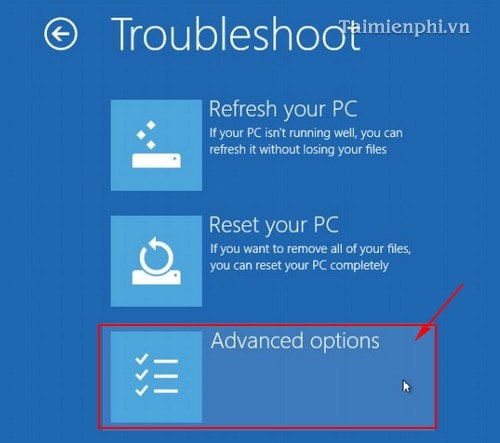
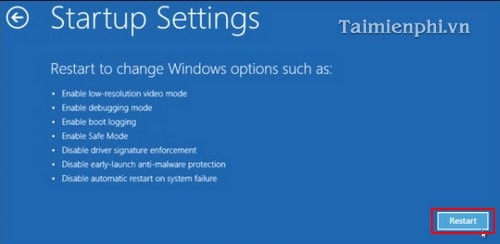
- After the PC restarts, press 4 or F4 for Safe Mode. Press 5 or F5 for Safe Mode with Networking. The Command Prompt option is intended for advanced troubleshooting.
Method 2: Open recovery options from Settings
In Windows 11, open Settings > System > Recovery. In Windows 10, open Settings > Update & Security > Recovery. Beside or under Advanced startup, select Restart now, then follow the Startup Settings path above.
You can also open Terminal or Command Prompt and run:
shutdown /r /o /t 0Save your work first because the command restarts the computer immediately.
Method 3: Use System Configuration for repeated Safe Mode boots
This option is convenient when you expect to restart in Safe Mode several times, but it remains enabled until you turn it off.
- Press Windows + R, enter
msconfig, and press Enter.
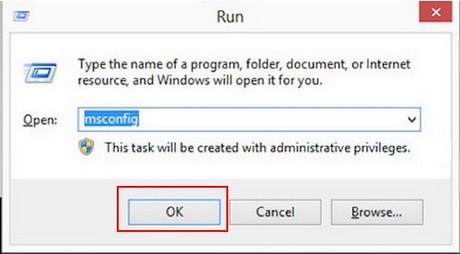
- Open the Boot tab, select the current Windows installation, check Safe boot, and choose Minimal.
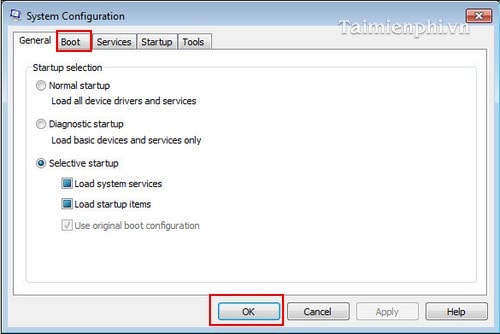
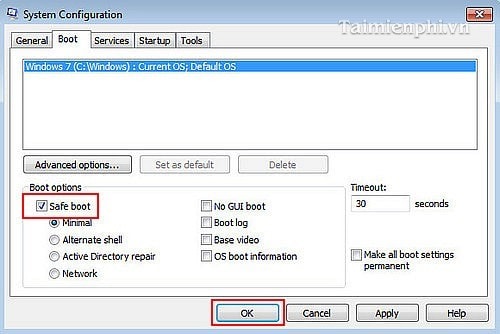
- Select OK > Restart.
Important: To return to normal startup, open msconfig in Safe Mode, clear Safe boot, select OK, and restart. If you cannot undo the setting normally, open Windows Recovery Environment and use its Command Prompt or recovery tools.
If Windows will not reach the desktop
After repeated failed starts, Windows normally opens Automatic Repair. Choose Advanced options > Troubleshoot > Advanced options > Startup Settings. A BitLocker-protected device may ask for its recovery key before some repair options become available.
Try Startup Repair before forcing repeated shutdowns. For a system that still will not load, see how to troubleshoot Windows not booting and our Windows stop-code guide.
What to do in Safe Mode
- Uninstall or roll back the driver, update, or application installed just before the problem began.
- Run a malware scan or inspect startup services.
- Test whether the issue disappears with basic drivers. If it does, a third-party driver or service is a likely cause.
Restart normally to leave Safe Mode unless you used msconfig, in which case clear the Safe boot option first. Microsoft's Safe Mode instructions provide the current recovery paths.
Windows 7 and Windows 8 are out of support. On those systems, F8 may open Advanced Boot Options, but hardware and boot configuration affect whether the key is detected. Do not rely on Safe Mode as a substitute for moving an internet-connected PC to a supported operating system.
Related Articles
 What Is Safe Mode?7 minutes read
 How to Access Safe Mode Windows 10 on Startup9 minutes read
 How to Enter Safe Mode on Windows 74 minutes read
 How to Enter Safe Mode on Windows 116 minutes read
 How to Enter Safe Mode on Windows 104 minutes read
 All Problems with Starting Windows in Safe Mode8 minutes read
Reader Comments 0
Sign in with email or Google to join the discussion.