Table of Contents
Learn what safe mode is, how it works, why it matters, and the key features or considerations to understand before using it.
What is Safe Mode?
Safe Mode is a special boot mode on Windows computers that only loads the most essential drivers and applications to ensure minimal system operation. Therefore, entering Safe Mode on a Windows 10 PC lets users troubleshoot problems caused by faulty software, drivers, or system settings that prevent access to the normal Windows interface.

The function of Safe Mode on Windows 10
When starting Windows 10 in Safe Mode, the system minimizes activities, preventing unrelated software from running. By disabling malware, Safe Mode can prevent the spread of viruses, making it easier to scan and remove them using common antivirus software.
At the same time, Safe Mode lets users restore the system to normal or make other changes to fix problems. This mode can help you uninstall software or drivers in Windows more easily due to errors.

4 ways to enter Safe Mode on Windows 10
Safe Mode provides a secure environment for restarting your computer, removing viruses, or uninstalling faulty software. With this safe mode, you can easily protect and optimize your device's system effectively. Below are simple ways to enter Safe Mode on Windows 10 Dell.
Use Advanced Startup
Advanced Startup is a suite of tools that provides many advanced startup options, including Safe Mode, allowing you to troubleshoot and diagnose errors on Windows 10. Here's how to enter Safe Mode in Windows 10 using Advanced Startup:
- Step 1: Press and hold Shift while clicking the power icon and select Restart on the login screen.
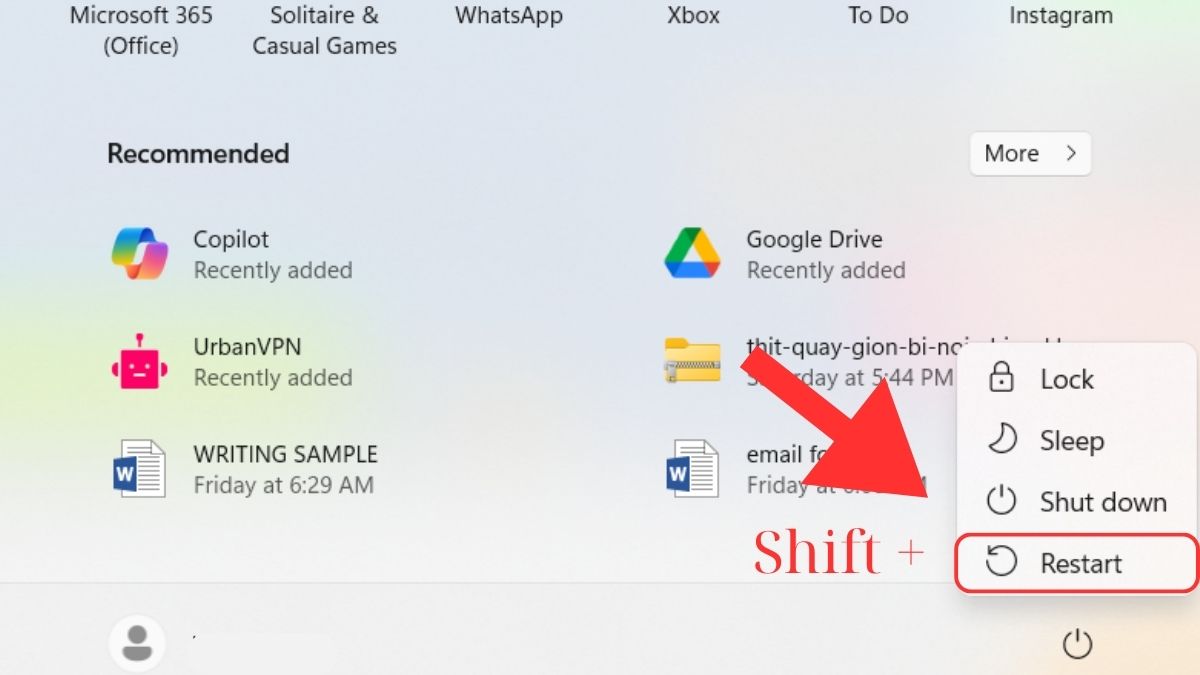 Press and hold Shift while selecting Restart.
- Step 2: In the Choose an option window, select Troubleshoot, then select Advanced options.

- Step 3: Select Startup Settings and then select Restart.
- Step 4: When the computer restarts, you will see a list of boot options. To use Safe Mode options, do the following:
- Standard Safe Mode: Press key 4 or F4.
- Safe Mode with Networking: Press key 5 or F5.
- Safe Mode with Command Prompt: Press key 6 or F6.
Reactivate the F8 key
Windows 10 has removed the ability to use the F8 key to directly access Safe Mode, unlike previous versions of Windows. However, you can still re-enable the F8 key function to enter Safe Mode. This may affect your computer's startup performance.
- Step 1: Open Command Prompt with administrator privileges.
- Step 2: Enter the command: bcdedit /set {default} bootmenupolicy legacy and press Enter.
- Step 3: Next, restart your computer again. When you press F8 repeatedly, the Advanced Boot Options menu will appear. You can then select options in Safe Mode.
- Step 4: To exit the command, open Command Prompt as administrator and enter the command: bcdedit /set {default} bootmenupolicy standard and press Enter.
Use the System Configuration utility
One easy way to enter Safe Mode on a Dell Windows 10 computer is to use System Configuration. This is a Windows tool that lets you manage boot options. Follow these steps to use System Configuration:
- Step 1: In the Taskbar search box, type msconfig and press Enter to open System Configuration.
- Step 2: In the System Configuration window, switch to the Boot tab. In Boot options, you can select different Safe Mode options:
- Minimal: Boot into Safe Mode with minimal drivers and services.
- Alternate Shell: Boot into Safe Mode using Command Prompt.
- Network: Boot into Safe Mode with a network connection.
- Step 3: Click Apply, then click OK.
- Step 4: Restart your computer.
Open your laptop in Safe Mode from the Windows 10 login screen
Entering Safe Mode on a Dell Windows 10 computer from the Windows 10 login screen can be done similarly to using the Shift key or System Configuration as described above. Please refer to the instructions below for opening your laptop in safe mode from the login screen.
- Step 1: On the Login screen, click the power icon, then press and hold the Shift key while selecting Restart.
- Step 2: After the computer restarts, the screen will display "Choose an option," then click "Troubleshoot."
- Step 3: In the Troubleshoot section, click Advanced options.
- Step 4: In the Advanced options section, click Startup settings. Then, click Restart to restart your computer.
- Step 5: After the computer finishes booting up, Safe Mode options will appear on the screen for you to choose from.
How do I enter Safe Mode on Windows 10 when I can't boot into Windows?
Windows 10 has removed the ability to access Safe Mode by pressing the F8 key during startup. However, users can still access Safe Mode on a Dell Windows 10 computer if they are unable to boot into Windows.
When you access Advanced Startup, you can:
- Method 1: Press the F8 key (or Shift + F8) repeatedly while the system is restarting.
- Method 2: Hold down the power button several times to turn the computer off or on unexpectedly.
Then, when the Advanced Startup screen appears, you can follow the procedure to enter Safe Mode as described above.
Dell computers are a popular line of laptops trusted by many for their durability, powerful performance, and modern design. Below is a list of popular Dell laptops you can consider.
Above are the detailed instructions on how to enter Safe Mode in Windows 10. With these simple methods for entering Safe Mode on a Dell PC, you can quickly resolve startup issues. Make sure you save all your work before starting Windows 10 in Safe Mode!
FAQ
What Is Safe Mode?
Learn what safe mode is, how it works, why it matters, and the key features or considerations to understand before using it.
What should you know about the function of Safe Mode on Windows 10?
When starting Windows 10 in Safe Mode, the system minimizes activities, preventing unrelated software from running.
What should you know about ways to enter Safe Mode on Windows 10?
Safe Mode provides a secure environment for restarting your computer, removing viruses, or uninstalling faulty software.
Related Articles
 How to Quickly Enter Safe Mode on Windows 7/8/103 minutes read
 How to Access Safe Mode Windows 10 on Startup9 minutes read
 How to Enter Safe Mode on Windows 74 minutes read
 How to Enter Safe Mode on Windows 116 minutes read
 How to Enter Safe Mode on Windows 104 minutes read
 All Problems with Starting Windows in Safe Mode8 minutes read
Reader Comments 0
Sign in with email or Google to join the discussion.