Table of Contents
This updated guide explains how to put apps to sleep on Samsung phones to save battery with clear steps, practical tips, and useful context. If you're like most people, you have hundreds of apps on your Android phone, but you probably use fewer than 10 of them on a regular basis. naturally, just because you do not use those other apps on a daily basis does not mean It is best to delete them. You might need them later.
Still, those apps can still waste your battery life by running in the background. Luckily, Samsung phones let you put unused apps to sleep so they do not run in the background and waste battery. Let's see how you can enable this feature in the settings.
How to Put Apps to Sleep on Samsung Phones
Before we get into the steps, It is best to first understand what putting apps to sleep actually does. Samsung phones divide background restrictions into three categories: Sleeping apps, Deep sleeping apps , and Never sleeping apps . Here's what they mean:
- Sleeping apps : These apps will run in the background, but only occasionally. Notifications from these apps may be delayed and app updates will not happen as often. Ideal for apps you use from time to time, but not very often.
- Deep sleeping apps : These apps will never run in the background and will only be active when you open them. They may not receive updates at all and you may also miss any notifications that are sent. Ideal for apps you rarely use.
- Never sleeping apps : These apps can always run in the background. They are unrestricted and can use battery life when needed. Ideal for apps that are essential and used frequently.
Please note that system apps like Phone, Camera, Clock, Messages, Bixby , etc… cannot be put to sleep as they are an integral part of the phone's operating system.
Here's how to put apps to sleep on a Samsung phone:
1. open Settings > Battery and device care .
2. Tap Battery > Background usage limits and turn on Put unused apps to sleep to let your phone automatically put apps to sleep based on your usage.
3. To do it manually, tap Sleeping apps or Deep sleeping apps , then tap the + icon, select your desired apps and tap Add.
4. For apps you use frequently, tap Never sleeping apps and follow the same process.
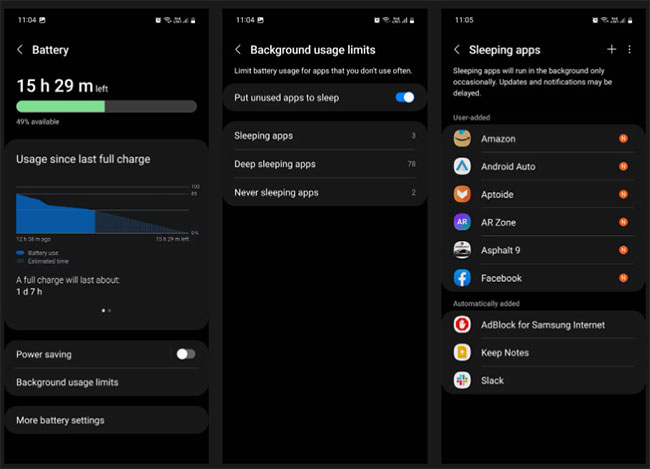
Remember, putting an app to sleep is different than just stopping it on your phone. When you force stop an app, it usually restarts itself shortly after. This puts more workload on your device than if you did nothing and just left it alone.
Still, when you put an app to sleep (deep sleep to be exact), you are essentially telling it to stop using and interacting with your phone's resources, namely the battery. And without power, the app cannot perform its normal functions or run in the background. This is why putting apps to sleep is better than force-quitting them.
How to Decide Which Apps to Put to Sleep
If you need help deciding which apps to put to sleep, follow these steps:
1. open Settings > Digital Wellbeing and parental controls .
2. Tap the Screen time bar to see your most and least used apps throughout the week.
3. Tap View more to see a full list of used apps. Put the least used ones to sleep, the most used ones to never sleep, and the ones used infrequently to deep sleep.
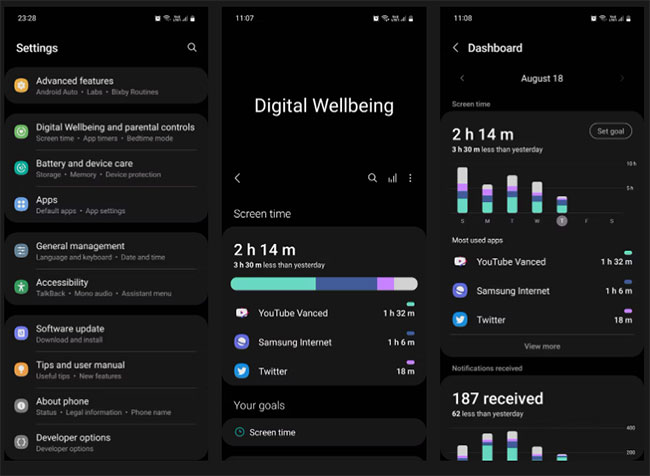
If putting them to sleep does not work and you're still getting many unwanted notifications or updates, it is best to delete these apps from your phone. You can always download them again when you need them.
Putting apps to sleep is one of the many ways you can save battery on your Android phone. It reduces the phone's workload because it does not have to allocate resources to unnecessary apps.
naturally, you can always delete apps you haven't used in a long time, which is a more efficient solution. Regardless, it is always good to save as much battery as possible.
FAQ
What should I prepare before I put apps to sleep on samsung phones to save battery?
Review the requirements and options in the guide first. Having the correct device, app version, account access, or materials ready helps prevent avoidable errors.
How long does it take to put apps to sleep on samsung phones to save battery?
The time depends on the task and your setup. Most basic steps can be completed quickly, while downloads, updates, scans, or troubleshooting may take longer.
What should I do if the steps do not work?
Repeat the instructions in order, confirm that your software or device is supported, and check permissions, connectivity, and available updates before trying again.
Related Articles
 Protect Battery On Samsung Phones Explained7 minutes read
 Pre-installed Apps That Can Be Safely Uninstalled on Samsung Phones7 minutes read
 9 Samsung Apps That May Run in the Background8 minutes read
 How to Turn Off Battery Saving Mode on Android, Samsung, Xiaomi Phones4 minutes read
 Sleep Tracker Android: Top 6 Sleep Tracking Apps on Android5 minutes read
 6 Samsung-exclusive Apps That Make You Think You Made the Right5 minutes read
Reader Comments 0
Sign in with email or Google to join the discussion.