Table of Contents
This updated guide explains how to use chrome to easily view pdfs on Android with clear steps, practical tips, and useful context. Until recently, viewing PDF files in the Chrome app on Android required a separate third-party app. Now, Chrome for Android includes built-in support for PDF files. Here's how to open PDF files directly in your browser.
Native PDF Support in Chrome Comes to Android 15 and 16
Chrome on Android has long relied on third-party PDF readers to open PDF files. that is no longer the case, as Google has quietly added native functionality to open PDF files from within the browser.
This option was previously available via one or more hidden flags, but Google has brought it to the Stable channel. There is a caveat, though. Currently, this option is only available in Chrome for Android 15 and 16 (beta).
The author of the article tried opening the PDF in Chrome using a tablet and a phone running Android 12. Instead of opening the file, Chrome downloaded the file and prompted the user to open the file in another app, such as Google Drive.
If you have a phone (or tablet) running Android 15 or 16, ensure you update the Chrome app before trying to read PDFs from your browser.
How to View PDF Files in Chrome on Android
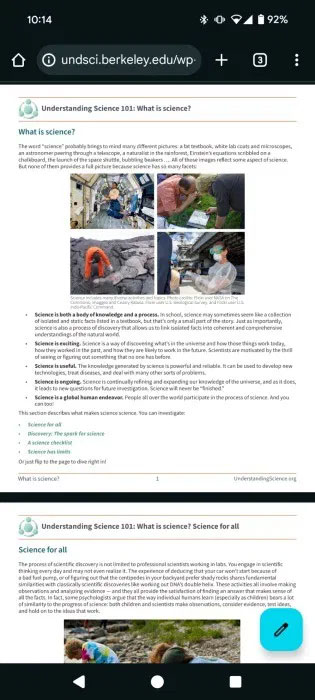
On your Android device, open the Chrome app and navigate to the website hosting the PDF file or choose the link to the PDF destination.
As you can see, Chrome can now display PDFs without asking to use another app to open the page or download the file.
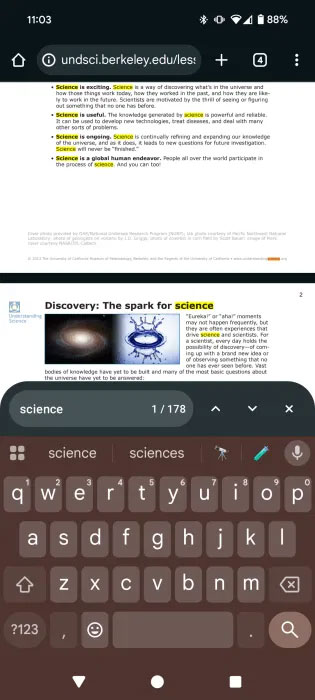
You can zoom in/out of a PDF using pinch gestures. Better yet, you can search for words within the document by tapping the three-dot menu and selecting Find in page .
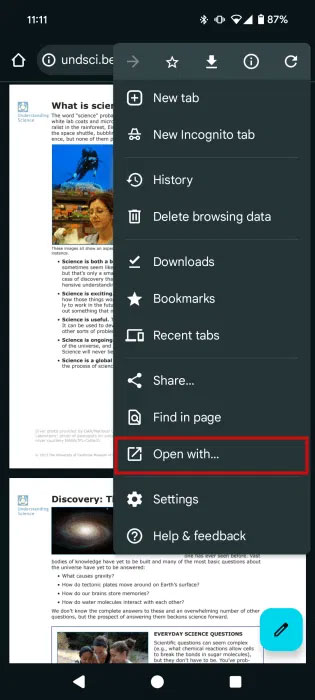
Also, if you still want to open the PDF using another app on your device, select the Open with option from the same menu.
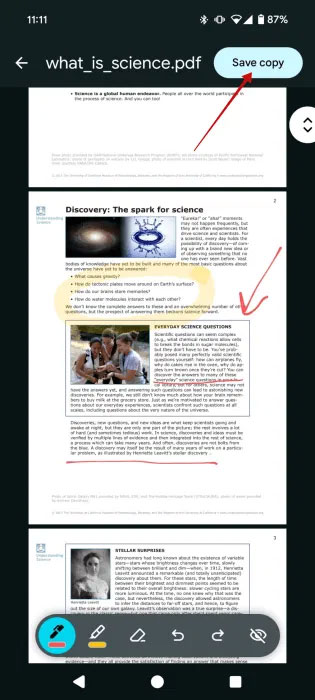
In case you want to save the PDF on your device, tap the arrow icon at the top.

Also, Chrome now lets you annotate from within the browser. Just tap the pencil button in the lower right corner to open the editing screen. From here, you can highlight and draw on the PDF. Once you're done, you can save a copy by tapping the button above.
Note : You cannot digitally sign the document from here or make more advanced edits.
Tips for Users of Devices Running Android 14 and Below
While it was previously possible to enable Chrome's built-in PDF reader on devices running Android 14 and below by simply enabling a flag via chrome://flags , it is not possible to verify that this method still works. The results were similar when using the Chrome beta and Chrome Canary apps.
This is probably because this option requires Chrome version 134 to work, which is an older version of Chrome. Since Chrome is a system app on Android, it is quite difficult to remove it from your phone. Still, you can do it via ADB, but this article does not recommend it.
Instead, the recommended solution is to switch to another browser to view PDFs. for instance, Microsoft Edge supports in-browser PDF viewing even on older versions of Android. So does Mozilla Firefox. Granted, you will not have access to the built-in PDF editor that Chrome on Android currently offers, but you'll be able to quickly view the contents of the PDF without having to download it first.
Chrome is constantly getting new features. The latest one is available for PC and lets you split tabs in Chrome for better multitasking. Along with the fancy new features, you might benefit from learning how to restart your Chrome browser so you do not lose tabs.
FAQ
What should I prepare before I use chrome to easily view pdfs on android?
Review the requirements and options in the guide first. Having the correct device, app version, account access, or materials ready helps prevent avoidable errors.
How long does it take to use chrome to easily view pdfs on android?
The time depends on the task and your setup. Most basic steps can be completed quickly, while downloads, updates, scans, or troubleshooting may take longer.
What should I do if the steps do not work?
Repeat the instructions in order, confirm that your software or device is supported, and check permissions, connectivity, and available updates before trying again.
Related Articles
 How to Use Phone Hub to Connect Chrome OS to Android6 minutes read
 How to View and Quickly Delete Saved Passwords on Chrome9 minutes read
 Tips to Help Use Chrome on Android Effectively May Not Know You13 minutes read
 4 Useful Tricks for Chrome Browser on Android5 minutes read
 How to View Website Passwords Saved on Chrome Android5 minutes read
 How to View the Password, Delete the Saved Password on Chrome5 minutes read
Reader Comments 0
Sign in with email or Google to join the discussion.