Table of Contents
You can move a supported Windows Taskbar to the top, left, right, or bottom of the screen from Taskbar settings. Windows 10 includes the location menu shown below. Windows 11 began receiving equivalent edge-position controls in 2026; if the setting is absent on your PC, install available Windows updates and avoid unsupported registry edits.
Move the Taskbar in Windows 10
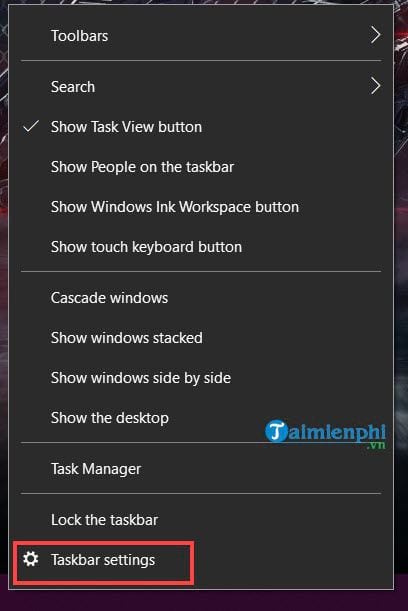
Right-click an empty area of the Taskbar and select Taskbar settings.
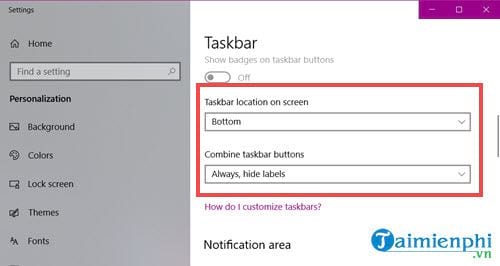
Scroll to Taskbar location on screen. The nearby Combine taskbar buttons option controls button labels and grouping; it does not change the Taskbar's position.
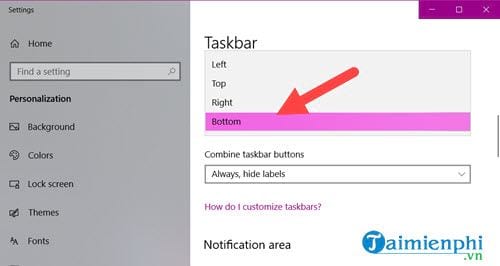
Open the location menu and choose Left, Top, Right, or Bottom. The change takes effect immediately.
How each position looks
Left creates a vertical Taskbar along the left edge:
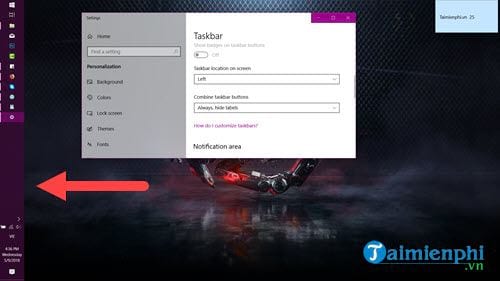
Right creates a vertical Taskbar along the right edge:
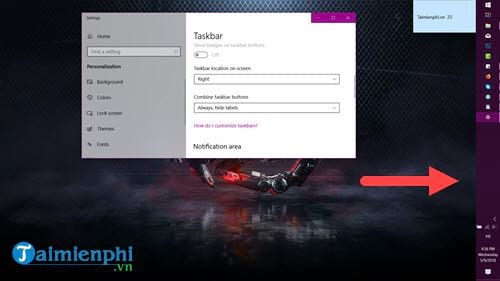
Top places the bar above application windows:
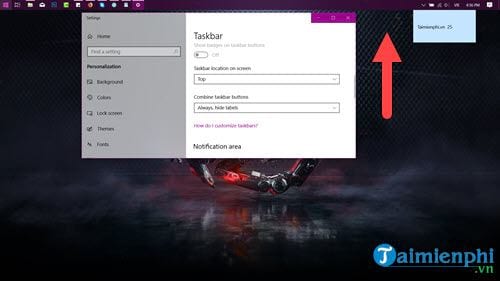
Bottom restores the default Windows 10 position:
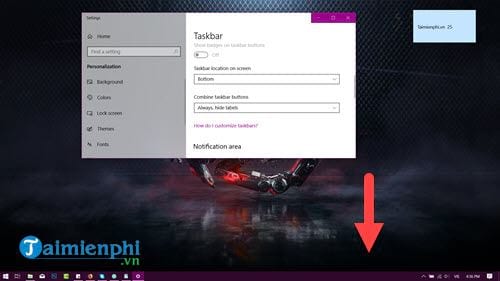
Windows 10 reached the end of standard support on October 14, 2025. These settings remain useful on existing installations, but use a supported release where possible.
Move the Taskbar in Windows 11
On a Windows 11 build that includes the newer positioning feature:
- Right-click the Taskbar and select Taskbar settings.
- Find Taskbar location on screen or expand Taskbar behaviors, depending on the build.
- Select Top, Bottom, Left, or Right.
- If a separate alignment option appears, choose how icons align within that edge.
Microsoft introduced edge positioning through the Windows Insider program in 2026, so availability can vary during rollout. If the location control is missing, check Settings > Windows Update and use the bottom Taskbar until the supported feature arrives. Registry values and shell-patching tools written for older Windows 11 builds may break Start, Search, or notification icons after an update.
Move the Taskbar by dragging on older Windows
On Windows 7 and some earlier releases, right-click the Taskbar and clear Lock the taskbar. Drag an empty part of the bar to the desired edge, then lock it again to prevent accidental movement. See the illustrated guide to moving the Windows 7 Taskbar.
If the Taskbar moved accidentally
Open Taskbar settings and choose Bottom. On a legacy draggable Taskbar, unlock it, drag it back to the bottom, and lock it again. If the bar is missing rather than relocated, press the Windows key and check whether auto-hide is enabled.
For related options, learn how to hide or show the Taskbar, keep it on one monitor, or review useful Windows 11 Taskbar features.
Related Articles
 How to Move Windows 11 Start Menu to the Left6 minutes read
 How to Move the Taskbar to Different Locations on the Desktop2 minutes read
 How to Change the Taskbar Position on Windows 11 to the Left5 minutes read
 Taskbar: Complete Guide: After All, Microsoft Seems to Be Working on3 minutes read
 Taskbar: Complete Guide: Microsoft Explains Why Users Can't Yet Own the4 minutes read
 How to Move Taskbar to Another Screen3 minutes read
Reader Comments 0
Sign in with email or Google to join the discussion.