Table of Contents
This updated guide explains how to make a transparent background in canva for free with clear steps, practical tips, and useful context. Canva has a completely free option to make your photos transparent without having to sign up for Pro. Just upload your photo to Canva and then use the transparent background tool in the app. The background will be removed and the subject will remain.
How to Make a Transparent Background in Canva
Step 1:
At the interface on Canva, select the Application section on the left side of the interface.
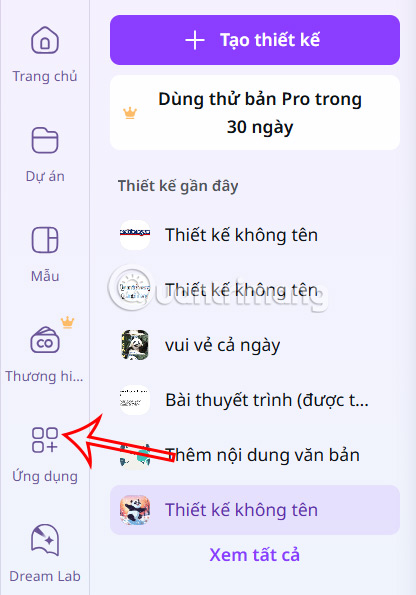
Step 2:
Look at the interface next to you, enter the keyword Background and then select the Background Eraser application displayed in the list below.
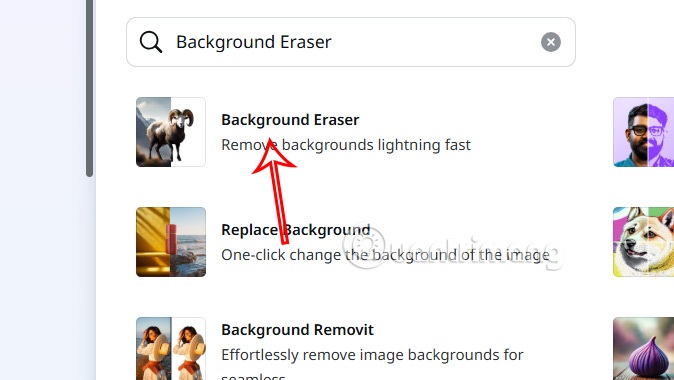
Now you will see the interface instructing you to use the background removal tool on Cava, you choose to use it in a new design or an existing design.
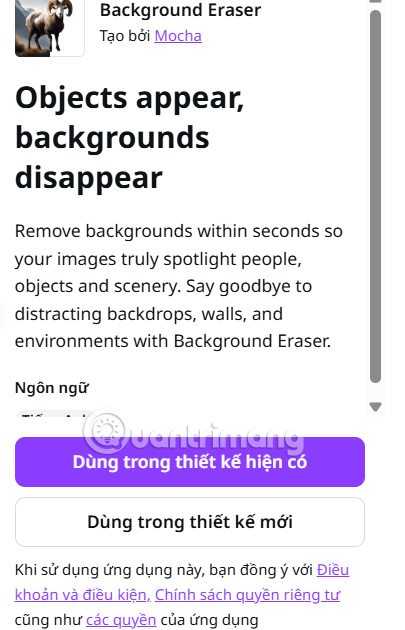
Step 3:
open the interface to use the transparent background tool on Canva, choose Choose file to upload the image.
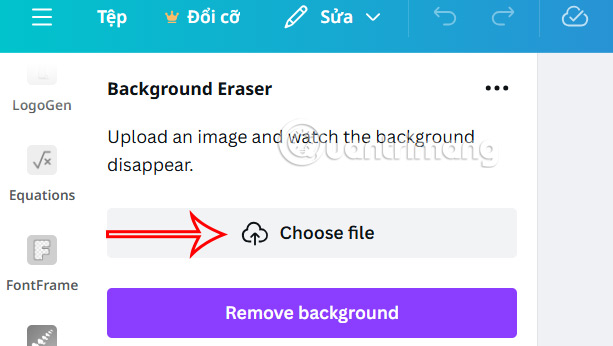
Then upload the photo to the photo background removal tool, then select Remove background to proceed.
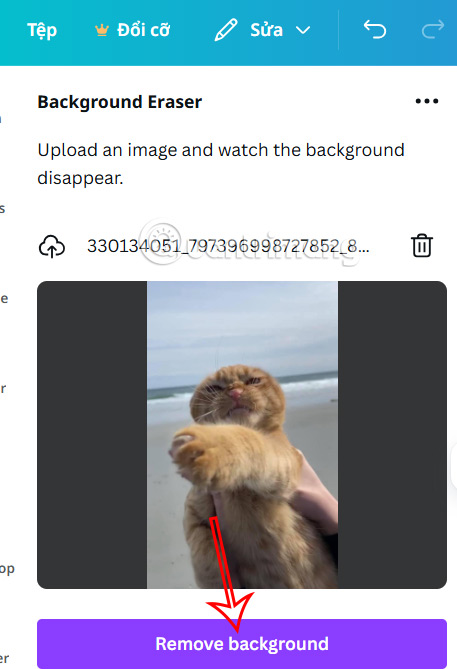
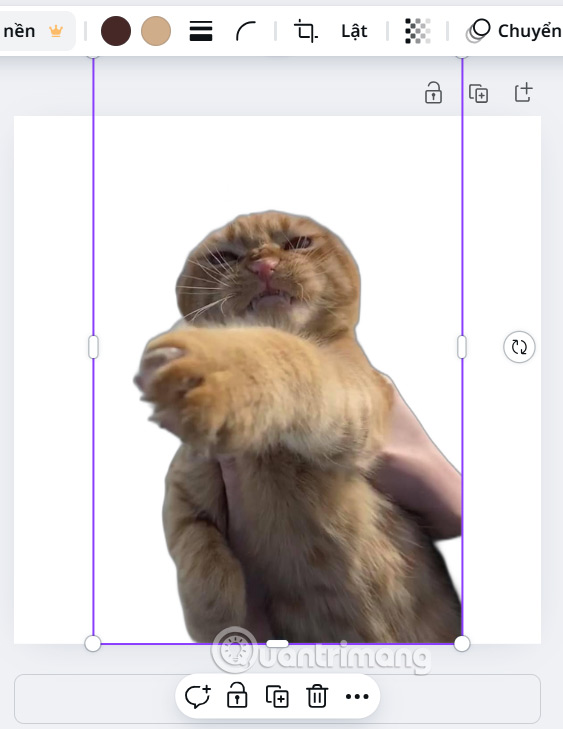
Wait a moment for the tool to remove the background and make the background transparent on Canva. The result is the image as shown below. We proceed to edit the next image if needed or save the image.
How to Make Photo Background Transparent on Canva
Step 1:
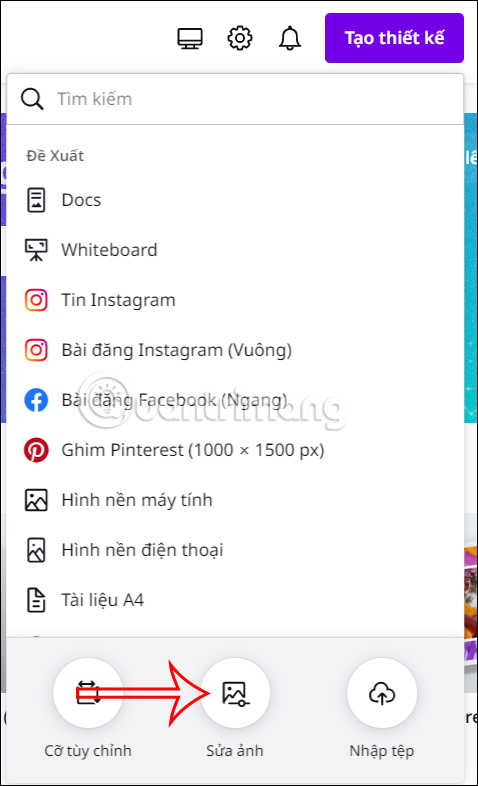
On the interface of the Canva application, select the Create Design button and then select the Edit Photo button below to upload the photo you want to make the background transparent.
Step 2:
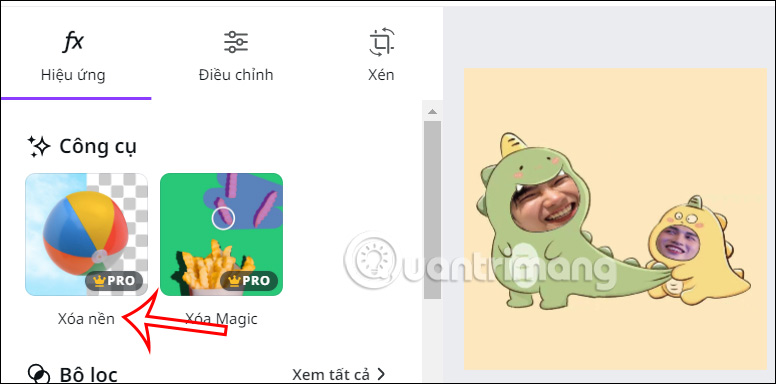
Select the image you want to edit, remove the background to make the image background transparent. The interface for editing the image will now appear. In the Effects section, look down at the Tools group and you will see the Remove Background option. select the Remove Background item to remove the image background.
Step 3:
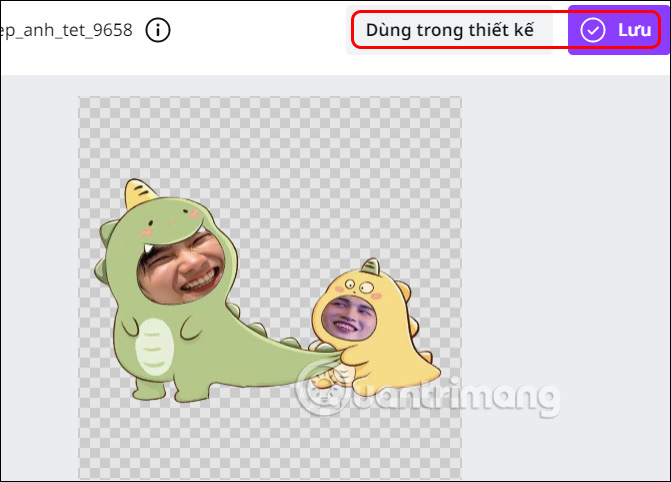
Immediately after that, your photo background will be completely removed and only the subject in the image will be shown. Now you choose Save to download the PNG background removal image to your computer, or you choose Use in design to continue editing the image in Canva.
Step 4:
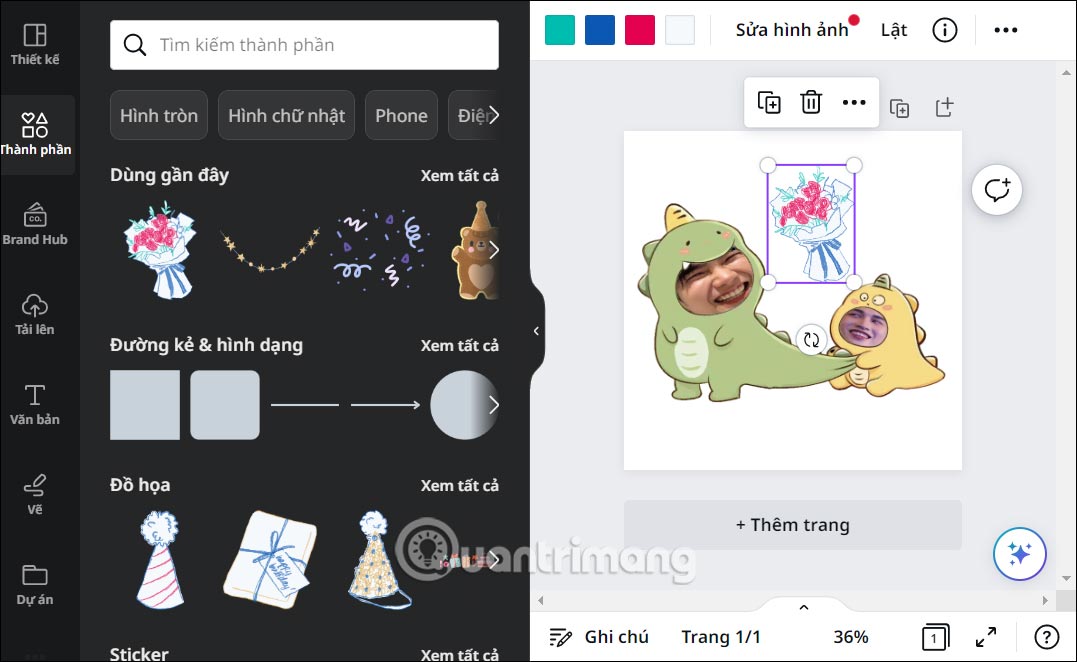
You use the tools in Canva to continue editing the image, create other designs as you like, and then download the image.
How to Superimpose a Background Removed Image Onto Another Image
Now that you have removed the background from your desired image, you have the option to overlay the removed background image onto another image. Here is how you can do this:
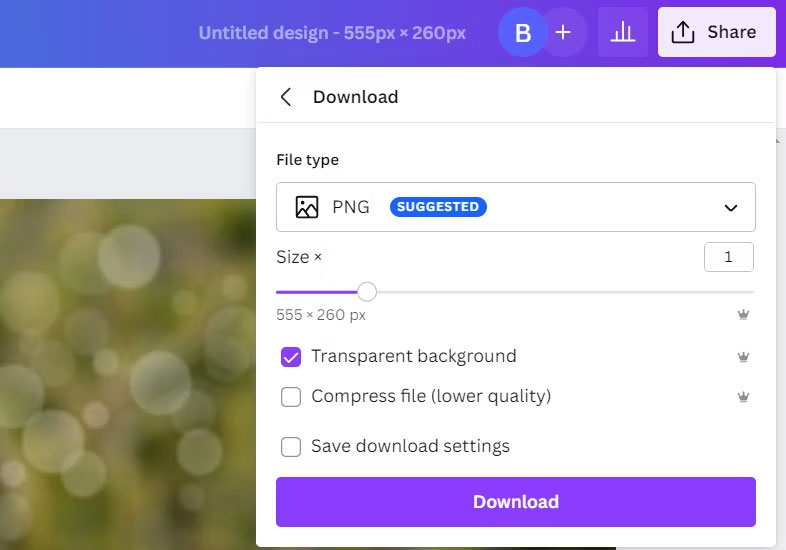
1. choose the Share button in the top right corner.
2. Select your preferred file type and check the box for Transparent background .
3. choose Download.
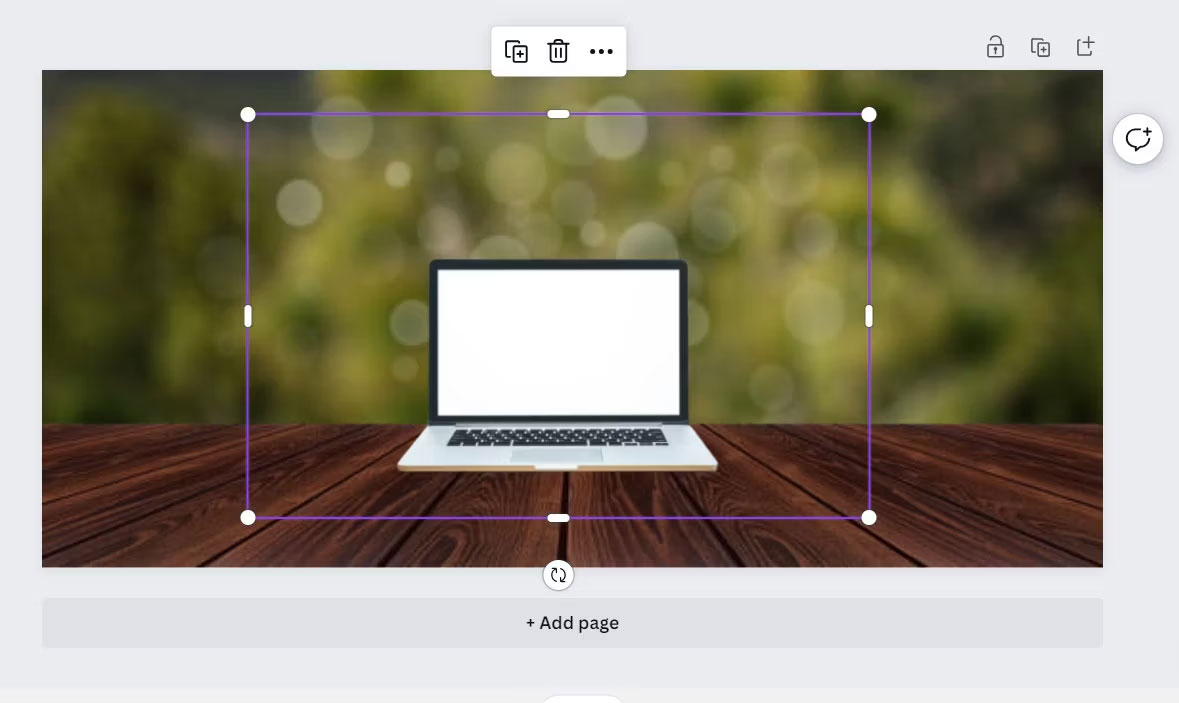
4. Now, open a new image in Canva and choose the Edit Image button.
5. Select the Upload option from the left pane and upload the background removed image that you downloaded earlier.
6. Adjust the image on the new one to your liking and once done, you can download or share it using the Share button.
Do I Have to Pay for Canva's Background Remover?
At the time of writing, Canva's background removal tool is only available to Canva Pro and Canva Enterprise users. Canva Free users will still see the background removal tool in their image editing menu, but will only get a limited number of free tries before being prompted to upgrade to a Canva Pro account.
FAQ
What should I prepare before I make a transparent background in canva for free?
Review the requirements and options in the guide first. Having the correct device, app version, account access, or materials ready helps prevent avoidable errors.
How long does it take to make a transparent background in canva for free?
The time depends on the task and your setup. Most basic steps can be completed quickly, while downloads, updates, scans, or troubleshooting may take longer.
What should I do if the steps do not work?
Repeat the instructions in order, confirm that your software or device is supported, and check permissions, connectivity, and available updates before trying again.
Related Articles
 How to Create a Transparent Logo on Canva3 minutes read
 How to Create Transparent Background in Google Slides3 minutes read
 Why Canva's AI Background Editor Impresses Professional Photographers9 minutes read
 Invite to Download Transparent Wallpaper App for Android Screen4 minutes read
 This Little Trick Can Make Your Widget Invisible on iOS 143 minutes read
 How to Enable Transparent Background on Windows Terminal3 minutes read
Reader Comments 0
Sign in with email or Google to join the discussion.