Table of Contents
Learn how to change the background of an image in Canva with clear steps, practical tips, and troubleshooting guidance for a reliable result.
How to change the background of an image in Canva
Please note that you need a Canva Pro account to use features like changing image backgrounds or other AI features in Canva.
Step 1
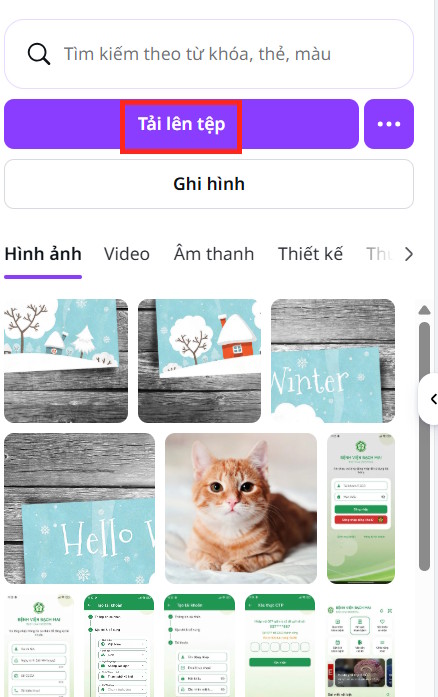
In the Canva interface, click on Upload image , then upload a PNG image .
Step 2
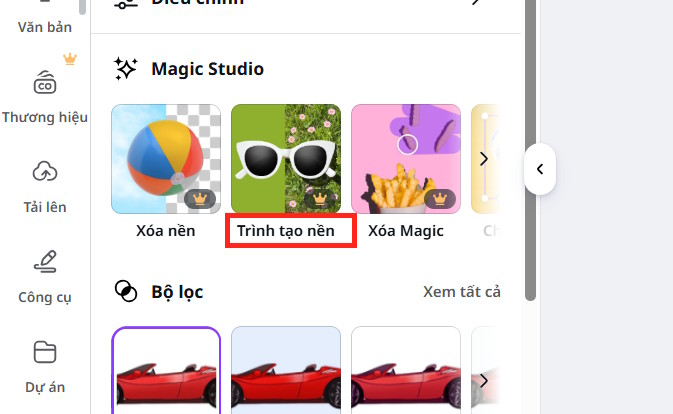
Next, click on the image , select Edit , and then select the Background Builder tool to use.
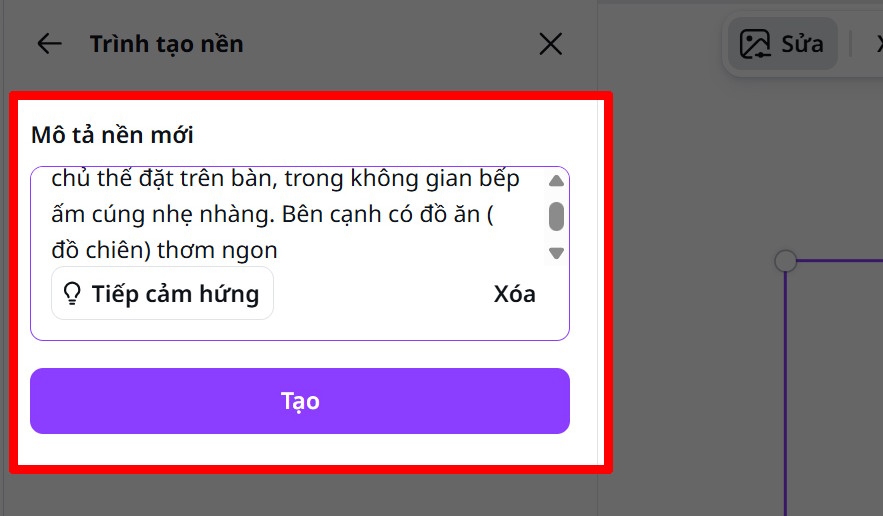
An interface will appear where you can enter a description of the background you want to create. The more detailed you are, the more accurately the background will be created. Then, select Create at the bottom.
Step 3
Shortly after, you will see the image with the new background you created yourself on Canva. Finally, we upload the image as usual.
Final Thoughts
Use this guide as a practical checklist for how to change the background of an image in canva. Work through the steps in order, verify each result, and adjust the options to match your needs.
FAQ
What do you need before following this How to Change the Background of an Image in Canva guide?
Review the required tools, accounts, settings, or materials mentioned in the article. Learn how to change the background of an image in Canva with clear steps, practical tips, and troubleshooting guidance for a reliable result.
What are the main steps for how to change the background of an image in canva?
Follow the sections in order, especially How to change the background of an image in Canva, Step 1, Step 2. Complete each step before continuing and verify the result as you go.
What should you do if the process does not work as expected?
Recheck the prerequisites, update the relevant app or service, review the settings, and repeat the step that caused the issue. Use any troubleshooting notes included in the guide.
Related Articles
 Guide to Changing Image Backgrounds Using Canva AI5 minutes read
 Why Canva's AI Background Editor Impresses Professional Photographers9 minutes read
 How to Change Gmail Wallpaper to Your Liking: Change Default Wallpaper3 minutes read
 How to Separate the Background in Canva Quickly and Simply: Complete Guide7 minutes read
 How to Change Objects in Photos with Canva AI Very Quickly4 minutes read
 How to Split Photos Using Canva Are Very Simple3 minutes read
Reader Comments 0
Sign in with email or Google to join the discussion.