Table of Contents
TranslucentTB can make the Windows 10 or Windows 11 Taskbar clear, tinted, opaque, or blurred while leaving pinned icons usable. The current app is easiest to install from Microsoft Store, which also handles updates. Avoid old standalone copies and command-line instructions from unverified download sites.
Install TranslucentTB safely
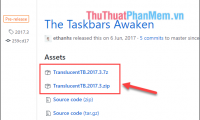
- Open the official TranslucentTB Microsoft Store listing and select Install. You can also use the installer published in the official GitHub repository.
- Launch TranslucentTB from Start.
- Accept the introductory prompt after reviewing it. The app places an icon in the notification area; it does not open a large main window.
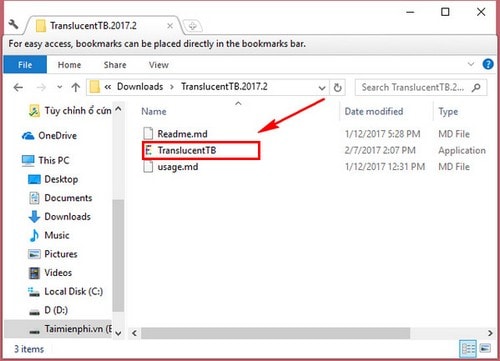
Installing the Store version should not require you to right-click an executable and run it as administrator. A Taskbar appearance utility normally needs only the permissions requested by its signed package.
Make the Taskbar transparent
- Select the hidden-icons arrow in the notification area if the TranslucentTB icon is not already visible.
- Right-click the TranslucentTB icon.
- Open the Desktop setting and choose Clear for a transparent Taskbar. Other available styles may include Normal, Opaque, Blur, and Acrylic, depending on the Windows version and app release.
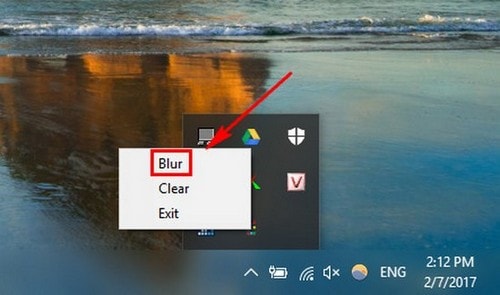
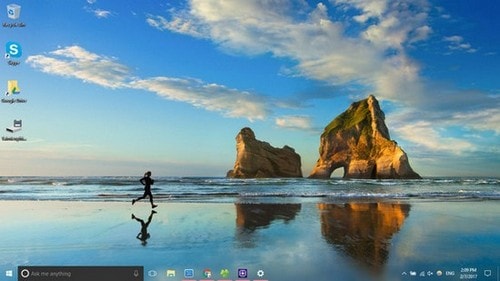
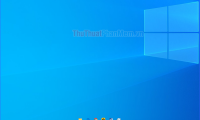
The wallpaper should now show through the Taskbar:
Use dynamic Taskbar states
TranslucentTB can apply different appearances when the desktop is visible, a window is maximized, Start or Search is open, or Task View is active. For example, you can keep the desktop Taskbar clear but use an opaque color behind icons when a maximized window is open. Open each state in the tray menu and select the style and color that keeps text and icons readable.
Some effects are version-specific. The project's documentation notes that the traditional Blur effect is limited to Windows 10 and the original Windows 11 build 22000 Taskbar. If an option is absent, use Clear, Acrylic, or another available state instead of copying old launch parameters.
Start TranslucentTB with Windows
Right-click the TranslucentTB tray icon and enable Open at boot or the equivalent startup option shown by the installed version. The Microsoft Store build manages this automatically, so you do not need to copy the program into the Startup folder.
If startup is disabled unexpectedly, open Settings > Apps > Startup and enable TranslucentTB. Organization-managed PCs may prevent startup apps.
Restore the normal Taskbar
Right-click the tray icon and choose Exit. To remove the customization permanently, uninstall TranslucentTB from Settings > Apps > Installed apps. Exiting or uninstalling the app does not remove pinned applications.
If the Taskbar is not transparent
- Exit other Taskbar customization tools so they do not compete for the same appearance settings.
- Restart TranslucentTB and Windows Explorer.
- Install the latest app and Windows updates, then restart the PC.
- Test the Clear desktop state before enabling dynamic rules.
- Check that a maximized-window, Start, Search, or Task View rule is not intentionally overriding the desktop style.
- On a high-contrast or accessibility theme, prioritize legibility over complete transparency.
Use the built-in Windows transparency option
If you prefer not to install another app, open Settings > Personalization > Colors and enable Transparency effects. The built-in effect is subtler and does not offer TranslucentTB's per-state controls, but it is sufficient for many desktops.
For related customization, see how to make the Windows 11 Taskbar transparent or review useful Windows 11 Taskbar features.
Related Articles
 How to Make Transparent Taskbar on Windows 10 Using Translucenttb5 minutes read
 How to Make Taskbar Transparent on Windows 11 with4 minutes read
 How to Put the Icon Between the Taskbar and Make the Taskbar Transparent on5 minutes read
 How to Transparent Taskbar in Windows 104 minutes read
 How to Turn All Windows on Windows 10 Transparent6 minutes read
 Do You Know What Is the Optimal Location of the Windows8 minutes read
Reader Comments 0
Sign in with email or Google to join the discussion.