Table of Contents
Windows normally groups folders under File Explorer instead of giving each folder its own Taskbar button. To pin a specific folder as a separate button in Windows 7, 8, or 10, create a shortcut whose target starts with explorer.exe, then pin that shortcut.

Create a shortcut for the folder
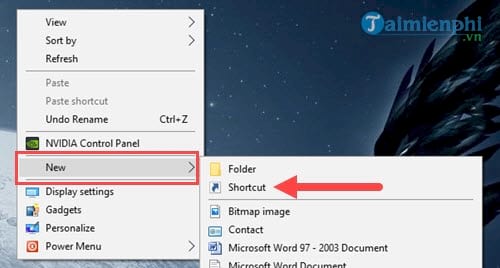
Right-click an empty area of the desktop and select New > Shortcut.
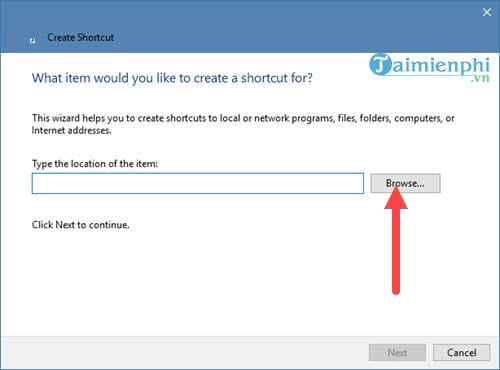
In the Create Shortcut window, select Browse.
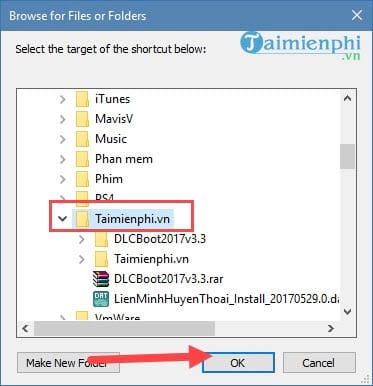
Select the folder and click OK. Do not select Next yet.
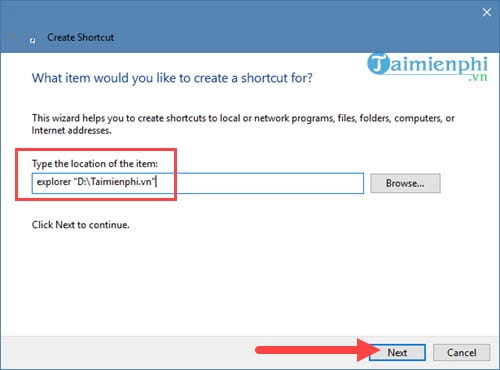
Place
explorer.exeand a space before the folder path. Keep quotation marks around a path that contains spaces. For example:explorer.exe "D:\Work\Current Projects"Select Next.
Enter a short, recognizable name and select Finish.
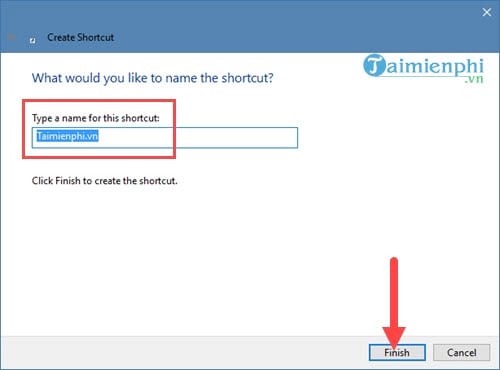
Choose a distinctive icon
Every shortcut created this way launches File Explorer, so a custom icon helps you tell several pinned folders apart.
Right-click the new shortcut and select Properties.
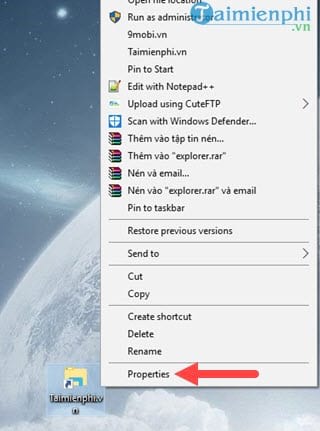
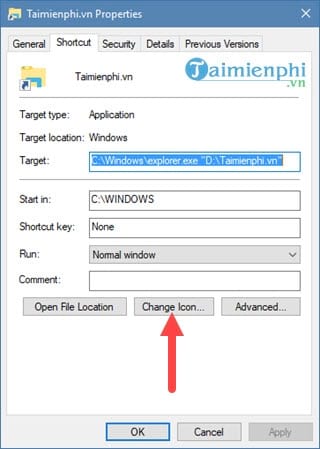
On the Shortcut tab, select Change Icon.
Choose an icon and select OK, then Apply. Windows system icons are available in
%SystemRoot%\System32\shell32.dll.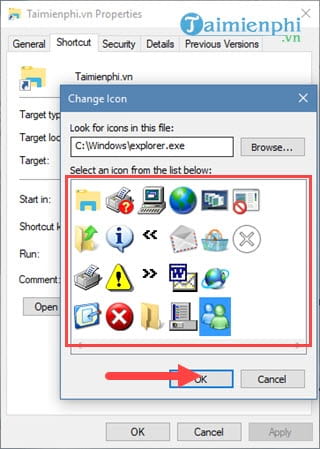
Pin the shortcut
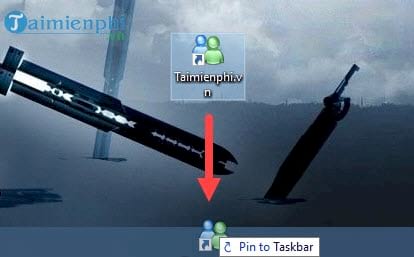
Drag the shortcut onto the Taskbar. Depending on the Windows version, you can instead right-click it and select Pin to taskbar.
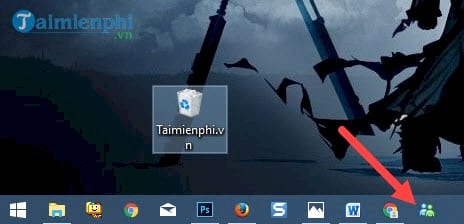
Click the new Taskbar button and verify that it opens the intended folder.
Fix or remove a pinned folder
If the button stops working after the folder is moved or renamed, create a new shortcut with the current path. To remove it, right-click the Taskbar button and select Unpin from taskbar. This does not delete the actual folder or its contents.
Windows 10 users can also follow the dedicated Windows 10 folder-pinning guide. For related customization, see how to change Windows shortcut icons or pin Run to the Taskbar.
Related Articles
 Instructions for Pinning Folders to Windows Taskbar4 minutes read
 How to Pin a Folder to the Taskbar on Windows 104 minutes read
 How to Pinning Folders to the Taskbar on Win 7, 8, 103 minutes read
 How to Customize the Taskbar in Windows: Step-by-Step Guide15 minutes read
 Do You Know What Is the Optimal Location of the Windows8 minutes read
 How to Fix Windows 11 Taskbar Not Working8 minutes read
Reader Comments 0
Sign in with email or Google to join the discussion.