Table of Contents
Facebook Profile Lock applies a group of privacy restrictions so that people who are not your friends see less of your profile. Open your profile, select the three-dot menu, choose Lock profile, review the changes, and confirm.
The feature is available only in certain countries and accounts. Locking a personal profile is different from locking a Facebook account for security or changing settings on a Facebook Page.
What happens when you lock a Facebook profile?
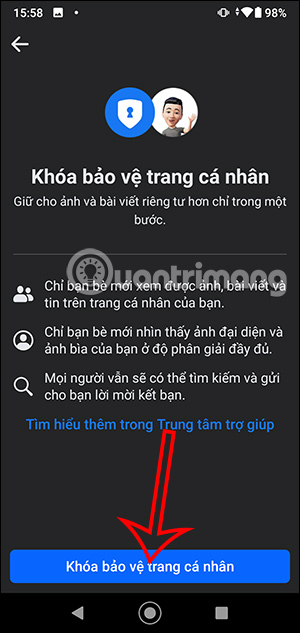
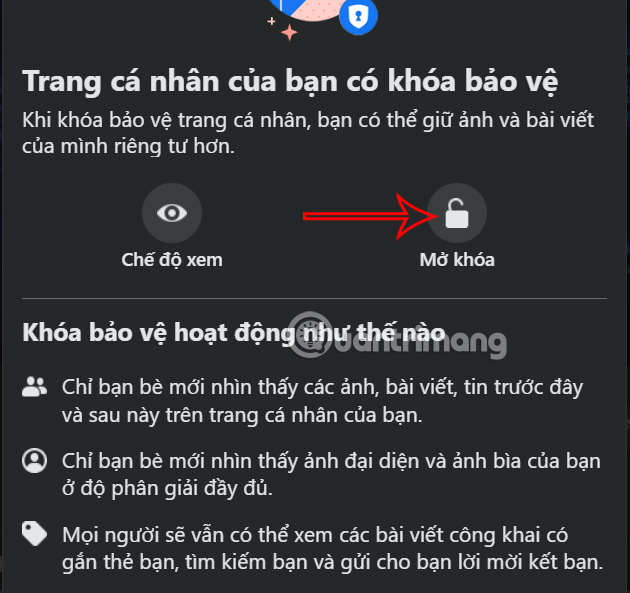
Facebook says Profile Lock limits several kinds of content to friends. It can restrict full-resolution profile and cover photos, posts, photos, and stories; change past public posts to Friends; enable profile review and tag review; and leave only part of the About information visible to everyone.
It does not make the profile invisible. A non-friend can still see limited identifying information, and activity in public spaces, groups, Pages, comments, or other people's content can follow separate visibility rules.
Lock your profile in the Facebook mobile app
Step 1: Open your own profile and tap the three-dot menu. Select Lock profile.
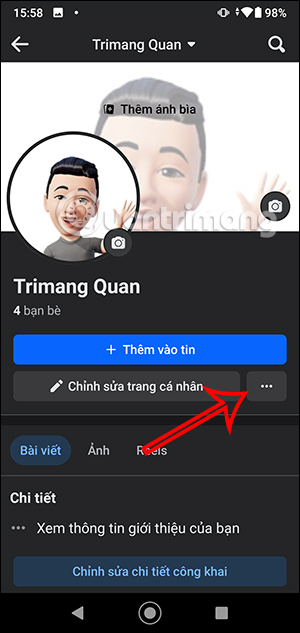
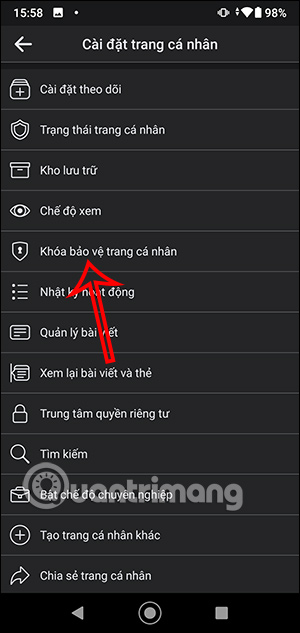
Step 2: Read Facebook's explanation of what will change, then tap Lock your profile or Lock profile.
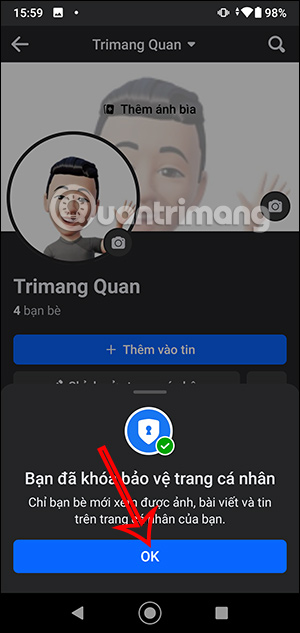
A confirmation and a lock notice on the profile indicate that the setting is active.
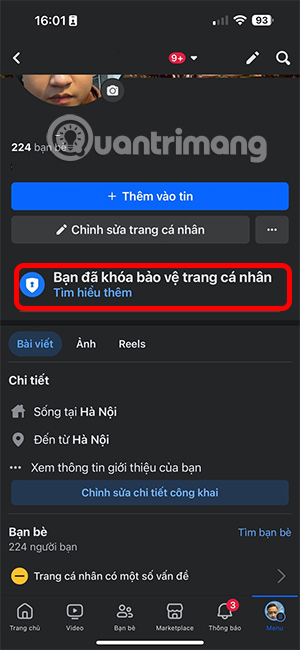
Unlock your profile in the mobile app
Open your profile, tap the three-dot menu, and choose Unlock profile. Review the information, select Unlock, then confirm Unlock your profile.
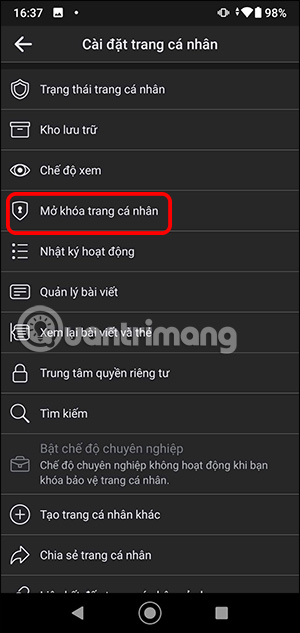
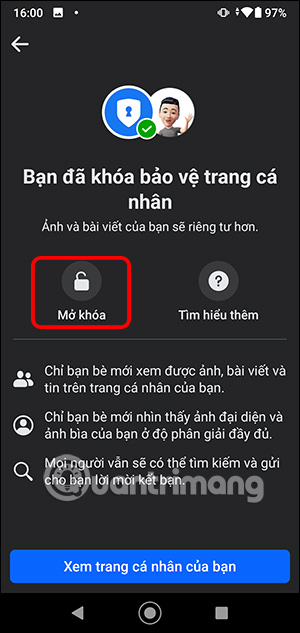
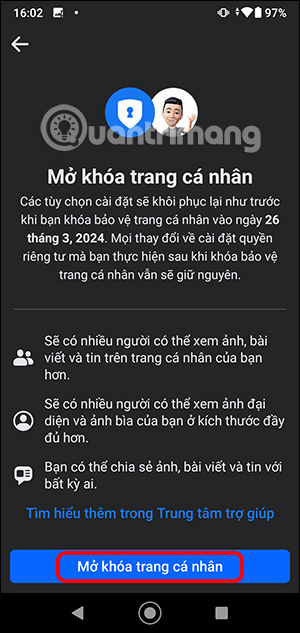
Facebook displays a confirmation after the profile is unlocked.
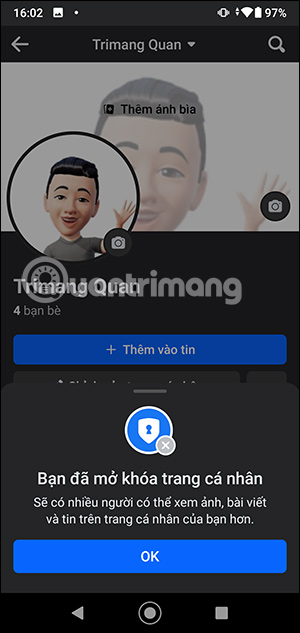
Unlocking removes the bundled Profile Lock restrictions, but it may not restore every audience choice exactly as it was. Review important posts and profile details afterward.
Lock a Facebook profile on a computer
The simplest desktop path is usually your own profile's three-dot menu. Some versions also show Profile Lock in Settings.
Step 1: Select your profile picture, then open Settings & privacy > Settings.
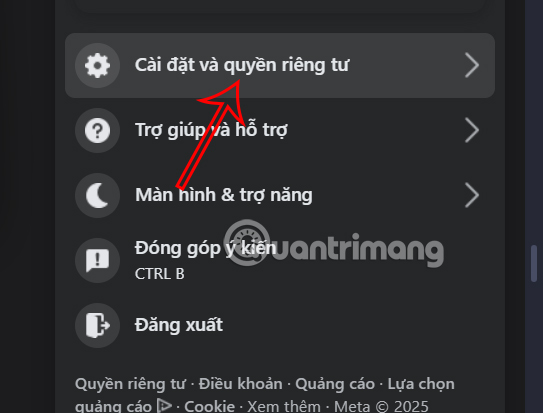
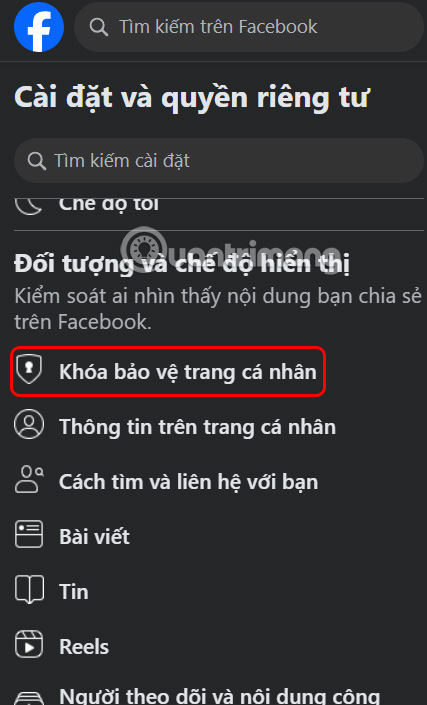
Step 2: Under the audience or visibility controls, find Profile locking or a similarly named option.
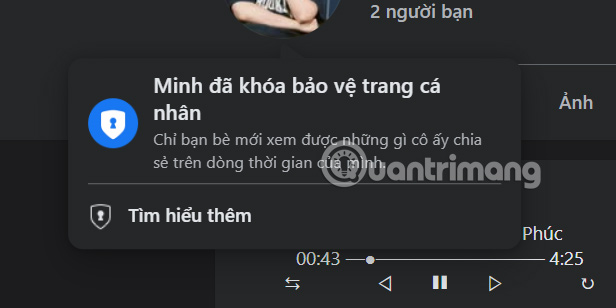
Step 3: Confirm the lock. Facebook should show a success message.

Use View as from your profile menu to inspect the public view. Non-friends should see a restricted profile rather than every post or full-size profile image.

Unlock a Facebook profile on a computer
Return to the same Profile Lock control, choose Unlock, and confirm Unlock profile.

If “Lock profile” is not available
Do not change your account country or install a browser extension to force the feature. Use Facebook's individual privacy controls:
- Run Privacy Checkup.
- Set the default audience for future posts to Friends.
- Use Limit past posts to change eligible old public posts to Friends.
- Restrict who can see your friends list, contact details, birthday, and other About information.
- Enable timeline review and tag review.
- Use View as to check what the public can see.
Profile Lock is a convenient bundle, but these individual settings provide more precise control and remain useful even after a profile is locked.
Related Articles
 How to Lock Google Chrome Profile with a Password5 minutes read
 How to Lock Down the Created Netflix Profile2 minutes read
 Forget About Stalking Your Crush on Facebook with This New Feature!3 minutes read
 What Is Shadow Profile on Facebook? Explained7 minutes read
 How to Disable Facebook Personal Page3 minutes read
 How to Create a Photo Collage on a Facebook Profile4 minutes read
Reader Comments 0
Sign in with email or Google to join the discussion.