Table of Contents
This updated guide examines How to Create a Photo Collage on a Facebook Profile and organizes the essential facts, background, and practical takeaways in clear American English.
PhotoSplit application will help you split photos into many different pieces, with options such as 3x1, 3x2, 3x3. All images through PhotoSplit crop image retain quality and resolution, without affecting quality. The following article will guide you how to create a photo collage on Facebook.
- How to play music on your Facebook page
- Instructions on how to hide personal information on Facebook
- Instructions for displaying the number of followers on Facebook by phone
- How to create music player in Facebook profile
Instructions to create featured photos on Facebook
Step 1:
We download the PhotoSplit app for Android and iOS by following the link below.
- Download PhotoSplit for Android
- Download PhotoSplit for iOS
Step 2:
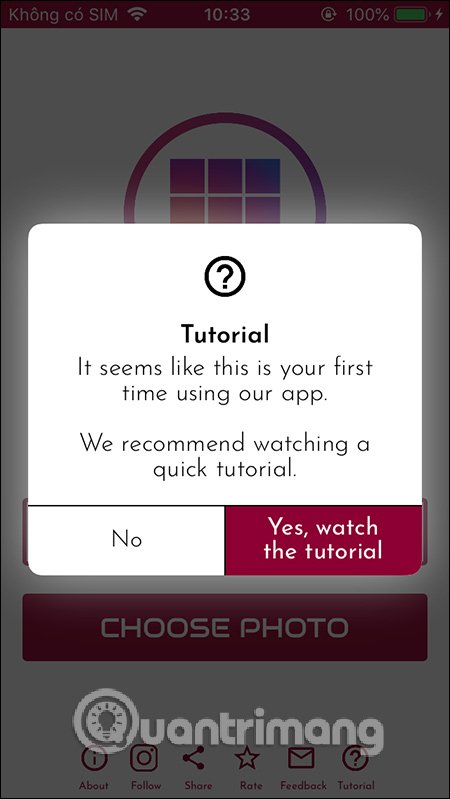
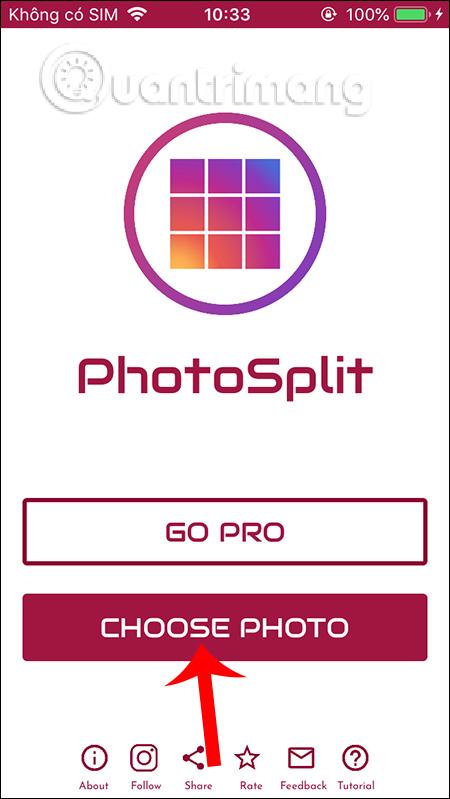
Start the application and you are asked if you want to see a video of how to do it. Then they click Choose Photo to select the image you want to feature on Facebook.
Step 3:
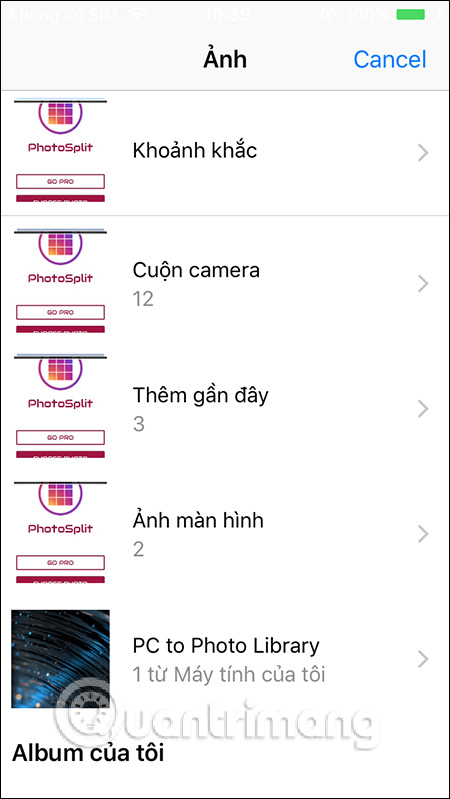
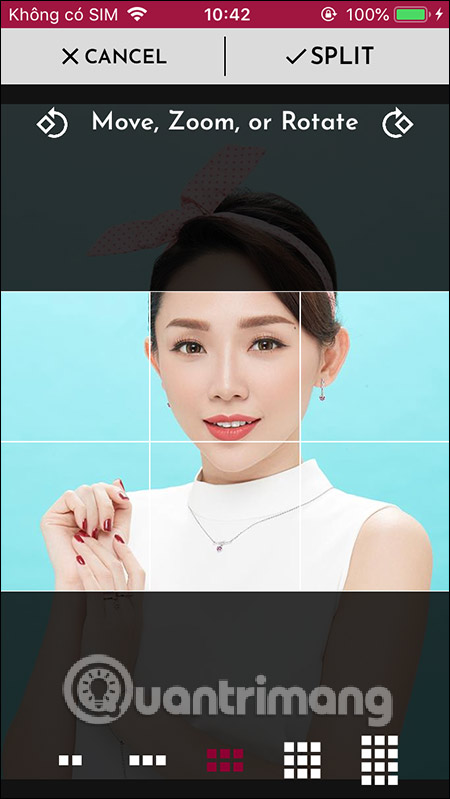
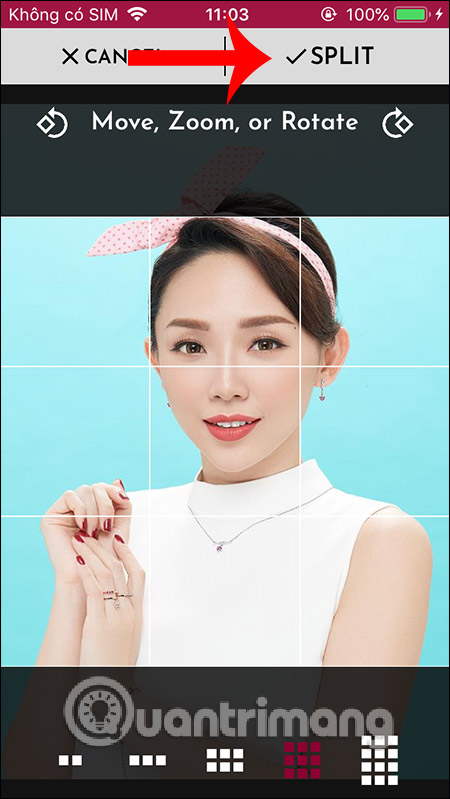
Display album interface on the device, users find the image you want to use. Then you see there are different types of image splitting. To make the image stand out on Facebook we will choose the split pattern into 9 equal pieces .
When finished, click Split in the upper right corner.
Step 4:
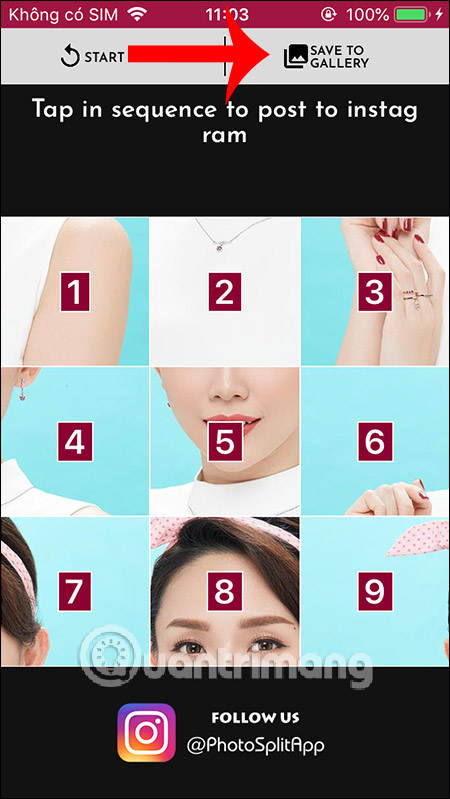
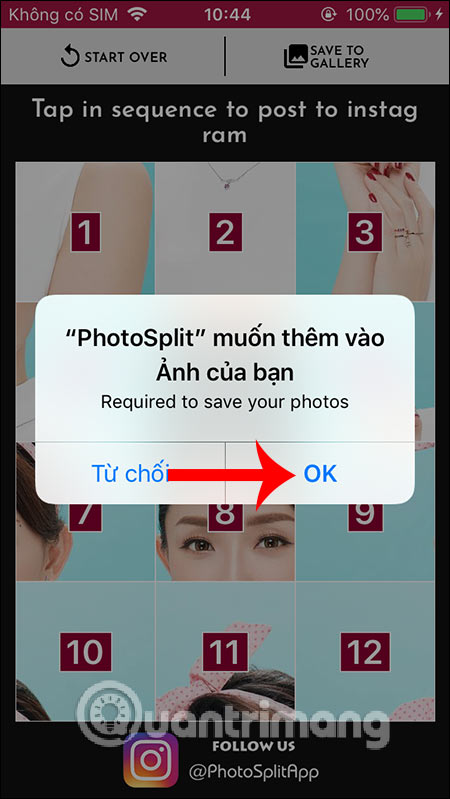
The resulting image has been split into 9 pieces as shown below. Click Save to Gallery to save 9 pieces of the recently cut photo onto the album on the device. Next you need to agree for PhotoSplit to access the album on the device.
Step 5:
Now you access your personal Facebook account and then the interface of your page. Scroll down below and click Edit Public Details . Switch to the new interface, scroll down to the Highlights section, and select Add to add images.


Step 6:
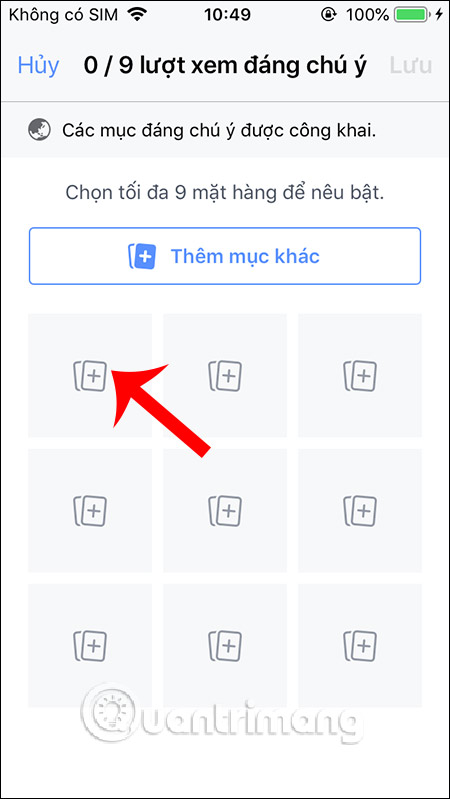
Display the interface to add 9 images to the featured image section. Here you will select 9 pieces that you have just separated. We will have to put 9 pieces in the right order of the image offline.
Click each square and then click View more to expand the photo album on the device.

Step 7:
Click each piece in the correct order of the images. We perform additional pieces until the end is over.


If you want to change a piece , click on the piece and select Change . To remove the puzzle , click the X icon and select Delete .


Step 8:
Finally, when you have finished the picture, click Save in the top right corner. You go back to the interface of your Facebook page to see your achievements. This is the highlight image that your Facebook visitors will see.


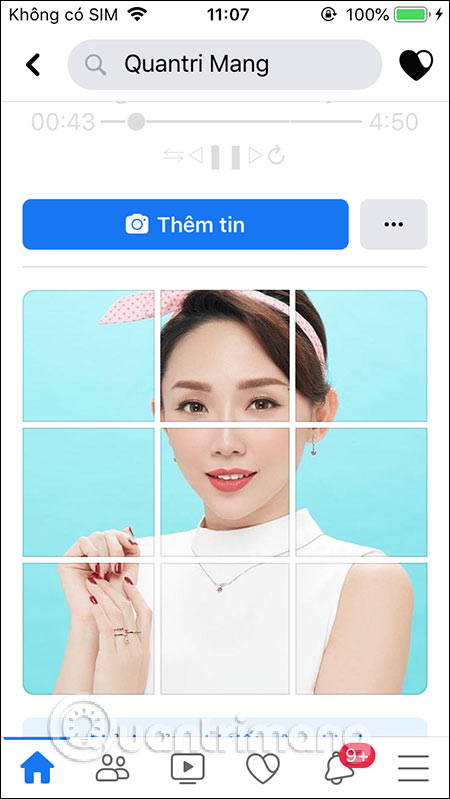
Instead of using 9 different images for Facebook featured photos, users can use one image, but split into 9 pieces thanks to the PhotoSplit application.
I wish you successful implementation!
FAQ
What is How to Create a Photo Collage on a Facebook Profile about?
It provides a structured overview of insert facebook featured image, explains the main context, and highlights practical takeaways for readers.
Why does this topic matter?
Understanding the main concepts helps readers evaluate the issue, avoid common mistakes, and make better-informed decisions.
How should readers use this information?
Use the guidance as a practical starting point, confirm details that may have changed, and follow current product, safety, or security recommendations.
Related Articles
 Post a 3d Photo on Facebook: How to Post a 3d Collage on Facebook4 minutes read
 How to Create Collages with Python13 minutes read
 How to Create a Collage Video on Capcut3 minutes read
 Ideal Photo Sizes on Facebook: Explained7 minutes read
 How to Combine Art 8/3 Images with Ephoto 360 Application5 minutes read
 How to Disable Facebook Personal Page3 minutes read
Reader Comments 0
Sign in with email or Google to join the discussion.