Table of Contents
This practical guide walks through how to limit the number of wrong login attempts on a Windows, explains the main requirements, and highlights common issues that may appear along the way.
This feature is one of the pretty cool features that MS provides to users, it greatly reduces the unnecessary risks that can be caused to the user.
But for many personal computers that contain a lot of important data, I think that is still not enough. Because the sign in with Microsoft account is not limited to the number of wrong user account password attempts.
This is quite dangerous in the case of bad guys watching us and taking advantage of the loophole to take control of the computer by trying to login many times when they guess the password.
Therefore, today I will show you how to limit the number of wrong login attempts on your computer. And if you exceed the specified number of times, your computer will immediately be locked in the time that you set.
Now let's get started….
1. Use Windows PowerShell
This way applies on Windows 10.
Step 1. You run Windows PowerShell as administrator by pressing Windows + S key combination and search with the keyword PowerShell => right-click and select Run as administrator.

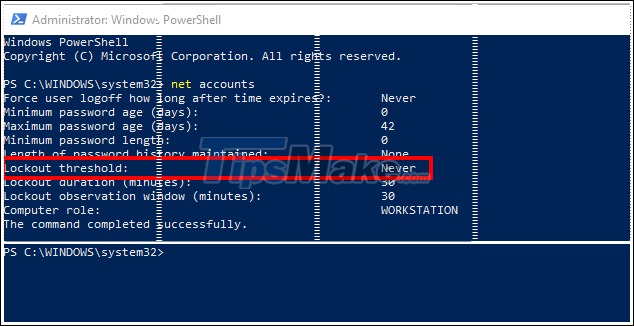
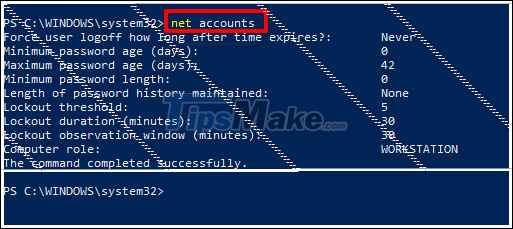
Step 2. Enter the command net accounts and press Enter to check.

If the Lockout threshold line is Never, it means that you have not set up the self-locking feature of the computer when you log in incorrectly more than the specified number of times.
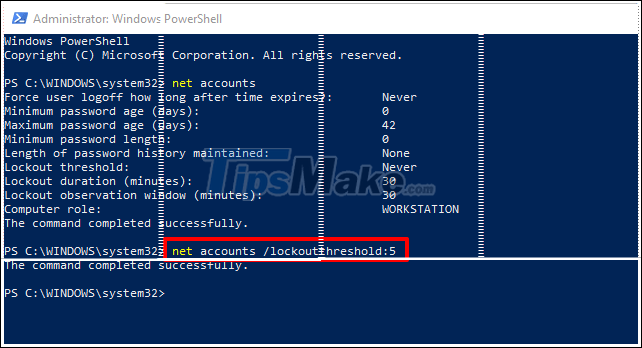
Step 3. Enter the command net accounts / lockoutthreshold: number_comput_sai and press Enter to set the number of times to allow incorrect login. Here I think 5 times.
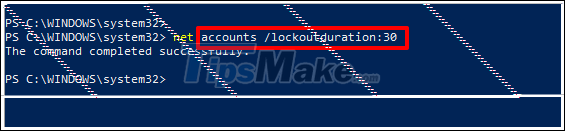
Step 4. Enter the command net accounts / lockoutduration: number_min and press Enter to set the time that Window will lock itself.
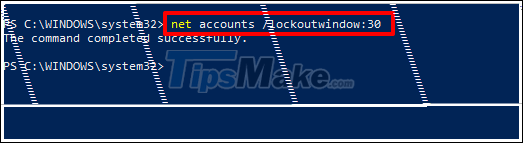
Step 5. Enter the command net accounts / lockoutwindow: number_min and press Enter to set the window to log back after the lock time.
Step 6. Finally, run the net accounts command again to check the settings.
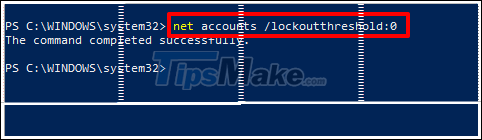
To cancel the autolock feature, run the command net accounts / lockoutthreshold: 0.
2. Use Windows Local Group Policy Editor
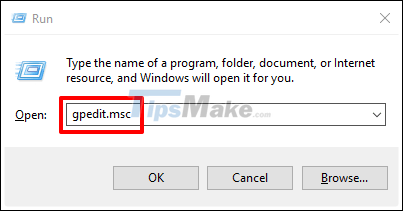
Step 1. Open Local Group Policy Editor by pressing Windows + R. Run the command gpedit.msc
Step 2. The Local Group Policy Editor dialog box appears, please access the following path:
'Computer Configuration => Windows Settings => Security Settings => Account Policies => Account Lockout Policy'.
Then click on the Account lockout threshold.

A dialog box will appear, please set the number of allowed incorrect input.
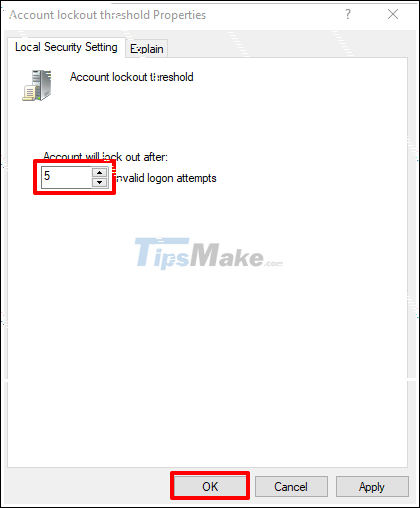
A dialog box will appear suggesting a lock time and re-login will be 30 minutes. Click OK.
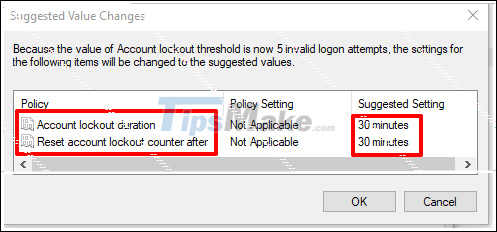
Step 3. To reset the time, please go to the 2 remaining items to correct.

To cancel the feature to limit the number of incorrect logins on Windows, please click again on the Account lockout threshold => and let the number of times be 0.
OK, so I have finished showing you how to limit the number of wrong login attempts on Windows computers. By doing this, you can better secure your computer and limit the curiosity of curious people who want to gain unauthorized access to your computer.
Thank you for watching. Wish you have a good time working.
Good luck !
Key Takeaways
Use the information above as a practical reference for how to limit the number of wrong login attempts on a Windows. Review each step carefully, confirm any requirements, and choose the option that best fits your situation.
FAQ
What does this guide explain about Limit the Number of Wrong Login Attempts on a Windows?
It explains the main concepts, practical considerations, and useful steps related to limit the number of wrong login attempts on a Windows without requiring advanced knowledge.
Who can benefit from learning about Limit the Number of Wrong Login Attempts on a Windows?
This information is useful for readers who want a clear overview, practical guidance, and reliable steps related to limit the number of wrong login attempts on a Windows.
What should I check before applying this information?
Review the requirements, confirm that your device, software, or situation matches the instructions, and back up important data before making major changes.
Related Articles
 How to Limit the Number of Failed Login Attempts on Windows5 minutes read
 How to Limit the Number of Failed Login Attempts on Windows7 minutes read
 How to Temporarily Lock the Computer When Entering the Wrong11 minutes read
 How to Set a Computer Password on Windows 114 minutes read
 Displays the Login Information for the Last Time You Log on to a4 minutes read
 The Wizard Displays a Message on the Login Windows 10 Screen5 minutes read
Reader Comments 0
Sign in with email or Google to join the discussion.