Table of Contents
You can store a VirtualBox virtual machine on an external USB drive and run it from computers that have a compatible VirtualBox installation. This is different from making VirtualBox itself portable: current VirtualBox installs host drivers and is not designed to run from any computer solely by launching an executable on the USB drive.

What you need
- A fast external SSD or high-quality USB drive. Ordinary flash drives can be slow and wear quickly under VM disk activity.
- A filesystem that supports the VM's large virtual-disk and snapshot files and is writable on every intended host.
- Enough capacity for the guest OS, applications, updates, snapshots, and temporary growth.
- VirtualBox installed on each host, with compatible CPU virtualization and permissions.
Back up the drive first. Disconnecting it while the VM is running can corrupt the virtual disk. Use the operating system's safe-eject process only after the VM is fully powered off.
1. Connect and prepare the external drive
Connect the drive, confirm its letter or mount point, and create a dedicated folder such as VirtualBox-VMs. Avoid FAT32 because a VM disk can exceed its single-file size limit.
2. Create the VM in VirtualBox
Open VirtualBox Manager and select New.
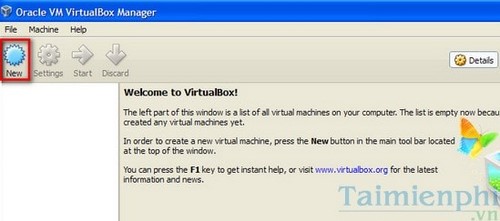
Choose the guest operating system and continue through the initial hardware settings. Leave enough memory and CPU for the host.
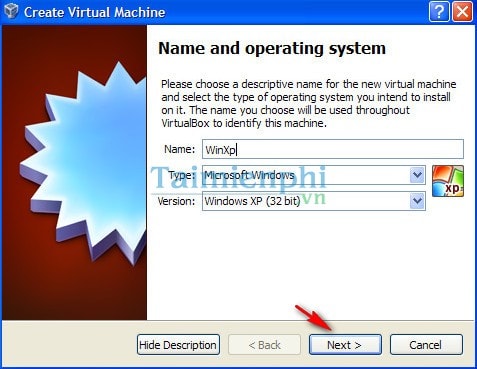
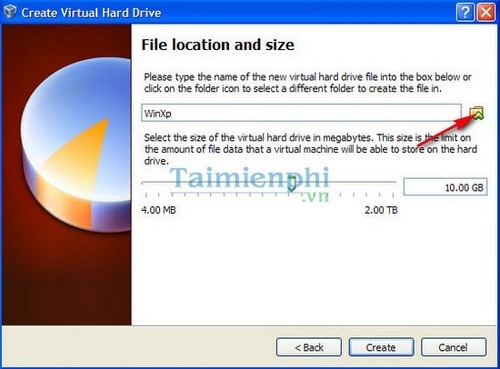
3. Store the machine folder on the USB drive
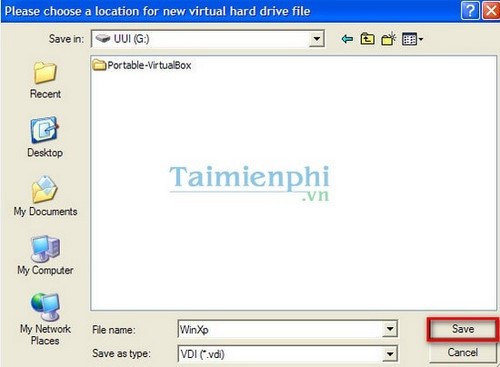
When VirtualBox asks for the machine folder or storage location, browse to the dedicated folder on the external drive. Keep the VM configuration and virtual disk together unless you have a specific storage plan.
Select the external-drive folder and save the location.
Create the virtual disk, attach the guest installation ISO, and install the operating system as usual.
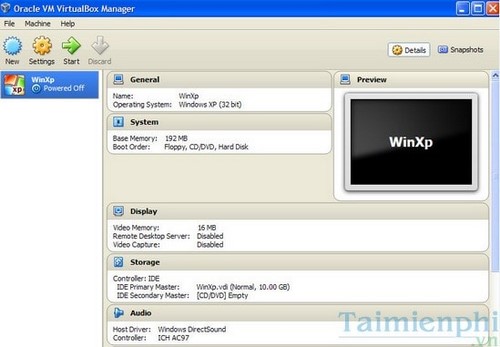
How to use the VM on another computer
- Power off the VM completely; do not leave it suspended.
- Close VirtualBox and safely eject the external drive.
- Connect the drive to the other host and make sure a compatible VirtualBox version is installed.
- In VirtualBox Manager, add the existing VM by selecting its
.vboxconfiguration file. - Review network adapters, USB controllers, shared folders, display settings, and host-specific paths before starting it.
If VirtualBox reports that a VM with the same identity is already registered, do not generate a new identity unless you intend to create a separate clone. Avoid running the same VM from two hosts at once.
Move an existing VM safely
Use VirtualBox's built-in Move command or export the VM as an OVF/OVA appliance instead of dragging individual virtual-disk files in File Explorer. The official VirtualBox VM management guide describes moving and registering machines.
Portability limitations
- Host operating systems and VirtualBox versions may expose different virtual hardware.
- Saved states are less portable than a clean shutdown.
- USB passthrough and some extension features require drivers, permissions, and compatible licensing on each host.
- External-drive speed strongly affects boot and application performance.
- A portable VM still needs guest and application licenses that permit use on the destination host.
For the standard setup flow, see TipsMake's guide to creating a VirtualBox VM. If you are choosing a hypervisor first, compare VirtualBox, VMware, and Hyper-V.
Related Articles
 Instructions to Increase the Virtual Hard Drive Capacity on Virtualbox5 minutes read
 How to Create a Windows 10 Virtual Machine with Vmware Player and12 minutes read
 Create Clone Virtual Machine for Current Windows Hard Drive6 minutes read
 VirtualBox and Vmware Player: Which Virtual Machine Should You Choose?9 minutes read
 How to Fix Mouse Error and Virtual Machine Keyboard in Virtualbox4 minutes read
 Sharing Data Between a Physical Machine and a Virtual Machine on VirtualBox3 minutes read
Reader Comments 0
Sign in with email or Google to join the discussion.