Table of Contents
How to Install Opera on Chrome: Install Opera Utility on Chrome covers the essential facts behind the topic, including what changed, why it mattered, and how it affected users.
Utilities on the web browser bring many other useful and unique features that users do not need to install the software. So have you tried installing this browser utility on another browser?
Previously, the Network Administrator had once instructed you to read how to install the Chrome utility on Opera browser or install the Chrome utility for Firefox. And in this article we will continue to guide you how to read the utility on Opera on Google Chrome with a very simple way.
- Fix Flash Plugin errors on Firefox and Coc Coc
- 2 ways to copy web content without copying
- How to delete browsing history on Chrome and Firefox
Instructions for Installing Opera Utility on Google Chrome
Step 1:
First of all, you can install the Chameleon utility on Google Chrome browser according to the link below.
- Download the Chrome Chameleon utility
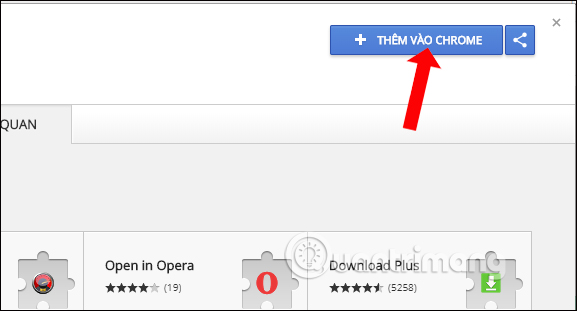
Step 2:
Then we will see the utility icon at the end of the access bar with the message shown in the picture.
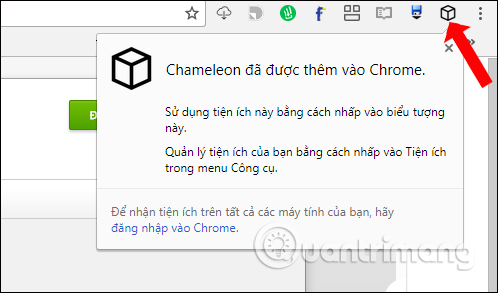
Step 3:
Click on the utility icon in the address bar and click on Opera add-ons to access the extension page on Opera.
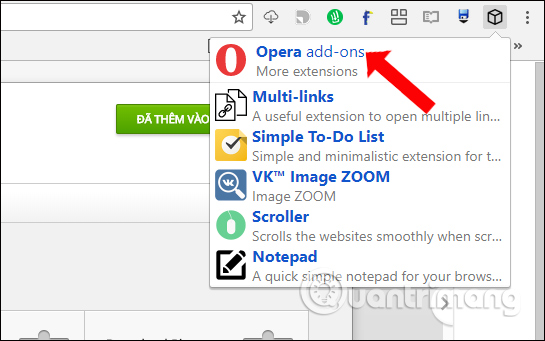
Step 4:
Switch to the interface of extensions on Opera. Look for the Opera utility you want to install on Google Chrome.
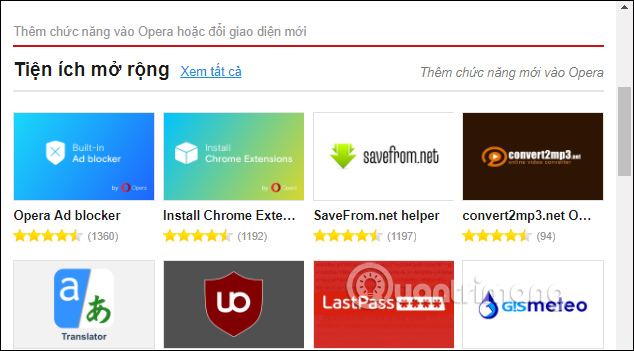
Open the utility and then click the Add to Chameleon button to add the gadget to Chameleon.
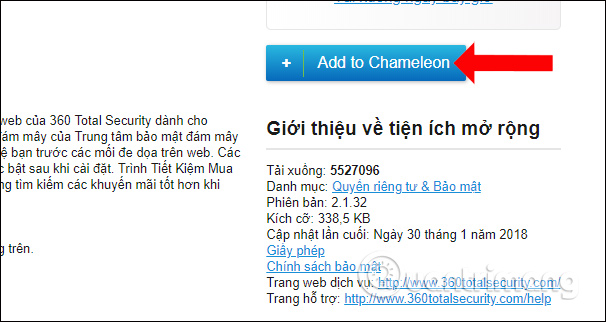
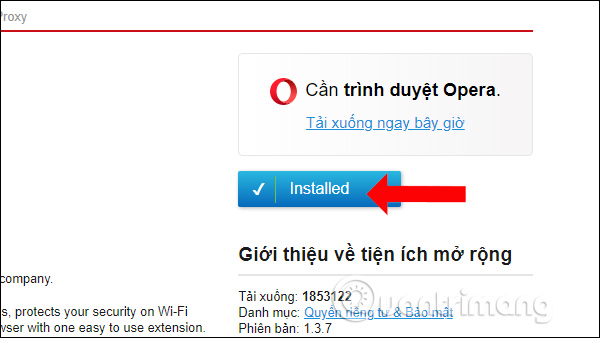
When the installation utility is successful, it will switch to Installed as shown below. So we can use the Opera utility on Chrome browser.
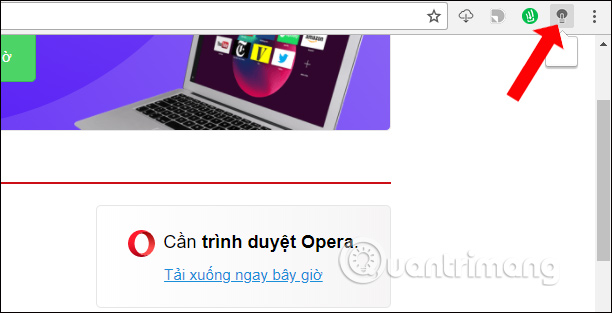
Now the Chameleon utility icon will replace with the newly installed utility, on the browser toolbar and you will use the Opera utility similar to when using the utility on Chrome.
Step 5:
To manage Opera's add-ons installed on Chrome, right-click on the widget and select Options.
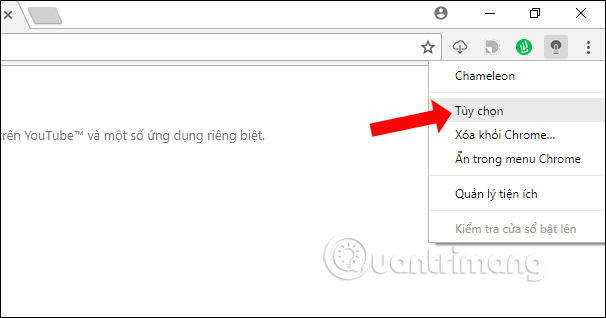
The Opera utility management interface is installed on Google Chrome. Here the user can check the latest version of the gadget or delete the Chrome launch utility. At that time the utility icon Chameleon will reappear on Chrome.
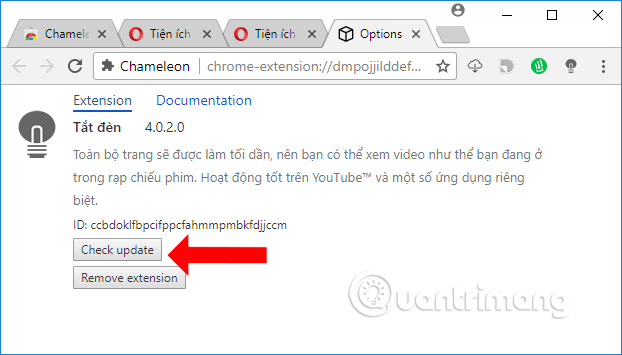
However, you should install Chameleon on the new Google Chrome version. In the process of using Chameleon will sometimes happen the error again and you just need to click on the utility icon to restart it.
- How to add "Download" button on YouTube, Facebook,. For Chrome, Firefox and Opera
- How to watch videos from the thumbnail screen on Opera
- How to download videos on YouTube, Facebook with Savedeo
I wish you all success!
FAQ
How does Install opera utility on chrome work?
How to Install Opera on Chrome: Install Opera Utility on Chrome covers the essential facts behind the topic, including what changed, why it mattered, and how it affected users.
What should you prepare before using this method?
Utilities on the web browser bring many other useful and unique features that users do not need to install the software.
What should you do if the process does not work as expected?
So have you tried installing this browser utility on another browser?.
Related Articles
 How to Install Chrome Utility on Opera Browser4 minutes read
 It Is Possible to Install the Chrome Utility Directly to Opera3 minutes read
 Learn About Opera Page: of Opera Browser5 minutes read
 I Have Switched from Chrome to Opera and Will Never Regret It8 minutes read
 How to Open a Screenshot Folder on Opera Neon: Install Opera Neon4 minutes read
 How to Use VPN on Opera Browser5 minutes read
Reader Comments 0
Sign in with email or Google to join the discussion.