Table of Contents
This practical guide explains how to insert the euro symbol (€) in google sheets with clear steps and useful context. It also covers common requirements, potential problems, and the details that can help you get better results.
Insert the Euro (€) Symbol in Google Sheets with Keyboard Shortcuts
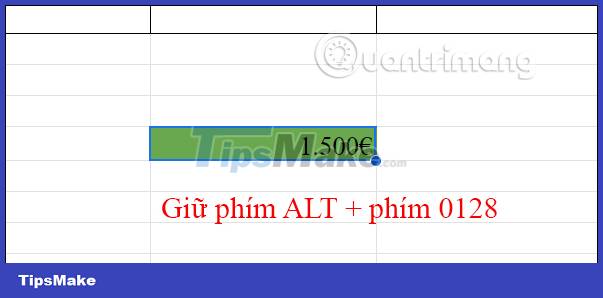
You click on the cell you want to insert the Euro symbol (€), then hold the ALT key and then press the 0128 keys in turn and then release. Immediately will display the symbol (€) as shown below.
Insert the Symbol (€) Google Sheets in Currency Format
You just need to reformat the cell according to the currency format, and the icon (€) will be displayed immediately to click.
Step 1:
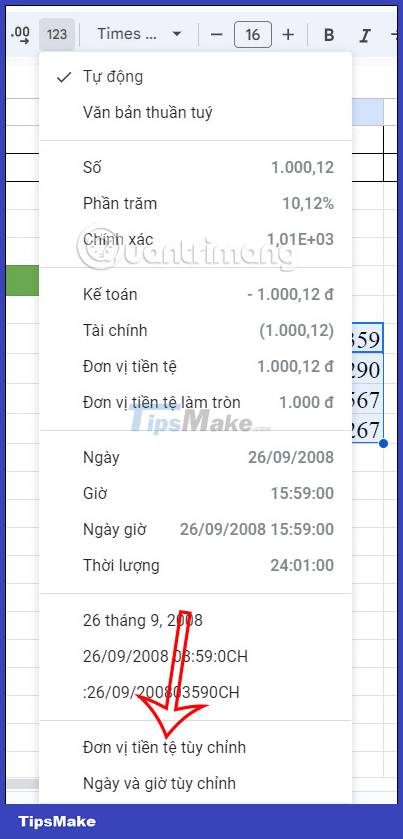
You highlight the cells you want to insert the Euro symbol in Google Sheets, then click the format icon on Sheets as shown. Next, click on Custom Currency below the list.
Step 2:
Now display a list of currencies, we scroll down and click on Euro to use. After selecting the Euro unit, click the Apply button to insert the content.
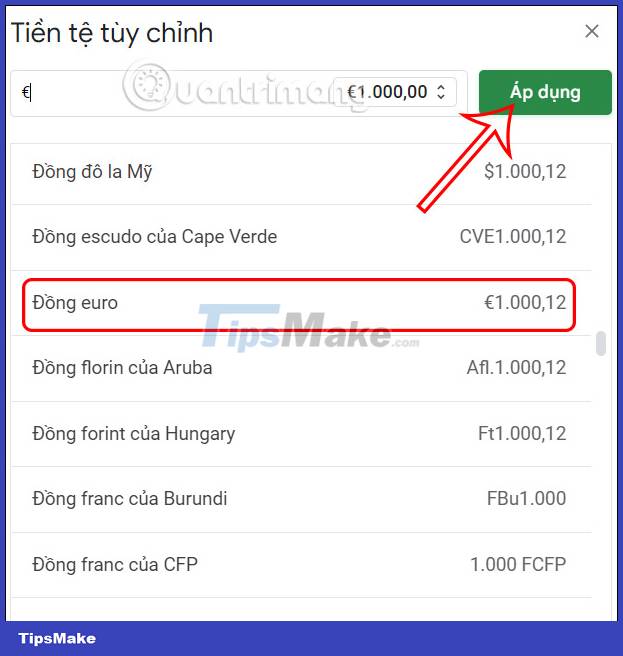
As a result, we have a series of Euro coins as below.
Use the CHAR Function to Insert the Euro Symbol in Google Sheets
Select the cell where you want to insert the Euro symbol, then press the function formula = CHAR(8364).
The result also shows the Euro symbol in Google Sheets as shown below.
Above are some ways to insert the Euro symbol in Google Sheets. We can use keyboard shortcuts to quickly insert the Euro symbol in the data table.
Conclusion
Understanding Insert Euro Google Sheets Symbol makes it easier to compare options, avoid common mistakes, and apply the information in this guide more effectively. Review the relevant requirements before making changes or choosing a solution.
FAQ
How do you insert the euro symbol (€) in google sheets?
Follow the steps in this guide in order, confirm the required settings or tools, and verify the result before making additional changes.
Is it safe to insert the euro symbol (€) in google sheets?
It is generally safe when you follow the recommended instructions, use trusted tools, and avoid changing settings you do not understand.
What should you do if the process does not work?
Recheck the requirements, restart the device or application when appropriate, and review each step for missed settings or compatibility issues.
Related Articles
 How to Enter the Euro Symbol: Clear Instructions5 minutes read
 How to Insert Checkboxes on Google Sheets: Google Sheets Tricks4 minutes read
 Tricks Using Google Sheets Should Not Be Ignored7 minutes read
 How to Create Checkboxes in Google Sheets - Managing Content on Google Sheets6 minutes read
 How to Insert Google Sheets Spreadsheets into Google Docs4 minutes read
 How to Insert the Current Time into Google Sheets5 minutes read
Reader Comments 0
Sign in with email or Google to join the discussion.